Create Specifications
A Specification is a collection of requirements that can be technical, stakeholder, system, functional, or other. Requirements Portal allows you to create as many specifications as desired within a project.
Creating a New Specification
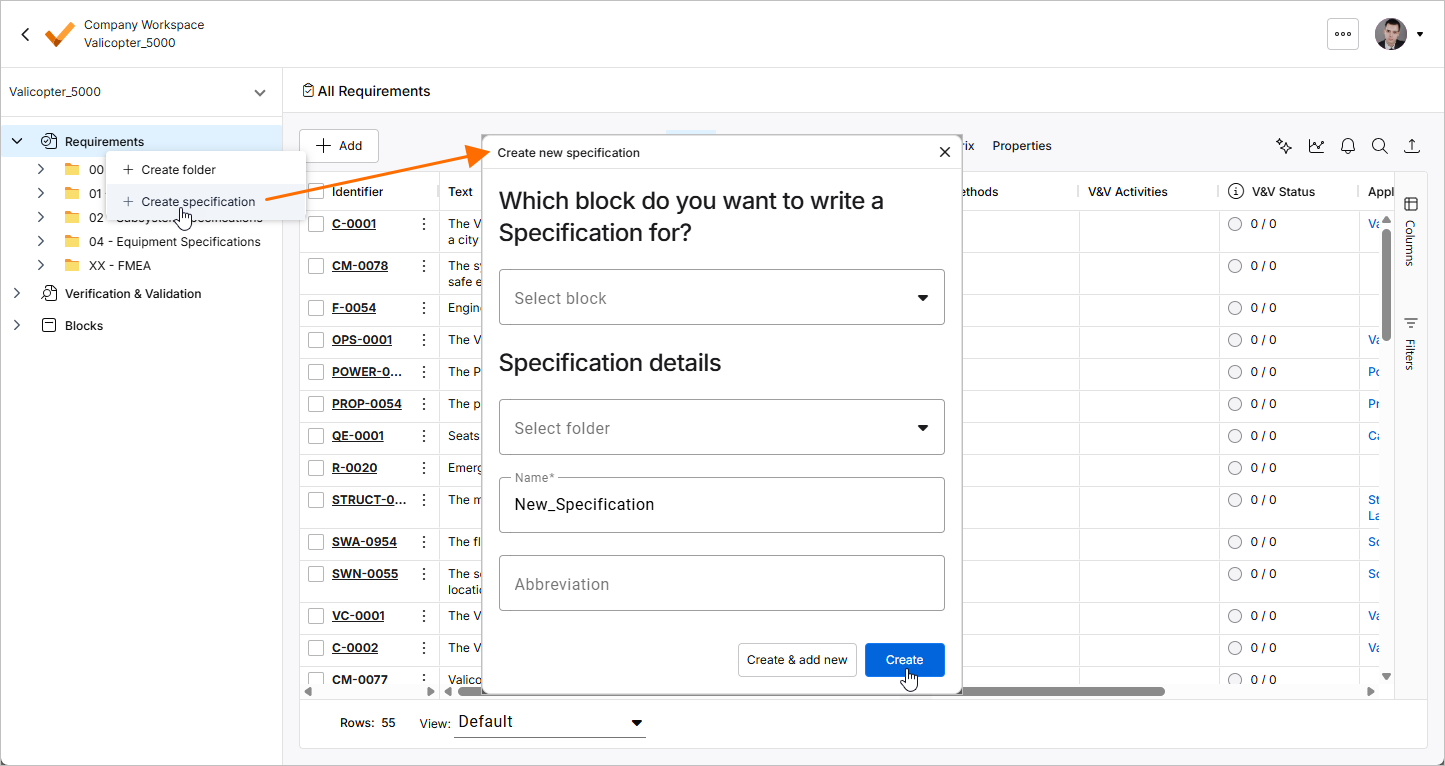
The first step is to create a new specification, a dynamic document holding and managing your requirements. To create a new specification, right-click the Requirements entry or a folder in the project tree at the left. The Create new specification window will open in which you can provide the name and the respective block of the specification. Once specification details are defined, click the  or
or  button.
-
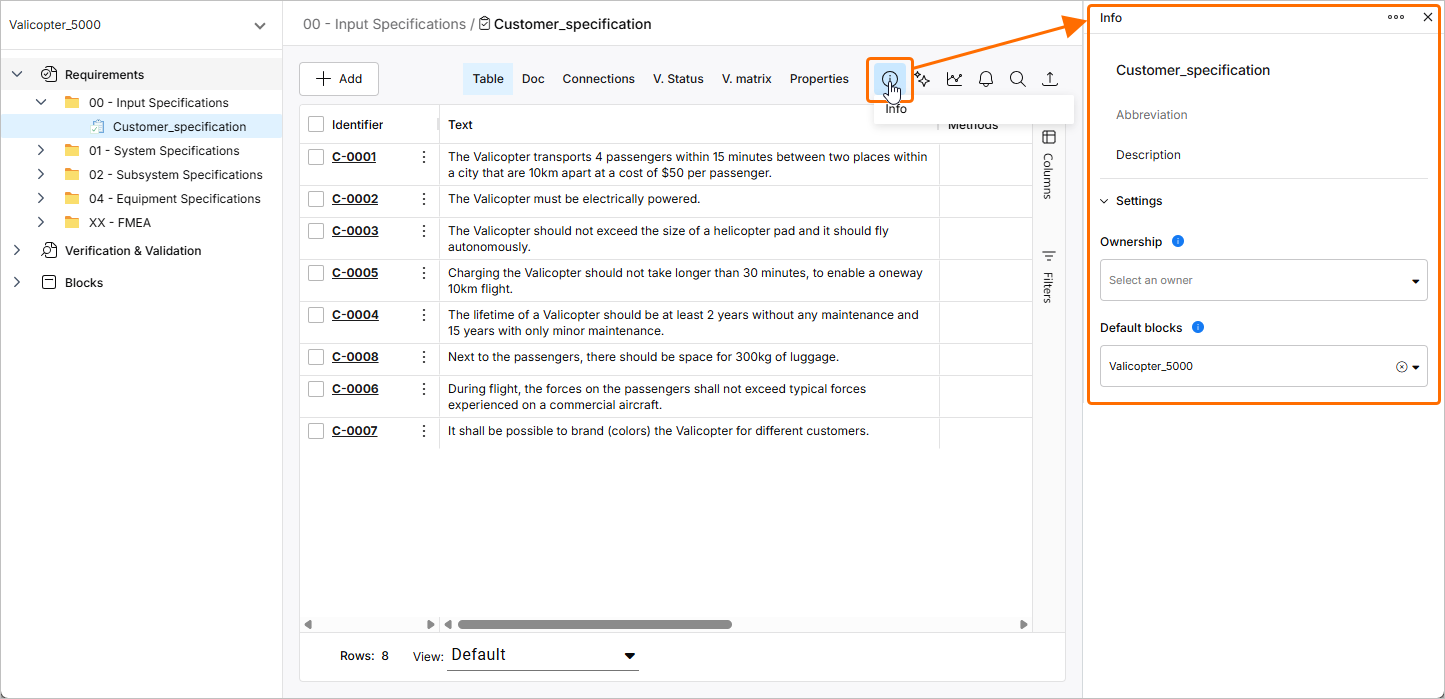
If you do not want to assign a block while creating the specification, you can assign it later in the specification's Info pane.
-
The
button allows you to create multiple specifications without leaving the Create new specification window.
-
The specifications hierarchy in the project tree is arranged alphabetically
-
Click the
 button at the top right of the page to access the Info pane for the currently selected specification where you can add a description of the specification and assign blocks and owners.
Assigning Specifications to Blocks
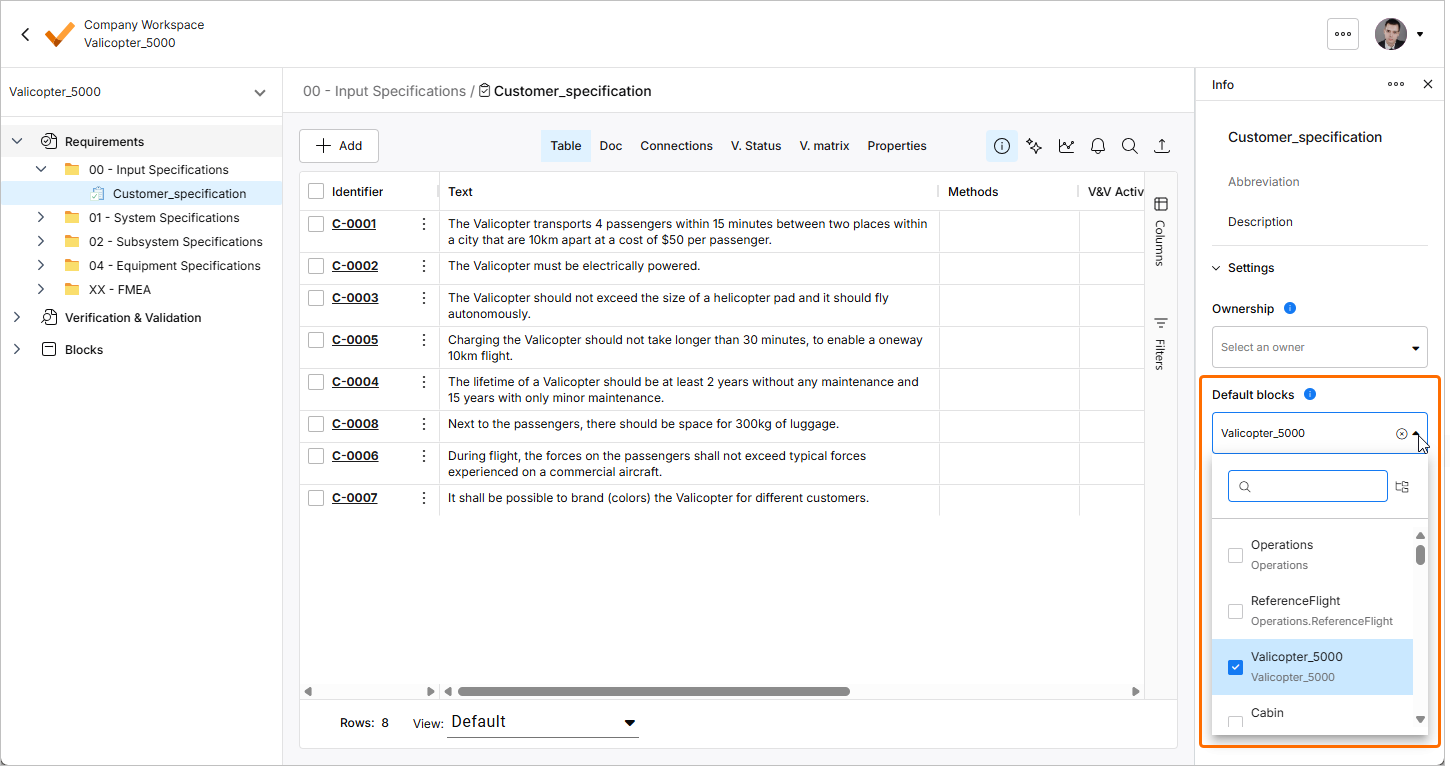
A specification can be linked to one or more blocks in your design. If a specification is assigned to a block in your design, it means that all requirements inside that specification will apply to the assigned block and can be verified against your design.
To assign block(s) to the currently selected requirement, use the Default blocks drop-down in the specification's Info pane.
Moving Requirements between Specifications
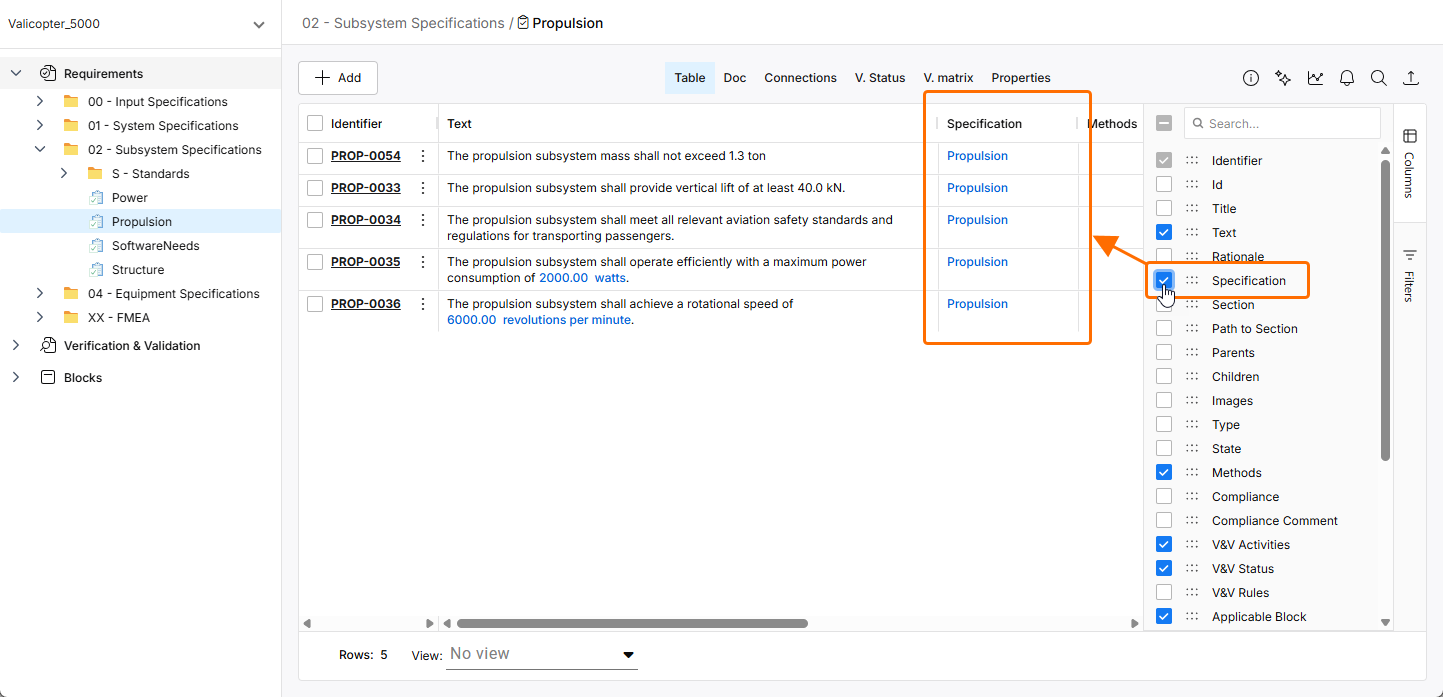
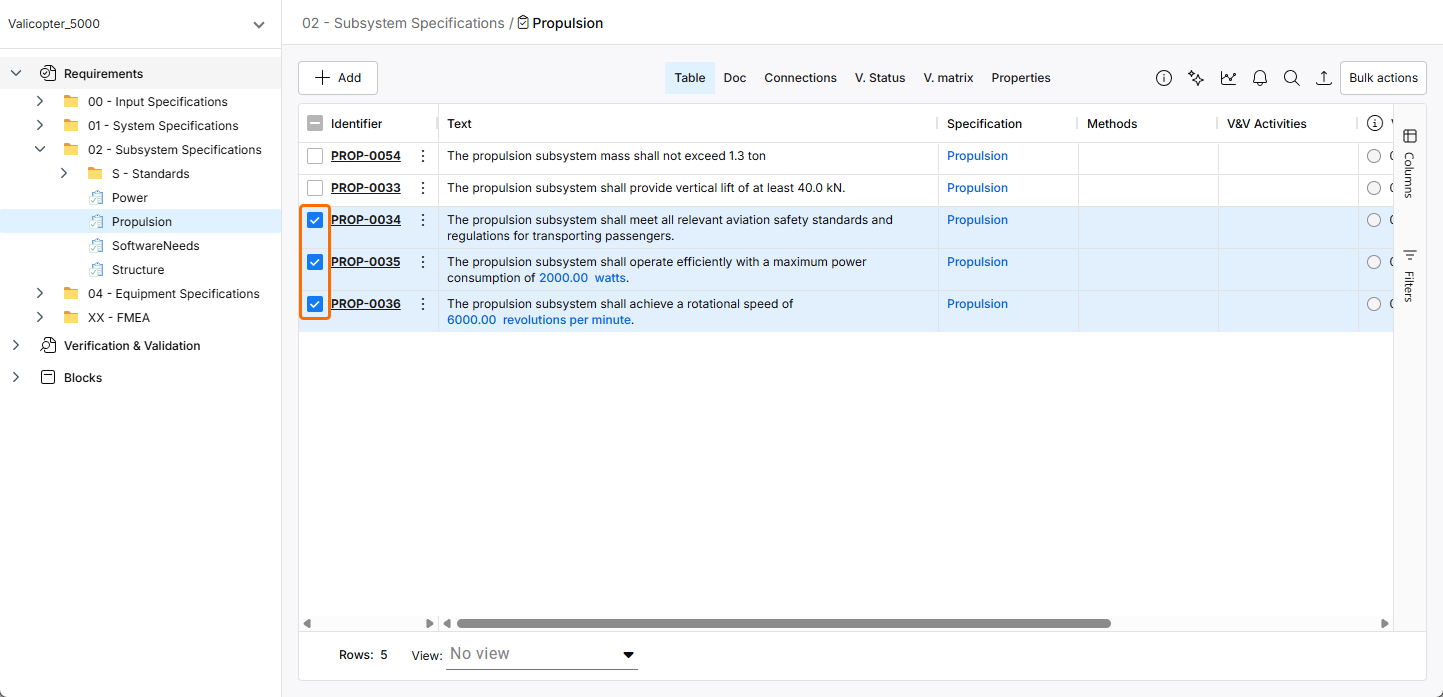
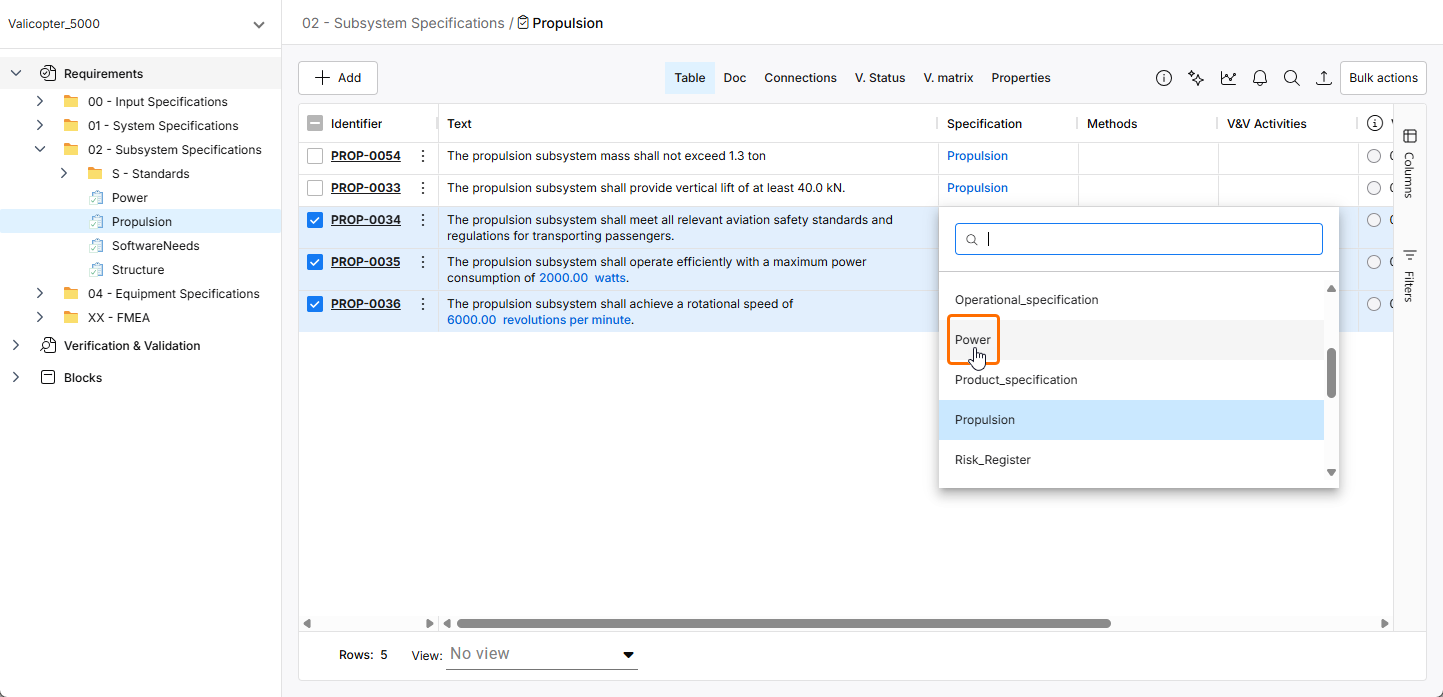
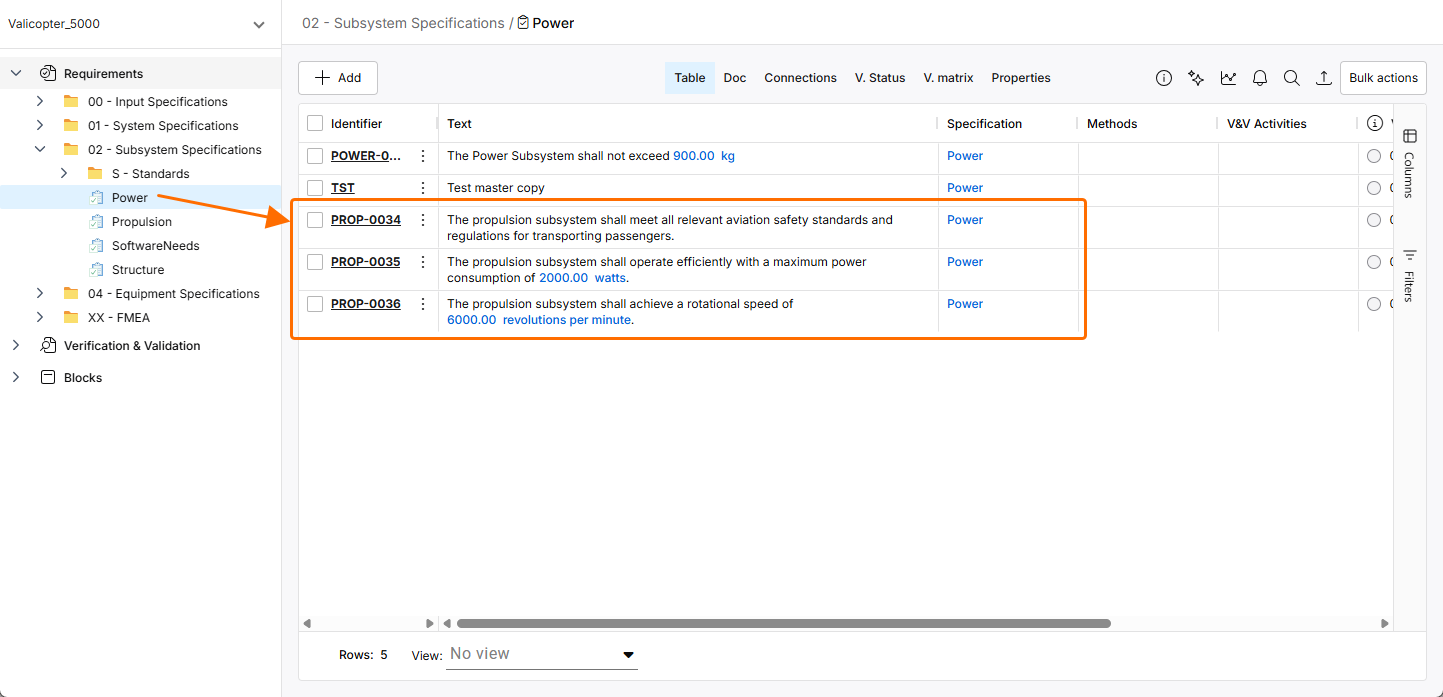
If you want to move one or multiple requirements from one specification to another, it can be done by following the steps shown and described below.