Creating Requirements
There are three ways to create requirements in Requirements Portal:
-
Creating manually
-
Use AI to Generate Requirements based on a prompt
This page describes how to create Requirements by manually adding the necessary information. To get more insights on the other two options, please use the links to get to the corresponding documentation.
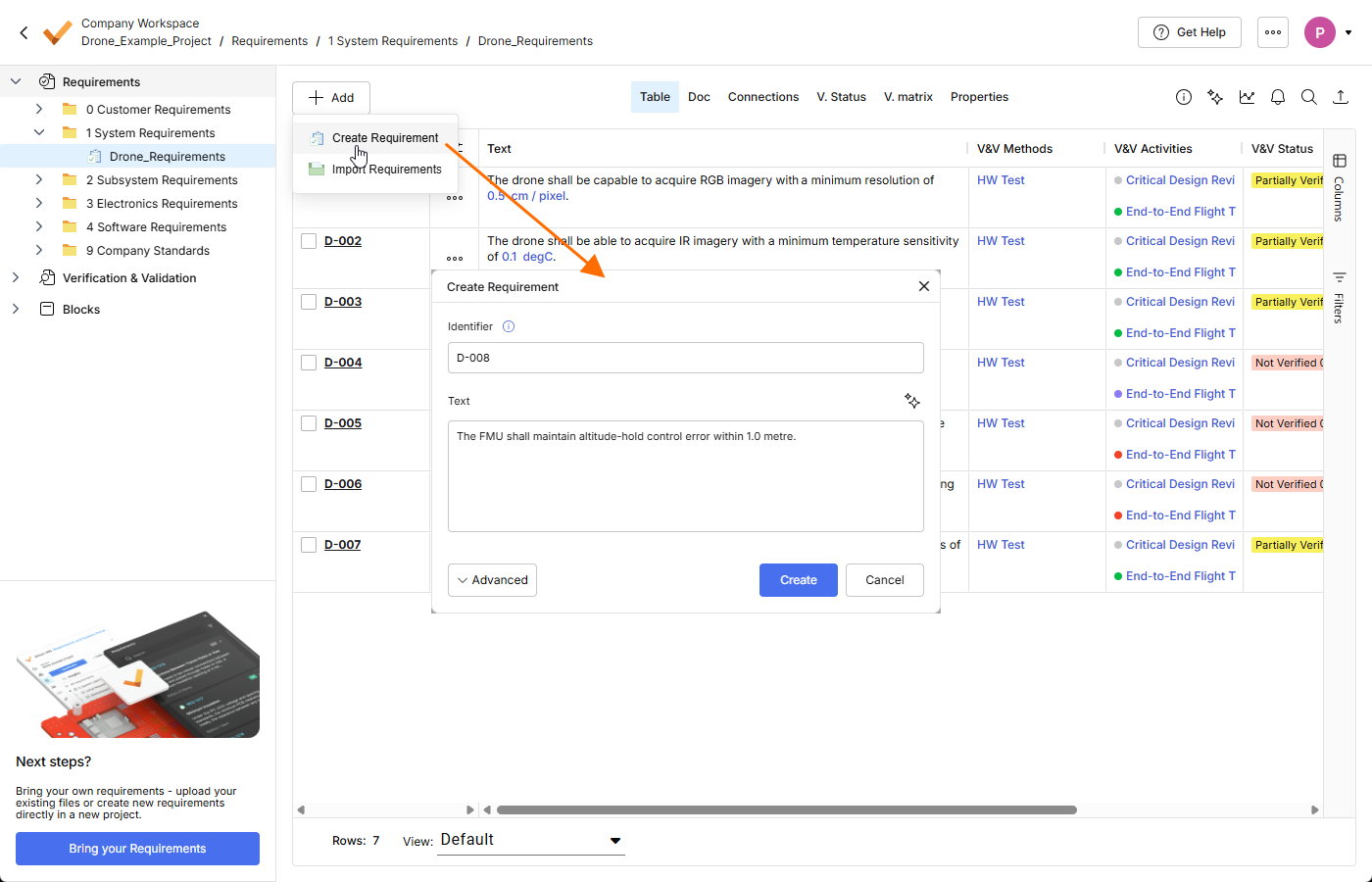
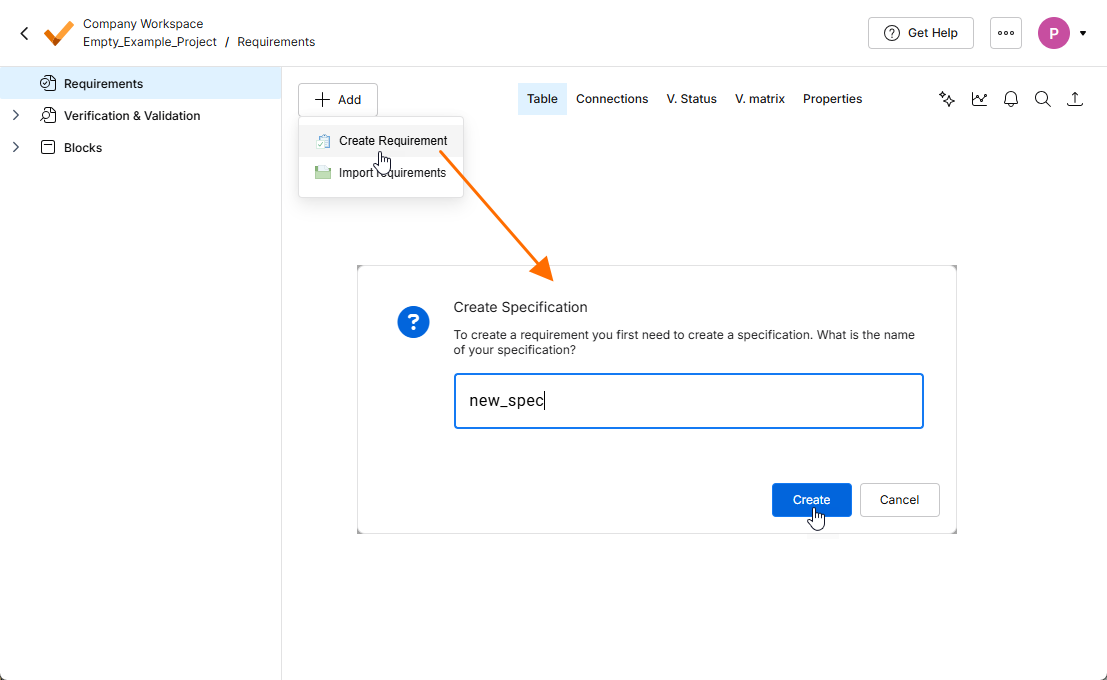
To add a new requirement manually to a specification, click the  button at the top left and select Create Requirement from the menu that appears. The Create Requirement window will open where you can specify a unique Identifier and the Requirement Text. Click the
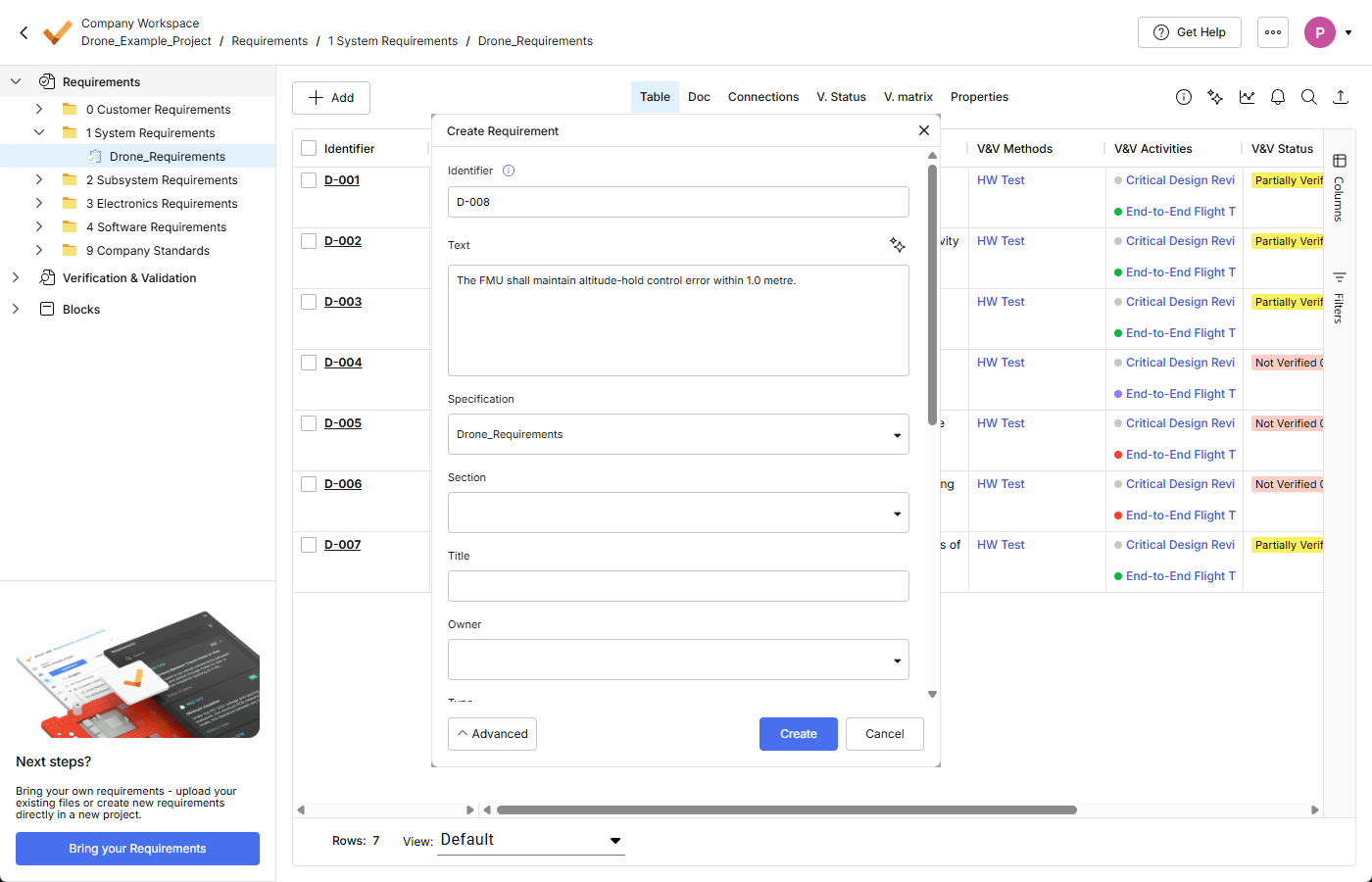
  button at the bottom of the window to access other fields, using which you can specify additional details such as the Specification and the Section that the requirement will belong to. Furthermore, you can check on possible Values + Units (Valis) that can be transformed into parameters (by enabling the Parametrize values option) before creating the requirement.
 button
  ).
). button at the top right of the field to start the process manually. If you accept the suggestions, you can click
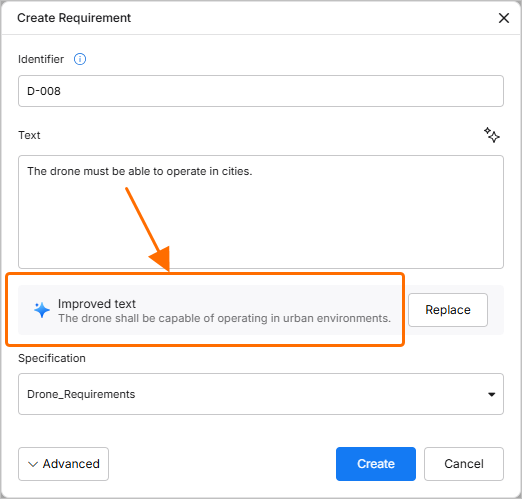 ).
).Valis in Requirements
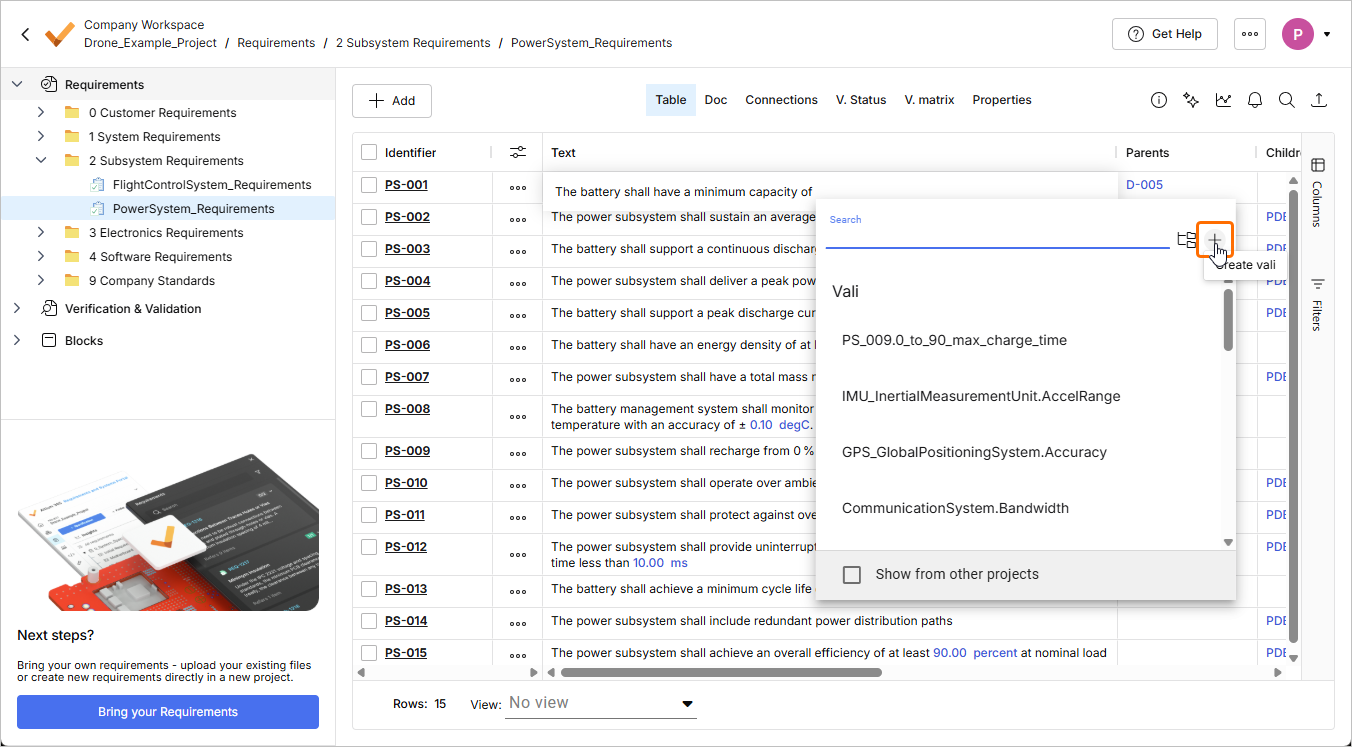
Valis can be displayed in a requirement text to specify numerical values with their corresponding unit. These Valis are automatically updated in the text when the value changes. To manually add a Vali to the requirements text, type a dollar sign $ to open a drop-down to select a pre-existing Vali. After selecting a Vali, it will be displayed in the requirement’s text with as a bold blue text. If you hover over, a pop-up box will show you more information on that parameter.
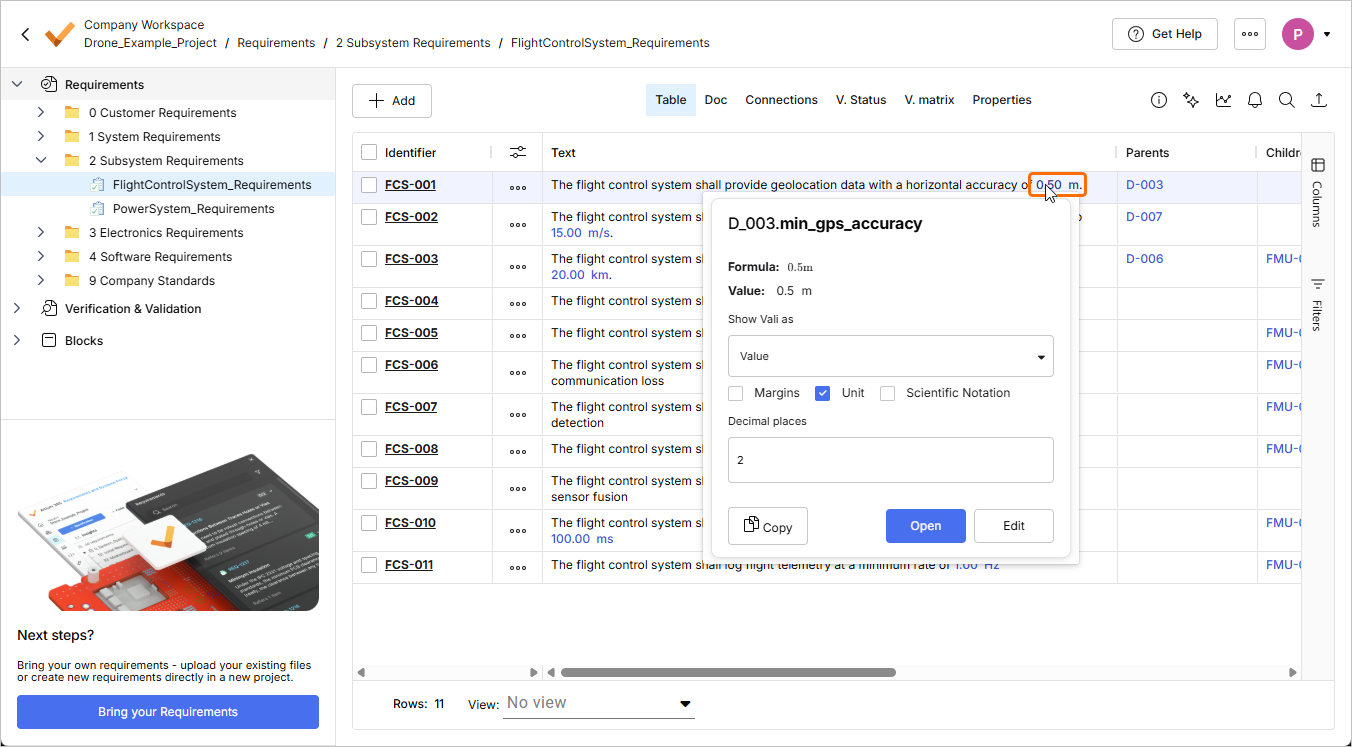
It is also possible to add a new Vali which belongs to a requirement by typing a dollar sign $ and selecting  at the top right of the popup. After that, you can define the name, formula, and unit of the new Vali similar to creating a Vali procedure. These Valis in the requirement help you to automatically compare with the system design Valis when used in the “Rules” Verification method.