
Grouping Requirements
In engineering projects, it is common for your Systems to have a large number of Specifications, containing many Requirements. In the Requirements Module, Specifications can be grouped into Folders. Additionally, each Specification can be further subdivided into Sections, Subsections etc. allowing easier navigation and organization of the requirements within your project.
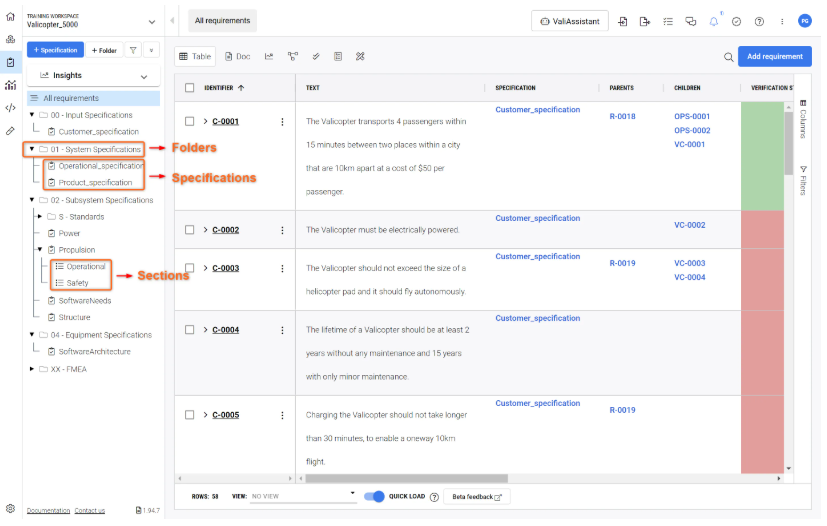
Folders
While Specifications and Sections hold Requirements, Folders hold Specifications and their associated sections and sub-sections.
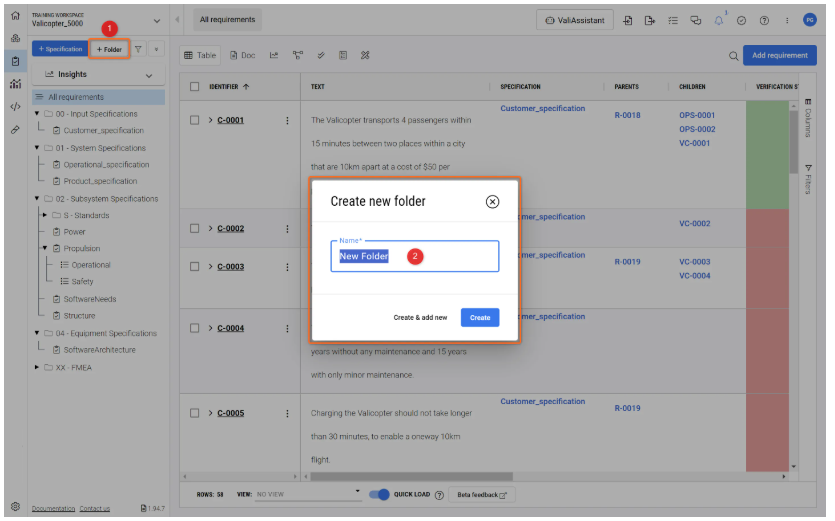
To create a folder, click on the “+ Folder” button (1) on the top right-hand corner of the side panel in the Requirements Module. A pop-up window opens, asking the user to input the folder name. The user can create a simultaneous folder by clicking “Create & add new”.
Specifications
Specifications hold all the requirements associated with a specific group, in the example below the requirements for the satellite are sectioned into the requirements for the battery, AOCS, EPS, etc.
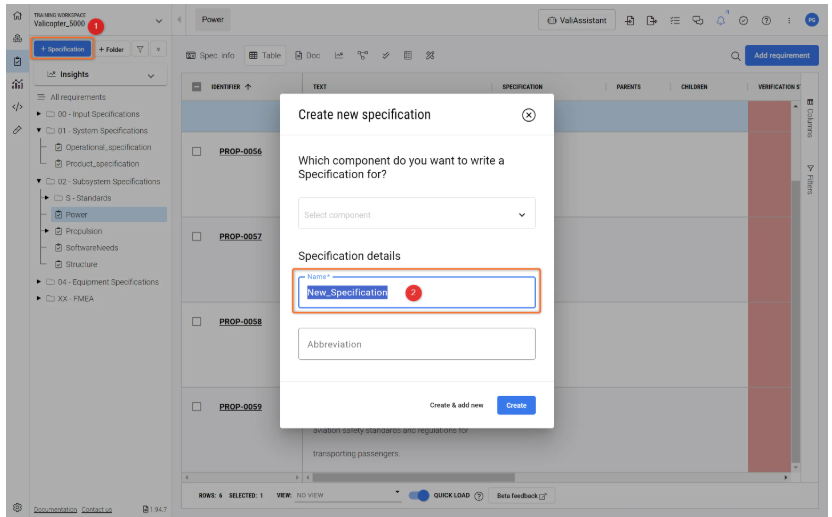
To create a Specification, click on the “+ Specification” button (1) in the upper left-hand corner of the side panel, provide a specification name (2) and click “Create”.

Sections and Subsections
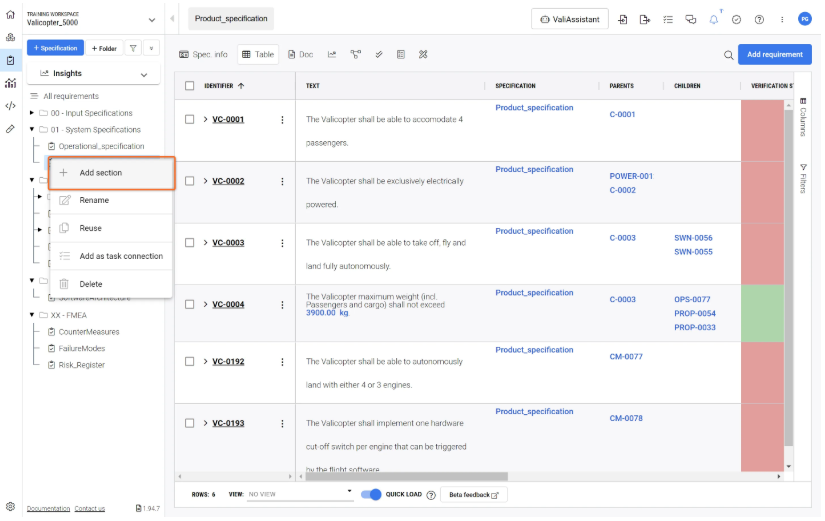
Sections and Subsections hold Requirements from specific Sections within a Specification. To add a section or subsection, right-click on the specification or it’s section and select “+ Add section".
Moving Requirements from one Specification to another
If the user wants to move one or many requirements from one specification to another specification, it can be done by two methods:
First Method: Move Requirements Feature
Users can select the desired requirements and access the "three dots menu" in the action column to choose the "Move Requirements" option. This action will open a dialogue box, allowing users to specify both the target specification and the section where the requirements will be relocated to.
Move Feature - The Move feature can be used to move Requirements to a destination Specification and Section.
Second Method: Move requirements using the column fields
-
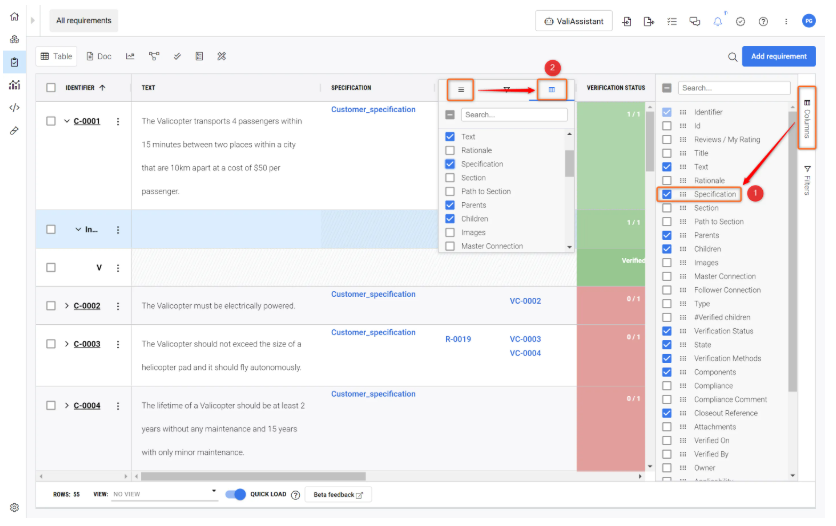
Enable “Specifications” in the columns. The column field can be found on the right side (1) and tick the specification. Also, you can click the three lines on each column field to choose the columns (2). You can choose any convenient way that works for you
-
Select the requirements by clicking on the small checkboxes next to Identifier and then double-click on the specification column to have a drop-down menu of the specifications that are listed within the project. This process is summarized in a small video below.
Adding/Moving Requirements to sections
If your specification has different sections, you can assign your requirements to the sections. Enable the “section” column similar to the above gif to assign a section to your requirement. Once the section column is visible, double-click on the cell to have a list of the sections available. Users can add sections to new requirements and also change the requirements of different sections.