
Verifying the System
In Requirements Portal, requirements are connected to one or more systems, or subsystems. These systems are verified using Verifications and Validations (V&V) activities. A Block's requirement can be verified with single or multiple V&V activities. Each activity can be linked to one or several requirements and can verify one or more systems.
In this part of the tutorial, we will discuss how to conduct V&V activities using Requirements Portal and explain the following:
-
How to create V&V activities.
-
How to link V&V activities to requirements.
-
How to run an activity.
-
Demonstrate the automatic verification methods in Requirements Portal.
Creating and Loading Views for Verification
Requirements Portal offers various pre-selected attributes, such as Identifier, Text, Parents, Children, Type, State, V&V Status, V&V Activities, V&V Blocks, Tags, and Properties. However, this may lead to excessive horizontal scrolling on smaller screens. You can generate custom views with only the essential attributes to streamline the Verification process. Let's create a new view for the Verification and load it.
-
Open the Fan_Spec specification (under the Requirements entry in the project tree).
-
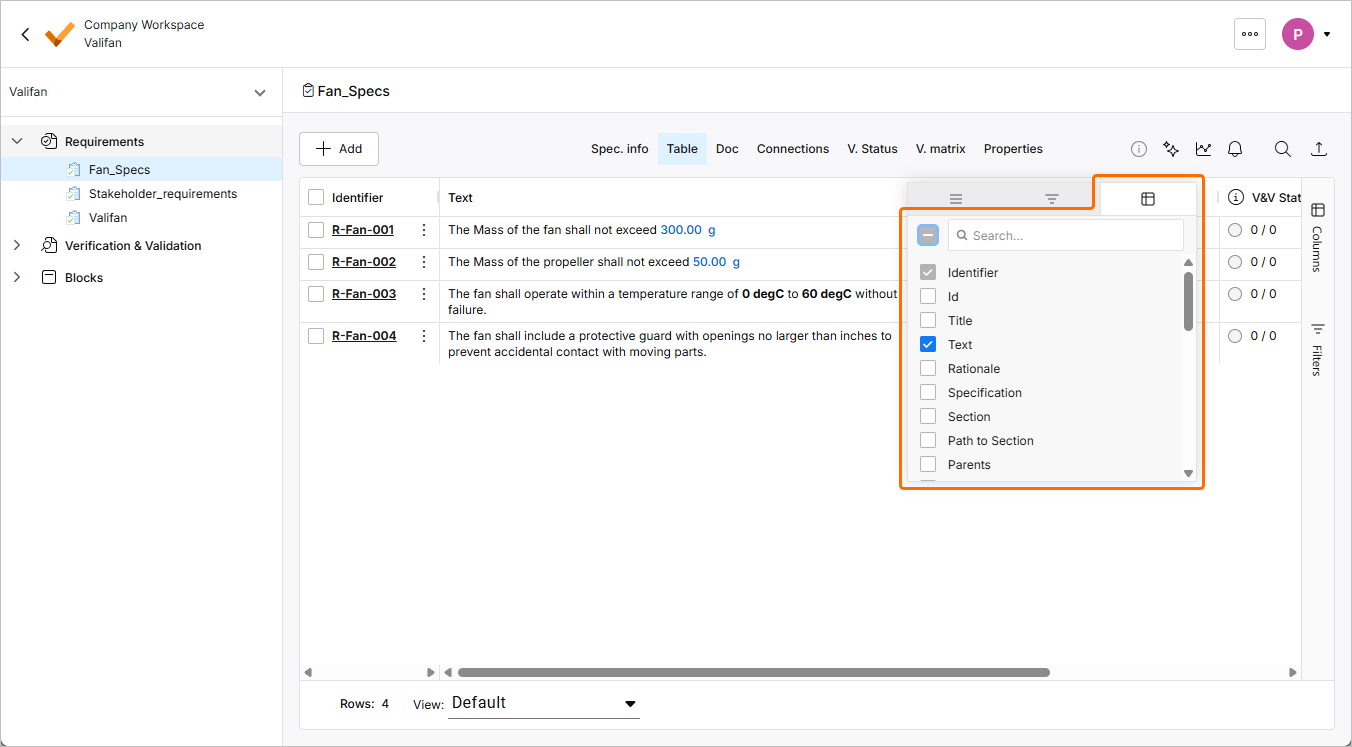
Hover the cursor over any column header, click the
 icon that appears, and then click the
  icon to show a list of available columns.
-
Deselect all columns in the list and select only the following columns:
-
Text
-
Parents
-
Children
-
V&V Activities
-
V&V Status
-
V&V Rules
-
Applicable Block
-
Tags
-
-
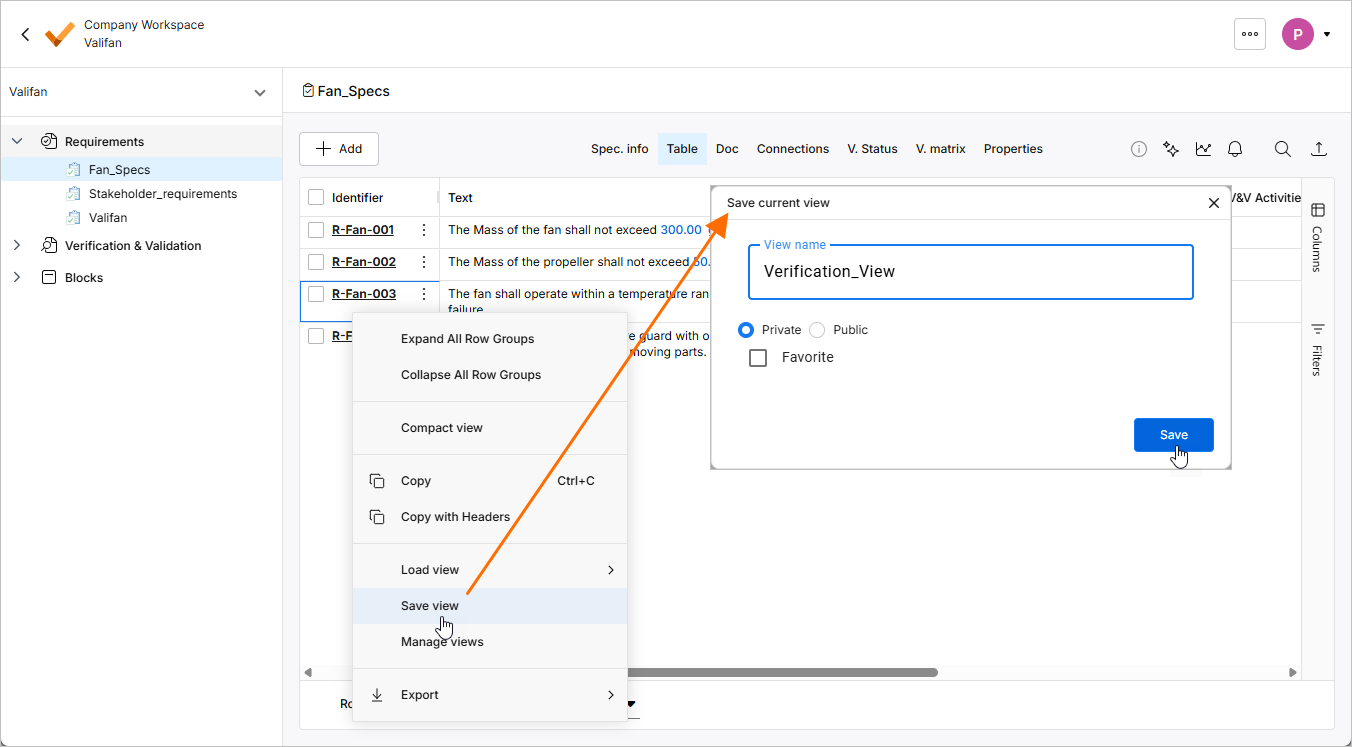
Right-click in the table and select the Save view command from the context menu. In the Save current view window that opens, enter
Verification_Viewas the View name, select Private, and then click .
.
 icon provides filtering options for a specific column.
Adding a Verification & Validation Activity to a Requirement
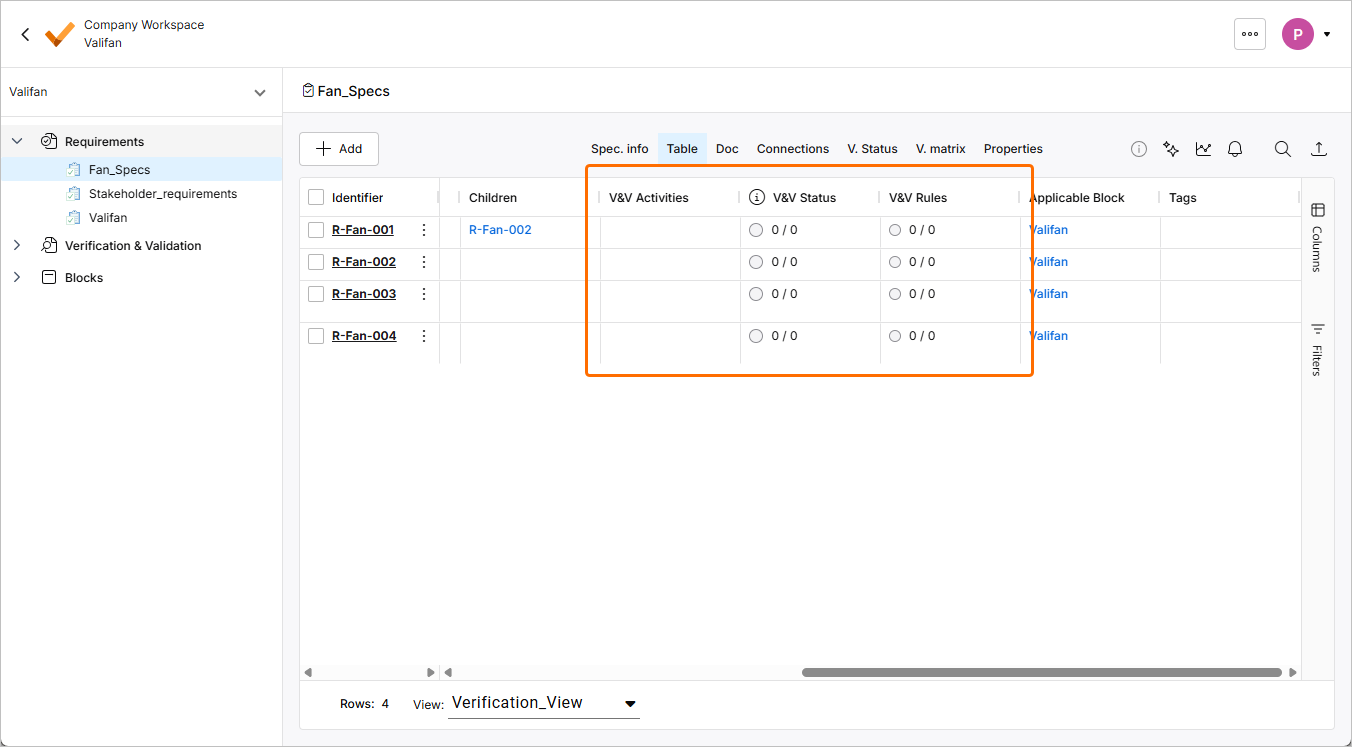
Requirements Portal offers three columns dedicated to the verification and validation of requirements (apart from additional columns like Compliance and Compliance Comment or even custom columns related to verification activities):
-
V&V Activities – displays the associated V&V activities to the requirement.
-
V&V Status – indicates the overall status of verification of the requirement.
-
V&V Rules – automatic verification based on vali comparison between the requirement and the Blocks Module.
-
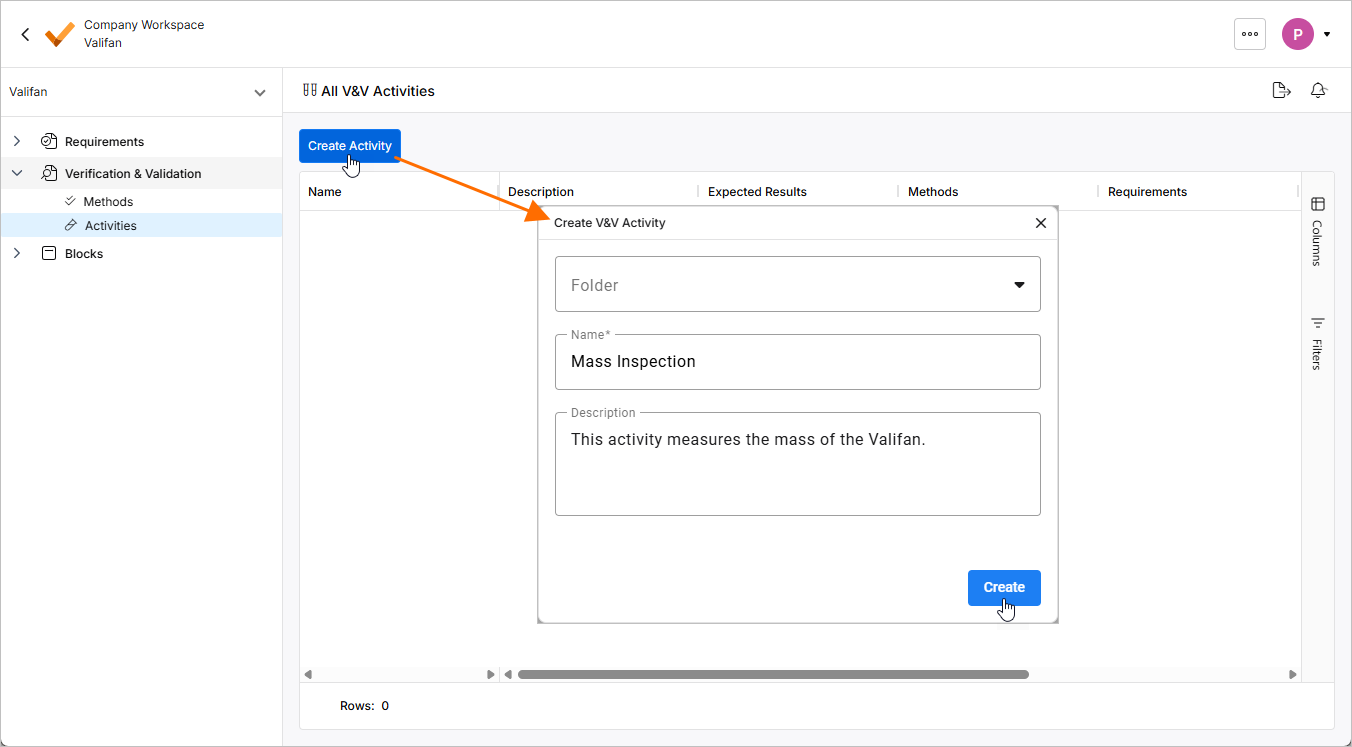
Expand the Verifications & Validations entry in the project tree and select Activities.
-
Click the
 button. In the Create V&V Activity window that opens, enter
 Mass Inspectioninto the Name field andThis activity measures the mass of the Valifan.into the Description field, and then click .
.
-
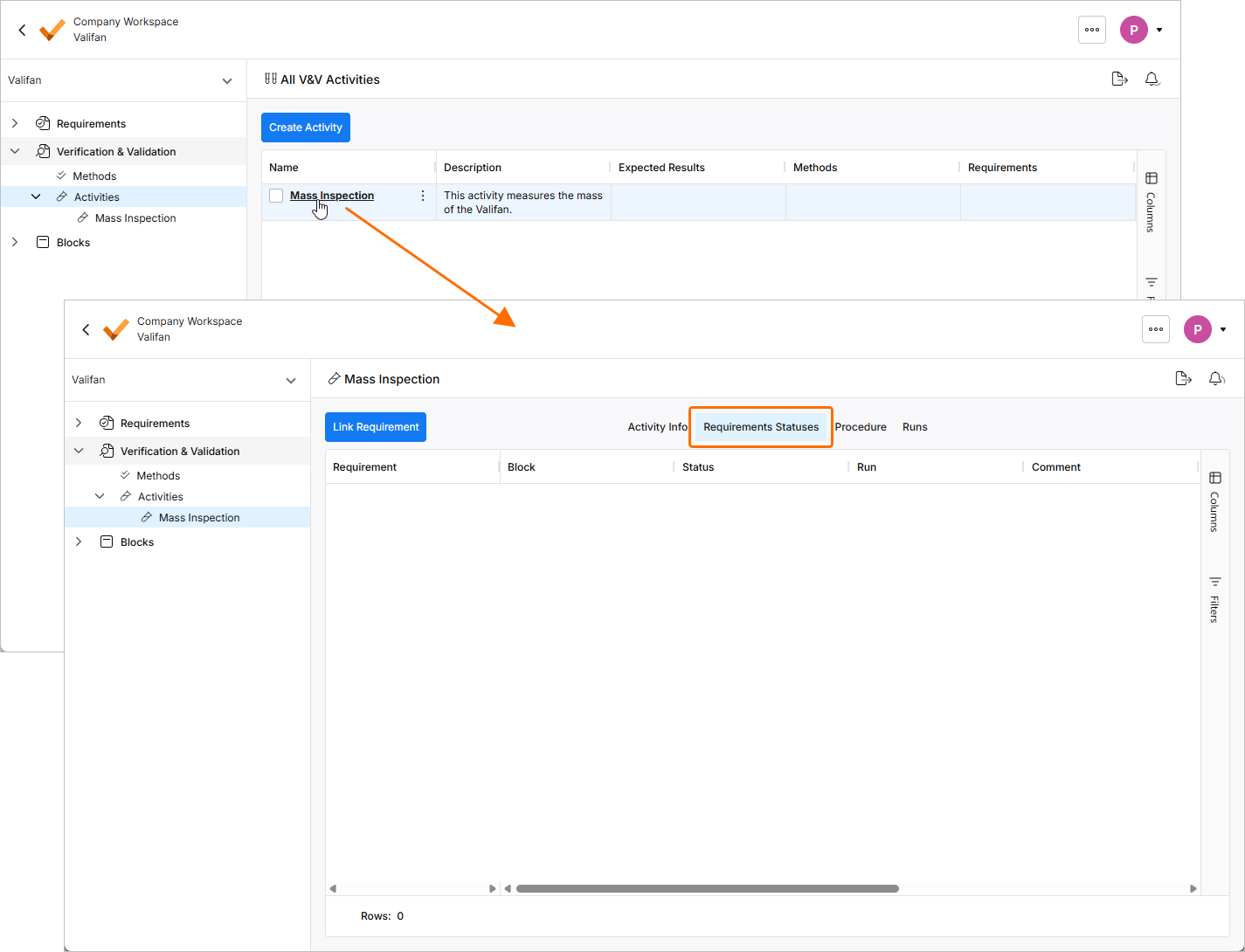
Now we link the new activity to one of our requirements from the Requirements Module. Click on the name of the activity in the Name column and click the Requirements Statuses control at the top of the page.
-
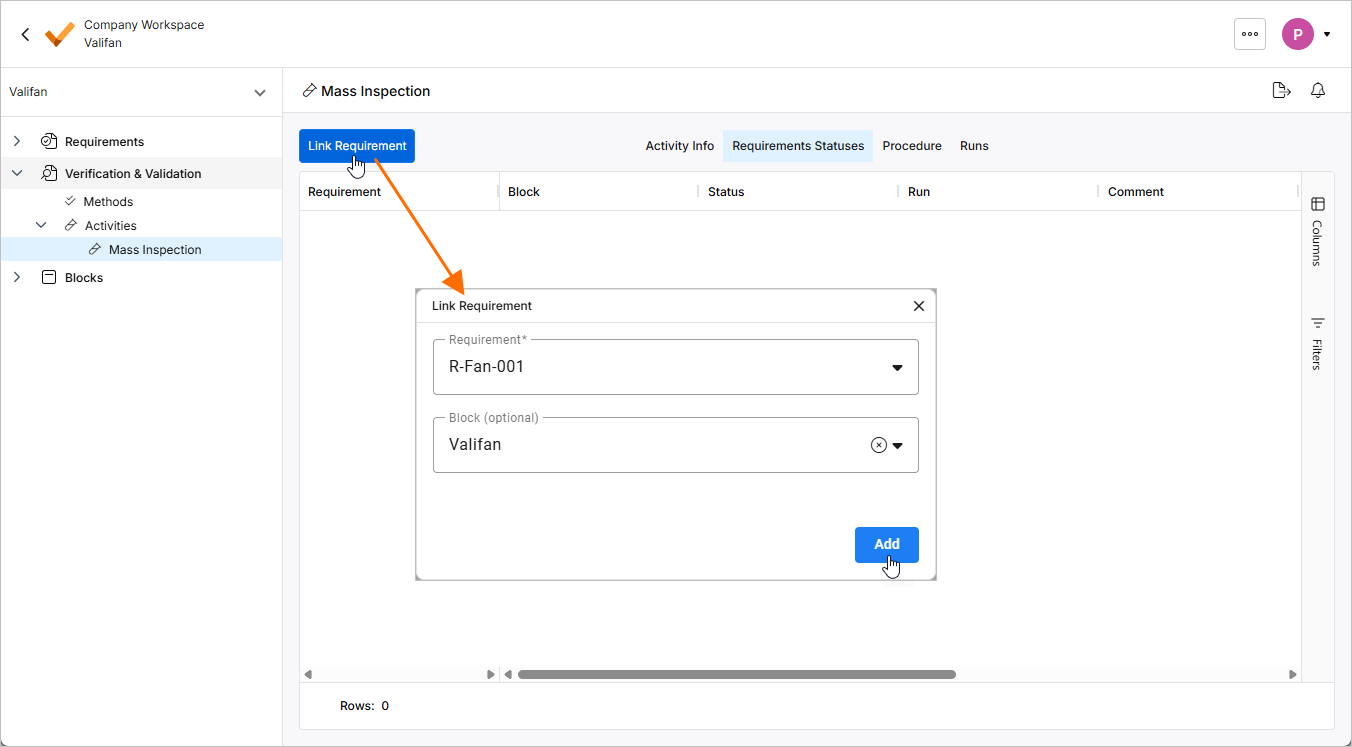
Click the
 button at the top left. In the Link Requirement window that opens, select R-Fan-001 in the Requirement drop-down and select Valifan from the Block drop-down, and then click
  .
.
-
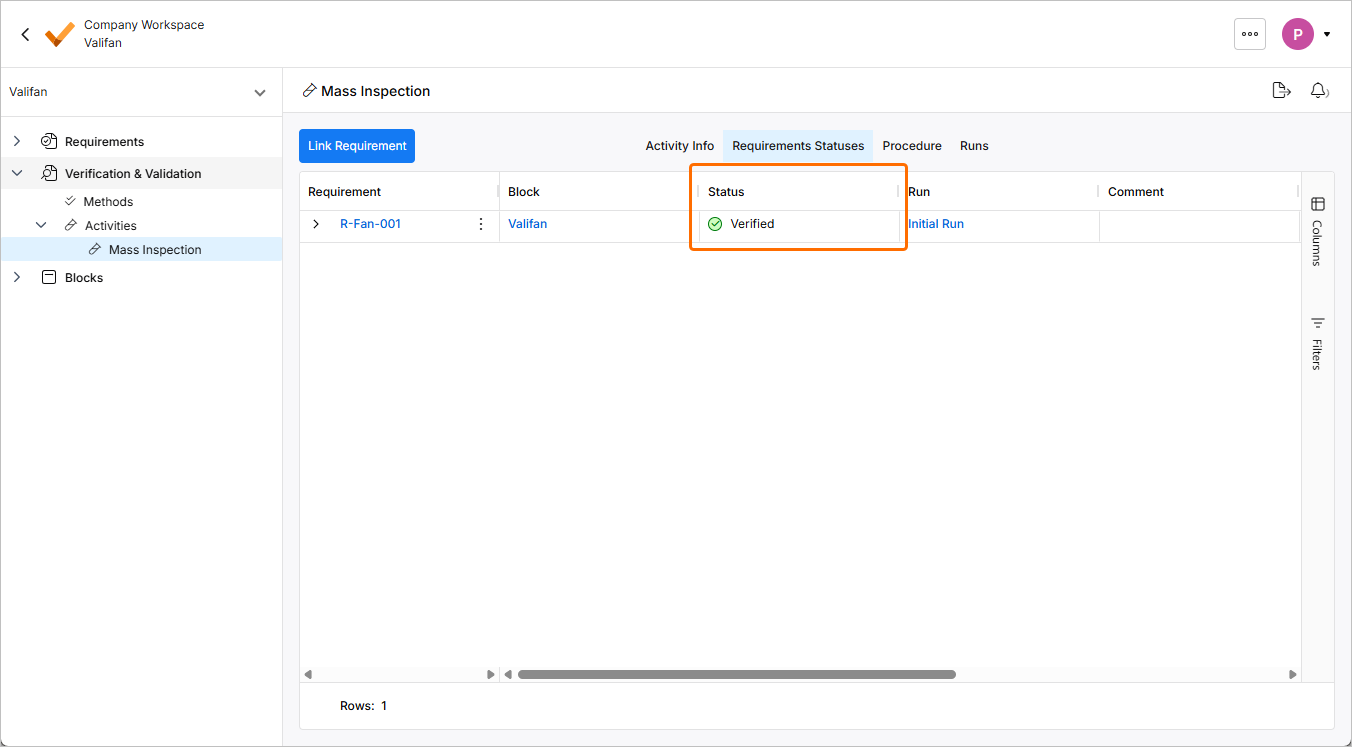
Let’s assume you carried out the mass inspection as per the instructions of the activity and now we want to set the verification status to verified. To do this, double-click the cell in the Status column and select Verified from the drop-down.
-
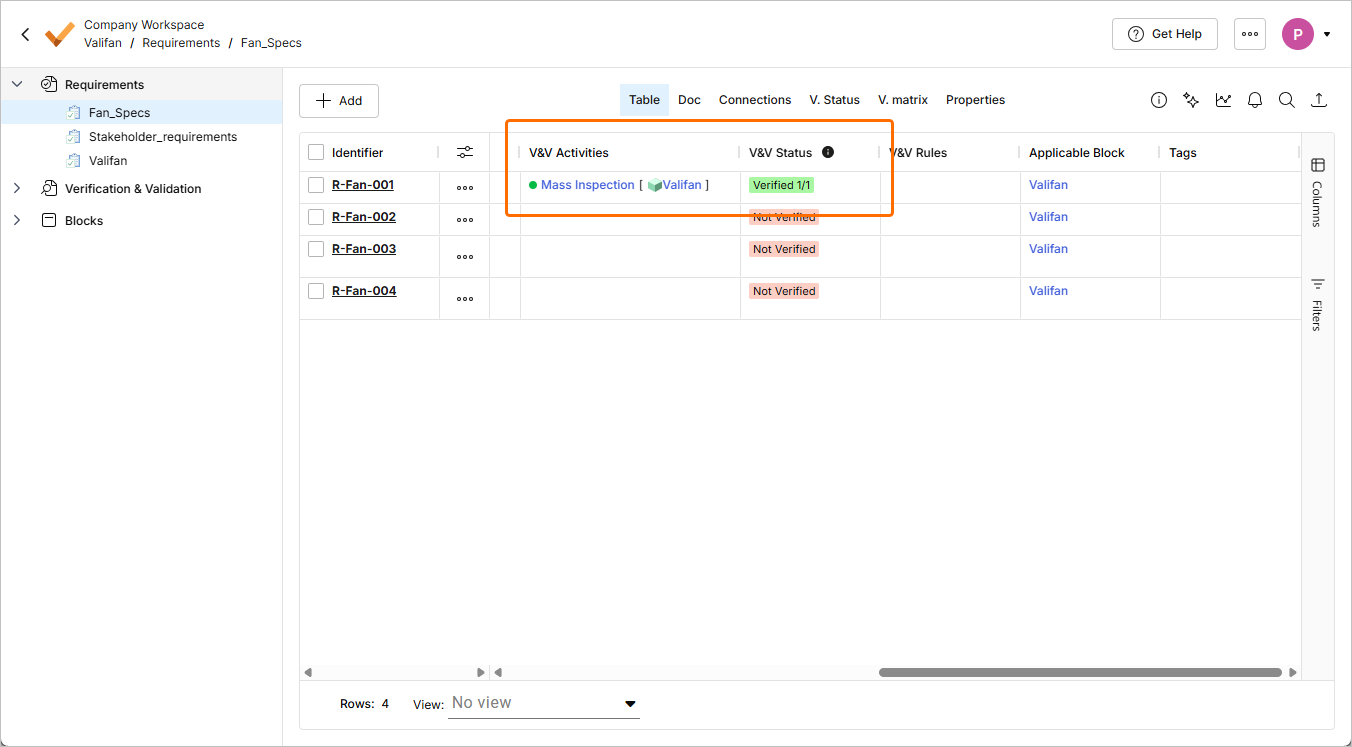
Open the Fan_Spec specification (under the Requirements entry in the project tree).
-
In the table, you will see that the assigned V&V activity in the V&V Activities column and the Verified 1/1 status in the V&V Status column.
With this, we have successfully created a manual verification activity. Let us now look at how to have automatic verifications on our requirements that check block valis against requirement valis.
Verifying the System Automatically Using Rules
-
Open the Fan_Spec specification (under the Requirements entry in the project tree).
-
Hover the cursor over the 300 g vali in the Text column for the R-Fan-001 requirement and check its name in the pop-up. This name will be used when creating a rule in which this vali will be compared with a vali from the Blocks Module.
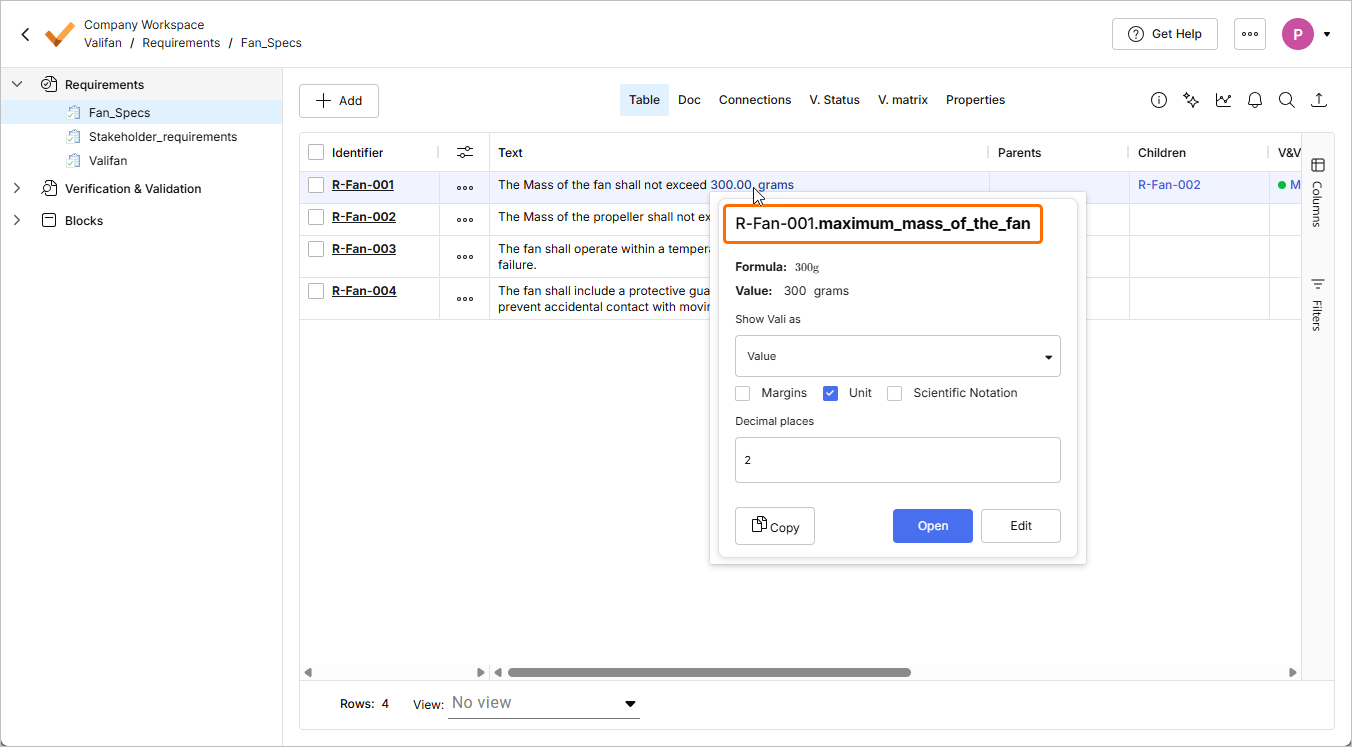
-
Double-click the cell in the V&V Rules column for the R-Fan-001 requirement. The V&V Rules window will open where you can define a rule to compare our requirement Valifan mass of 300 g with the mass vali of the Valifan system from the Blocks Module. Use the
$symbol to reference the valis. In the pop-up that appears, you can search for valis by typing their names. Define the rule as follows:$Valifan.Mass<$R-Fan_001.maximum_mass_of_fan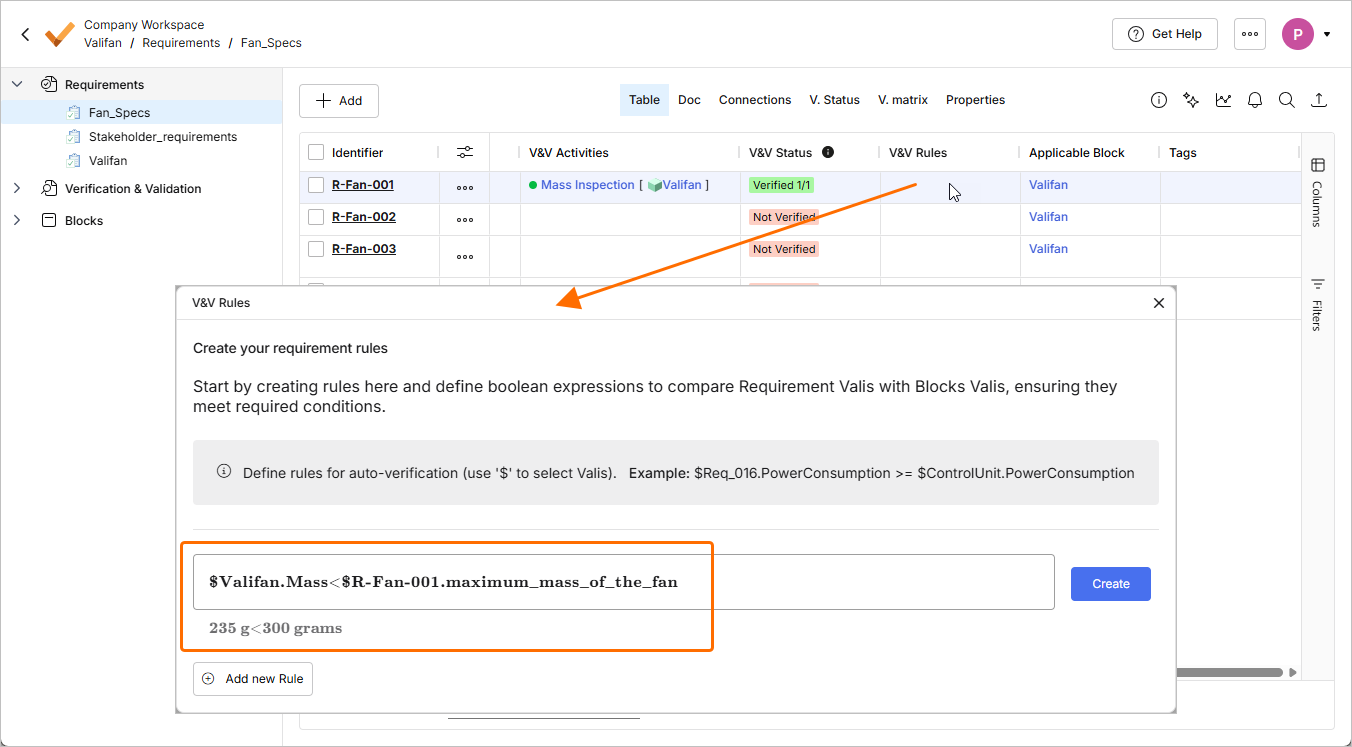
-
Click the
 button in the V&V Rules window and then close the window. In the table, you will see that we now have one rule (which is verified) associated with the requirement.

 icon in the pop-up. You can adjust parameters such as name, margins, etc.
Next Steps?
Congratulations, you now know your way around Requirements Portal!
You can continue improving your desktop fan project. Here are some ideas:
-
Add Compliance to your requirements.
-
Add a few parent/children relationships between requirements, check the connections graph, and notice the color codes on the requirement.
-
Add a solar panel block to make the fan portable. You can make the maximum rotational speed dependent on the sun angle of the solar panel.