
Generate Requirements
The ValiAssistant's Generate Requirements feature generates a set of requirements from a provided description of your project or stakeholder requirements. These requirements can then be adjusted before deciding whether to finalize their creation in your project or whether to discard them. This feature accelerates the creation and ideation process by enabling you to generate requirements quickly that you can iterate on and not have to start from scratch.
A quick example of generating requirements using the ValiAssistant from a prompt is shown below.
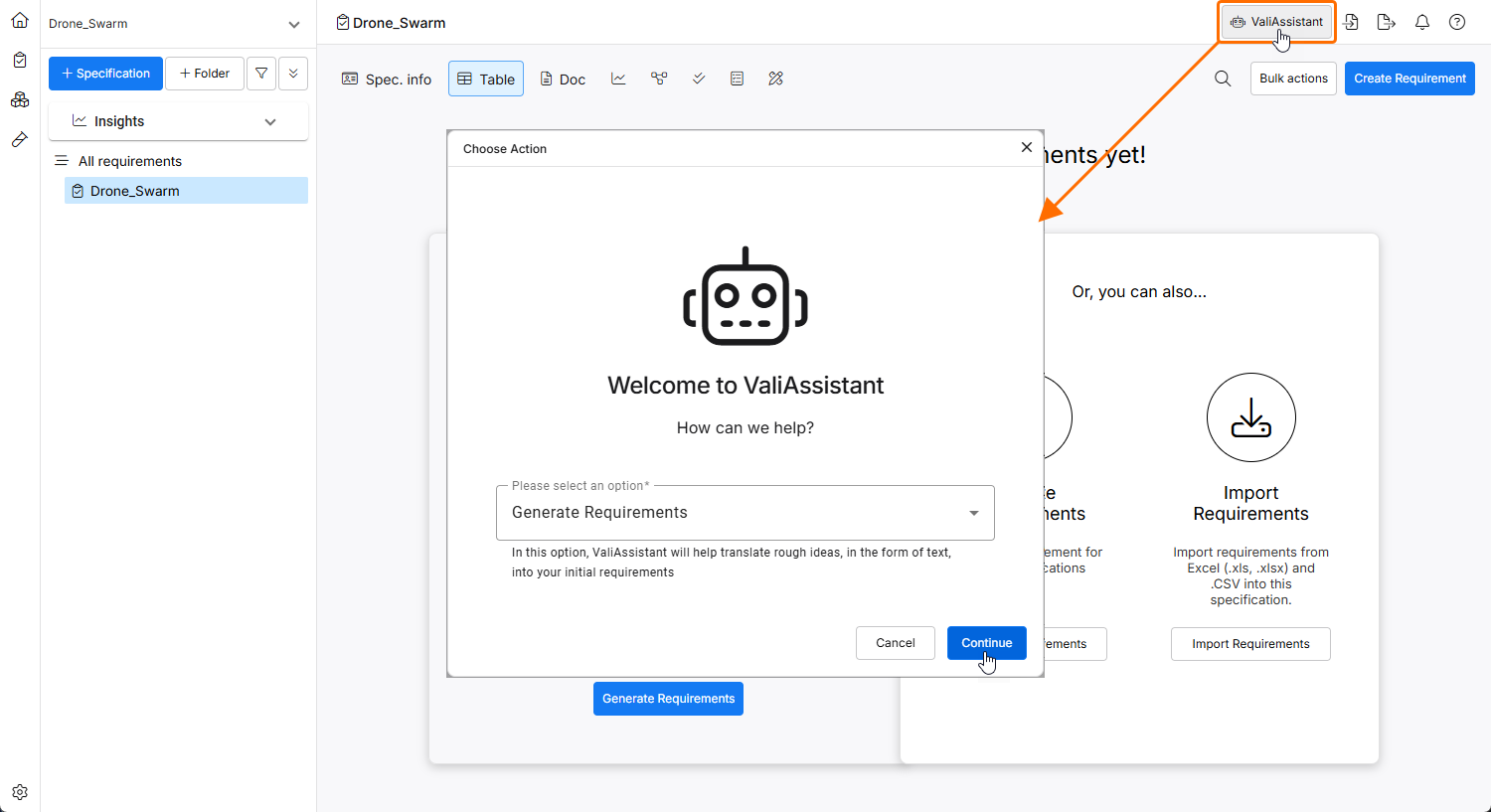
The ValiAssistant can be accessed from the Requirements Module by clicking the  button at the top right.
The ValiAssistant's Generate Requirements feature can be accessed from within the Requirements Module by clicking the button at the top right, selecting the Generate Requirements option from the drop-down in the Choose Action window that opens, and clicking the  button.
For more information about accessing the ValiAssistant, refer to the ValiAssistant page.
 ).
). button.
When accessed either way, the ValiAssistant applies the generation process to the current view, i.e., the ValiAssistant will use the opened specification or section as the default landing zone for the new requirements.
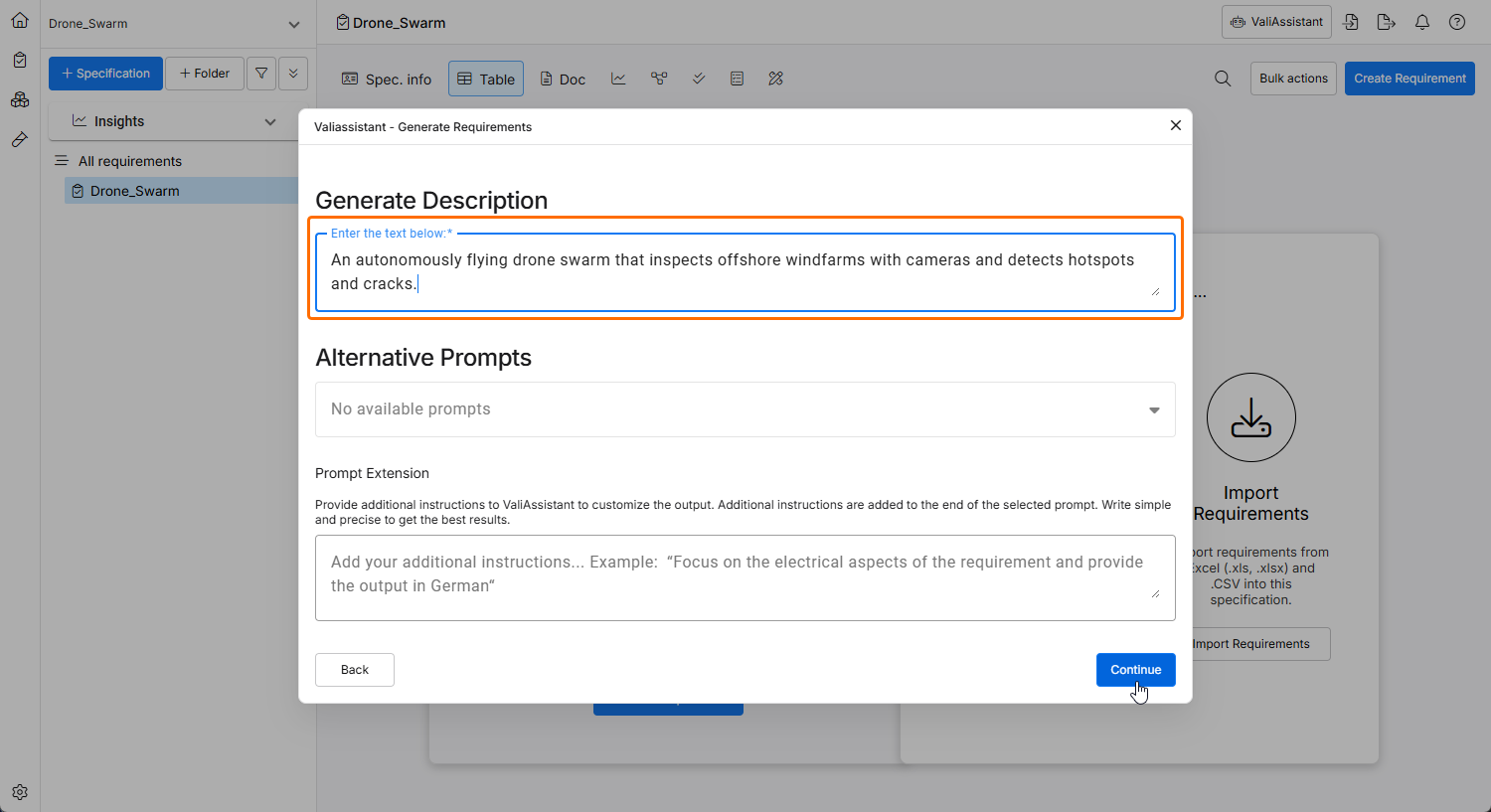
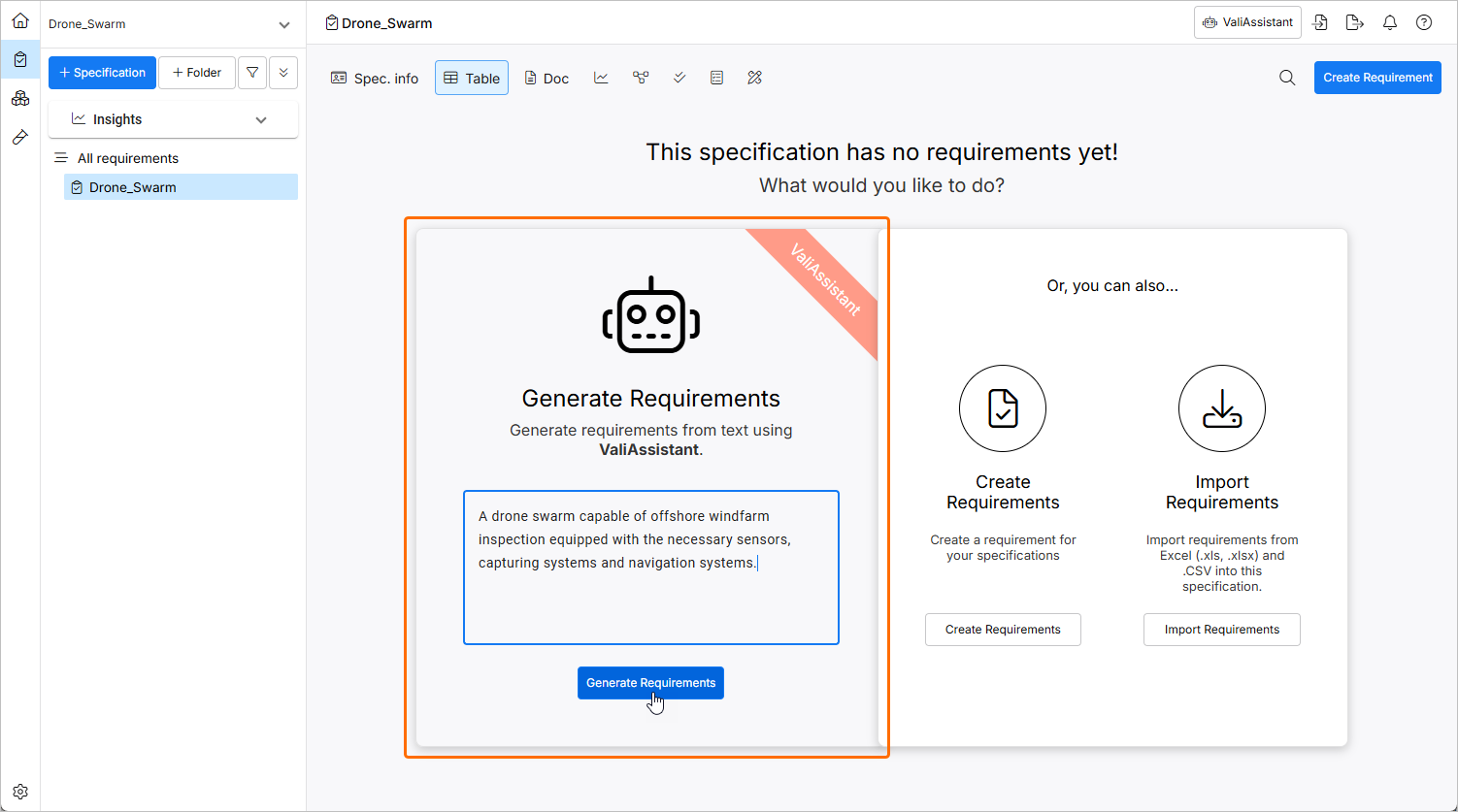
After accessing Generate Requirements, you are brought to a blank text box where you have space to describe your system/subsystem/project.
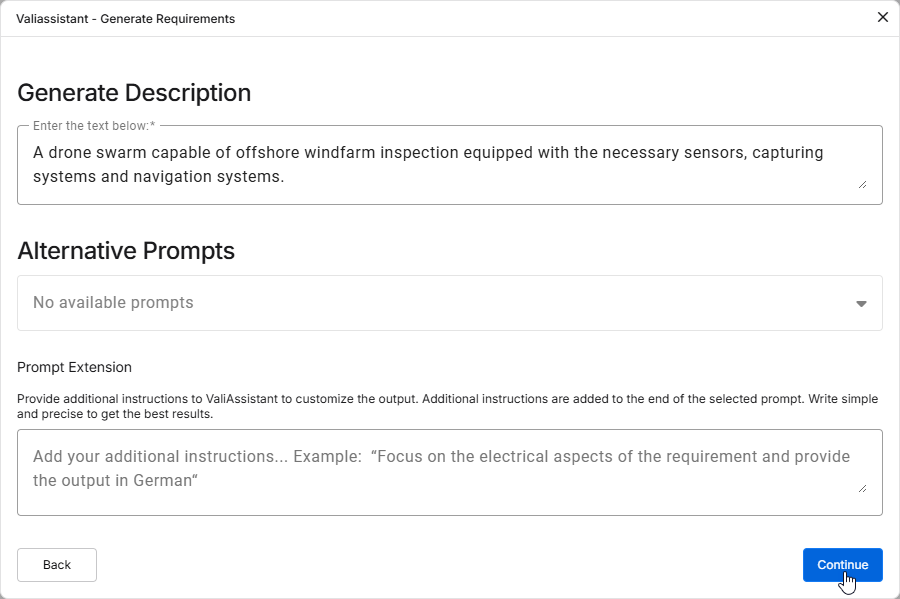
Provide as many details as possible. This can be either description of your project or stakeholder requirements, for example:
A drone swarm capable of offshore windfarm inspection equipped with the necessary sensors, capturing systems and navigation systems.
When details are provided, click  .
.
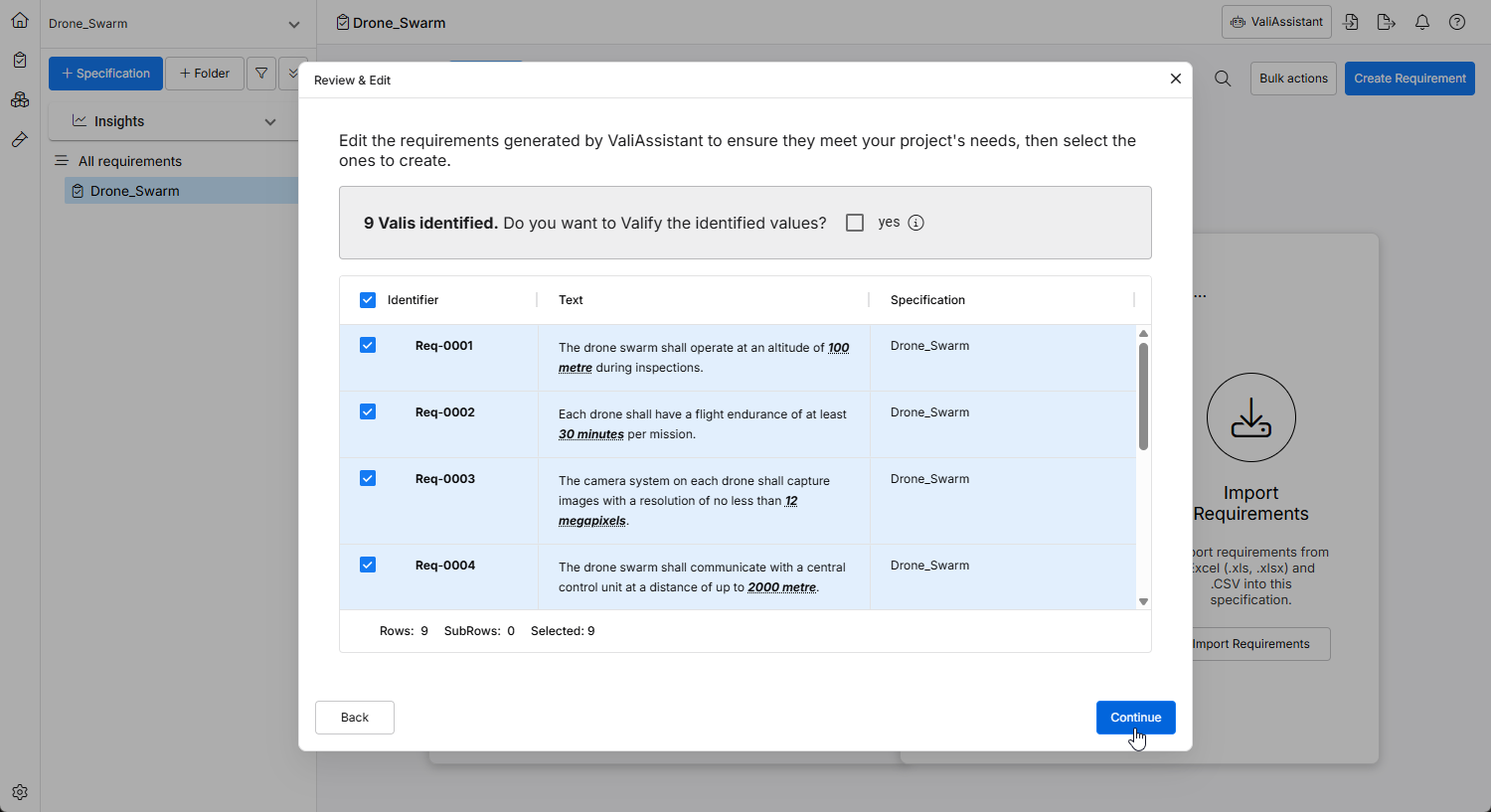
Once the ValiAssistant has created a set of requirements from your text, you will be presented with the Review & Edit window where you can review the results and make required modifications.
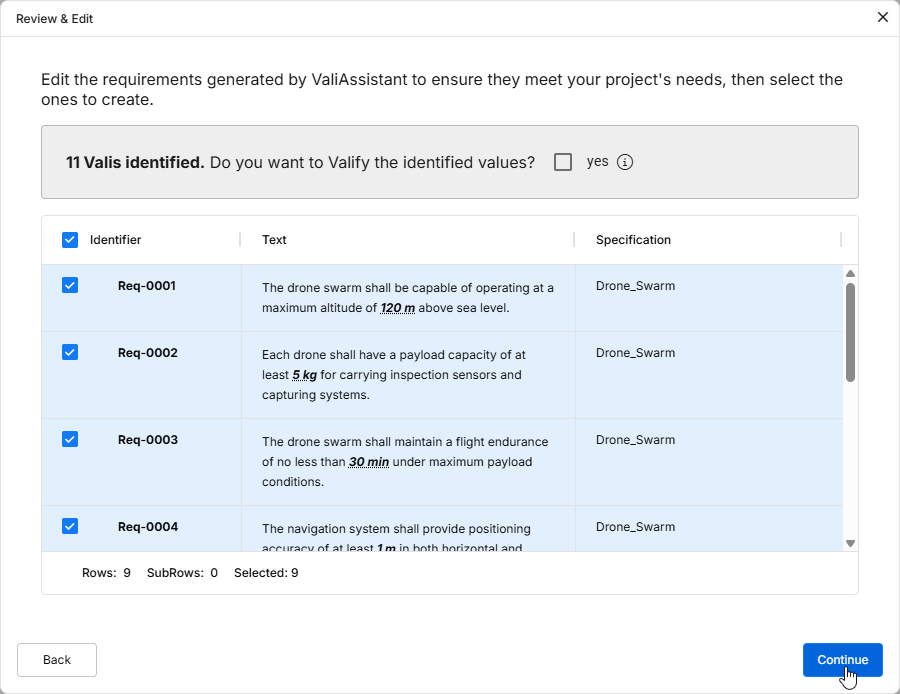
You can edit the identifier and specification/section and further adjust the text of these requirements by double-clicking in corresponding fields. You can further decide which requirements you wish to include into the specification using the check box on the left at each Requirement. By default, all requirements are selected to be included in the specification.
Enable the Do you want to Valify the identified values? checkbox to Valify the Requirements. This will transform any Values + Units into Parameters (Valis).
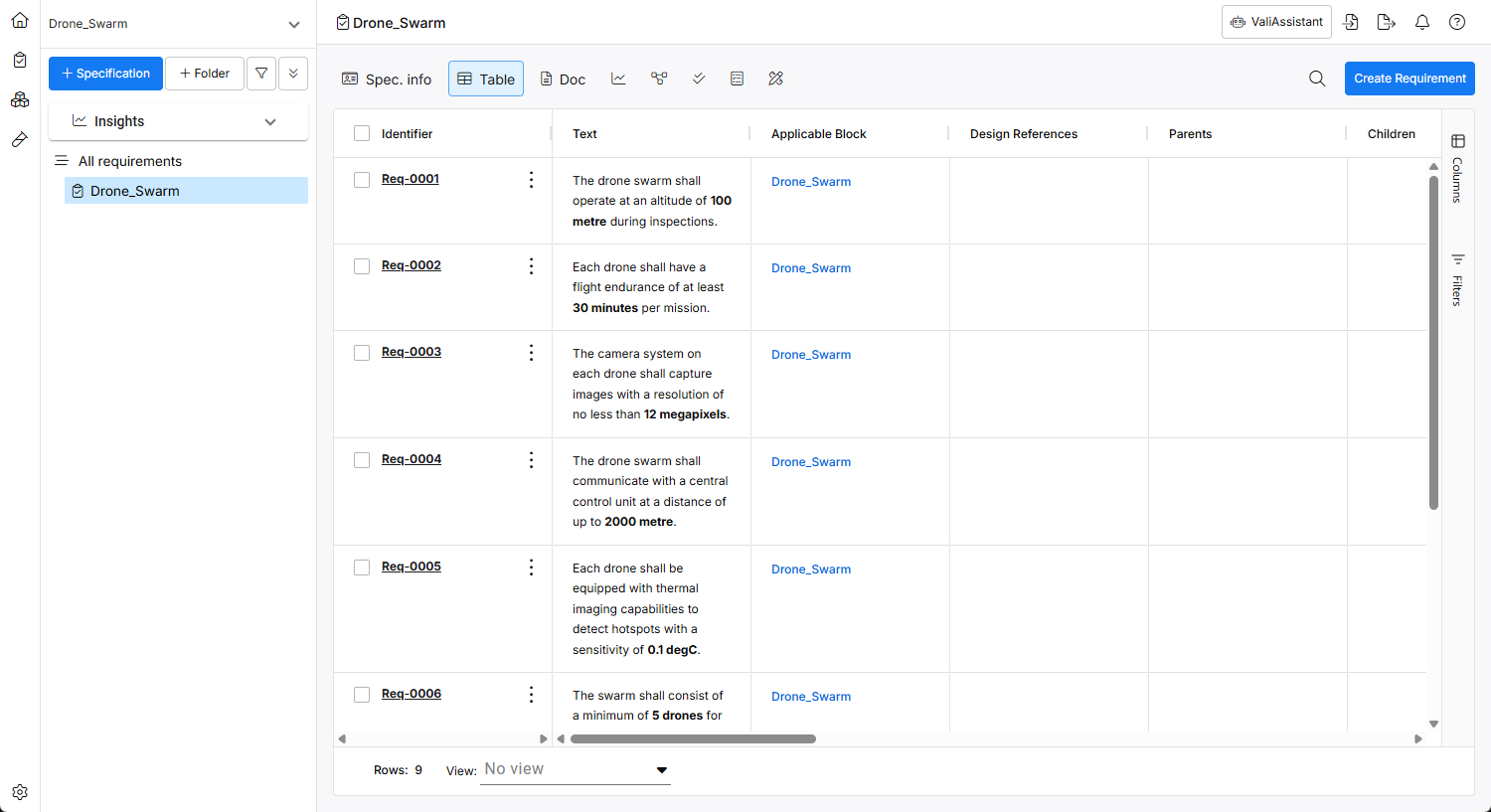
Click to finalize the generation of these requirements. Once the requirements are successfully created, a confirmation window will appear, and the requirements will be added to the specification.