Valify Requirements
The Valify feature analyzes the requirements text in search for quantifiable properties to convert them to Valis. This aims to facilitate the parameterization of requirements by automatically creating new Valis that can be then used for multiple purposes, reducing the effort and error probability associated with this manual parameterization work.
After accessing the Valify Requirements feature from within the Requirements Module (learn more), a process which stages are detailed below will start.
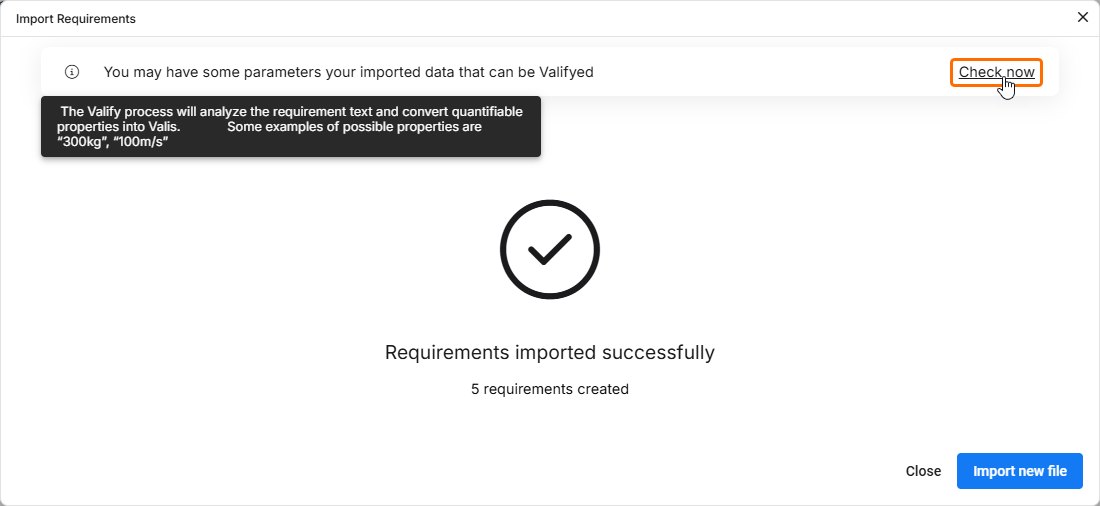 ).
). button and enabling the Parametrize values option at the bottom of the window
 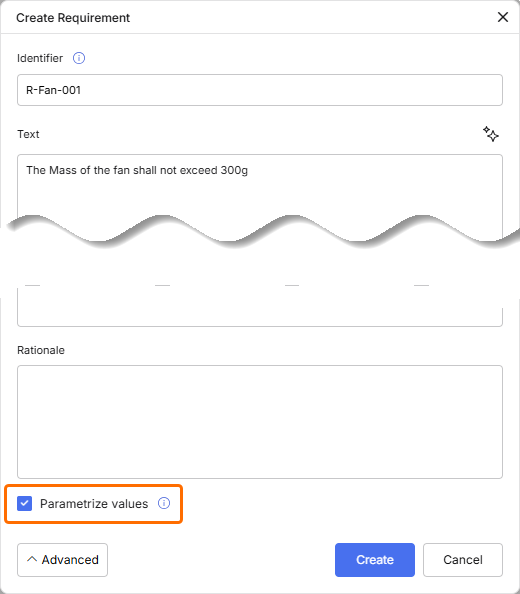 ).
). button, the requirement being created will be processed. Note that in this case, the process of valifying the requirement will be performed in the background, without showing further windows related to the valifying process as described below on this page. Once the requirement is valified, you can click the
  button in the pop-up that appear at the bottom right of the page for details about the valifying process
 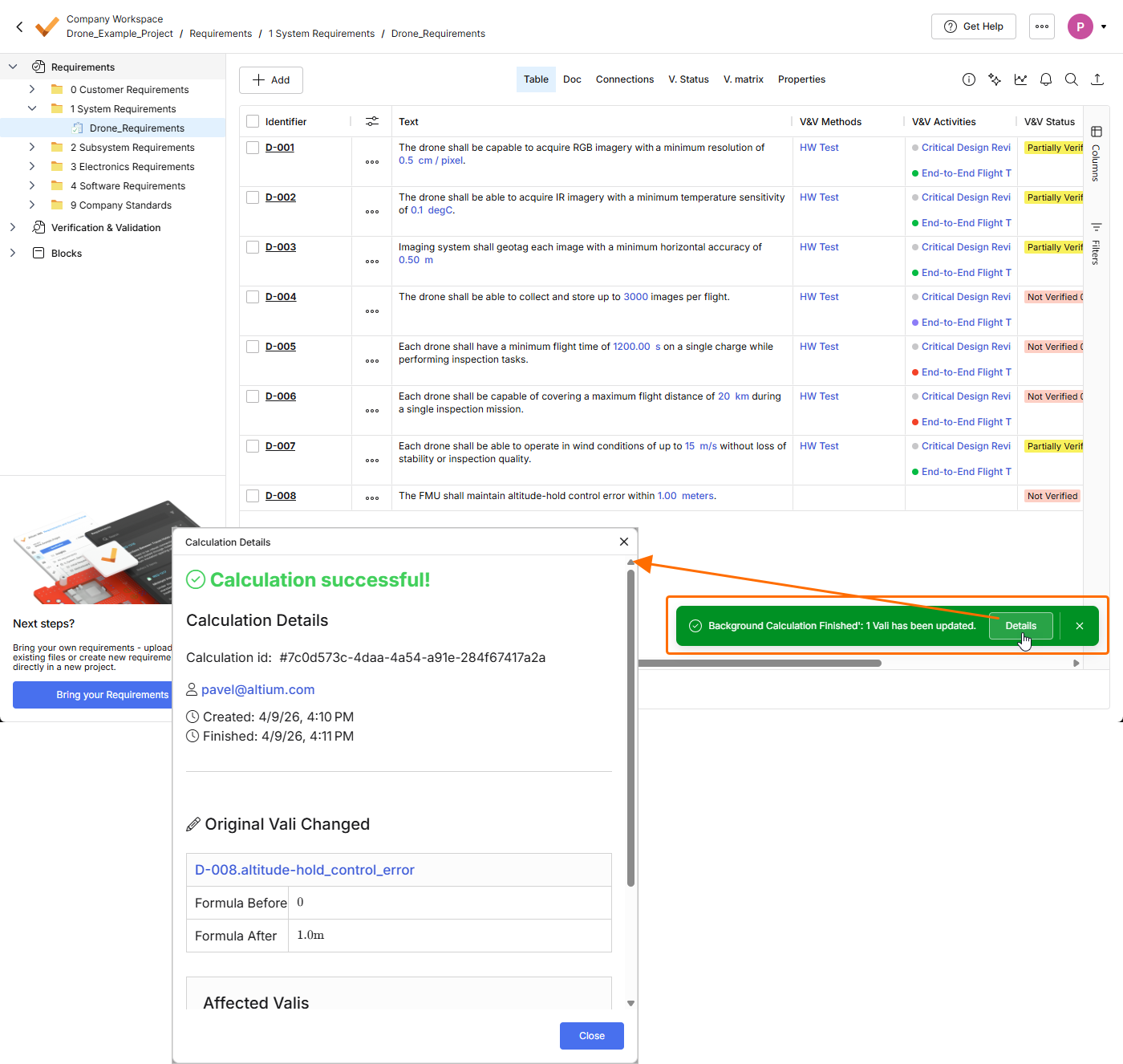 ).
).After accessing the Valify Requirements process, you will be informed of exactly how many requirements will be checked.
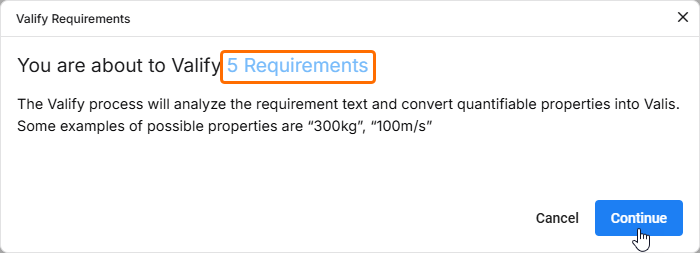
Click  to proceed.
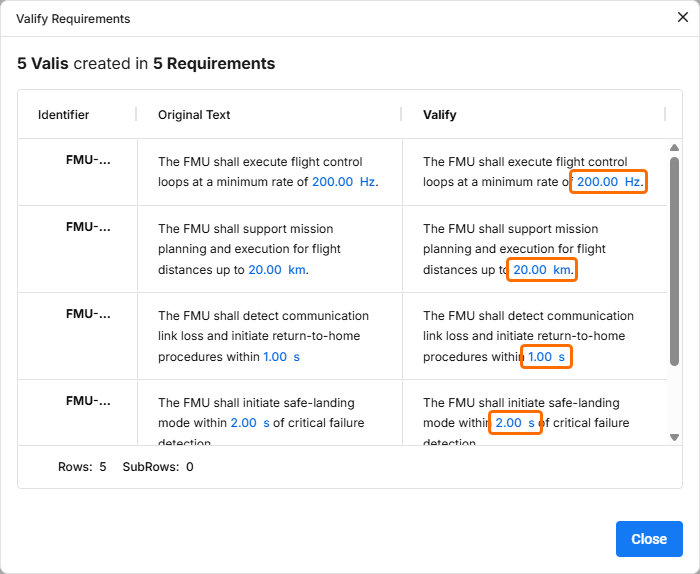
Once the ValiAssistant has processed the requirements and potential Valis are found, you will receive information on how many Valis were found in how many requirements.
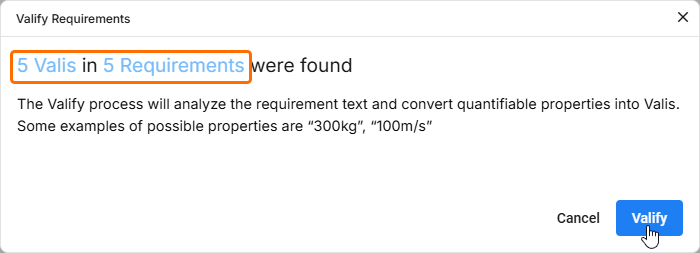
Click  to proceed. Once valis are created, the next window will notify you about that.
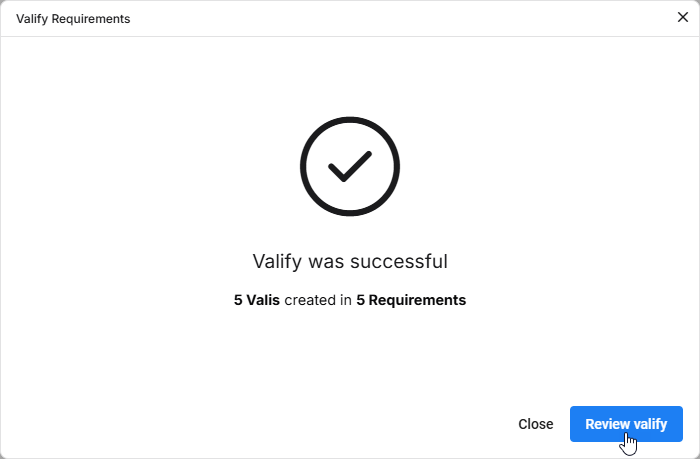
You can either close the window or review the results of the process by clicking  . If you selected to review the results, you can see that values in imported requirements transformed from a pure text into valis.