
Custom Columns for V&V Module
Requirements Portal offers a wide range of default columns in the Verification and Validation (V&V) module, each designed to serve specific tasks within the V&V process. However, there may be scenarios where custom columns with specific header names are required to better align with your unique use cases and workflows. We have extended the capability to create custom columns for both V&V activities and their associated runs to address this need.
Accessing Custom Columns
Requirements Portal offers an easy way of adding Custom Columns to your V&V activity and activity run.
To access the Custom Column feature, open the Settings – Custom Fields page (accessed by clicking the  icon at the bottom left, selecting Settings from the menu that appears, and then selecting Custom Fields from list in the left-hand pane). The page presents a list of existing custom columns.
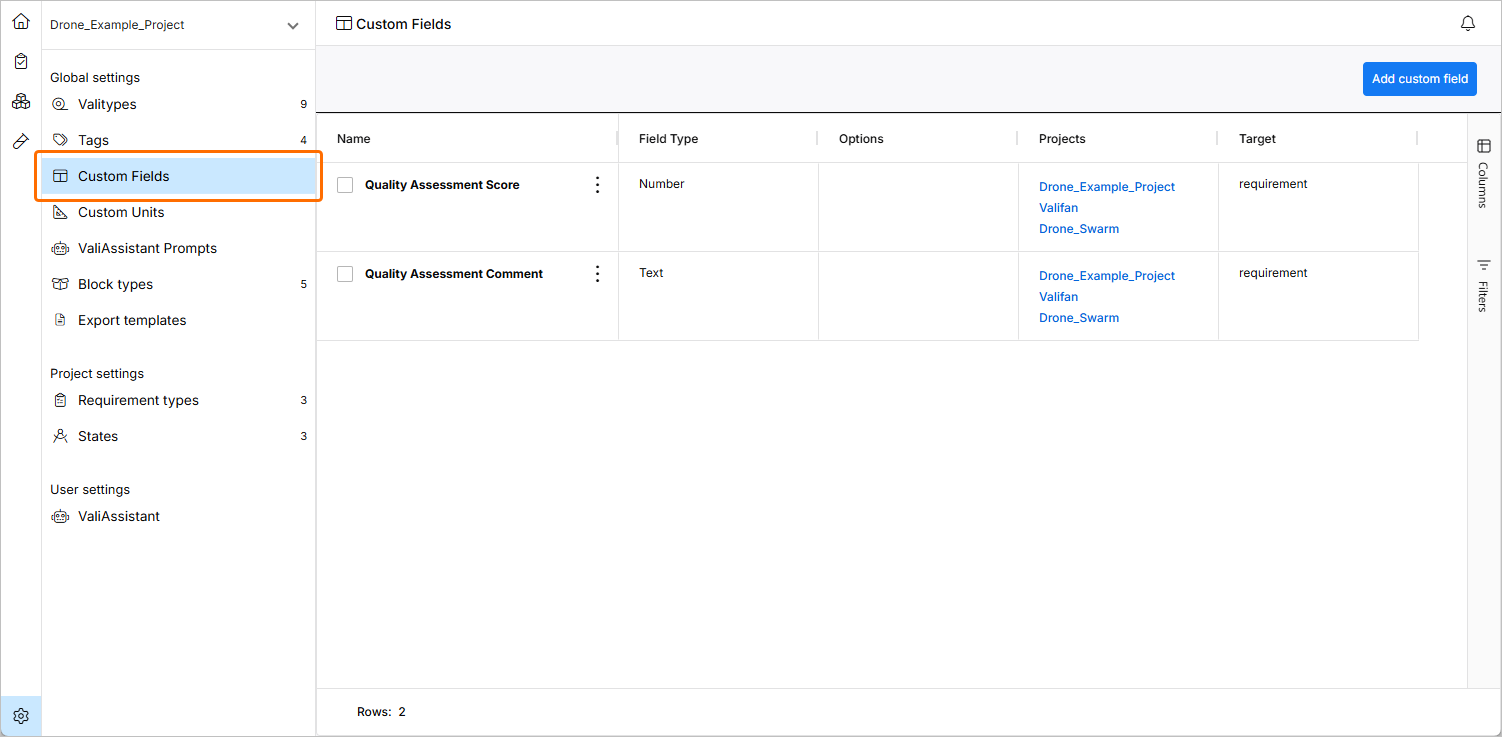
Adding New Custom Columns
There are five types of Custom Columns that you can add:
-
Text – a rich text field (possibility for Bold, Italic, Colours, etc.) for alphanumerical entries.
-
Select – a selection field where you will be presented with a drop-down list from which you can only select one option.
-
Date – a date and hour can be selected from a date interface.
-
Number – a numerical field that only accepts numbers (non-rich text).
-
Multi Select – a selection field where you will be presented with a drop-down list from which various options can be added.
Click the  button to open the Create Custom Field window you can define:
-
The Name of column.
-
The Projects where this column will appear (you can add multiple projects).
-
The Target that can be an activity or activity run, depending on your needs.
-
The Field Type, as described above.
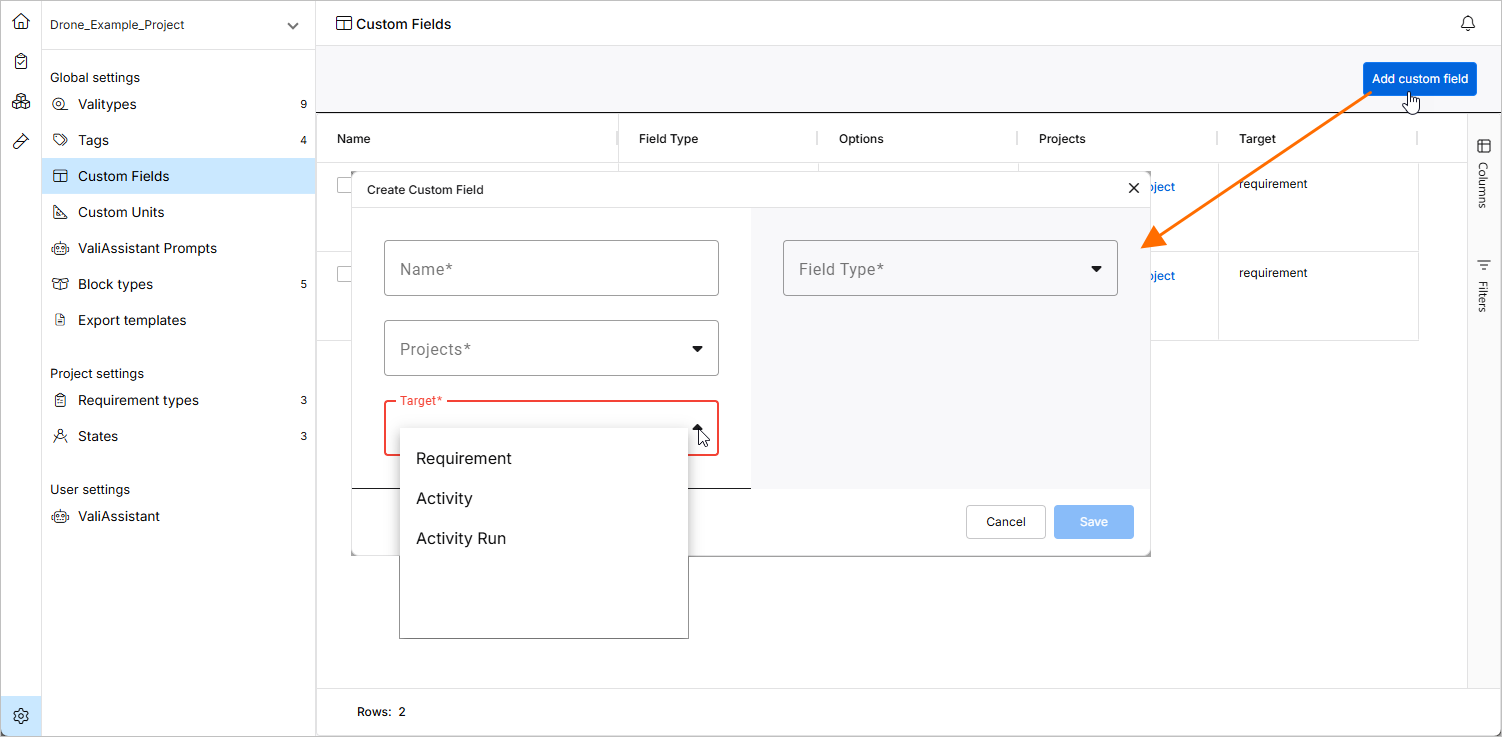
When adding a Text, Date, or Number Custom Column, you only need to click  . The column will be saved and displayed in the target type (activity or activity run).
If you want to add a Selection Column (either Single Select or Multi Select), there is an additional step where you have to define the options that will appear in the drop-down. Once you choose Select or Multi Select as the Field Type, you will be promoted to input the options that will appear in the drop-down.
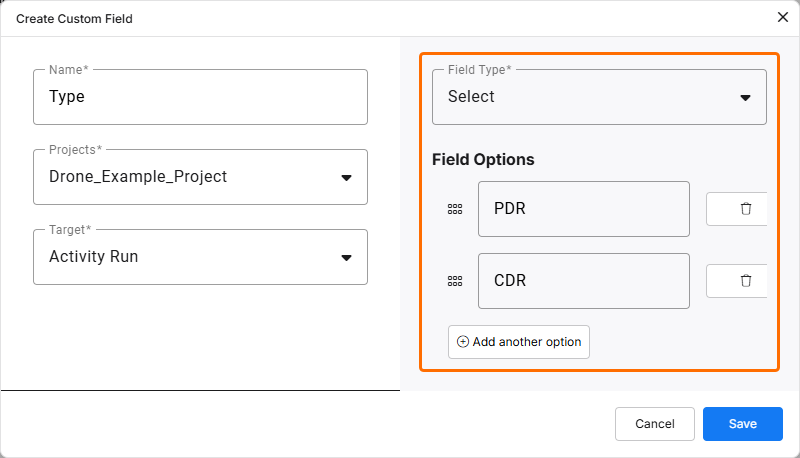
Adding Options to Selection Column - Various options and their order can be defined here.