
Flow 2: Prove Compliance with Files
The high-level use case involves a new Verification and Validation (V&V) module where users can create verification activities, define necessary steps, plan run dates, and associate verification items such as Requirements and Blocks. Users can then upload evidence files/models to substantiate the verification items. This process enables users to validate their project's compliance systematically, ensuring that Requirements and Blocks are thoroughly verified and documented, enhancing transparency and accountability in the development lifecycle.
The workflow depicted in the image below outlines the process for V&V activities within Requirements Portal.

Prove compliance with files
The slideshow below presents a summary of the step-by-step process within the V&V module. It shows how to perform V&V using files as compliance documents for verification items like Requirements and Blocks.
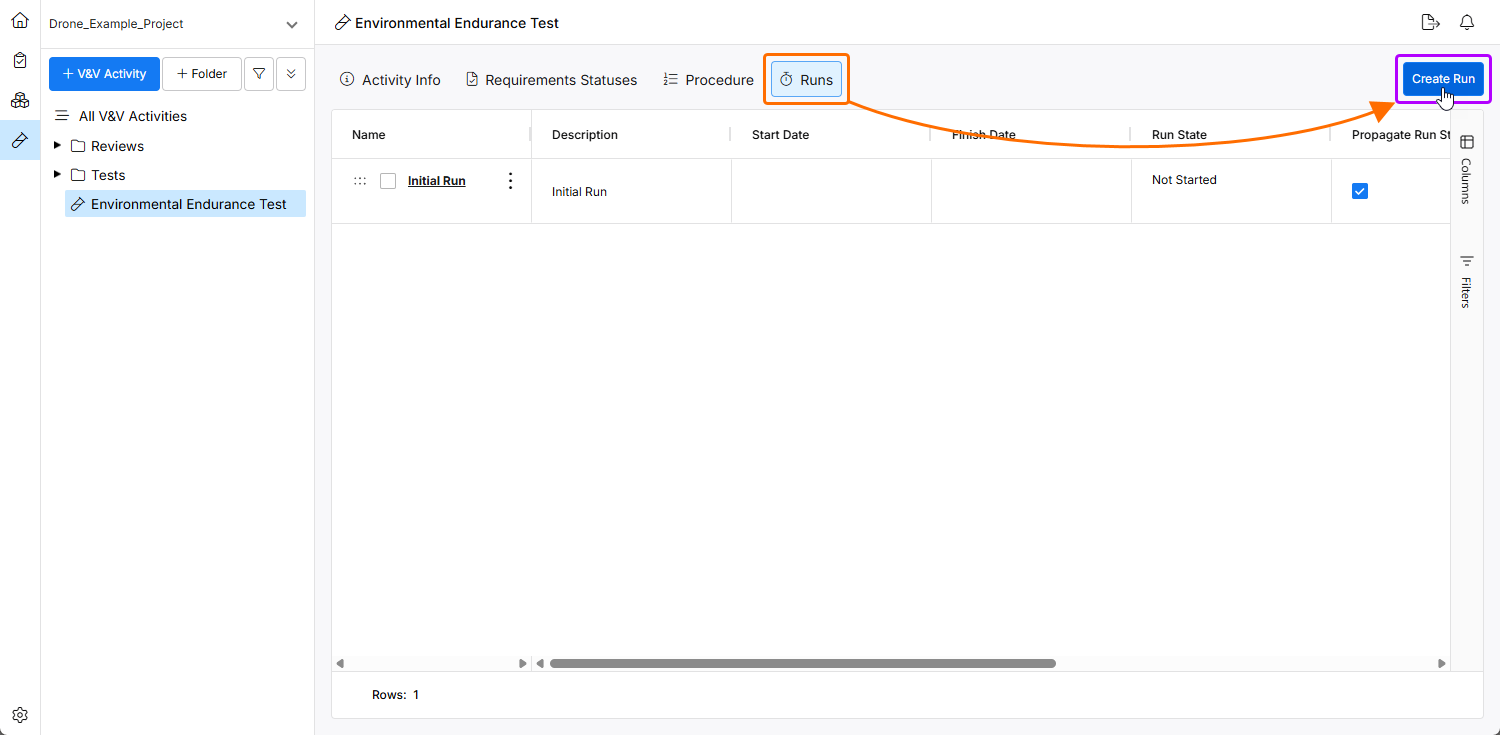
The Runs view of the V&V activity presents a list of existing runs for that activity. Initial run is created automatically when the V&V activity is created. A new run can be created by clicking the  button.
-
Verification Item (Requirements and Blocks) – the process starts with a defined verification item, typically consisting of the requirements or Blocks that must be verified.
-
Create/Link Verification Activities with Verification Item – verification activities can be created or linked with the verification item within the V&V module. These activities are specific tasks that will be used to verify the verification item (requirement).
-
What Type of Verification Activity – a decision is made regarding the verification activity that will be conducted. This could involve different methods such as testing, inspection, analysis, etc.
We will use the analysis (upload file) as the verification activity for this flow. A file containing the data or the results of the verification activity for a verification item is uploaded.
Create a Run
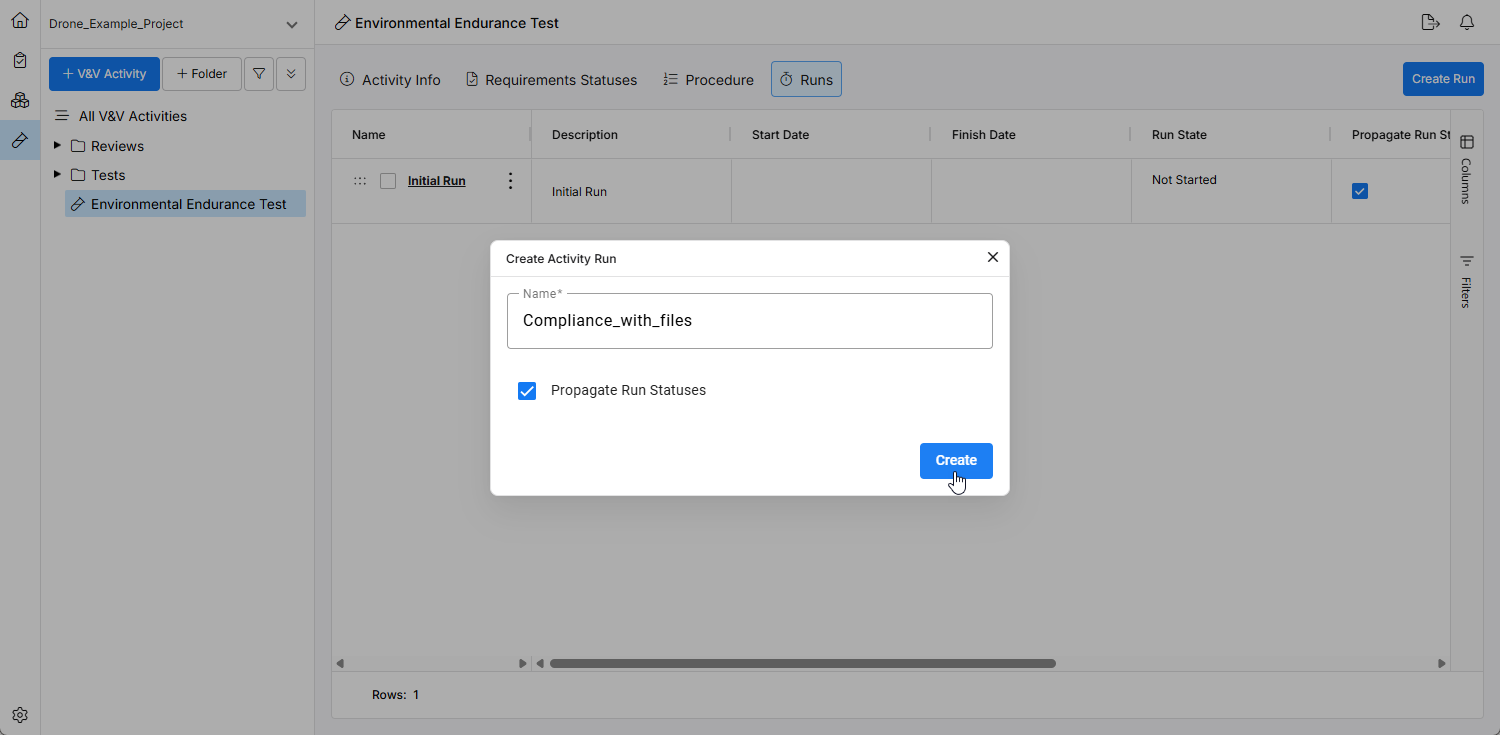
In the context of verification and validation (V&V) activities, a run refers to the specific instance of executing the verification process. To verify a verification item by uploading a file, you need to upload the file within the Runs view of the V&V activity. You can choose to use the Initial Run that is automatically created upon V&V activity creation or create a new run by clicking  within the runs section.
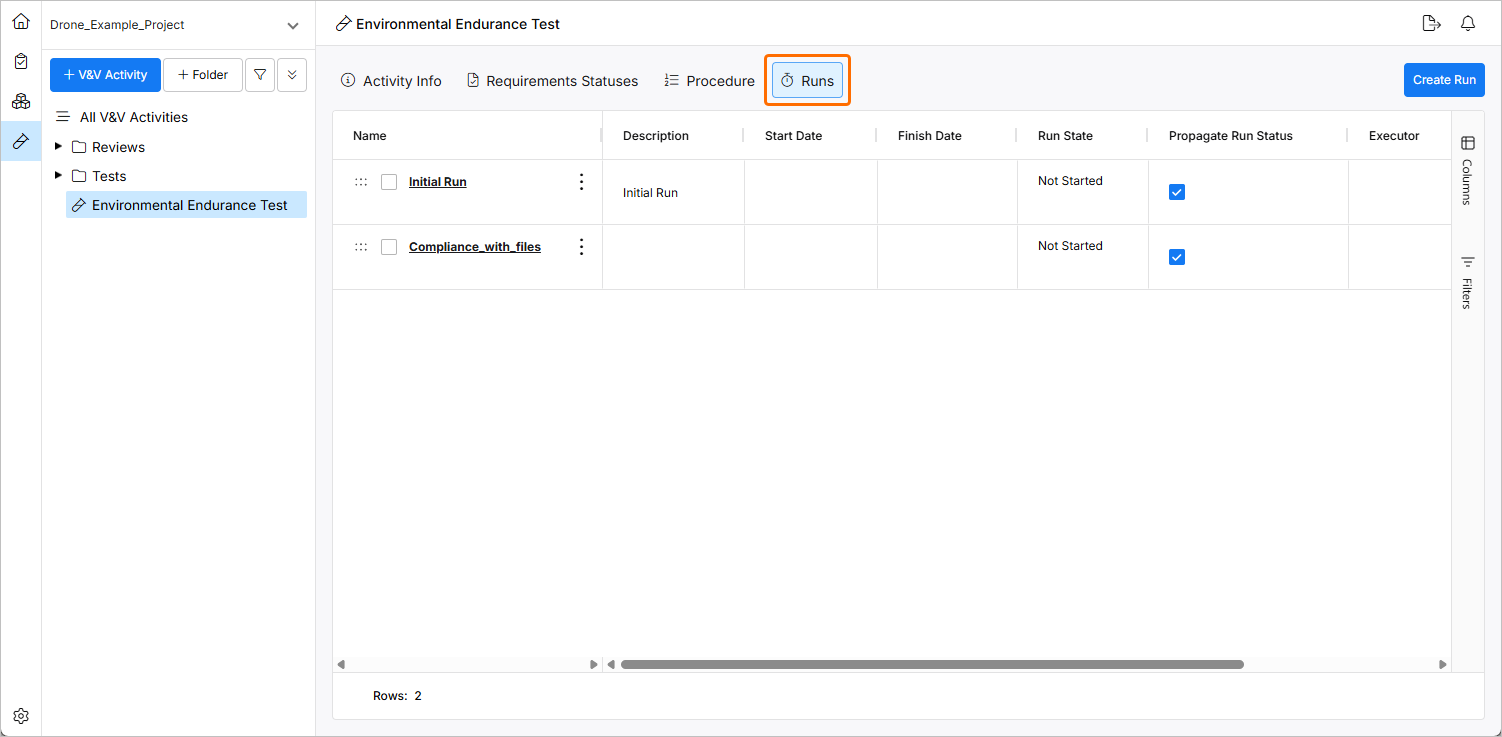
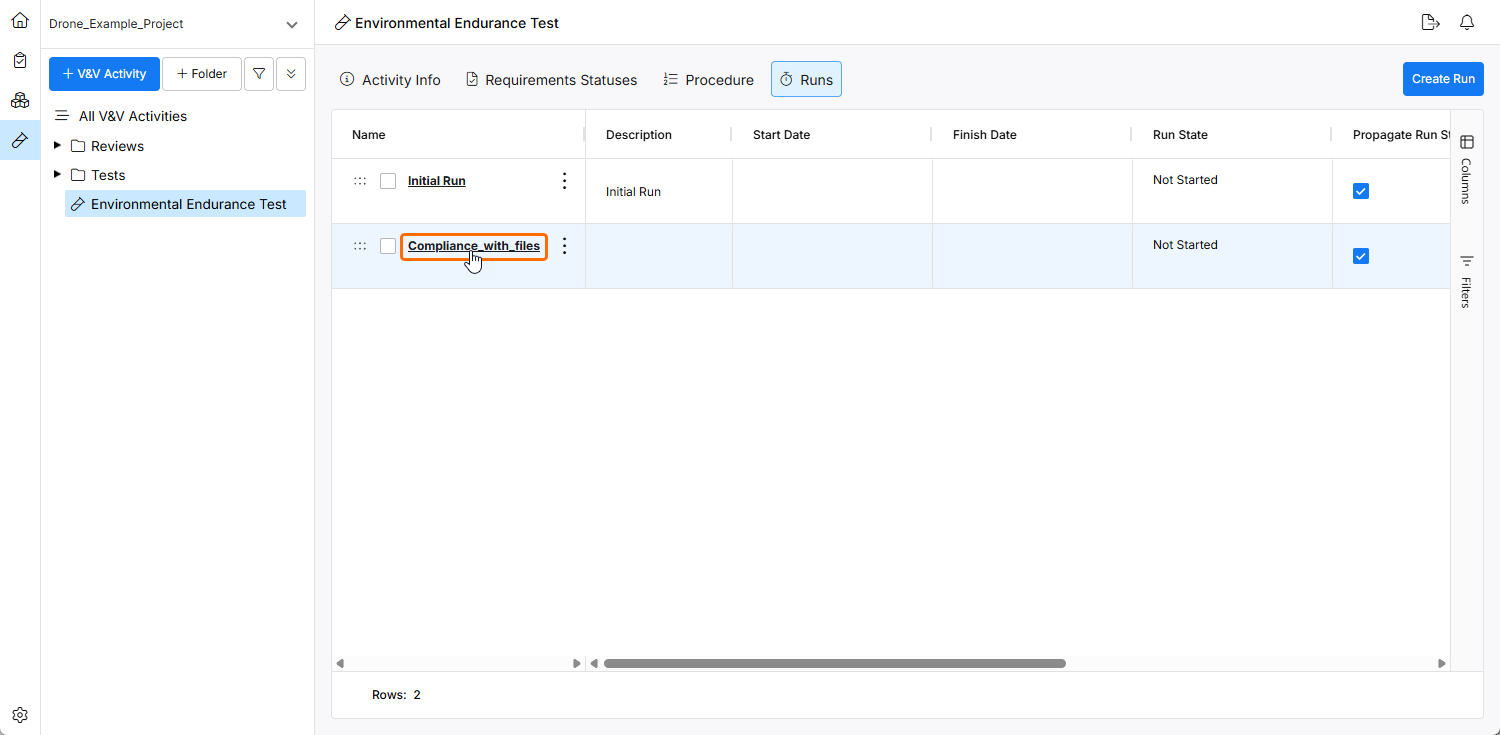
Once created, click the name of the created Run to open its info view.
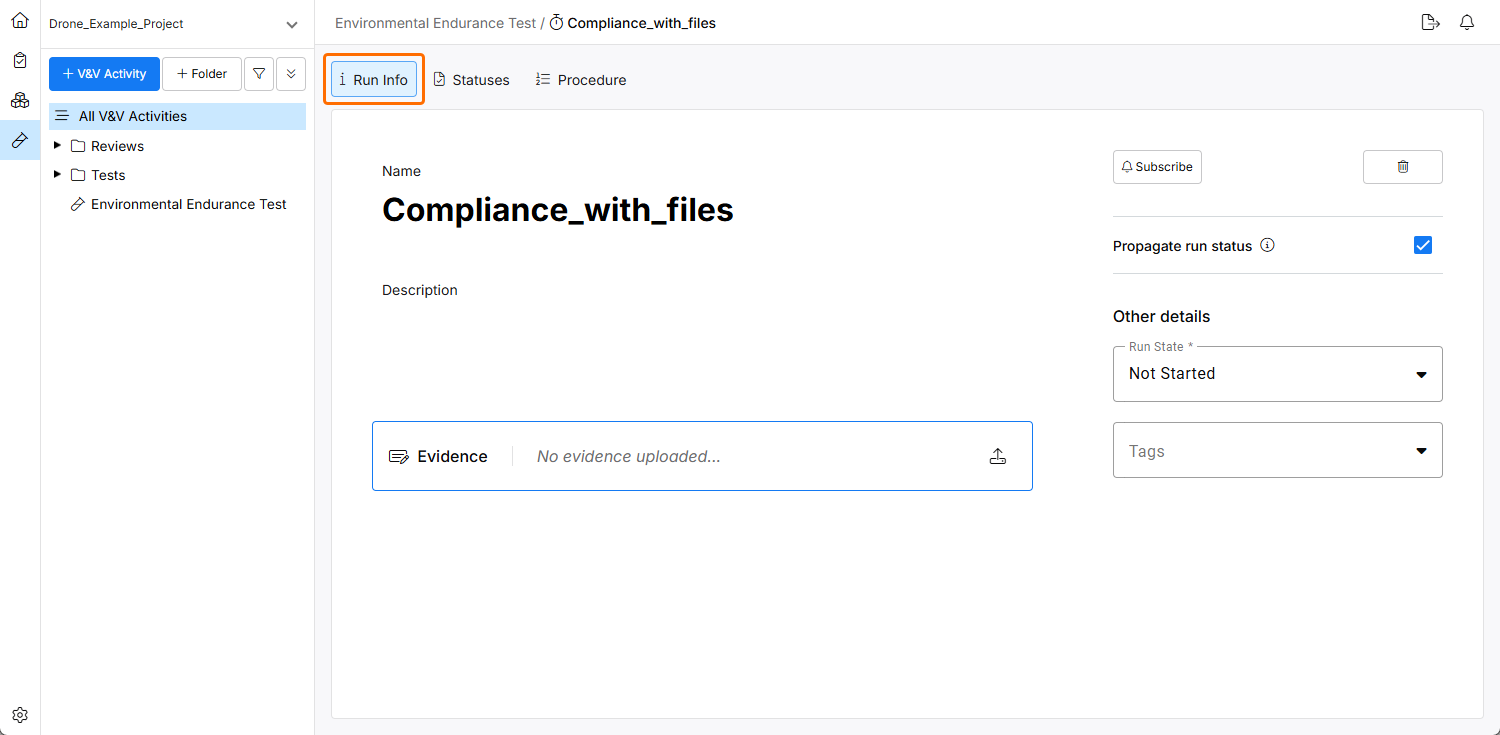
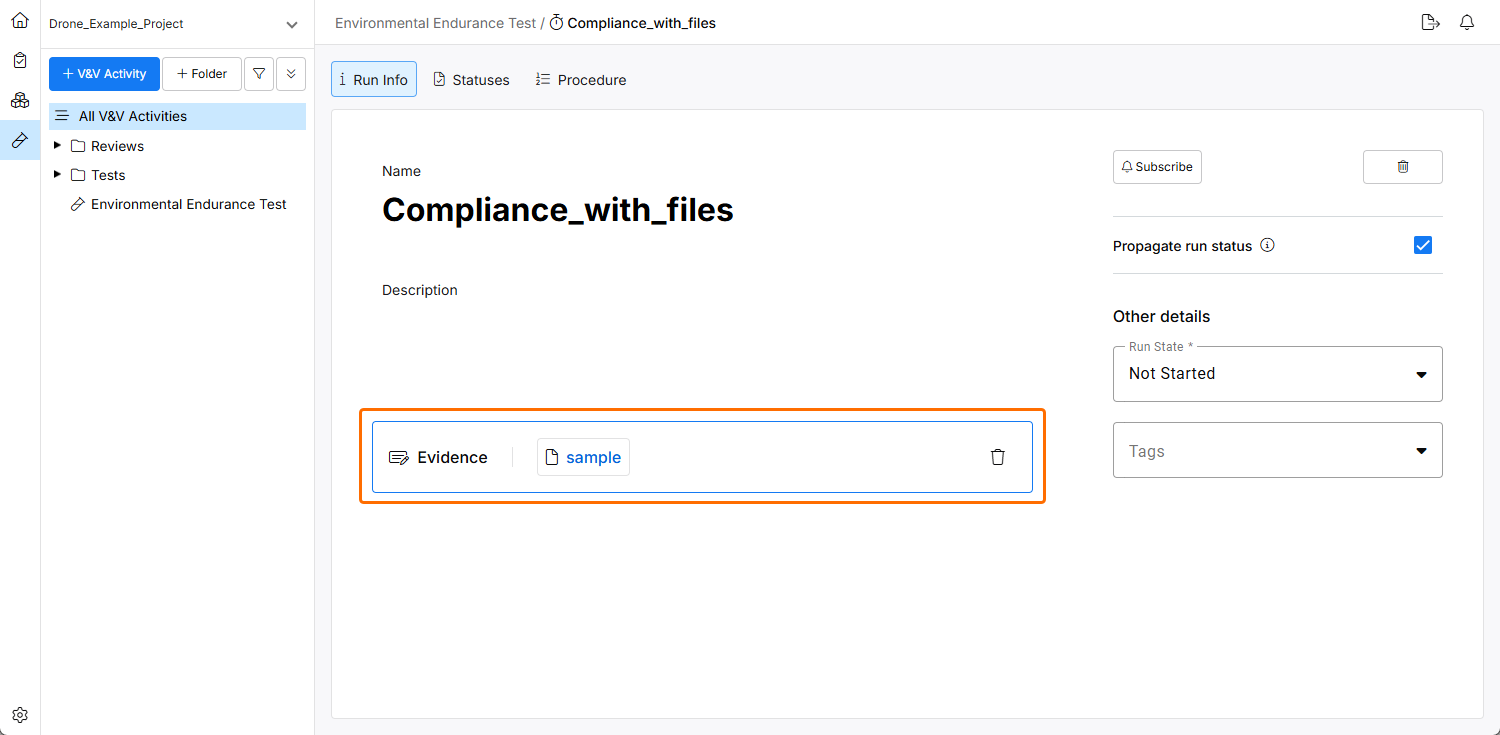
Upload a Document on the Run Info Page
A document, possibly containing detailed results or observations from the verification activity, is uploaded to the run's information page.
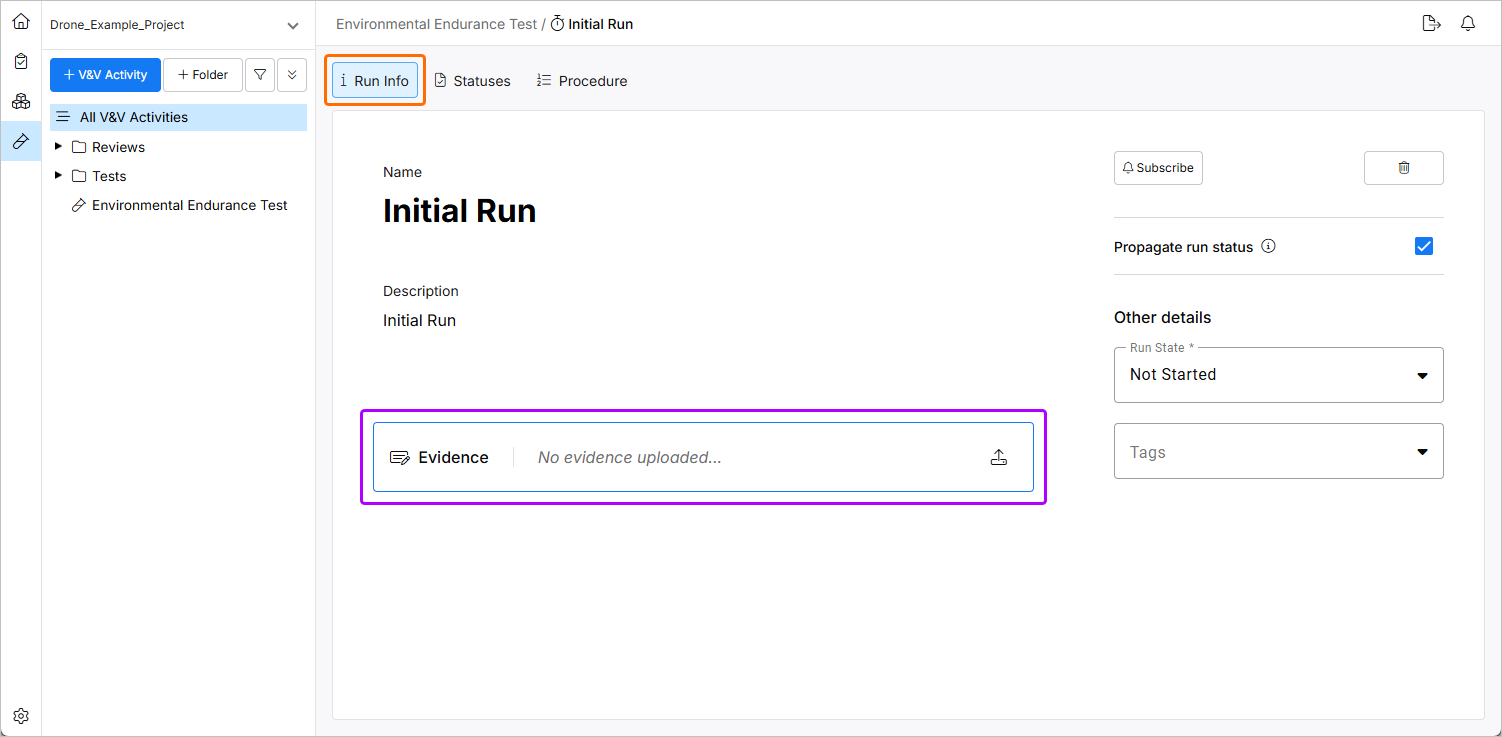
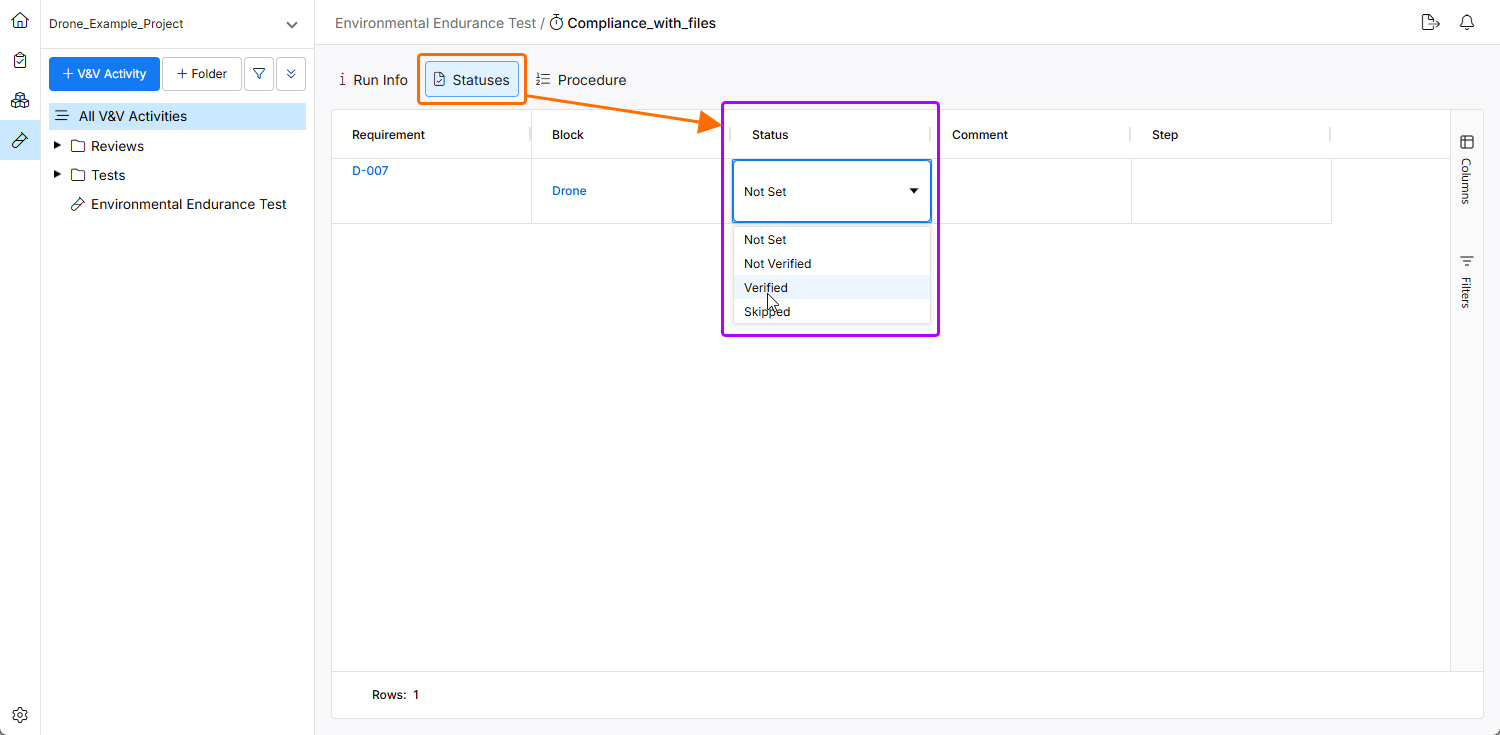
The uploaded file can either verify one requirement or all requirements of the verification activity. Depending on the case, you can change the status of each Requirement to Verified, Skipped, Not Set, or Not Verified in the Statuses view.
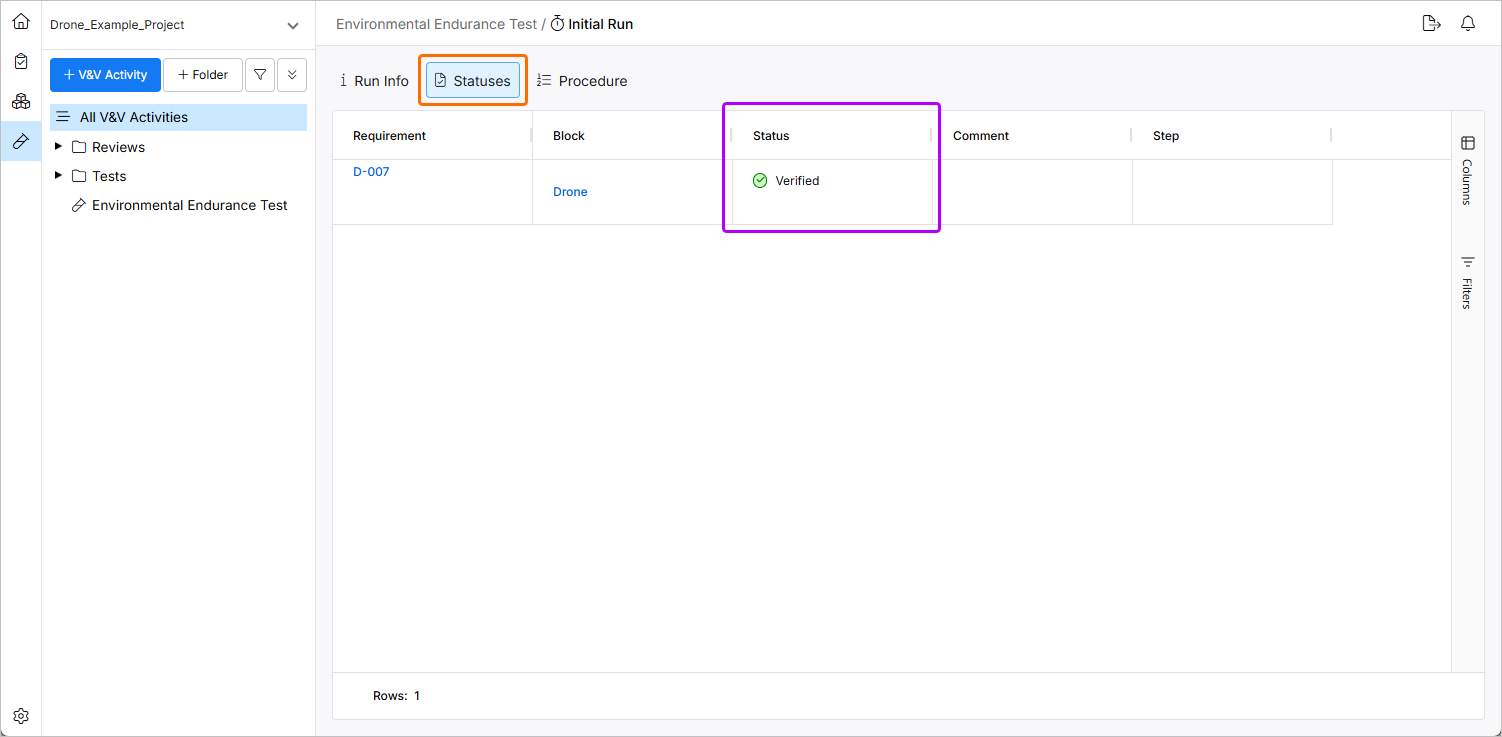
Based on the verification activity results, the requirements' status is updated to reflect whether they have been verified, skipped, or failed.
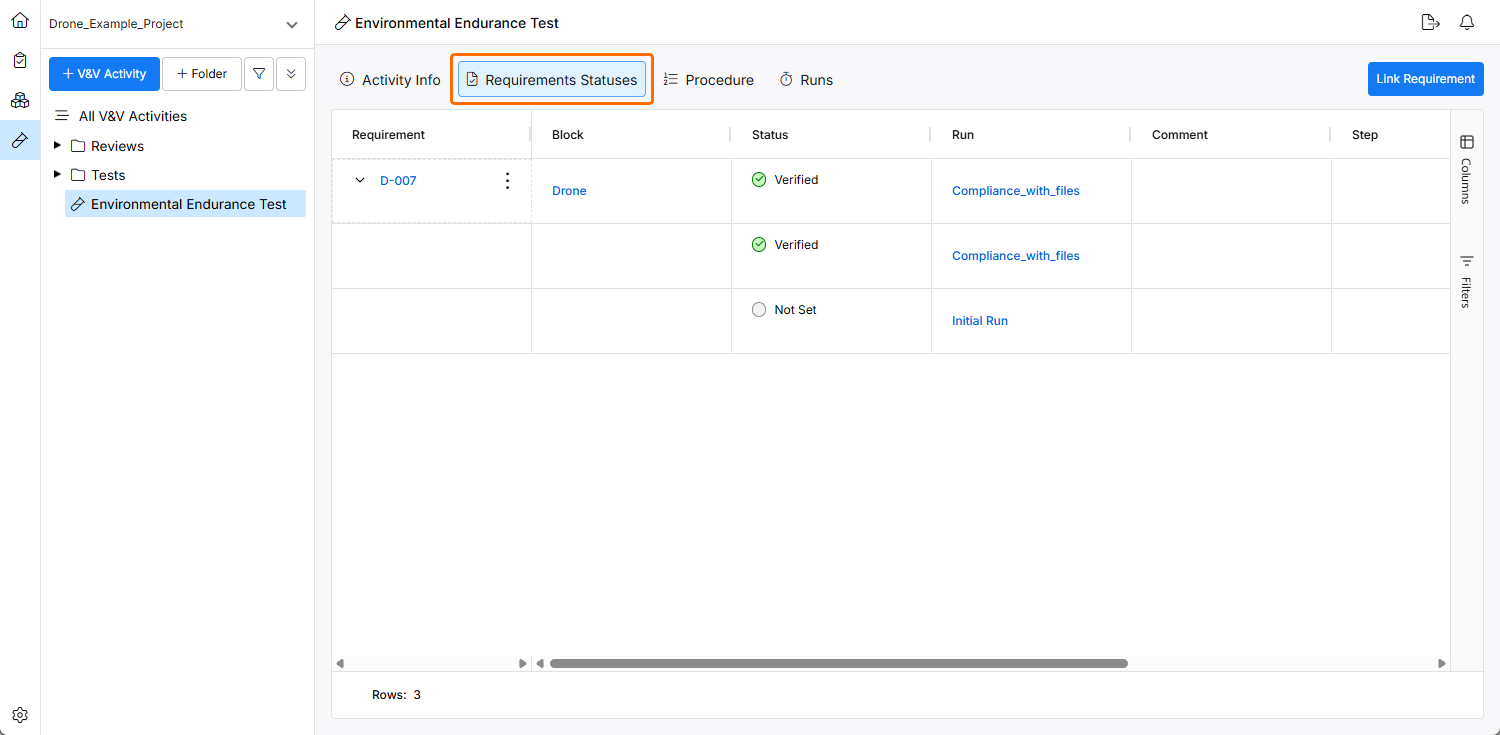
Check the Status of Verification Activity and Verification Status of Requirement
Finally, the status of the verification activity and the verification status of the requirement are reviewed to ensure that the verification process is complete and adequately documented.
This workflow ensures that each verification item is thoroughly checked against its requirements using a structured process that includes documentation and status tracking at each step.