
Permissions
Permissions in Requirements & Systems Portal are granular, and the overarching permissions start from the Requirements & Systems Portal instance level (Default), then the project and flow through higher level objects in each module to all lower levels down to valis or requirements. The admin can alter the permissions on any level. When a new project is created within Requirements & Systems Portal, by default, the project inherits the default permissions (Read & Write & Delete for Everyone by default). The admins can change the permissions of the objects in the permissions page within the project module.
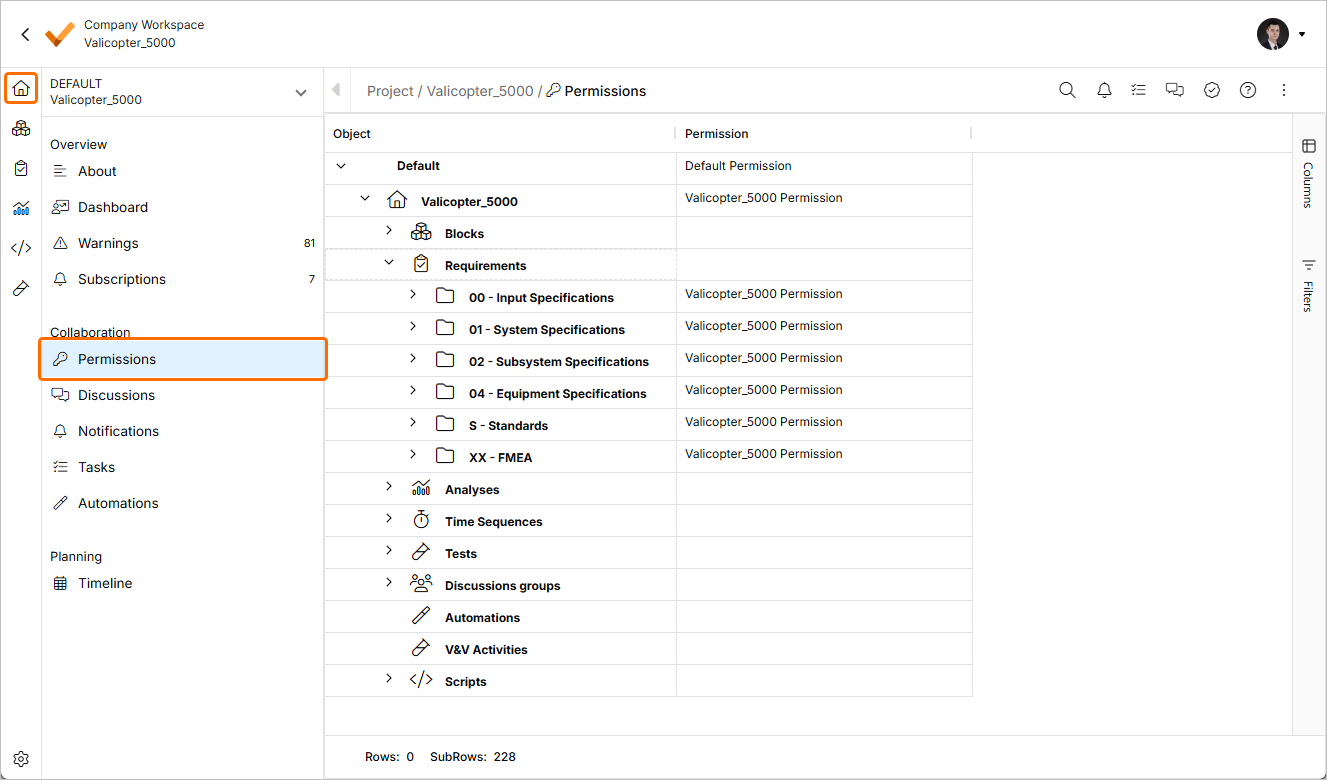
Permissions page - The interface to modify the permissions of all the objects within the project
Permission Types
Permissions are cumulative, which means that higher-ranking permissions always automatically include all lower-ranking permissions. For example, “read” access is automatically included when you have “write” permission. The following four types are available (in cumulative order):
READ-ONLY
Read permission allows you to view a project and all its elements: Blocks, Valis, and matrices. You can also use this data in other projects, for example in formulas of Valis. However, you cannot edit anything inside the project where you have “read” access.
READ & WRITE
To manipulate any elements inside a project you need to possess written permission for that project. With “write” permission, you can edit/delete the project and all Blocks, Valis and matrices inside it. However, with written permission, you can't assign permissions for the project to other users.
READ & WRITE & DELETE
This permission allows the user to have read and write permissions, as well as the possibility of deleting objects.
MANAGE
Manage permission for a project gives you the ability to add or remove permissions for other users for this specific project. You automatically get manage permissions for a project when you create it. A superuser can also assign manage permissions to you or remove them.
Special Permissions
In addition to the project permissions, there are a few special permissions that are assigned on a user level:
-
Create/edit tags
-
Create/edit types
All of the above are granted by default but can be revoked by admins in the admin panel under “Users“ and then the specific User Id.
Public Projects
In public projects, every user is automatically granted “write” permission. Projects are public by default and must be made private if permission management is required.
Admin Rights
Administrators by definition always have all available permissions.
Setting up your Permissions
You can add custom permissions to an object within a module in Requirements & Systems Portal. If no custom permission is set, the object will inherit the permissions from the higher level in the order Default > Project > Blocks / Specifications > Sub-Blocks / Groups > Valis / Requirements.
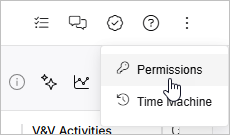
You can add new permissions by clicking on the three dots in the upper right corner and selecting Permissions.
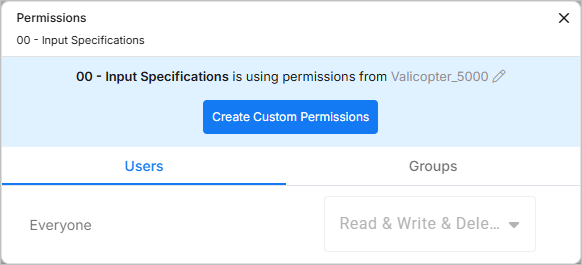
In the Permissions window that opens you can set the permissions for the object that you have currently navigated to. At the top of the window, you will see the name of the object that you are setting permissions for (in the example below, it is a specification named 00 - Input Specifications). You can also see which object it inherits its permissions from if no custom permission is added. In this case, 00 - Input Specifications is inheriting its permission from the Valicopter_5000 project.
Custom Permissions
To add custom permission, click the  button in the Permissions window.
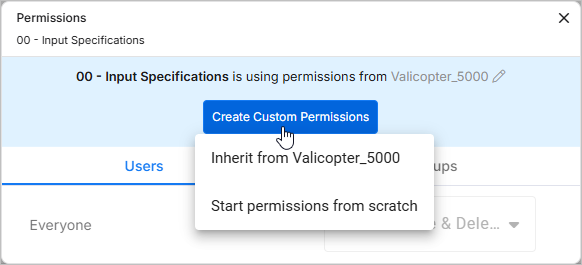
You will have two choices when creating new custom permission, which are explained below:
Inherit from <Object>
With this option, you can set custom permissions on the object, which will also propagate to any children below it. The default custom permission for each user will be inherited from the parent object. Also, when creating new permission on the parent object, for example adding a new user to the project, its permission for the current object will be inherited from the parent. This is also the case when a user's permission in the parent object changes. If a user has a custom read permission and has to write permission on the parent, if the parent permission changes to manage, the read permission will be overwritten with the new manage permission.
Some example use cases are:
-
You want a user to have read access to a whole project, and custom write access to a specific specification and all requirements in that specification.
-
You want a user to have write access to a whole project, but only read access to a specific specification and all requirements in that specification.
Start permissions from scratch
With this option, all propagation of permissions from the parent level is stopped. There are by default no permissions created on the object, but you can add custom permissions for each user to this object. No permissions will be inherited from the parent, even when adding new users.
Some example use cases are:
-
You want to restrict access to a specification and its requirements to allow only a few users to read and write. Other users will not see this specification.
-
You don't want the permissions to be inherited from the parent if the permission of the parent changes.