
Information for IT Departments
Parent page: Advanced Topics
While installation and use of the Altium On-Prem Enterprise Server and its related services is detailed across other pages within this documentation site, the aim of this page is to provide a single, detailed resource for an organization's IT department. A place to come for answers to typically asked questions regarding this technology, including:
- What are the hardware requirements to install the Enterprise Server?
- What is installed?
- What programs and processes are running?
- Where is the data stored?
- What ports are used?
- What protocol is used for communications?
- How is data backed up?
The following sections provide detailed answers to these and other questions, including a high-level overview of the architecture and data flows.
Hardware Requirements
The Enterprise Server should be installed on a PC running one of the following officially supported Operating Systems:
- Windows Server 2022 Standard Edition (64-bit)
- Windows Server 2019 Standard Edition (64-bit)
- Windows Server 2016 Standard Edition (64-bit)
Recommended System Requirements
The following are the recommended system requirements to install and run an Enterprise Server. Note that these recommendations are for 5 concurrent users.
- OS: Windows Server 2022 Standard Edition (64-bit)
- RAM: 16GB+
- Processor: Intel® Xeon® processor or equivalent (4 or more cores)
- Disk space: 200GB (SSD recommended)
- Database: Firebird
Minimum System Requirements
The following are the minimum system requirements to install and run an Enterprise Server. Note that these recommendations are for 5 concurrent users.
- OS: Windows Server 2016 Standard Edition (64-bit)
- RAM: 8GB+
- Processor: Intel Core i3/i5 processor or equivalent (2 or more cores)
- Disk space: 200GB
- Database: Firebird
Altium Designer Requirements
Installation & Other Software
Due to the observed unpredictable behavior of antivirus software, it is recommended to disable such software during the installation of the Enterprise Server.
If the computer is also running Microsoft Exchange Server, you might receive an HTTP Error 503 error when you first attempt to log in. The installation of the Exchange Server can change the Internet Information Services (IIS) configuration in a way that conflicts with the Enterprise Server. To resolve this, the following changes must be made to the applicationHost.config file:
<handlers accessPolicy="Read, Script">
...
<add name="kerbauth" image="C:\Program Files\Microsoft\Exchange Server\V15\Bin\kerbauth.dll" preCondition="bitness64" />

	<add name="WSMan" image="C:\Windows\system32\wsmsvc.dll" preCondition="bitness64" />

	<add name="exppw" image="C:\Program Files\Microsoft\Exchange Server\V15\ClientAccess\Owa\auth\exppw.dll" preCondition="bitness64" />

	<add name="cafe_exppw" image="C:\Program Files\Microsoft\Exchange Server\V15\FrontEnd\HttpProxy\bin\exppw.dll" preCondition="bitness64" />
...

	</handlers>
Additional Software Installed or Configured
-
Internet Information Services (IIS). For correct operation, the Enterprise Server requires, at minimum, version 8.0 (IIS 8.0) to be installed. Installation of the Enterprise Server will simply install the version of IIS native to your operating system:
- IIS 10.0 – Windows Server 2022 Standard Edition (64-bit), Windows Server 2019 Standard Edition (64-bit), Windows Server 2016 Standard Edition (64-bit), Windows 10 (64-bit)
- IIS 8.5 – Windows 8.1 (64-bit)
-
Firebird 3.0 database engine (where the option to install using a Firebird database is chosen). Ensure that IPv4 network addressing is enabled – to check for active IPv4 addresses, run
ipconfig /allin a command prompt. - Microsoft .NET 6 software platform (incorporates .NET Runtime, .NET Server Hosting, and ASP.NET Framework components).
IIS Configuration
As part of IIS configuration, the ISAPI Extensions feature is enabled. This feature can be found in the \Internet Information Services\World Wide Web Services\Application Development Features section of the Windows Features dialog – accessed from Window's Programs and Features window.

Installation of the Enterprise Server enables the Windows ISAPI Extensions feature, part of IIS configuration.
Application Pools Installed on IIS
Verification that the Enterprise Server is running can be performed from the Windows Internet Information Services (IIS) Manager panel – accessed from Window's Administrative Tools window. Simply check to confirm each of the server-related application pools are in the Started state (as highlighted in the following image).

Enterprise Server-related application pools running on the IIS server.
Default Installation Paths
The following is a list of default installation paths when installing the Enterprise Server:
-
Enterprise Server Installation Folder –
\Program Files (x86)\Altium\Altium365. -
Firebird Installation Folder –
\Program Files (x86)\Firebird\Firebird_3_0. -
Firebird Database –
\.ProgramData\Altium\Altium365Data\DXPSERVER.DAT -
Revision Files Folder –
\.ProgramData -
Search Index Data Folder –
\.ProgramData
Default Ports
The following default communication port numbers are used by the Enterprise Server:
- HTTP Port – 9780
- HTTPS Port – 9785
- LDAP Service Port – 9791
- Websocket Port – 4649
- Firebird Server Port – 3050
- SVN Port – 3690
The first three in the list can be configured during initial installation, on the Altium On-Prem Enterprise Server Configuration page of the Installer.
When choosing a port, note that it must not clash with any ports used by other applications – if a port is currently in use, you will be notified by the installer.
► See information on ports and IP addresses for Altium Design software.
HTTPS Protocol Support
For those that require an additional layer of security for exchanging data with the Enterprise Server, the Enterprise Server provides for secure communication over networks using the HTTPS protocol to protect the privacy and integrity of the data.
The configuration and server bindings for the Enterprise Server can be accessed from the Windows Internet Information Services (IIS) Manager panel – available from the Administration Tools window (Control Panel\System and Security\Administrative Tools). Select the 'Altium On-Prem Enterprise Server' entry in the panel's Connections list, and choose the Features View tab.
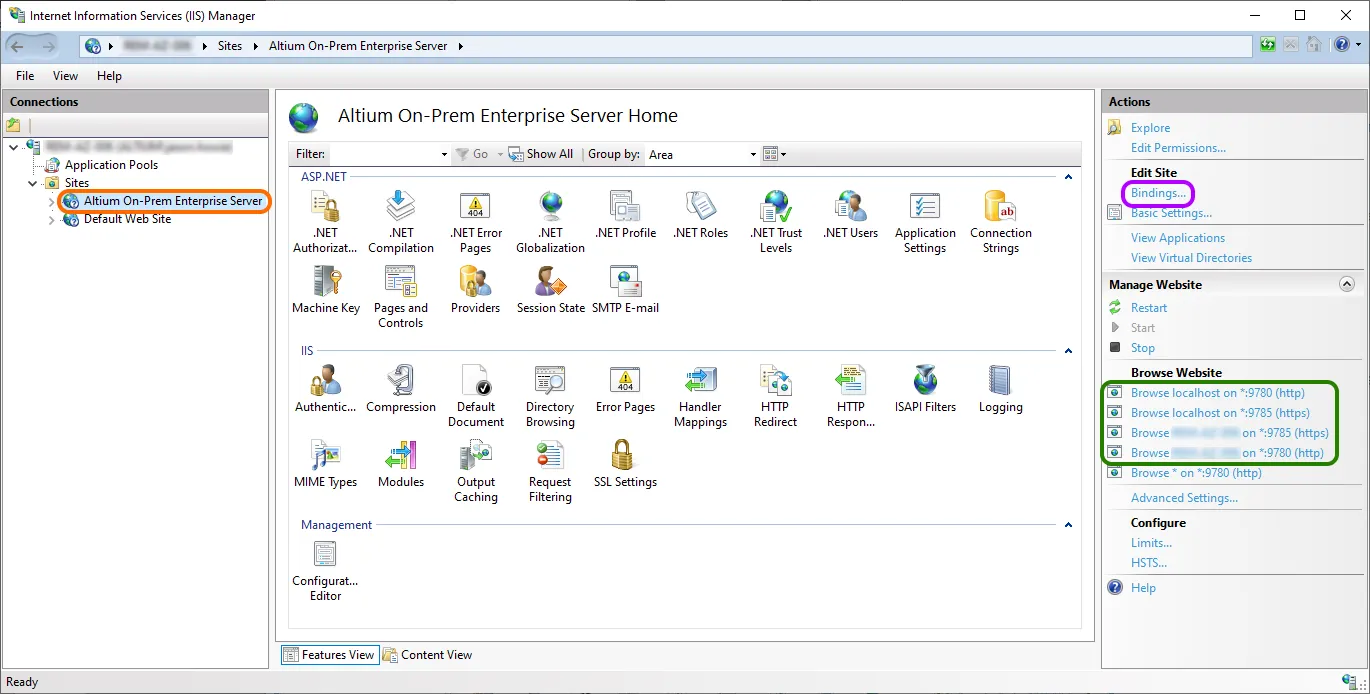
Access configuration and server binding settings for the Enterprise Server.
The available ports and server names for the Enterprise Server are shown as selectable links in the Actions pane. Use the links to note and test the server connection protocols, or access the current name/port bindings by selecting the Bindings link in the Edit Site section of the pane.
A Binding, including its protocol port number, can be edited from the Site Bindings dialog via the Edit button.
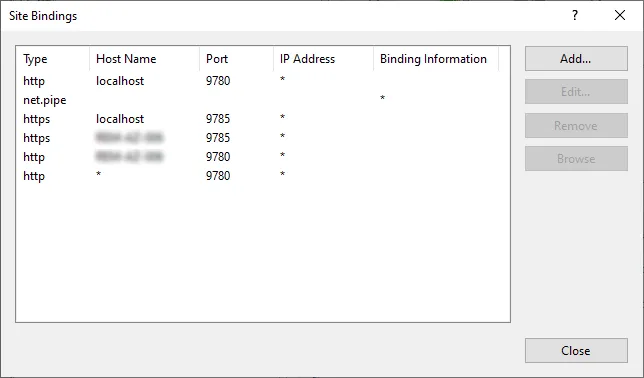
Configure bindings through the Site Bindings dialog.
Note that the server name localhost only applies to the local machine, so PCs other than the one that is hosting the Enterprise Server need to use the actual (server) name of that host machine to connect.
To confirm the name of the host PC on which the Enterprise Server is installed and running, on that machine go to Control Panel\System and Security\System and note both the Computer name and Full computer name (its qualified domain name) – the latter will be that used by the Enterprise Server for secure connections over the network.
If you have edited the Enterprise Server's site bindings to use a Port number that is different from the default value, that change will need to be reflected in the Enterprise Server's LocalVault.ini file also. This is because its port references are accessed when connections are made to the Enterprise Server by Altium Designer. The LocalVault.ini is file can be found in the Enterprise Server installation's root folder – typically Program Files (x86)\Altium\Altium365.
For example, if you have changed the Enterprise Server's site binding to use the standard 443 port for HTTPS connections, update the corresponding HttpsPort=9785 line in the LocalVault.ini file to HttpsPort=443.
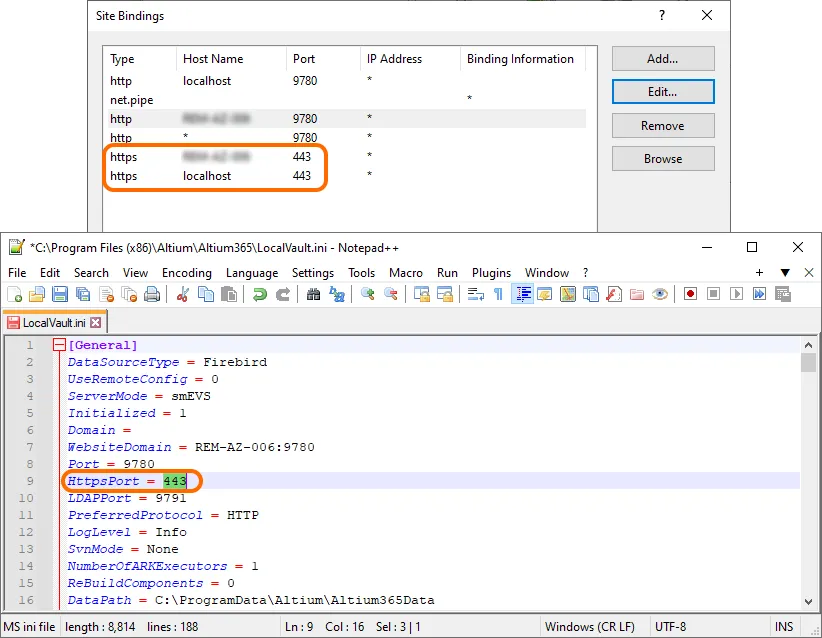
To establish a secure connection to the Enterprise Server:
-
From Altium Designer – use a HTTPS prefixed server address and the configured HTTPS port. By default, this is
https://localhost:9785when using the PC that hosts the Enterprise Server, orhttps://<computername>:9785for a remote connection (where[computername]is the host machine's Computer Name or qualified domain name).
-
From a browser – enter the address of the local service (
https://localhost:9785) or the host computer name equivalent (https://<computername>:9785).
When Reconfiguring Site Bindings
If you have added a new IIS Site Binding for the Enterprise Server, or edited an existing Site Binding entry (see above), the server PC should be restarted to correctly establish the new configuration. Typical Site Binding changes might be editing the Port number for a host entry, or adding a new binding for a domain alias.
When it is not practical to restart the server host machine, the alternative process is to restart the server service on the IIS platform – Restart under Manage Website – and also restart the Altium DXP App Server Pinger service (a Windows service).
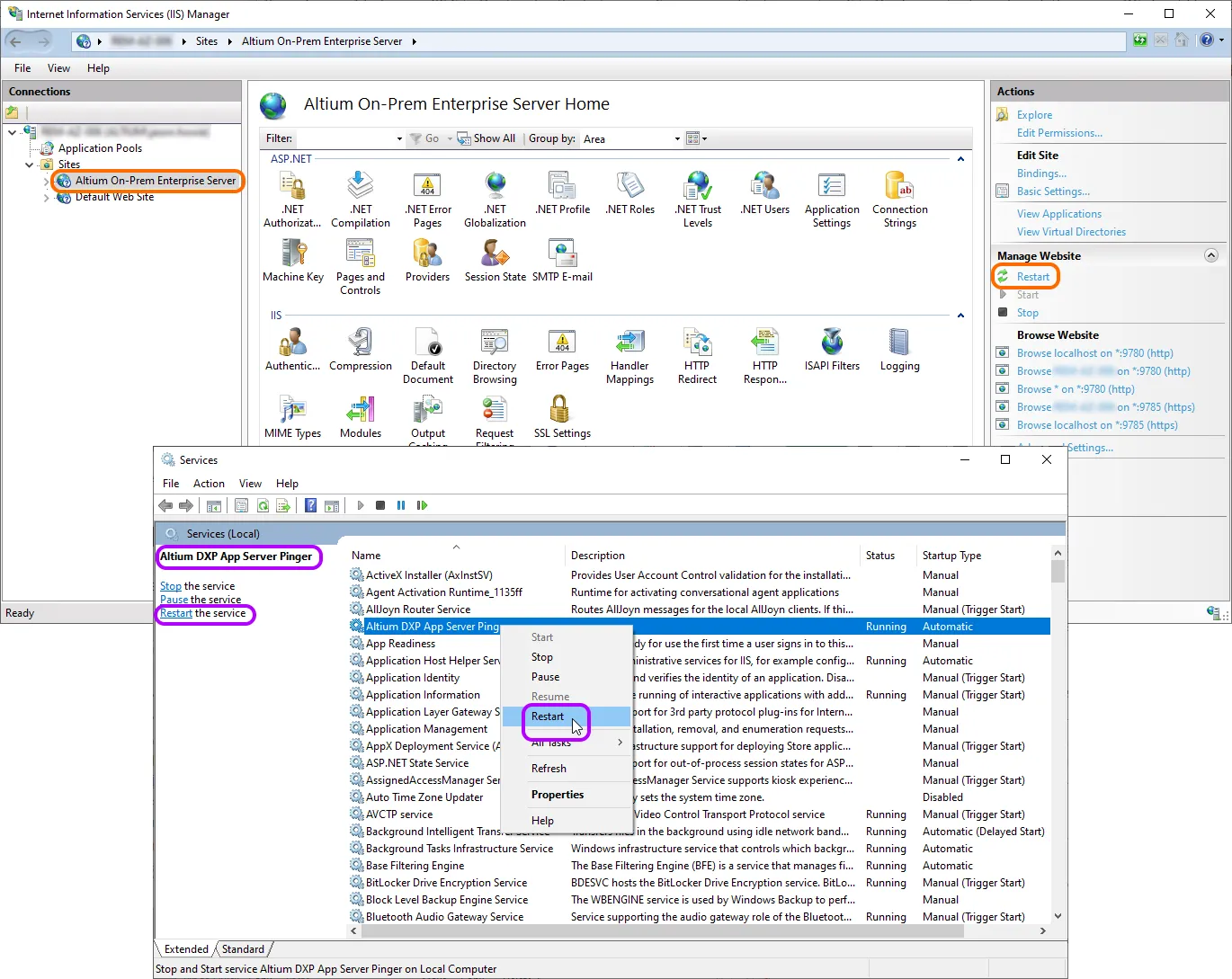
Protocol used for Service-to-Service Communications
SOAP over HTTP.
Service Architecture – Overview
The Enterprise Server installs a number of core services, as well as browser-based management consoles, and an Explorer (also browser-based). In order to access any of these services, a user's identity must be recognized and authenticated. The Enterprise Server comes with one predefined user (Username: admin, Password: admin). The Users page of the Enterprise Server Workspace's browser-based interface can be used to add and manage more users. There is no limit to the number of users that may be registered to access and use the Enterprise Server, but there is a limit on simultaneous connections, as determined and enforced by required licensing.
Altium Designer uses an unencrypted channel (SOAP over HTTP) for communicating with the following services:
- Applications Registry Service (when the Network Installation Service is being used as a source for extensions/updates)
- Collaboration Service
- Comments Service
- Data Acquisition Service
- Data Storage Service (DSS)
- Identity Service (IDS)
- Notifications Service
- Part Catalog Service
- Projects Service
- Simple Lock Service (SLS)
- SVN (through the SVN:// protocol)
- Tasks Service
- Team Configuration Service (TC2)
- Vault Service
All other services communicate with each other.
The majority of services require access to the same Enterprise Server database, in which to store data applicable to them. The following are examples of the data stored by some of these services:
- Part Catalog Service – stores supplier and manufacturer items, price and quantity history changes, etc...
- Identity Service – stores users, roles, licensing configuration, and session information.
- Vault Service – stores its structure (folders, items, revisions, content types, lifecycle states, etc...).
Actual documents are stored on the file system, in the Revisions folder (\).
ProgramData
The following browser-based applications use SOAP API to communicate to the applicable services – they do not require access to the Enterprise Server database, nor are any other files required for them to function:
- User Management – the application behind the Users page and sub-pages in the Enterprise Server Workspace's browser interface.
- Vault Explorer – the application behind the Explorer page of the Enterprise Server Workspace's browser interface.
- Catalog Management – the application behind the Part Providers page of the Enterprise Server Workspace's browser interface.
- Projects Management – the application behind the Projects page of the Enterprise Server Workspace's browser interface.
- TC2 Console – the application behind the Configurations page of the Enterprise Server Workspace's browser interface.
License Files
Related page: Licensing
Licensing for the Enterprise Server essentially consists of the following two components, that together comprise a two-tiered licensing system:
- Server License – this license makes the features and services of the Enterprise Server installation available to the organization.
- Client Access License – this license enables users within an organization to access the organization's Enterprise Server.
Licensing for the Enterprise Server can be handled through the cloud, or locally through license files (*.alf). Acquisition of the latter is performed through the Company Dashboard (accessed using the Company Dashboard entry from the AltiumLive account menu, at the top-right of the Altium site). From the Licenses tab, locate the applicable license (in the Server Applications grouping of licenses) then click through to the detailed license management page. Once there, click the Activate button to generate and download the associated license file.
Backup/Restore of Server Data
Backup and restoration of your Enterprise Server data is performed from the command line, in an automated fashion, using the dedicated Backup & Restore Tool. This tool – avbackup.exe – can be found in the folder \Program Files (x86)\Altium\Altium365\Tools\BackupTool\ (for a default installation of the Enterprise Server).
Re-Indexing Server Content after Data Migration
To re-index Enterprise Server content, for example after data migration:
- Stop all IIS application pools associated to the Enterprise Server.
- Stop the Elasticsearch (AltiumElasticSearch) service. This is performed from the Windows Services panel – accessed from Window's Administrative Tools window.
-
Delete the content of the
SearchDatafolder, which contains the search indexing data (\for a default install).ProgramData - Restart the Elasticsearch (AltiumElasticSearch) service.
- Restart the IIS application pools associated to the Enterprise Server.
On finding the SearchData folder empty, the Enterprise Server will re-index its content once it starts.
Local SVN Design Repository – Storage
A Design Repository that is created through the local Version Control Service has its internal data stored in a corresponding sub-folder in the \ProgramData\Altium\Altium365Data\Repository folder (for a default installation of the Enterprise Server).
Using Oracle for the Enterprise Server Database
Related page: Enterprise Server with Oracle Backend
When installing the Enterprise Server, the Oracle database type facilitates streamlined installation of the Enterprise Server within organizations already utilizing this type of database as the back-end for their existing systems. Hosting the Enterprise Server on their existing infrastructure, reduces installation and management complexity.
Getting the Enterprise Server installed and running with Oracle as its back-end database is essentially a two-fold process:
- Setting up the Oracle database
- Setting up the Enterprise Server.
Preparing the Enterprise Server
To be installed and run successfully, the Enterprise Server requires not only the OCI client, but also relevant .Net connectors. It is recommended to install the relevant 32-bit Oracle Data Access Components (ODAC) with Oracle Developer Tools for Visual Studio, in accordance with the version of Oracle you are running. The ODAC 12c Release 1 and Oracle Developer Tools for Visual Studio (12.1.0.1.0) download is recommended as a minimum to be installed on the dedicated machine used to accommodate the Enterprise Server.