
KB: CoDesigner Push Errors Caused by Deleted Workspace Items and Improper Restore from Trash
 A365
A365
Solution Details
Push fails with server-side revision errors
When pushing a PCB from Altium Designer to MCAD CoDesigner, the operation may fail with server-side errors. A commonly observed message is:
Error while uploading xx models. Server side error: Command AddALU_ItemRevisions failed. Cannot add new revision for deleted item.
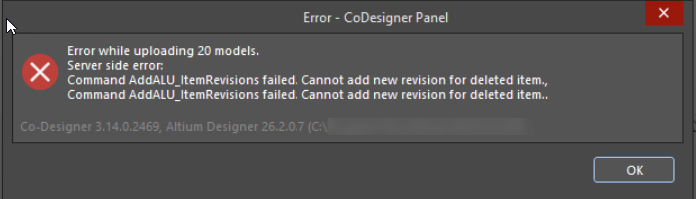
CoDesigner or Altium logs may indicate that a specific component or 3D model referenced by the PCB is currently located in Workspace Trash. After restoring deleted items, a second error may appear:
3D Models folder creation failed: Duplicate folder HRID. Please login with administrator rights.
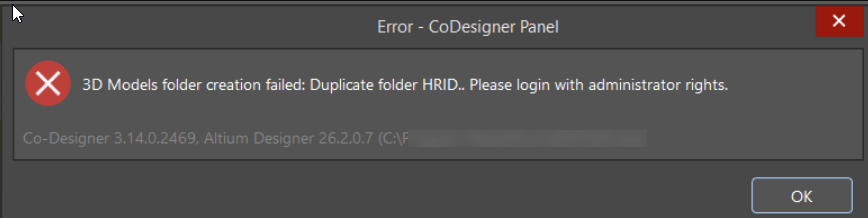
At this stage, users may notice that the Mechatronic 3D Models folder appears duplicated in the Workspace.
Deleted references and duplicated system folders
MCAD CoDesigner requires all components and 3D models referenced by a PCB to exist as active items in the Workspace. If a referenced item has been deleted, CoDesigner cannot create a new item revision and the push fails. Restoring deleted items can resolve this condition; however, restoring Workspace content without care can also restore deleted system folders, including the Mechatronic 3D Models folder. This folder must not be deleted, duplicated, or moved. If more than one instance exists, CoDesigner encounters duplicate HRIDs and fails during model creation. In addition, CoDesigner requires appropriate user permissions and a Workspace Revision Naming Scheme that allows revisioning of 3D Models.
Identify the cause and apply the correct fix
- If the error indicates a deleted referenced item (for example, “Cannot add new revision for deleted item”), restore only the specific component or 3D model used by the PCB.
- If the error indicates a duplicated system folder (for example, “Duplicate folder HRID”), remove the duplicate Mechatronic 3D Models folder and permanently delete it from Trash.
Step-by-step recovery for each error case
Attempt the CoDesigner push and note the exact error message shown in the CoDesigner panel or dialog.
If the error is “Cannot add new revision for deleted item”:
- Review CoDesigner or Altium logs for references to deleted items.
- Identify the specific component or 3D model reported as deleted.
- Open Workspace Trash and restore only the required component or 3D model item used by the PCB. Important: Do not restore entire folders or unrelated items from Trash at this stage.
- Confirm that all components and 3D models referenced by the PCB exist as active items in the Workspace.
- Retry the CoDesigner push.
If the error is “3D Models folder creation failed: Duplicate folder HRID”:
- Inspect the Workspace folder structure for multiple Mechatronic 3D Models folders.
- Identify the original system folder and any duplicate created during restore.
- If necessary, move valid 3D model items from the duplicate folder into the original folder.
- Delete the duplicate Mechatronic 3D Models folder.
- Ensure the duplicate folder is also permanently removed from Workspace Trash.
- Verify that all ECAD and MCAD users have:
- Access to the Mechatronic 3D Models folder and
- Edit operation permissions on 3D Models.
- Confirm that the active Workspace Revision Naming Scheme allows revisioning of **3D Models**.
- Restart Altium Designer to refresh Workspace links and permissions.
- Retry pushing the PCB to CoDesigner.
Additional Notes
- When using MCAD CoDesigner, you must not delete, duplicate, or move the Mechatronic 3D Models folder in the Workspace.
- Only restore specific components or 3D models from Trash when resolving CoDesigner push errors.
- Cleaning up duplicate folders does not affect already released designs.