KB: Delete an Altium 365 Workspace or change its ownership
Created: September 17, 2022 | Updated: November 18, 2025
 A365
A365
Starting in version: 20.1
Up to Current
This article explains how an Altium Workspace can be deactivated or have its ownership changed, depending on whether the organization has access to a company dashboard. Group administrators with company dashboard access can manage Workspaces on behalf of their organization, including changing ownership or deactivating unwanted Workspaces. If no company dashboard access exists, the Workspace owner can deactivate their own Workspace directly from their profile. These procedures are commonly used when a Workspace owner has left the organization, needs their user account moved to a different organization, or when an evaluation or extra Workspace is no longer required.
Solution Details
Situations requiring Workspace deactivation or transfer
An Altium Workspace may need to be deactivated or reassigned when the current owner no longer works for the organization, wants to move their Altium user account to a different organization, or when an evaluation or duplicate Workspace is no longer needed. The available method depends on whether a group administrator can access the company dashboard.
Access level determines available management options
Workspace management options differ based on user role and access. Group administrators with access to the company dashboard can manage organizational Workspaces. If no company dashboard access exists, the Workspace owner can deactivate their own Workspace from their profile.
Step-by-step actions in the Altium portal
Option 1: Group administrator using the company dashboard
- Go to https://live.altium.com/#signin and sign in with your e-mail address and password. If the password is unknown, use the Forgot password? link.
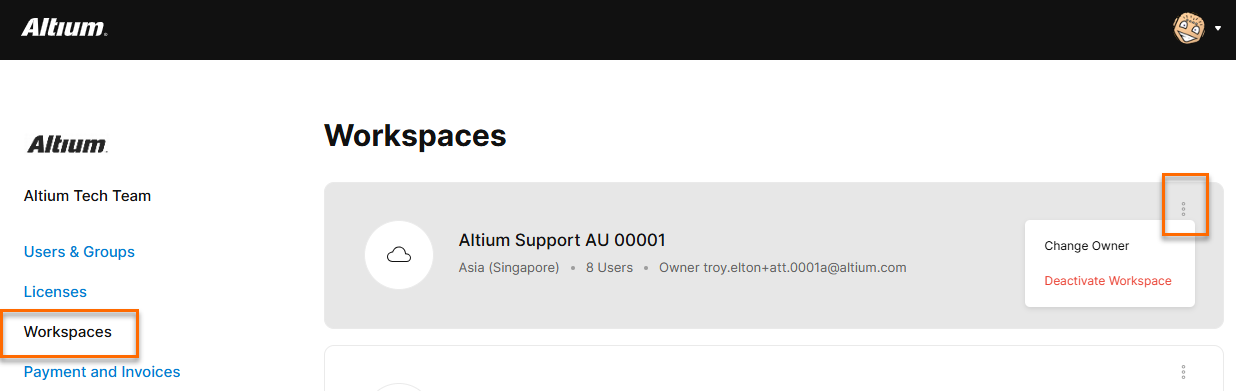
- Access the Workspaces tab of your company dashboard at https://account.altium.com/workspaces.
- Click the vertical ellipsis (three-dot) button in the upper-right corner of the panel describing the Workspace to choose Change Owner or Deactivate Workspace.
This method works well if the owner no longer works for the organization, and/or wants to have their Altium User account moved to a different organization, or for when an extra Workspace is no longer needed.
Option 2: Workspace owner without company dashboard access
- Go to https://live.altium.com/#signin and sign in with your e-mail address and password. If the password is unknown, use the Forgot password? link.
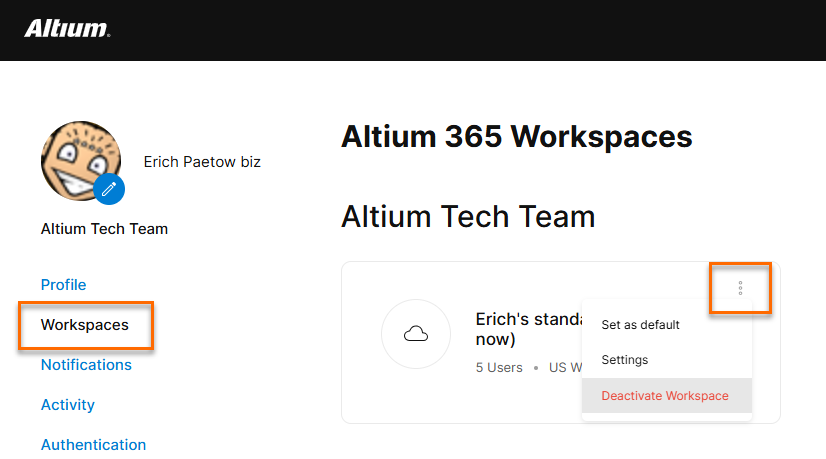
- Access the Workspaces tab of your profile page at https://profile.altium.com/workspaces/.
- Click the vertical ellipsis (three-dot) button in the upper-right corner of the panel describing the Workspace to choose Deactivate Workspace.
This method works well for a user that became the owner of an evaluation Workspace with a personal account, when they evaluated one of our platforms, and now cannot be added to their organization's user list.