
KB: Workspace Components Using an Outdated Component Template
Updated: April 28, 2026
 A365
A365
Workspace components may continue to reference an older revision of a component template after the template has been updated and released. This typically occurs when existing components are not updated to the latest template revision. Components using an outdated template do not inherit newly added or required parameters, which can lead to inconsistent component data across the workspace. Affected components can be identified using either the Library Health Dashboard or the Explorer panel and updated individually or in bulk using the component editor or batch editor. During this cleanup activity, lifecycle states can be preserved to avoid unintended lifecycle transitions.
Solution Details
Components flagged as using outdated templates
Some workspace components are reported as using an outdated component template revision even though a newer revision of the template exists. These components may be missing parameters introduced in the latest template version, including newly added required parameters. This can result in inconsistent data across the workspace and warnings in library health checks.
Template updates do not automatically propagate
When a component template is modified and released, existing components are not automatically updated. Components continue to reference the template revision that was current at the time they were created or last updated. Unless components are explicitly updated to reference the latest template revision, they will not inherit subsequent changes made to the template.
Identify and update affected components
- Identify components that are using an outdated component template using the Library Health Dashboard.
- Identify components using the Explorer panel by checking template usage and revision status.
- Update affected components individually or in bulk to reference the latest template revision.
- Preserve lifecycle states during release if no lifecycle change is intended.
Steps to identify and update affected components
Identify components using an outdated template
Method A: Library Health Dashboard
- Access the Library Health Dashboard using one of the following methods:
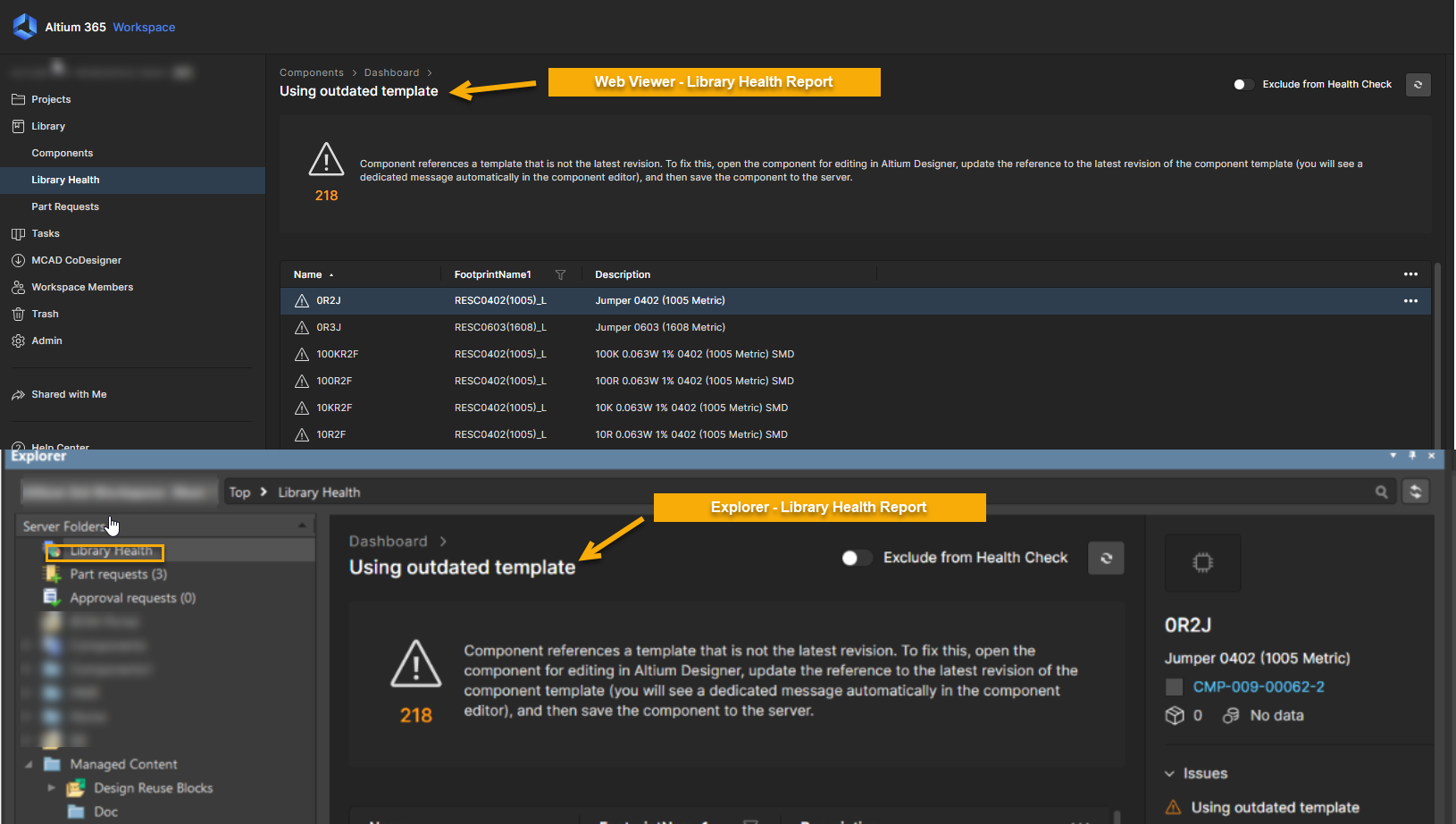
- Web Browser: Open your Altium 365 workspace and navigate to Library » Library Health.
- Altium Designer: Open the Explorer panel and navigate to Library Health.
- Open the report Using outdated template.
- Review the list of affected components. A component fails this health check if it references a component template that is not the latest revision.
Method B: Explorer panel (Template usage)
- Altium Designer: Open Panels » Explorer.
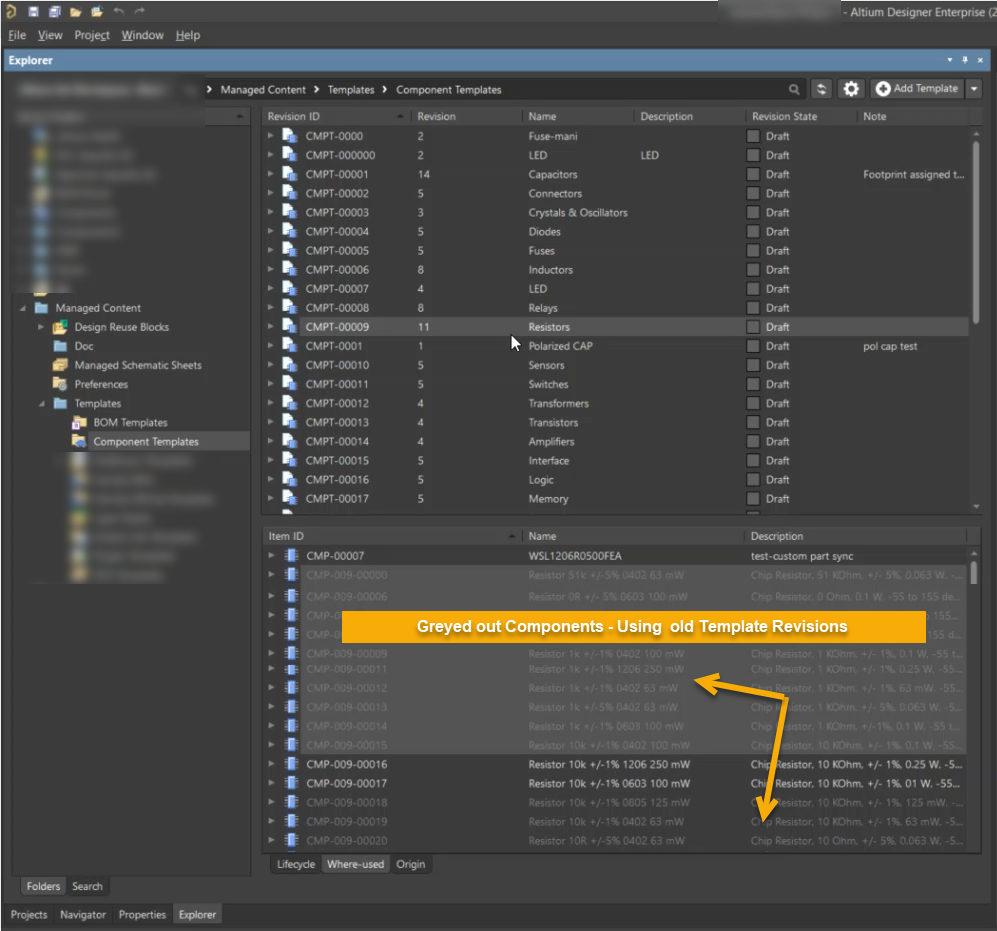
- Navigate to Managed Content » Templates » Component Templates.
- Select the relevant Component Template.
- Open the Where Used tab.
- Greyed‑out components are using an older or previous template revision.
- Highlighted components are using the latest template revision.
Update components to latest template
Option A: Update a single component
- In the Explorer panel, locate the affected component.
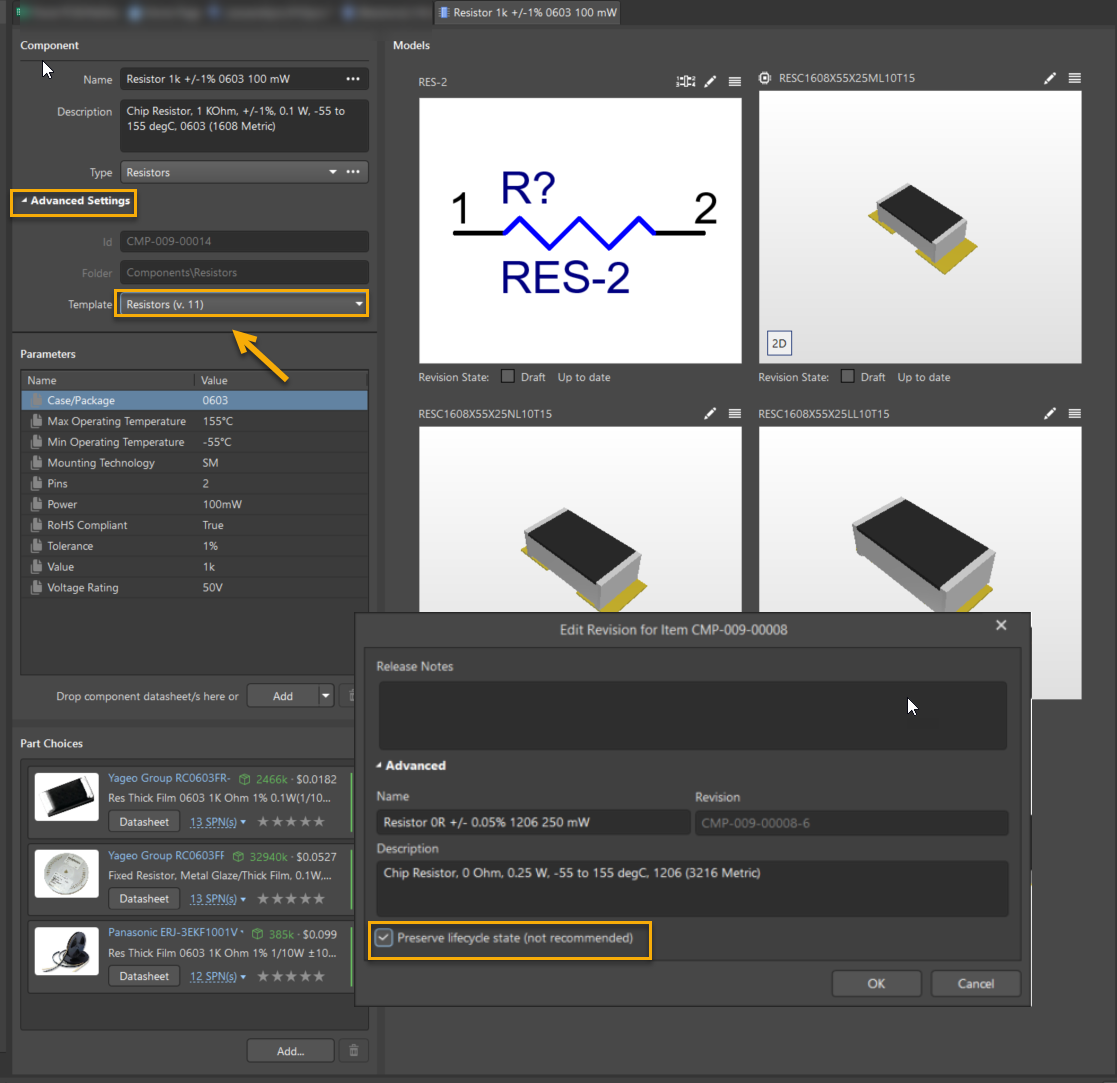
- Right‑click the component and select Edit.
- The component opens in the Single Component Editor.
- Under Advanced Settings, verify the Component Template assignment.
- Ensure the component is set to use the latest template revision.
- Populate any newly added required parameters.
- Release the component to the workspace.
- During release, ensure:
- Linked components are enabled.
- Preserve lifecycle state is enabled if lifecycle changes are not desired.
Option B: Bulk update using Batch Component Editor
- Open Panels » Explorer » Managed Content » Templates » Component Templates.
- Select the relevant Component Template.
- Open the Where Used tab.
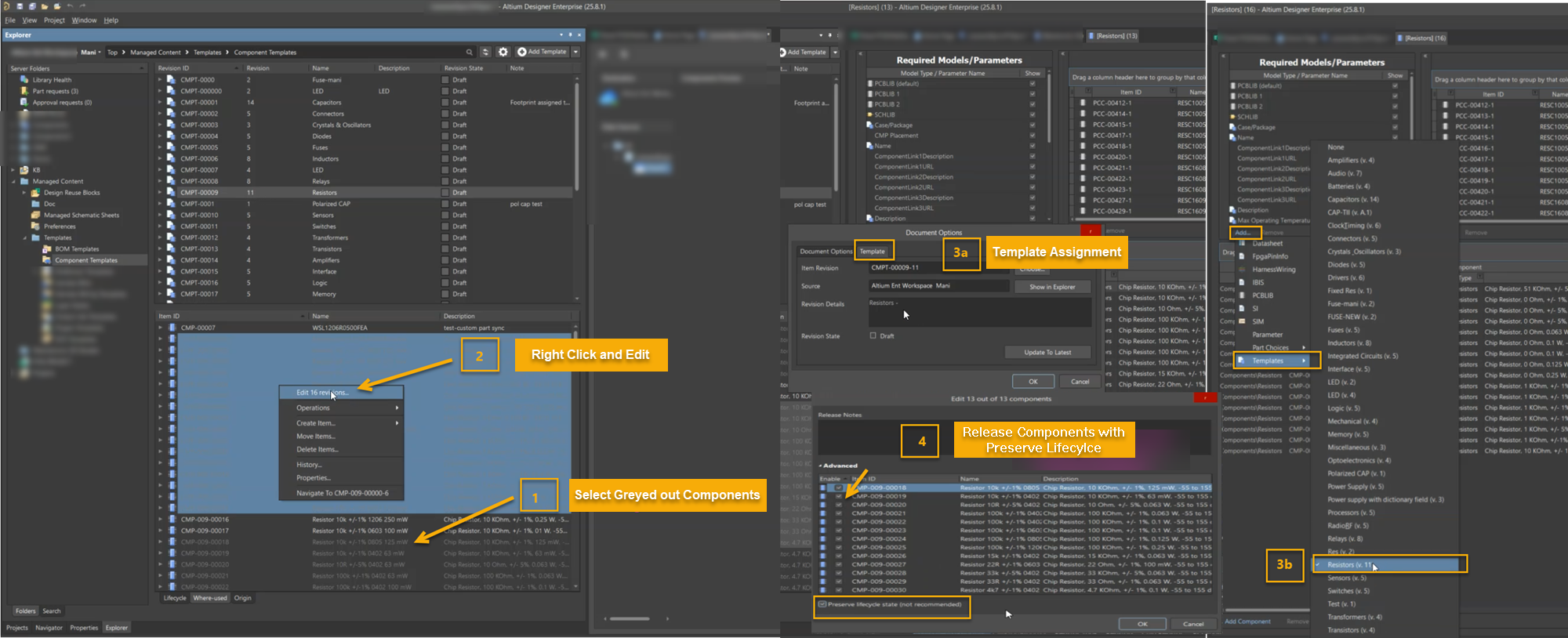
- Identify the greyed‑out components (using older template revisions).
- Select the affected components.
- Right‑click and select Edit Revisions.
- In the Batch Component Editor, update the template using one of the following methods:
- Click Add under the Required Models and Parameters section and select the latest template revision, or
- Select a listed component, right‑click, choose Document Options, switch to the Template section, and select the latest template revision.
- Verify that all required parameters are populated.
- Release the components and ensure Preserve lifecycle state is enabled.
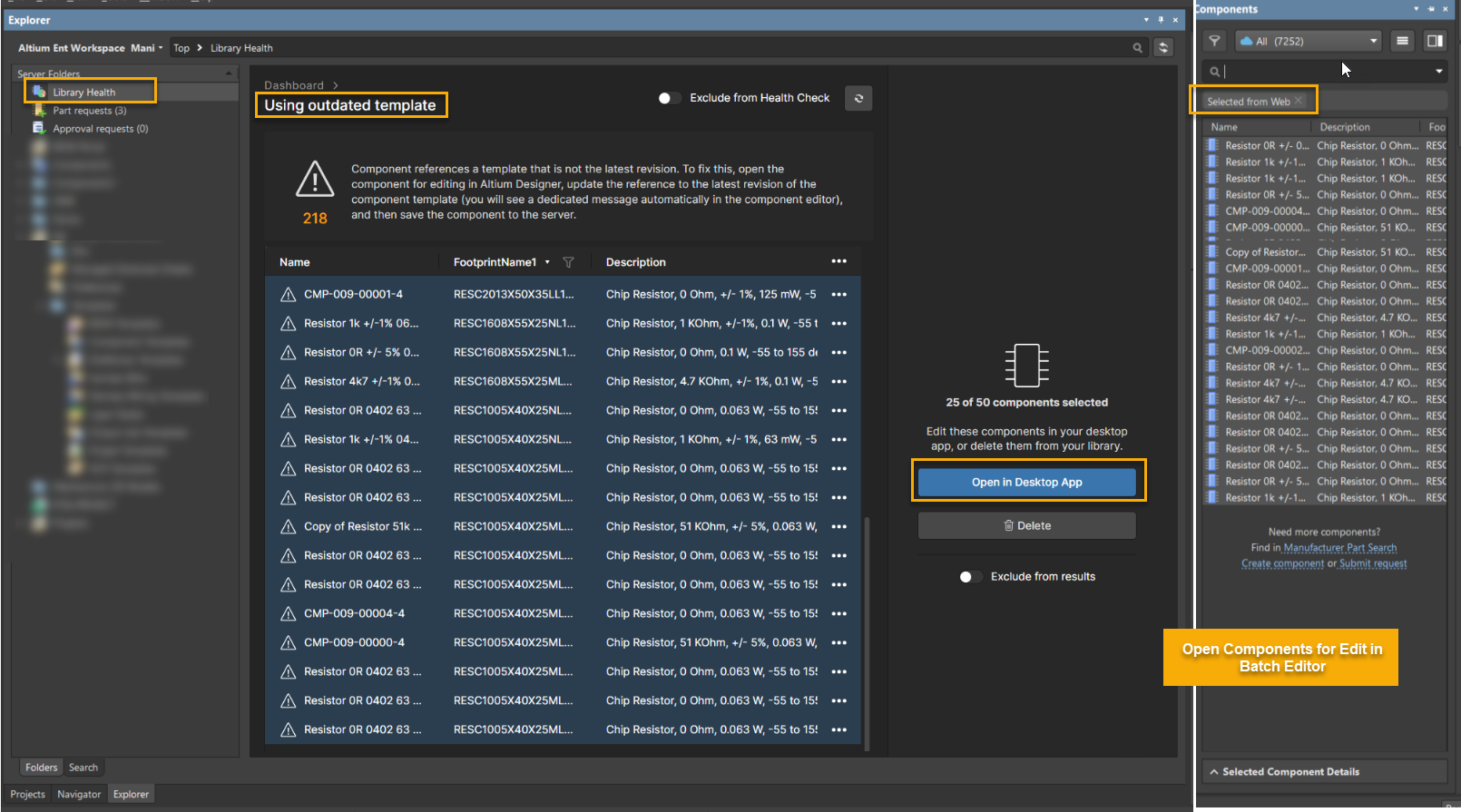
Option C: Bulk update from Library Health Dashboard
- Open Explorer and navigate to Library Health.
- Open the report Using Outdated Template.
- Sort or filter the components as required.
- Select the affected components.
- Click Open in Desktop App.
- In the Components panel:
- Select all listed components.
- Right‑click and choose Edit.
- Update the component template revision in the Batch Component Editor as described above.
- Release the components, ensuring Preserve lifecycle state is enabled.
Additional Notes
- Updating component templates is considered a data cleanup activity and does not change component behavior unless new required parameters are introduced.
- When releasing updated components, ensure Preserve lifecycle state is enabled to avoid unintended lifecycle transitions.
- If required parameters were added to the latest template revision, valid values must be provided before the component can be released.
- Components using outdated templates are not automatically updated when templates are revised.