KB: ActiveBOM Supplier Fields Are Blank in OutJob BOM Export
 Altium Designer
Solution Details
Supplier Data Appears Blank After Export
Supplier 2 and Supplier 2 Part Number may be visible and populated within the ActiveBOM document while the corresponding columns are empty in the BOM generated from an OutJob.
In some cases, supplier fields in ActiveBOM display a server icon, indicating that supply chain data is available, while the same fields in the OutJob BOM configuration do not show the expected supplier information.
ActiveBOM provides the working BOM environment for managing component and supply chain information, while the final BOM output is generated through the Report Manager. The Report Manager can obtain BOM source information from an ActiveBOM document (BomDoc), which is the recommended approach for BOM management.
Report Settings May Differ From ActiveBOM
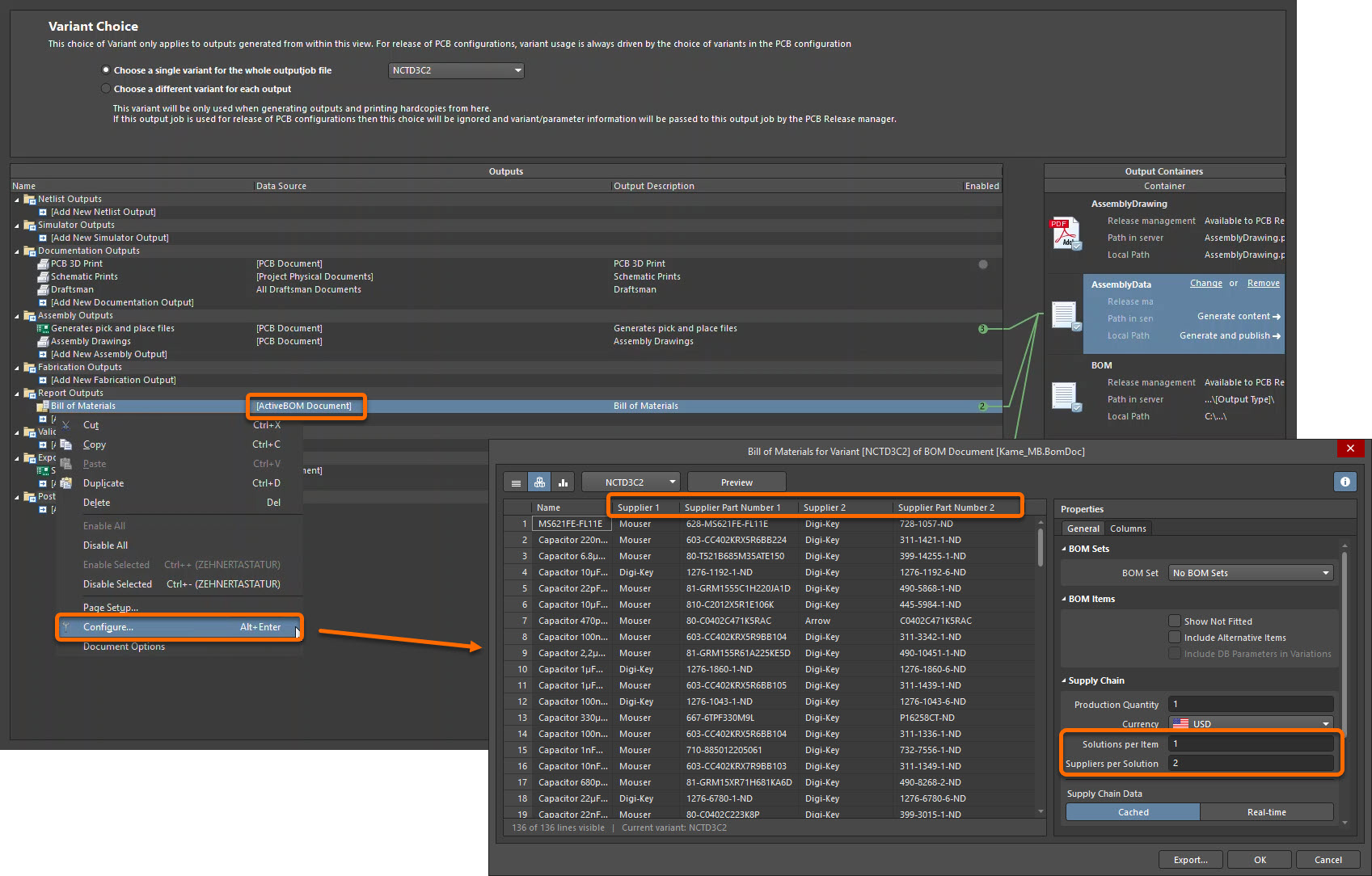
In the reported scenario, an existing OutJob BOM report can retain ActiveBOM-related settings that do not reflect subsequent supplier configuration changes. If the report was created before additional supplier solutions were configured, it may still be limited to a lower number of suppliers per solution. As a result, additional supplier fields may not be exported even though they are visible within ActiveBOM.
Align Report And Supplier Configuration Settings
- Verify that the BOM report uses the intended ActiveBOM document as its data source.
- Review the supplier options in the Report Manager.
- Increase the Suppliers per Solution setting as required.
- Review the existing report configuration to ensure it reflects the required supplier settings.
- For an older report affected by this behavior, update its configuration or recreate the report using the current configuration.
- Regenerate the BOM and verify that the supplier data is included.
Update The OutJob And Verify Results
- Open the OutJob file associated with the BOM export.
- Locate the BOM report configuration.
- Verify that the correct ActiveBOM document is selected as the report source.
- Open the ActiveBOM configuration used by the report.
- Increase the Suppliers per Solution setting to include the required supplier entries.
- Save the configuration changes.
- Review the supplier options and report columns in the Report Manager, and confirm that the required supplier fields are available.
- If the report was created before the ActiveBOM supplier configuration was updated and exhibits this behavior, update its settings or create a new report using the current configuration.
- Generate the BOM export.
- Open the exported BOM and verify that Supplier 2 and Supplier 2 Part Number contain the expected supplier information.