
KB: Ansys CoDesigner Panel Not Appearing in Altium Designer
Updated: February 24, 2026
 Altium Designer
The Ansys CoDesigner panel may not appear in Altium Designer even after installing the extension due to incomplete installation, inactive AltiumLive login, missing CoDesigner add‑on license allocation, or incompatible offline extension packages. This issue is resolved by verifying that the user is signed into AltiumLive, confirming that the Ansys CoDesigner extension is properly installed, ensuring the CoDesigner add‑on license is allocated (including on Enterprise Server environments), and reinstalling the extension using the Global Installation Service when offline packages result in version mismatches. After correcting these items and restarting Altium Designer, the Ansys CoDesigner panel typically becomes available in the PCB Editor.
Solution Details
The Ansys CoDesigner extension is installed from Extensions & Updates, but the Ansys CoDesigner panel does not appear in the PCB Editor.
Cause of Missing Panel
This issue usually occurs when the installation is incomplete, the user is not signed into an AltiumLive account, the CoDesigner add‑on license is not allocated, or an offline extension package causes a version mismatch.
Resolution Overview
- Verify the Ansys CoDesigner extension installation.
- Confirm the user is logged into AltiumLive.
- Check that the CoDesigner add‑on license is allocated.
- For Enterprise Server environments, ensure the license is placed in the server pool and assigned to users.
- Reinstall the extension via the Global Installation Service to correct version conflicts.
Step-by-Step Instructions
1. Verify Ansys CoDesigner Extension Installation
-
- Open Altium Designer and confirm you are logged into your AltiumLive account.
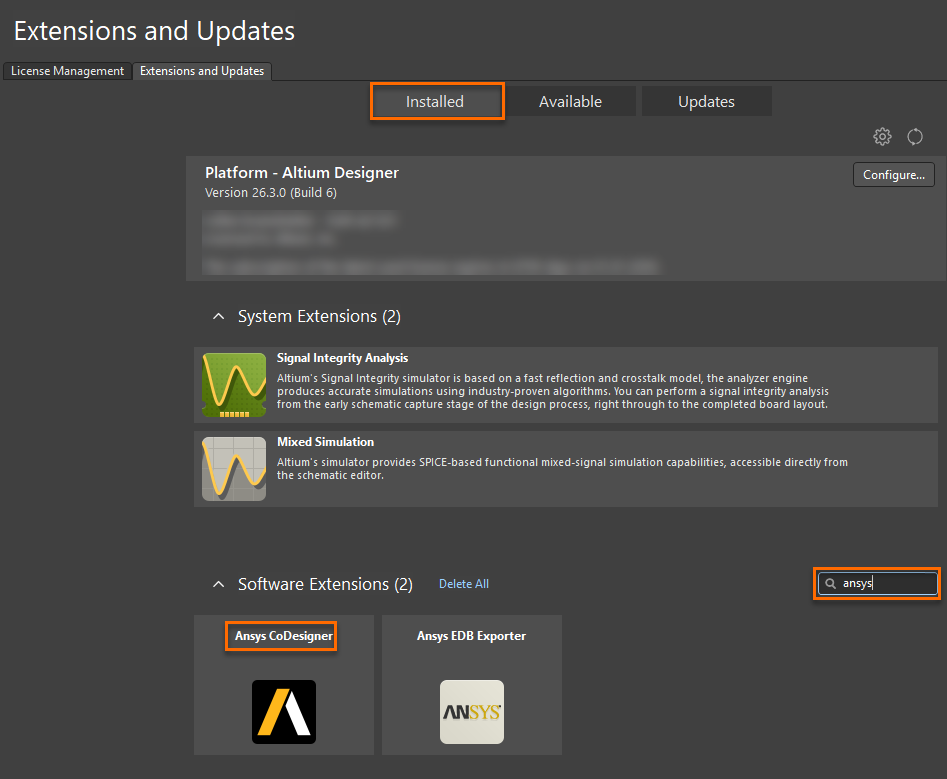
- Open Extensions & Updates from the user profile menu.
- In the Installed tab, verify that Ansys CoDesigner is present.
- If not listed, install it from the Available tab.
- Restart Altium Designer.
2. Confirm CoDesigner License Allocation
-
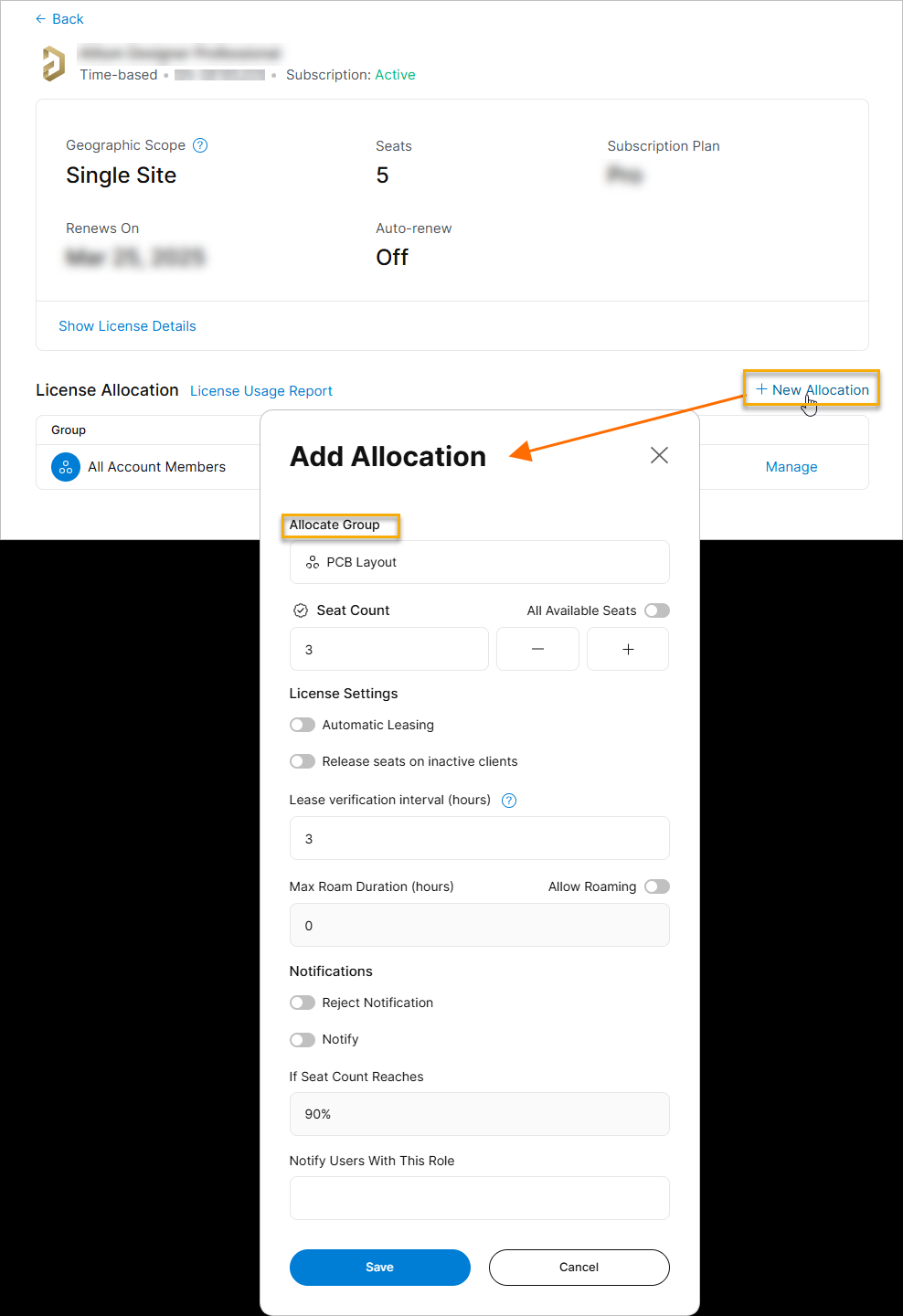
- Open the licensing dashboard and verify the Ansys CoDesigner add‑on license is available "Altium 365 CoSimulate Addon (Ansys)".
- Ensure the license is allocated to the same AltiumLive account used in Altium Designer.
- If the license is missing, contact your Altium Account Manager
Altiumlive Dashboard License allocation -Example screenshot (for reference):
3. For Enterprise Server Users
-
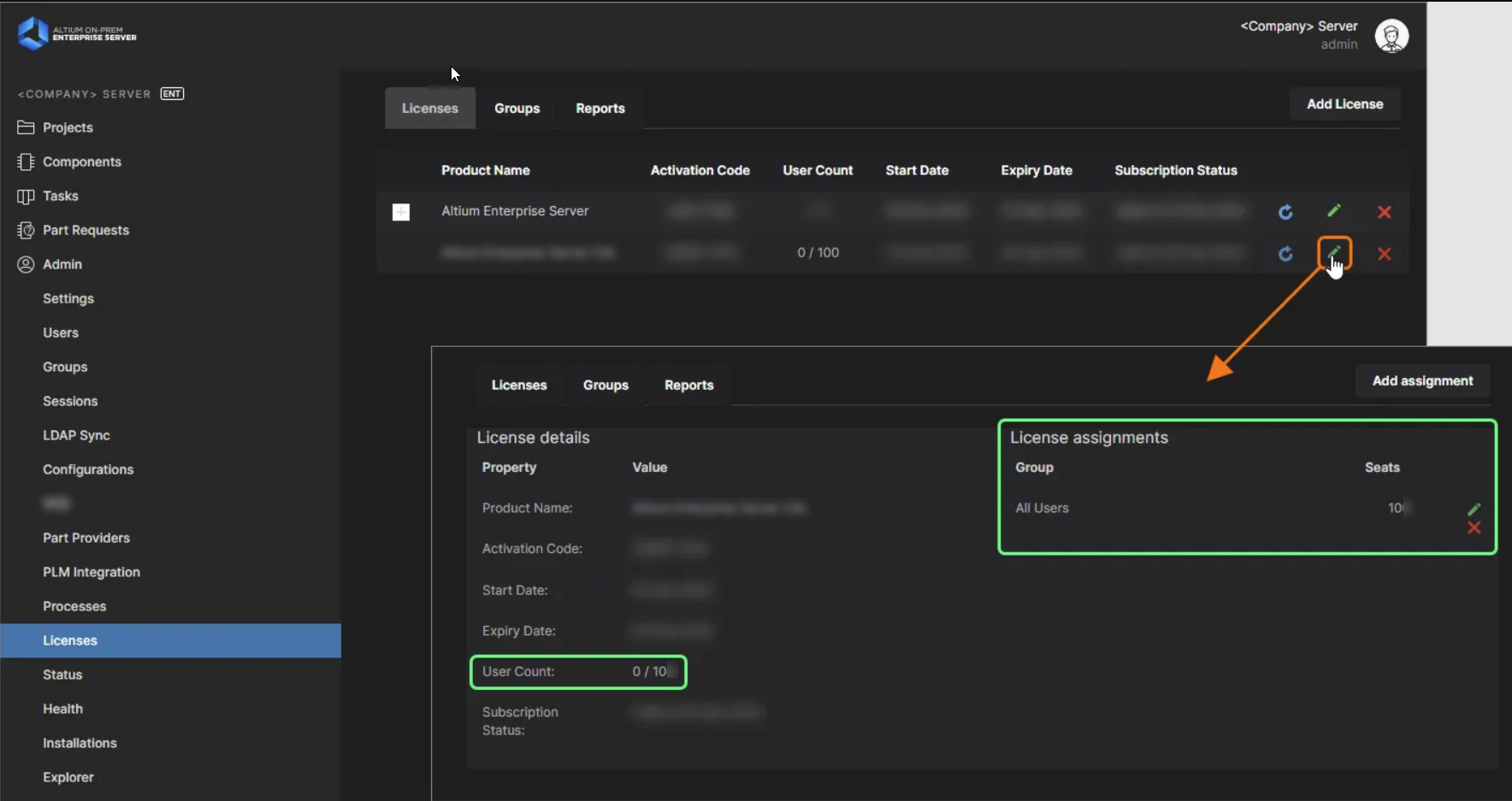
- Add the CoDesigner add‑on license to the server license pool.
- Assign the license to the required users or groups.
- Ensure the client machine is connected to the correct licensing server.
On-premise server License allocation -Example screenshot (for reference):
4. Fix Incompatible Extension Installations
-
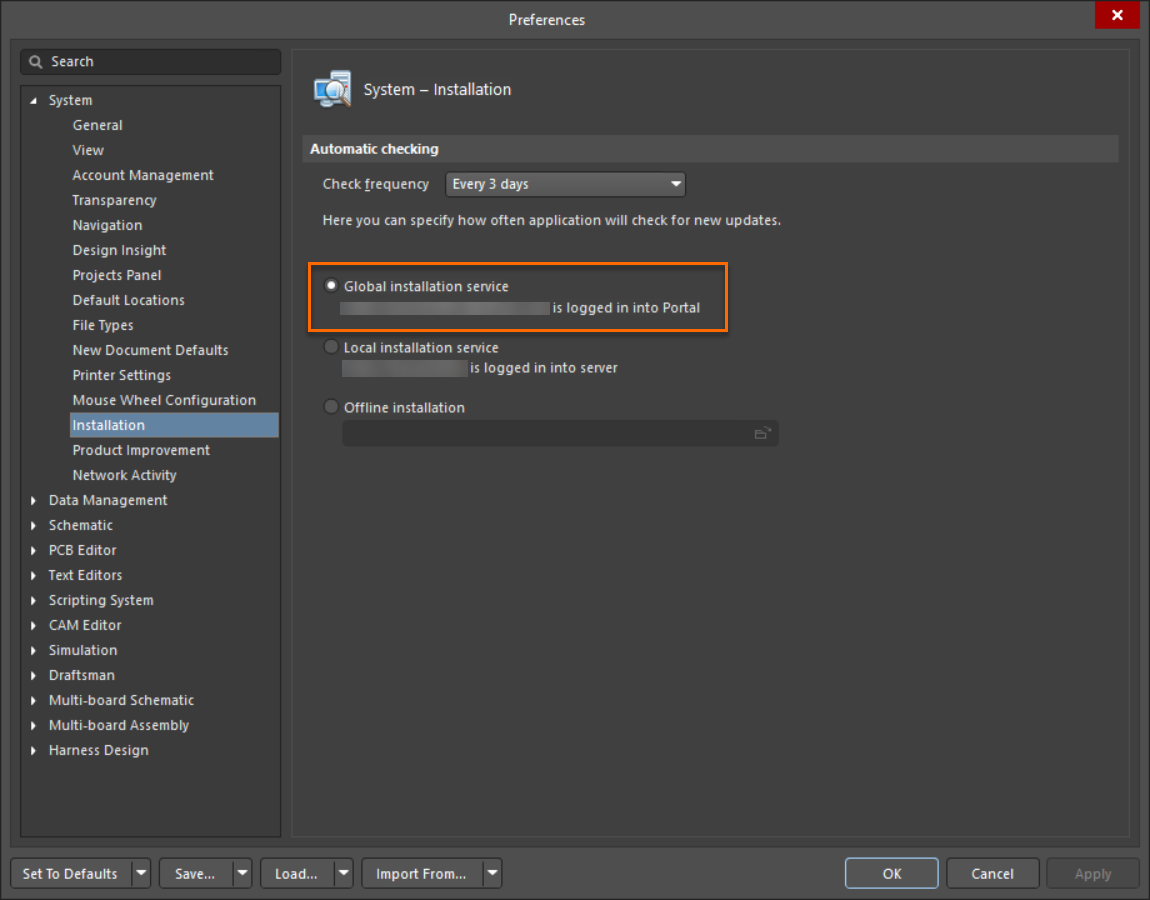
- Navigate to Tools » Preferences » System » Installation.
- Set the installation source to Global Installation Service.
- Open Extensions & Updates, uninstall the CoDesigner extension, and reinstall it.
- Restart Altium Designer.
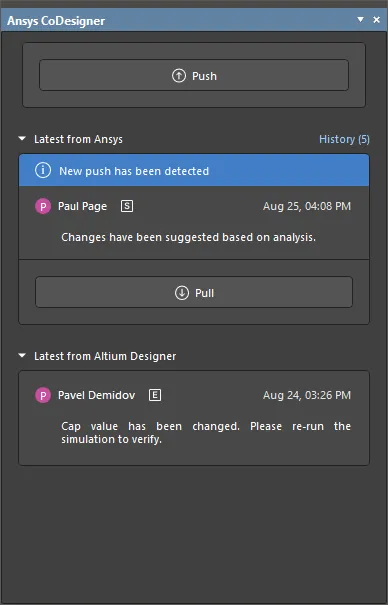
- Open the PCB Editor and check the Panels menu for the Ansys CoDesigner panel.
Additional Notes
- An active AltiumLive login is required for the panel to appear.
- Using the Global Installation Service ensures extension versions match the installed Altium Designer build.
- Restarting Altium Designer is required after any licensing or extension changes.