
KB: Author License Seat Unavailable or Stuck in Altium Designer Develop
 Altium Designer
Solution Details
Author seat appears unavailable or lost
Users may see messages stating that no authoring seats are available, or Altium Designer Develop may lose its author license while the application remains open. In some cases, the Workspace web portal may show the user as Taken Online or with a Reserved Seat even though the client is not actively using it. Closing the program in this state can result in loss of unsaved work.
Interrupted validation and session inconsistencies
This issue occurs when the client cannot maintain a stable connection with the Workspace, preventing proper license validation and release. Causes can include network instability, blocked traffic, system sleep, or crashes. The Workspace periodically validates active sessions; if the client does not respond, the seat may eventually be released after prolonged inactivity (commonly several hours). Additionally, multiple concurrent sessions or stale authentication tokens may lead to inconsistent license state reporting.
Recovery paths and preventive options
- Disconnect and reconnect to the Develop Workspace within the client.
- Sign out and back into Altium using the user avatar.
- Request that a Workspace administrator release or revoke the seat from the web portal.
- Clear browser cache and cookies or try a different browser if Workspace data appears inconsistent.
- Verify system time, date, and time zone, and ensure only one active session is in use.
- Use autosave and local history features to protect work during interruptions.
- Consider using the roaming (reserved) seat feature to ensure uninterrupted access when needed; reserved seats are intentionally locked to a user until manually released.
Step-by-step process to recover an author license
- If Altium Designer Develop appears to have lost its author seat, do not close the application if you have unsaved work.
- Click Active Server in the upper-right corner.
- Click Sign Out for the Workspace (arrow exiting a square bracket).
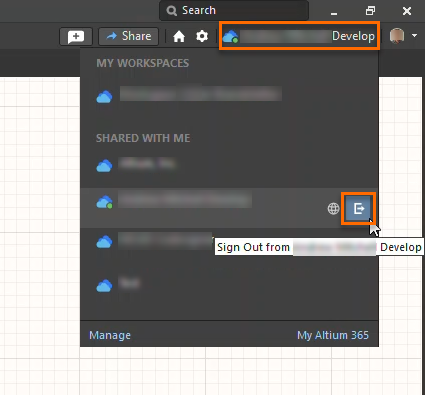
- Click Active Server again; it should now indicate Not Connected.
- Select your Develop Workspace to reconnect.
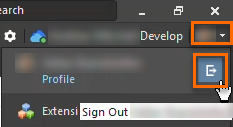
- If the issue persists, click the user avatar in the upper-right corner and sign out of Altium, then sign back in.
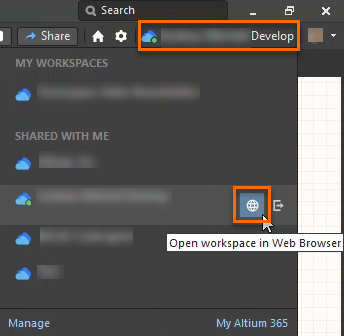
- If still unresolved, open the Workspace in a browser using Active Server » Open Workspace in Web Browser (globe icon).
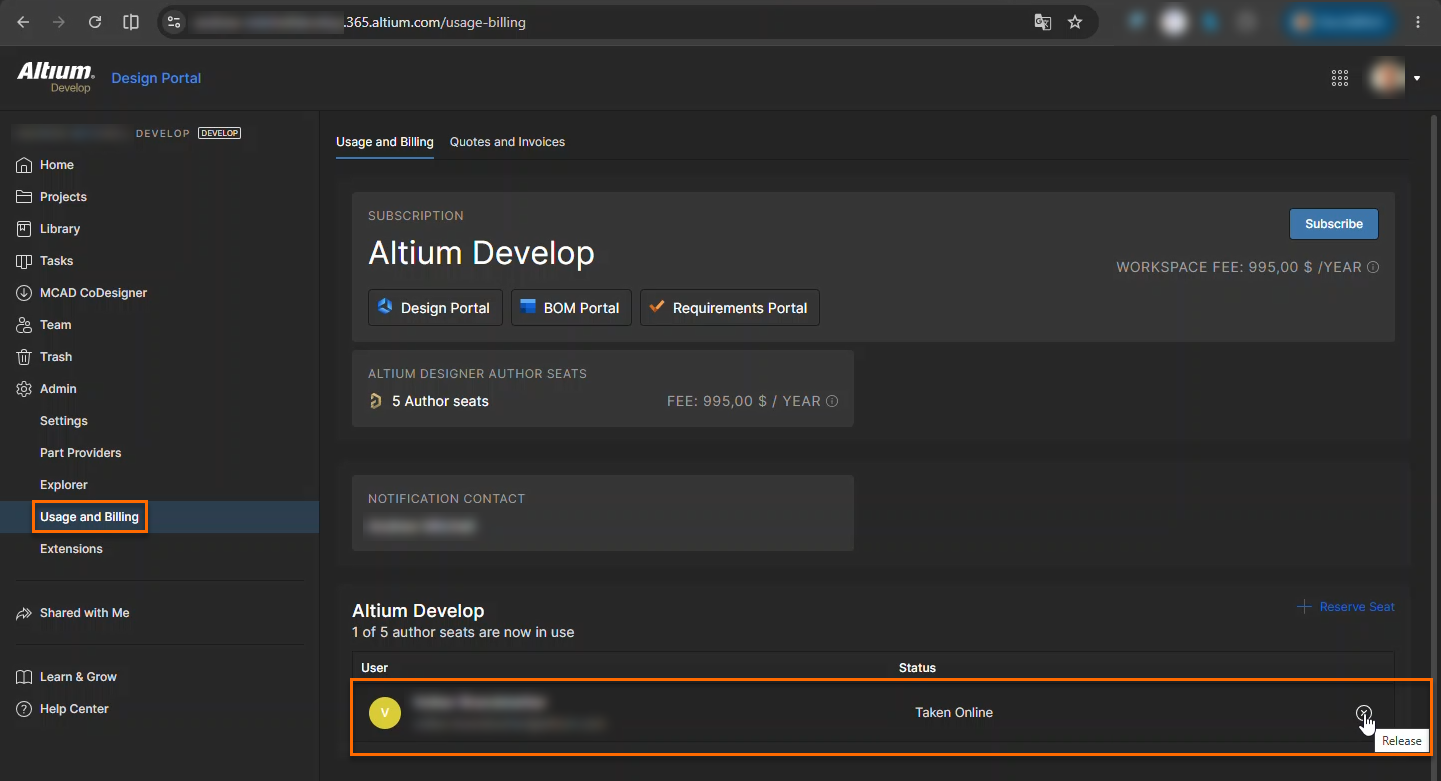
- Navigate to Admin » Usage and Billing.
- If the affected user is listed as Taken Online or Reserved Seat, click the Release button to free the seat or revoke the reservation.
- Return to the client, sign out of the Workspace if needed, and sign back in.
- If seat availability still appears incorrect, clear browser cache and cookies (use Ctrl+Shift+Del) or try a different browser.
- Confirm Windows system date, time, and time zone are correct.
Additional Notes
- An intermittent Error loading subscription info may appear in Admin » Usage and Billing. This can often be resolved by signing out and back in, clearing browser cache and cookies, or using a different browser.
- Network issues may block required traffic between the client and Workspace. Routers, providers, or power-saving network adapters may interrupt connectivity. Engage your network support team if needed.
- Packet capture tools such as Progress Telerik Fiddler Web Debugger or Wireshark can help diagnose blocked or failing connections.
- Autosave creates periodic backup files, and Local History maintains version history, allowing recovery after crashes or interruptions.
- The roaming (reserved) seat feature locks a license to a specific user for uninterrupted access and must be manually released when no longer required.
- The Development team is aware of reliability improvements needed in interrupted seat-handling scenarios; no ETA is provided.