
KB: Cannot Add User to Company Dashboard Due to Email Already Registered in Another Organization
 Altium Designer
Solution Details
Errors Preventing User Addition or Approval
A Group Administrator is unable to add or approve a user in the Company Dashboard and encounters one of the following errors:
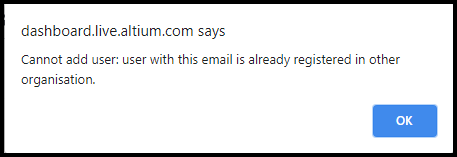
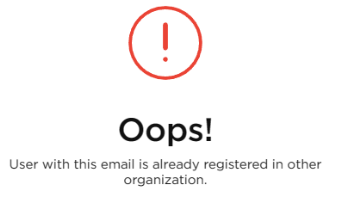
- “Cannot add user: user with this email is already registered in other organization”
- “Failed to create user account: Username already in use”
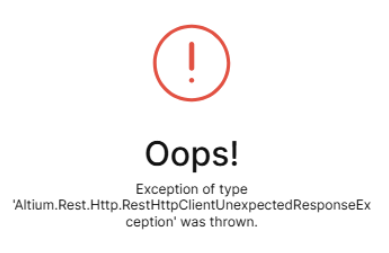
- “Oops! Exception of type Altium.Rest.Http.RestHttpClientUnexpectedResponseException was thrown”
The technical exception error is most commonly encountered when the user is the owner of an Altium 365 Workspace, which prevents the account from being approved or moved to another organization. As a result, the user cannot be added to the organization or assigned licenses.
 | |
 |  |
Root Causes of Account Association Conflict
This issue occurs due to one or more of the following reasons:
- Altium user accounts are identified by unique email addresses and can belong to only one organization at a time.
- The organization has not configured or verified its company email domain, which is required to associate self‑registered users.
- The user previously created a self‑registered account during an evaluation or trial.
- The user owns an Altium 365 Workspace. Workspace ownership blocks the user account from being approved or moved and can trigger the Altium.Rest.Http.RestHttpClientUnexpectedResponseException error.
- The user belongs to another organization and is the owner of a workspace in that organization.
Available Resolution Paths and Recommended Actions
Follow these options in order:
- Configure and verify the company email domain in the Company Dashboard.
- Have the user submit a request to join the organization and approve it.
- If applicable, remove workspace ownership by deactivating an evaluation workspace or transferring ownership.
- Contact Altium Support only if none of the self‑service options can be completed.
Step-by-Step Actions to Resolve the Issue
1. Configure and verify company email domain (required)
This step is required before self‑registered users can be added or approved.
- Sign in to the Company Dashboard as a Group Administrator.
- Open the Users and Groups page.
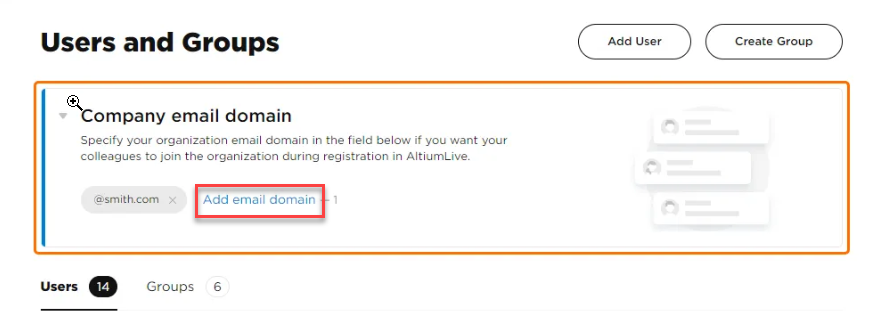
- Expand Company e‑mail domain.
- If the domain is not listed, click Add e‑mail domain.
- Enter the company email domain and click Verify email.
- Enter the verification code sent to the email inbox and click Save.
- Once the domain is verified, proceed with adding or approving the user.
If the user has a different company domain, coordinate with them to obtain the verification code sent to their inbox. Public email domains may not be eligible.
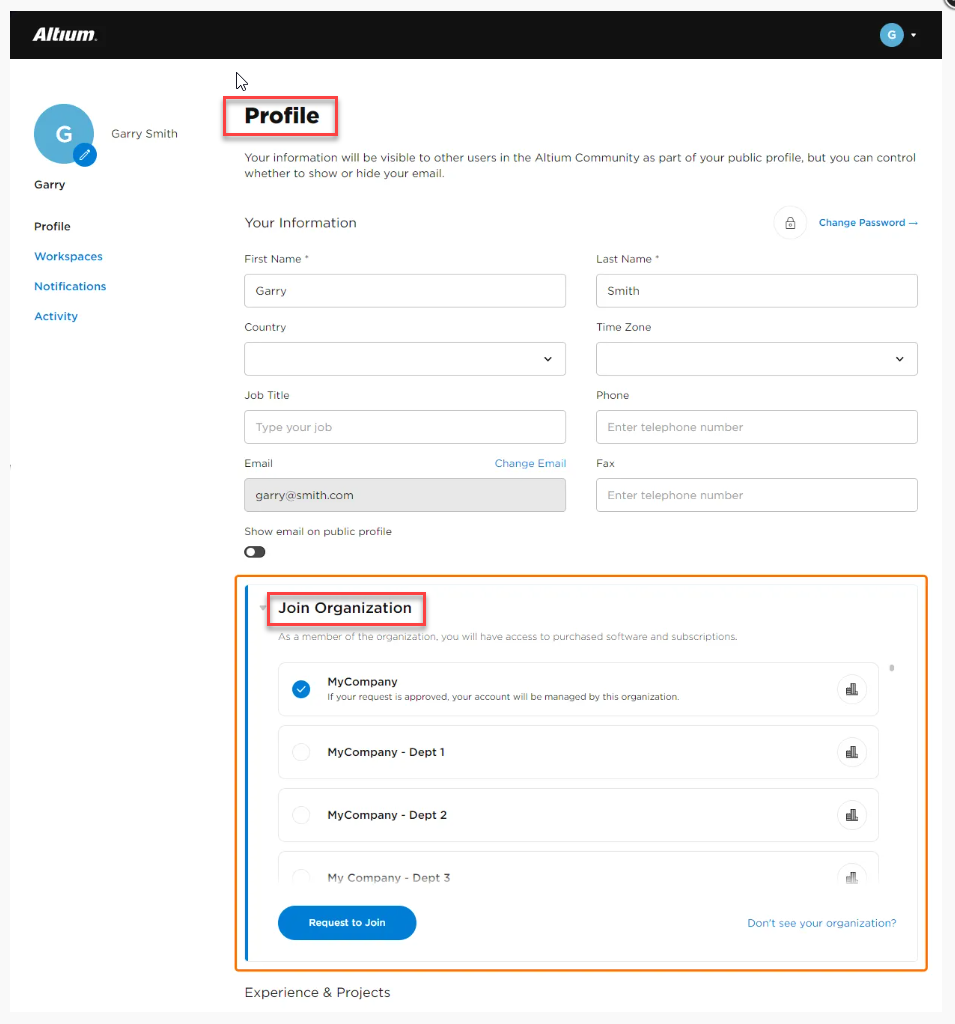
2. User Requests Access to the Organization (Recommended)
- Ask the user to sign in to their AltiumLive profile.
- The user selects Request Access to join the correct organization.
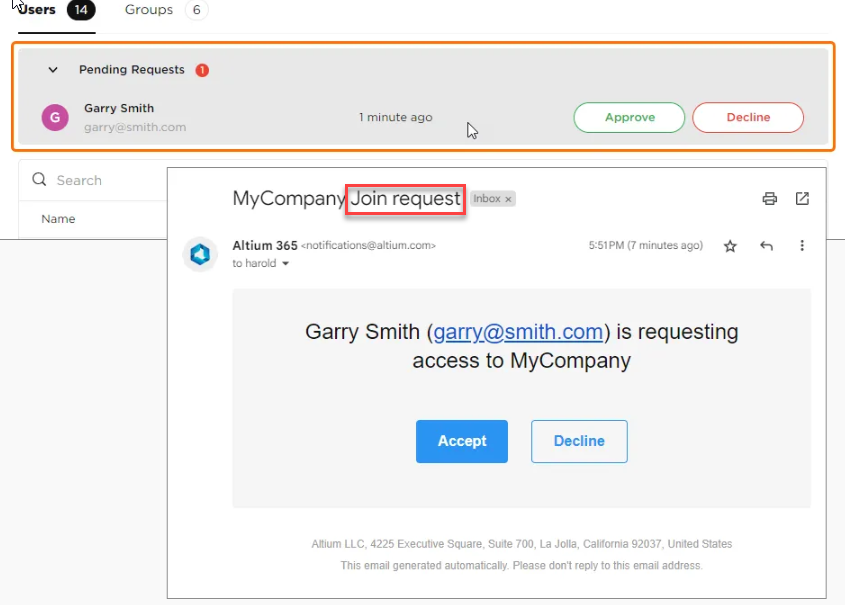
- Group Administrators receive an email notification.
- Approve the request from the Company Dashboard.
- Once approved, the user is added to the organization and can access licenses.
This option is available only after the email domain is verified.
 |  |
3. User Owns an Evaluation Workspace (Deactivate Workspace)
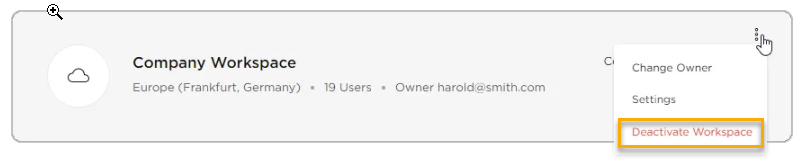
This option applies when the user encounters a technical exception while being added or approved due to owning an evaluation workspace. If the user created an evaluation workspace and does not need to retain any data from it, the workspace can be deactivated to allow the user account to be approved or moved.
- Ask the user to sign in to AltiumLive.
- Navigate to the Workspaces section of their profile or Company Dashboard.
- Deactivate the evaluation workspace owned by the user.
- After the workspace is deactivated, ask the user to submit a new request to join the correct organization.
- Approve the request from the Company Dashboard.
Deactivating the evaluation workspace removes the workspace ownership dependency that can trigger the exception and prevent the user from being added or approved.
4. User Owns a Workspace in Another Organization (Change Ownership)
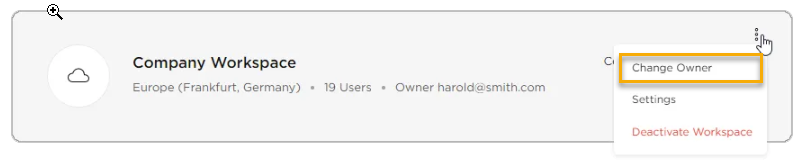
This option applies when the user encounters a technical exception because they are the owner of a workspace in another organization. If the user belongs to another organization and needs to retain the workspace:
- Ask the user to sign in to their original organization.
- Transfer workspace ownership to another active user in that organization.
- Confirm the user is no longer the workspace owner.
- The user submits a request to join the new organization.
- Approve the request from the Company Dashboard.
This allows the user account to be moved without affecting the existing workspace.
5. Contact Altium Support (Last‑Resort Option)
Note: Contacting Altium Support to move a user account should be considered only when all other available options cannot be completed. In most cases, user and license management can be handled directly through the Company Dashboard. The recommended approach is for the end user to request access to the correct organization and for a Group Administrator to approve the request. When Altium Support assists with moving a user account, it involves making direct updates to account information; therefore, this approach is used selectively and requires explicit written authorization before proceeding.
To log a support case:
- Sign in to the Altium Support portal.
- Select Log a Case.
- In the case description, provide:
- The email address of the AltiumLive user that needs to be added to the organization.
- A brief explanation of why the self‑service options described above cannot be used.
- If required, include a clear written approval statement authorizing Altium to move the user account.
- Submit the case.
Altium Support will review the request to determine:
- The organization the user account currently belongs to.
- Whether authorization is required from another organization.
- Whether the account can be moved or if an activation email should be sent to the user.
If the user needs to be moved together with their workspace, written approval from both organizations’ administrators is required and will be handled through the support case.
Additional Notes
- Configuring the company email domain is a prerequisite for adding or approving self‑registered users.
- Users who own workspaces must remove or transfer ownership before joining another organization.
- Evaluation workspaces can be deactivated if no data needs to be retained.
- A single email address cannot be registered in more than one organization.
- License access is granted only after the user is approved by a Group Administrator.