
KB: Cannot Save a Design Reuse Block Due to Invalid Lifecycle Definition
 Altium Designer
Solution Details
Error Prevents Reuse Block Creation
Users attempting to save a Design Reuse Block may encounter the following error:
Create item failed. Invalid lifecycle definition for item.
The error prevents the Design Reuse Block from being created or saved in the workspace.
Required Content Types Lack Lifecycle Assignment
A Design Reuse Block contains multiple item types that each require a lifecycle definition. If any of these content types do not have a lifecycle definition assigned, the save operation fails and the workspace returns an invalid lifecycle definition error.
Verify Lifecycle Coverage for All Reuse Items
- Confirm that the Reuse Block content type has a lifecycle definition assigned.
- Confirm that the Schematic Snippet content type has a lifecycle definition assigned.
- Confirm that the PCB Snippet content type has a lifecycle definition assigned.
These item types are typically assigned to the generic lifecycle definition. However, the issue can occur if default lifecycle assignments have been modified.
Assign Lifecycle Definitions to Required Content Types
-
Verify that you have Workspace Administrator permissions. Lifecycle definition settings can only be viewed or modified by administrators.
-
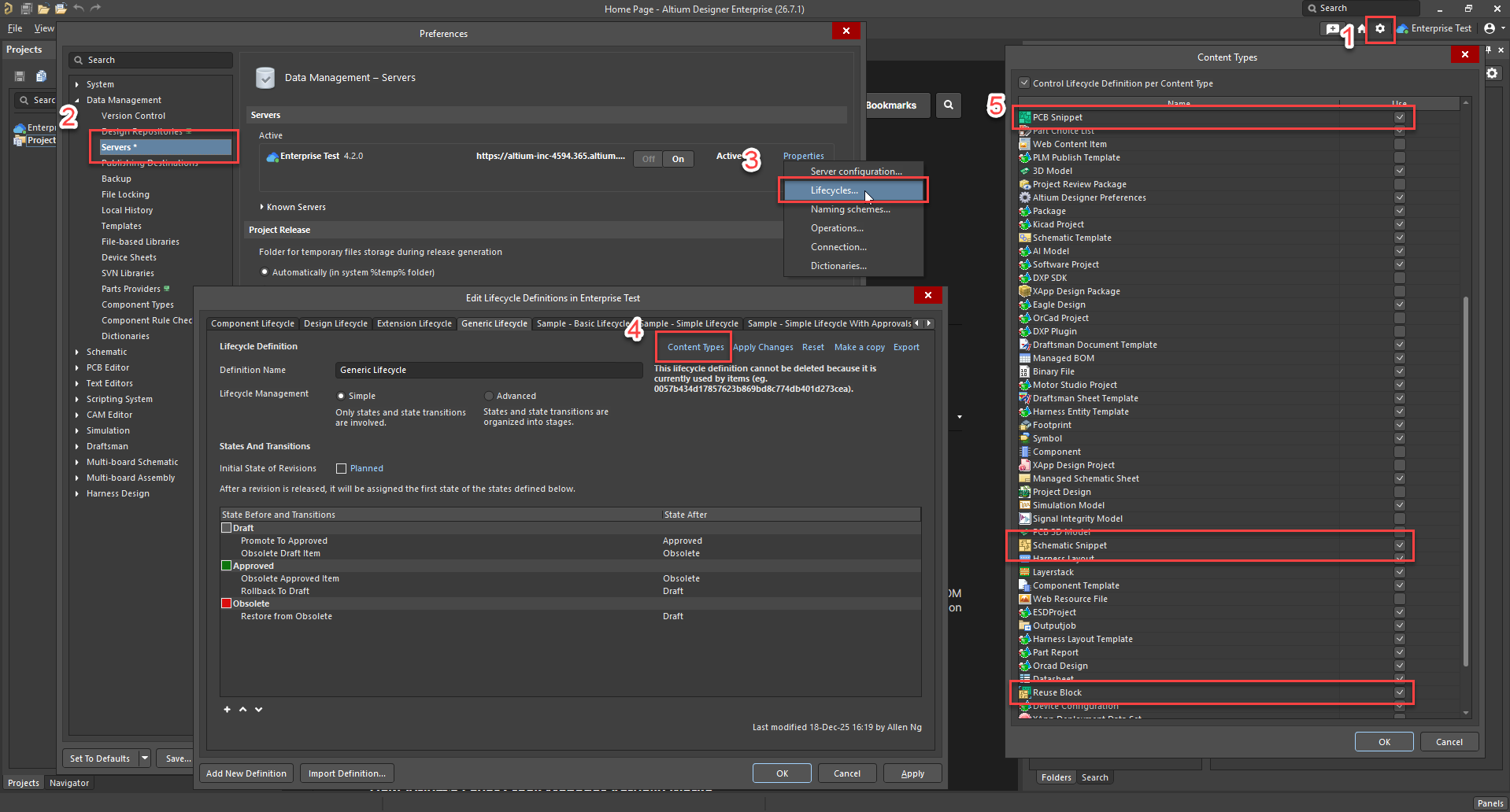
From Altium Designer:
- Navigate to Preferences » Data Management » Servers.
- Select Properties for the active A365 Workspace.
- Select Lifecycles from the available options.
- In the Lifecycle Definitions window, review each lifecycle definition and verify that the following content types are enabled:
- Reuse Block
- Schematic Snippet
- PCB Snippet
-
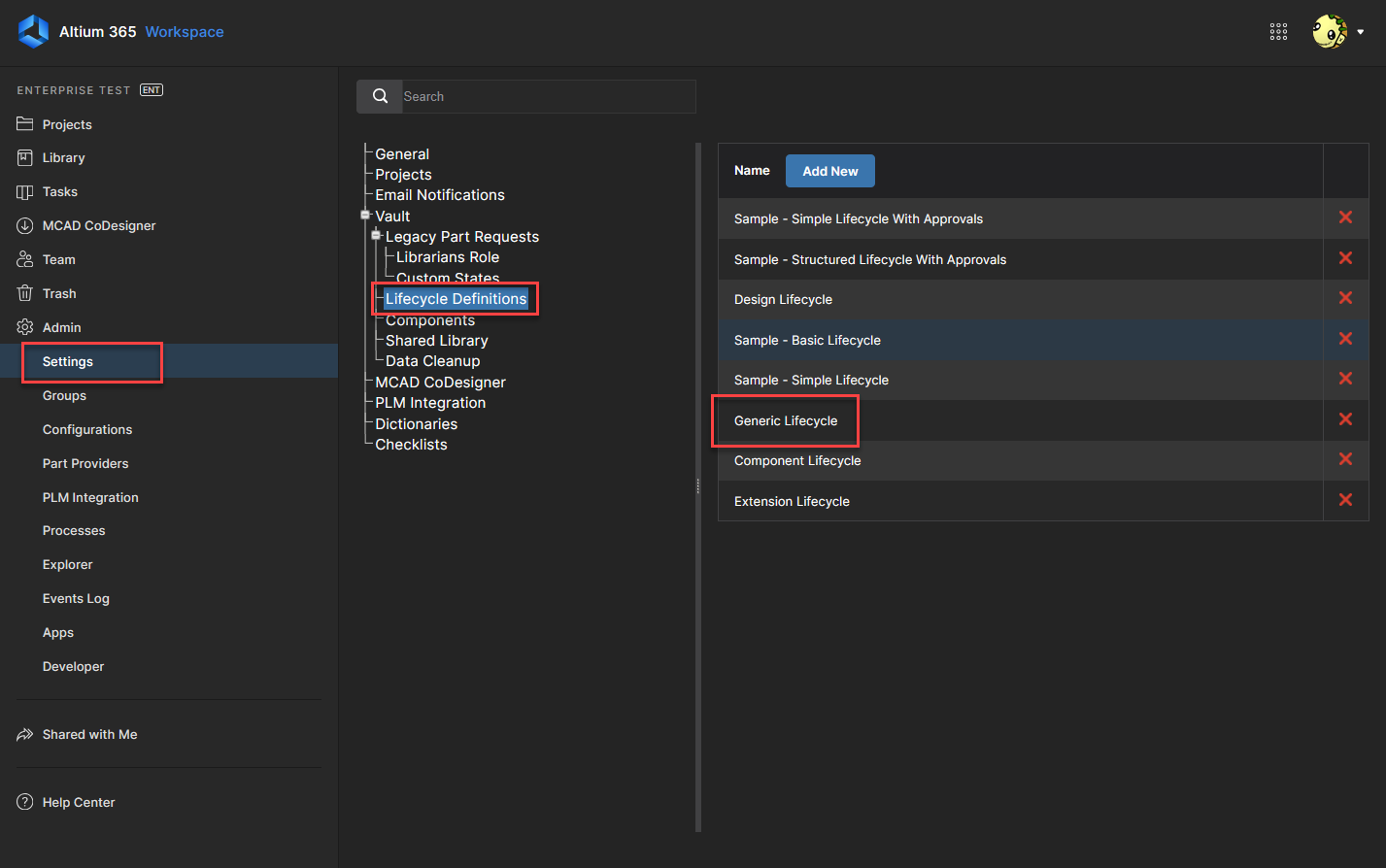
From the A365 Web Interface:
- Navigate to Admin » Settings » Lifecycle Definitions.
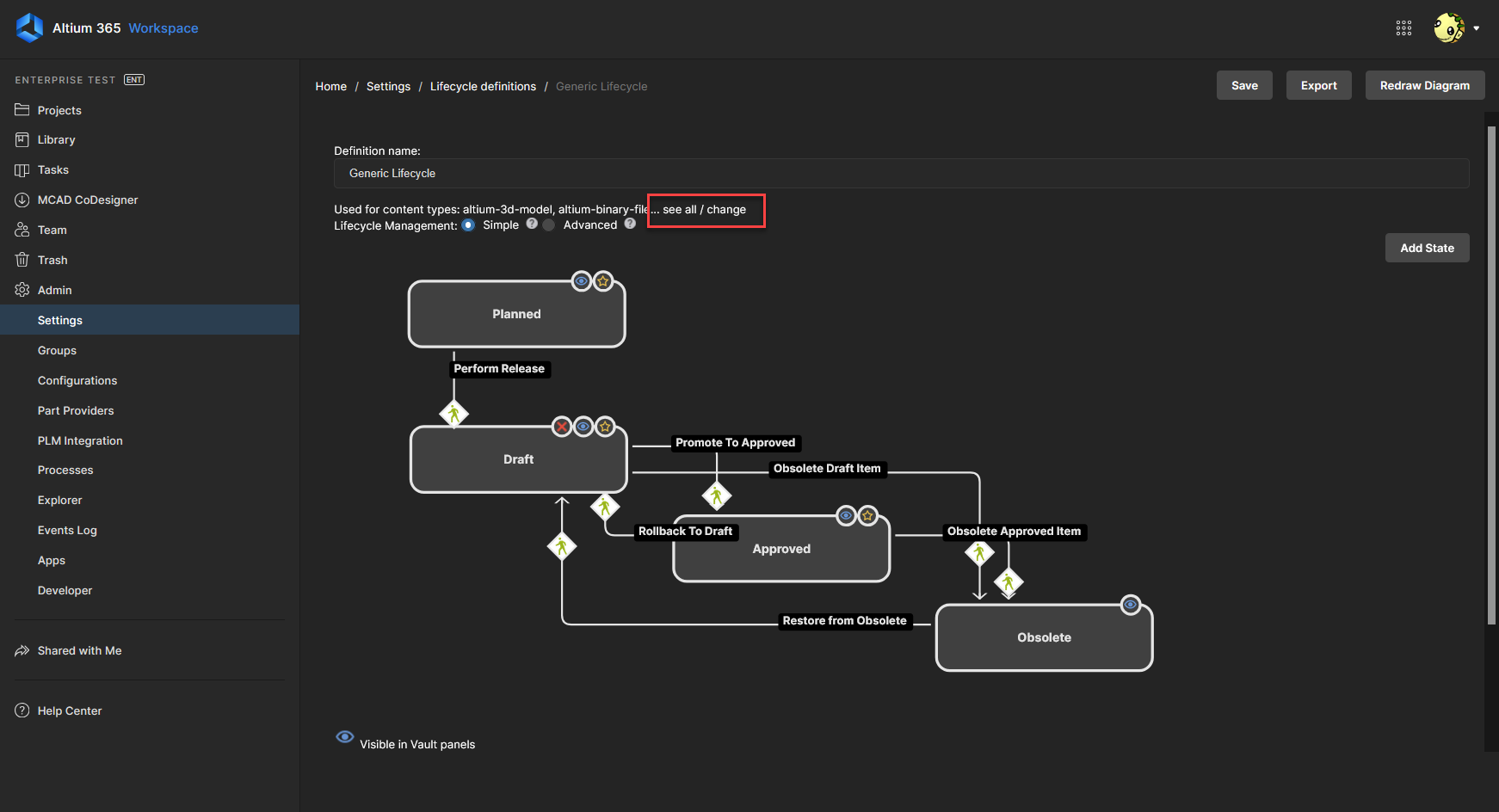
- Select each lifecycle definition and review its enabled content types.
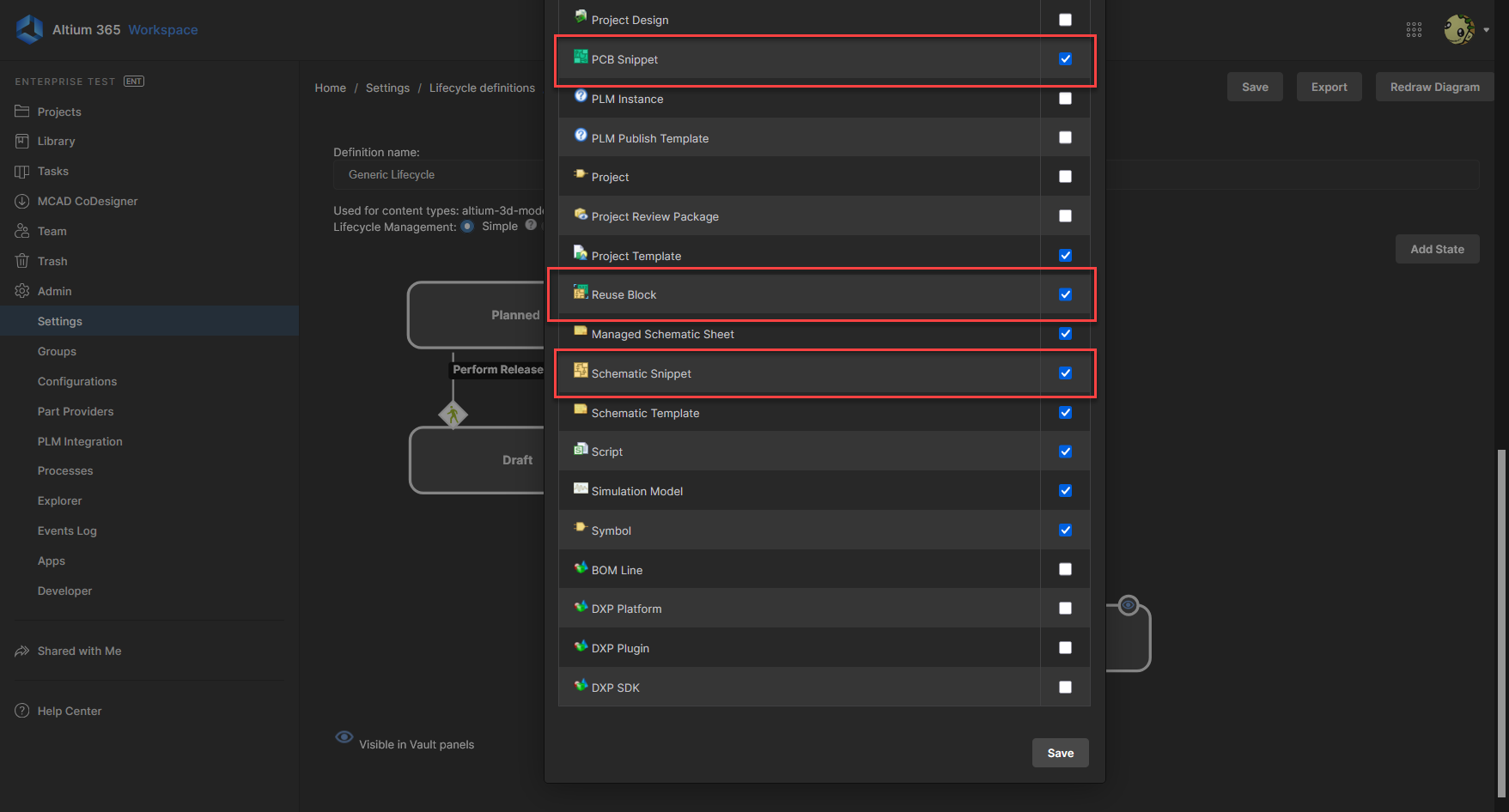
- Verify that the following content types are assigned to an appropriate lifecycle definition:
- Reuse Block
- Schematic Snippet
- PCB Snippet
-
If any required content type is missing from all lifecycle definitions, enable it within an appropriate lifecycle definition and save the changes.
-
Attempt to save the Design Reuse Block again.
Additional Notes
- Design Reuse Blocks consist of three separate workspace item types: Reuse Block, Schematic Snippet, and PCB Snippet.
- All three item types require valid lifecycle definitions.
- This issue commonly occurs after administrators modify default lifecycle definition assignments.
- These content types are typically assigned to the generic lifecycle definition.