
KB: Constraint Manager Content Is Not Visible
Updated: November 04, 2026
 Altium Designer
In Altium Designer 25.6 and earlier, Constraint Manager tab content may appear blank when the upper pane is collapsed or resized too small. Drag the divider below the tab headers downward to restore the pane and access the constraints. Starting with Altium Designer 25.7, a minimum pane size prevents the upper pane from being fully collapsed.
Solution Details
Constraint Manager Tabs Appear Blank
The contents of individual tabs within the Constraint Manager may not be displayed, preventing users from viewing or editing constraint information.
Collapsed Pane Prevents Content Visibility
In Altium Designer 25.6 and earlier versions, the upper section of the Constraint Manager window can be resized to a very small height or collapsed. When insufficient space is allocated to this pane, the tab contents become invisible even though the Constraint Manager is functioning correctly.
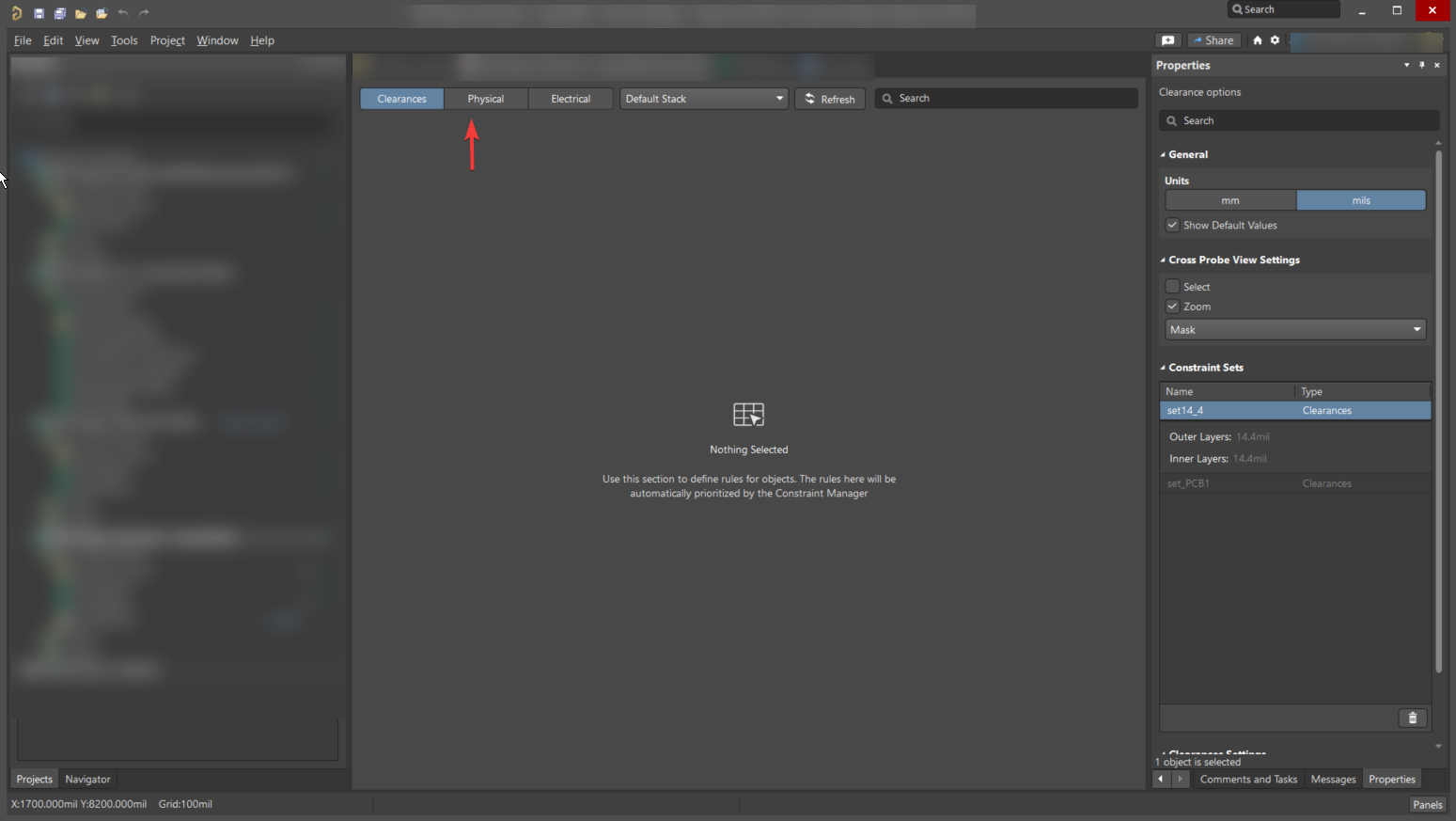
Restore the Upper Pane Size
Increase the height of the upper pane by adjusting the divider within the Constraint Manager window. If you are using Altium Designer 25.7 or later, this issue should not occur because a minimum pane size has been implemented.
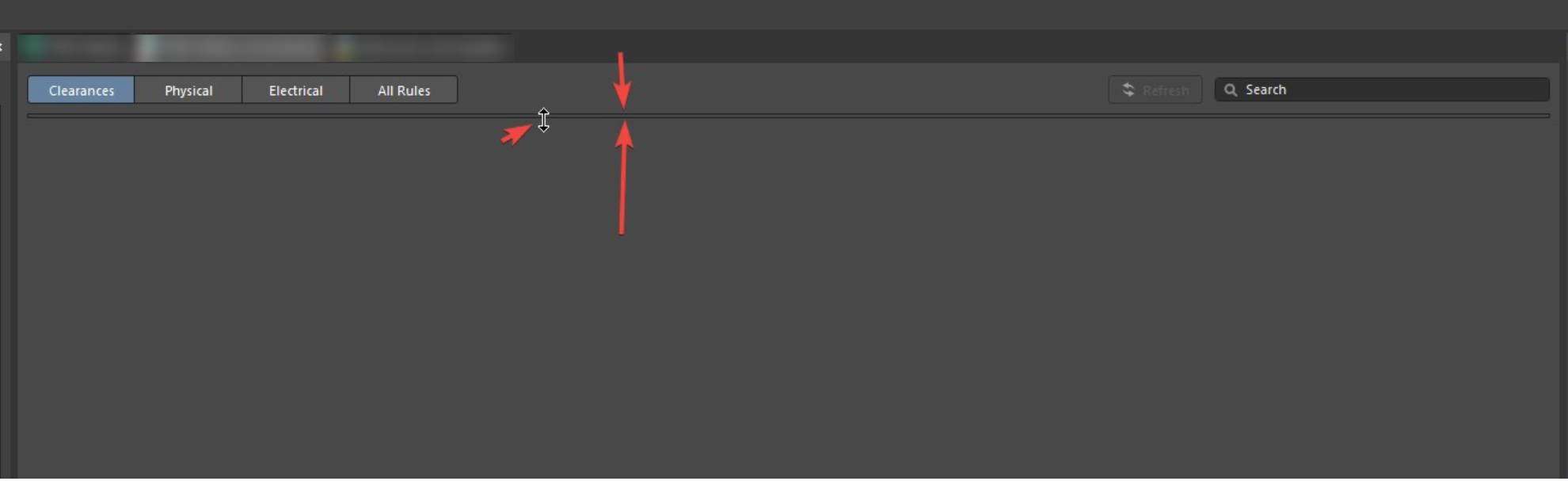
Resize the Constraint Manager Divider
- Open the Constraint Manager.
- Locate the divider line directly below the tab headers.
- Move the mouse cursor over the divider until the resize cursor appears.
- Click and drag the divider downward to increase the height of the upper pane.
- Continue resizing until the contents of the selected tab become visible.
- Verify that constraints can now be viewed and edited normally.
Additional Notes
- This behavior is a display or layout issue rather than a data corruption issue.
- If the divider is difficult to identify, slowly move the cursor beneath the tab area until the resize indicator appears.
- The adjusted layout is typically retained for future sessions.
- Starting with Altium Designer 25.7, a minimum window size prevents the upper pane from being fully collapsed, mitigating this issue.
- In some cases, Windows display scaling (DPI settings) or multi-monitor configurations may affect how the Constraint Manager is rendered on screen. If content is not displayed correctly, verify the Windows display scaling settings and test the application on a monitor using 100% scaling, if applicable.