
KB: Controlling Component Visibility Using Lifecycle States in Altium Designer
 Altium Designer
Solution Details
The goal is to restrict the visibility and usability of components in the Components panel based on lifecycle states. Revisions placed in states such as Inapplicable or Obsolete should be hidden from search results to prevent their accidental selection during design.
Lifecycle Settings Control Visibility
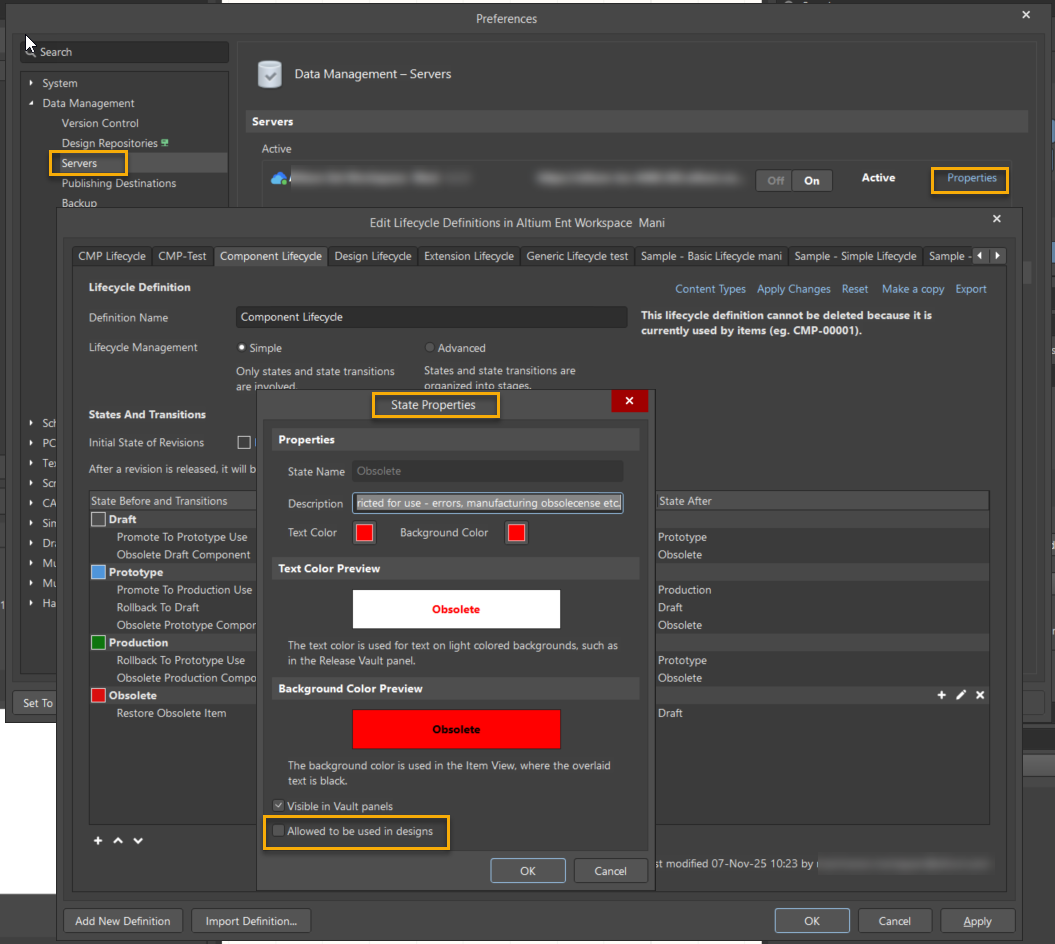
Visibility and usability in the Components panel are governed by lifecycle state properties. If a lifecycle state has Allowed to be used in designs enabled, components in that state continue to appear even when marked as Obsolete. Proper lifecycle configuration ensures components behave as intended.
Configure Lifecycle States
- Disable Allowed to be used in designs for lifecycle states representing obsolete or unusable components.
- Apply restrictions either in the lifecycle definition or directly at the component revision level.
Step-by-Step Instructions
1. Configure Lifecycle Visibility at the Component Level
-
- Go to
Tools » Preferences » Data Management » Servers » Properties. - Open the Lifecycle section.
- Select the appropriate component lifecycle definition.
- Edit the lifecycle state (e.g., Obsolete).
- Disable Allowed to be used in designs.
- Save your changes.
- Go to
2. Control Lifecycle State for a Specific Component Revision
-
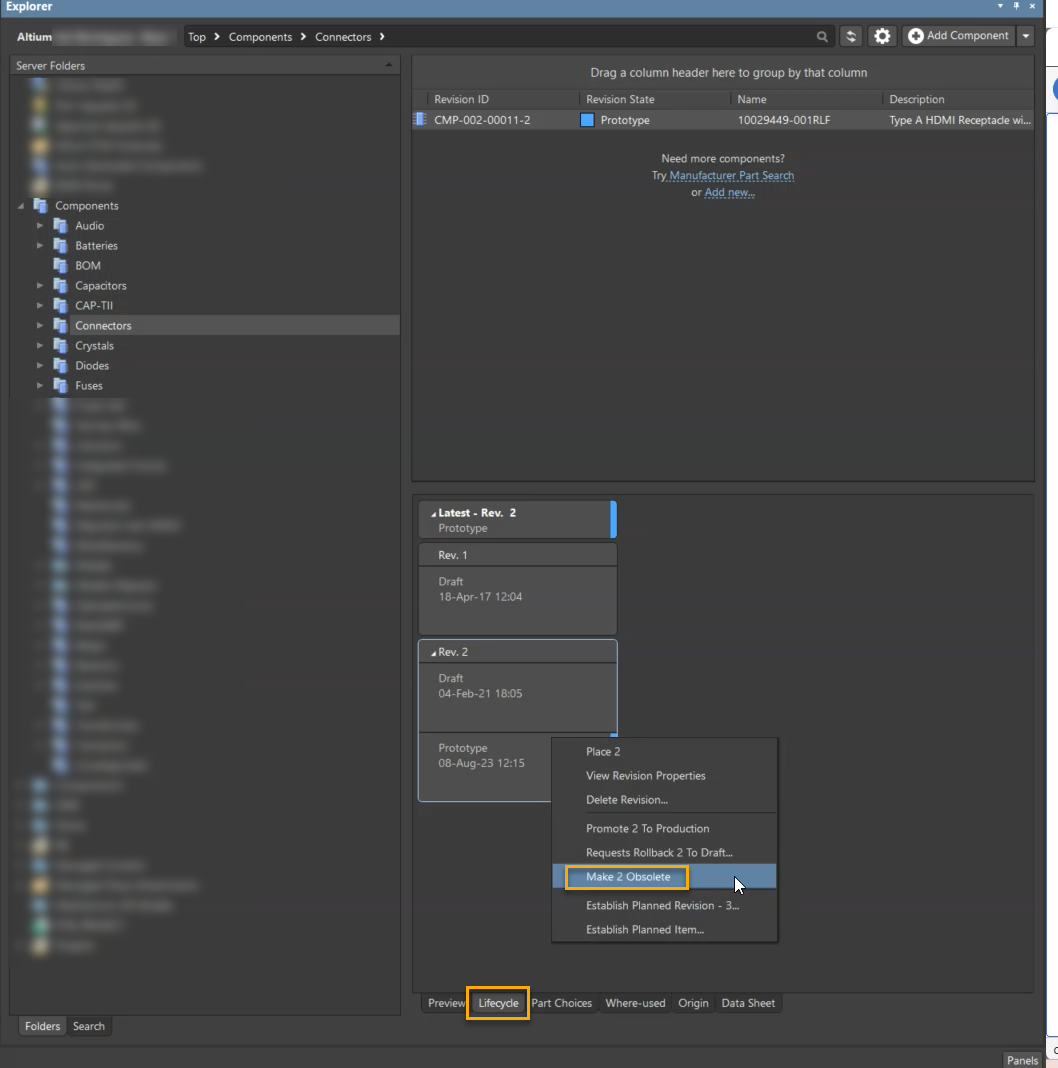
- Open Panels » Explorer.
- Locate and select the required component.
- Open the Lifecycle view in the lower section.
- Select the revision to modify.
- Right-click the revision and choose Make Obsolete or assign the desired lifecycle state.
3. Using the Lifecycle Filter in the Components Panel
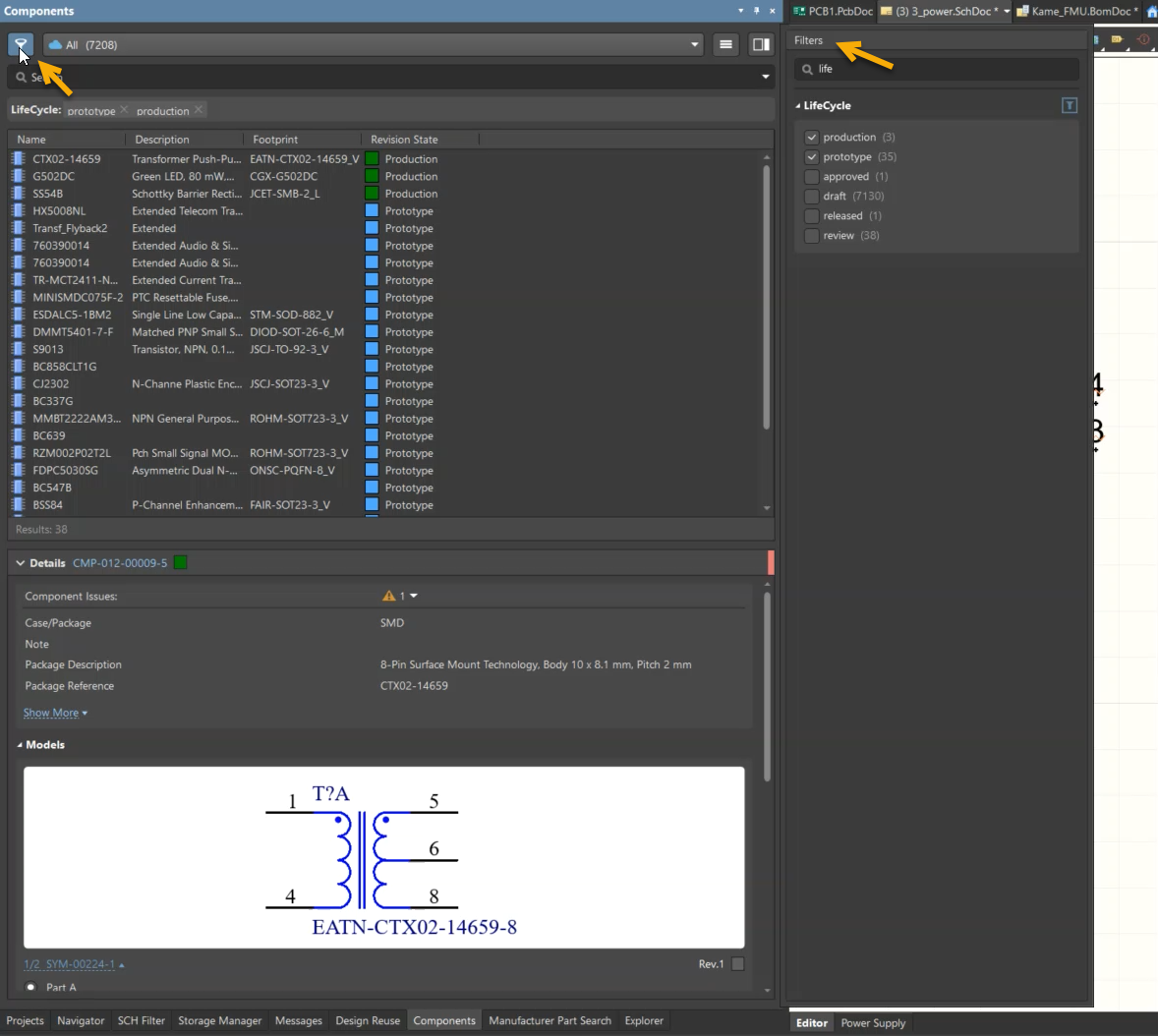
The Components panel includes a Lifecycle filter that helps confirm which components remain visible after lifecycle restrictions are applied.
This filter enables users to:
-
- Display only approved lifecycle states (e.g., Production).
- Confirm that Draft, Obsolete, or Inapplicable components no longer appear in search results.
- Verify that only design‑approved components are accessible after configuration.
- Open the Components panel.
- Locate the Lifecycle filter in the panel header.
- Select the lifecycle states to display.
- Validate that restricted components are no longer listed.
Additional Notes
- The Components panel always displays the latest revision allowed for design use, even if Visible in vault panels is disabled.
- Components or revisions not allowed to be used in designs may still appear in the Explorer panel if their lifecycle state includes Visible in vault panels.
- To hide them from Explorer, disable Visible in vault panels for that lifecycle state.
- Hidden revisions can still be accessed by enabling Show hidden revisions in the Explorer panel settings.
- Documentation reference: Showing hidden revisions