
KB: Creating Separate Net Classes for Individual Channels in Multichannel Designs
Updated: November 26, 2025
 Altium Designer
In multichannel schematic designs, it is often necessary to assign unique net classes to each channel for better control over routing and constraints. By default, net classes may apply globally, which can lead to shared rules across all channels. This article explains how to configure the project settings so that each channel automatically generates its own net class during the Engineering Change Order (ECO) process.
Solution Details
Understanding Multichannel Net Class Challenges
When working with multichannel designs, repeated sections or channels typically share the same net names and classes. This can make it difficult to apply channel-specific routing rules or constraints, as all channels inherit the same global net class.
Why Net Classes Default to Global Scope
By default, the Class Generation settings in Altium Designer create net classes for all nets across the project. This behavior is intended for designs where global rules apply, but it is not ideal for multichannel designs requiring channel-specific constraints.
Options for Creating Channel-Specific Net Classes
You can control net class generation using the Net Classes Scope setting:
- All Nets – Creates classes for all nets in the project.
- Local Nets only – Creates classes for nets local to each repeated sheet instance (recommended for multichannel).
- Global Nets only – Creates classes for nets that connect across multiple sheets.
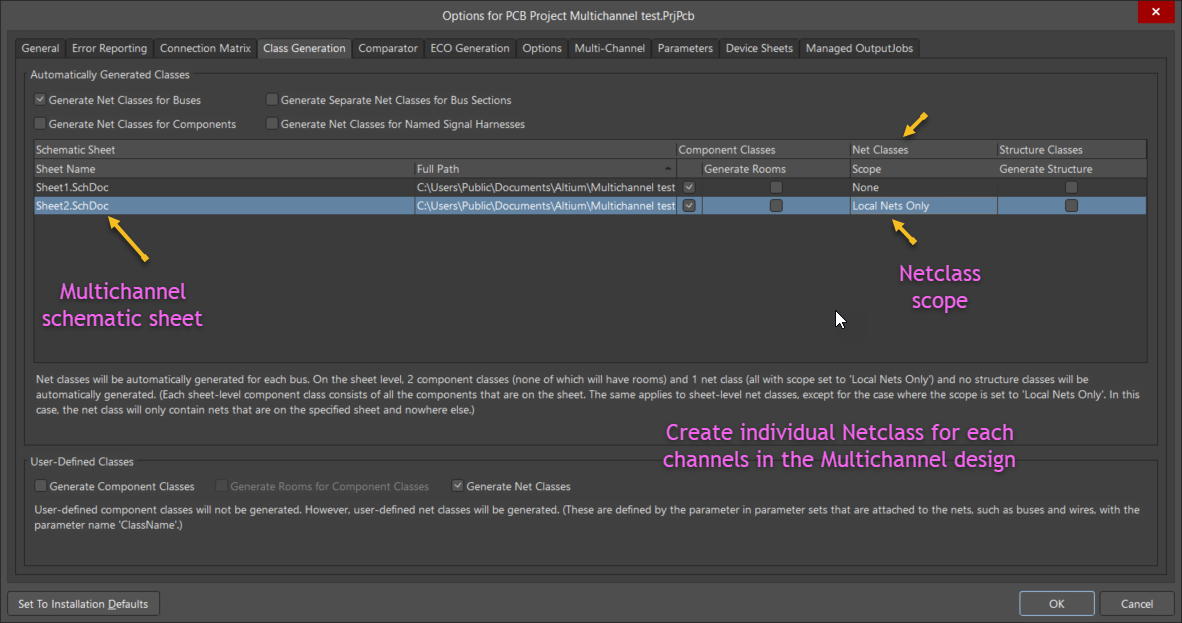
For multichannel designs, select Local Nets only to ensure each channel gets its own net class.
Step-by-Step: Configure Net Class Scope for Local Nets
- Open your project in Altium Designer.
- Navigate to Project » Project Options.
- In the Project Options dialog, select the Class Generation tab.
- Locate the multichannel schematic sheet (the source of the multichannel sheet symbol).
- Under Net Classes Scope, set the option to Local Nets only.
- Click OK to confirm.
- Perform an ECO import. Each channel will now have its own net class automatically generated.
Additional Notes
- This method ensures that routing rules can be applied individually to each channel.
- If channels share global nets intentionally, verify that those nets are not affected by the local scope setting.
- Always review the generated net classes after ECO to confirm correct assignment.