
KB: Duplicate Database Libraries Displayed When Using Filtered Excel or CSV Sources
 Altium Designer
Solution Details
Duplicate Libraries Appear During Component Selection
When browsing or selecting components from the Components panel, users may notice multiple Database Libraries listed for what should be the same component type. These libraries often appear identical and can cause confusion during component selection and placement. The duplication occurs before placement, at the time the Database Library is loaded and enumerated in the Components panel.
Filtered Data is Exposed as Separate Tables
When an Excel or CSV file is used as a Database Library source, Altium Designer accesses the data through the underlying OLE DB or ODBC connection layer. Each filtered view or filtered table in the Excel or CSV file is exposed by this connection as a separate database table. As a result, filtered columns or table filters create additional virtual tables, and each table is interpreted as a separate Component Type in Database Library.
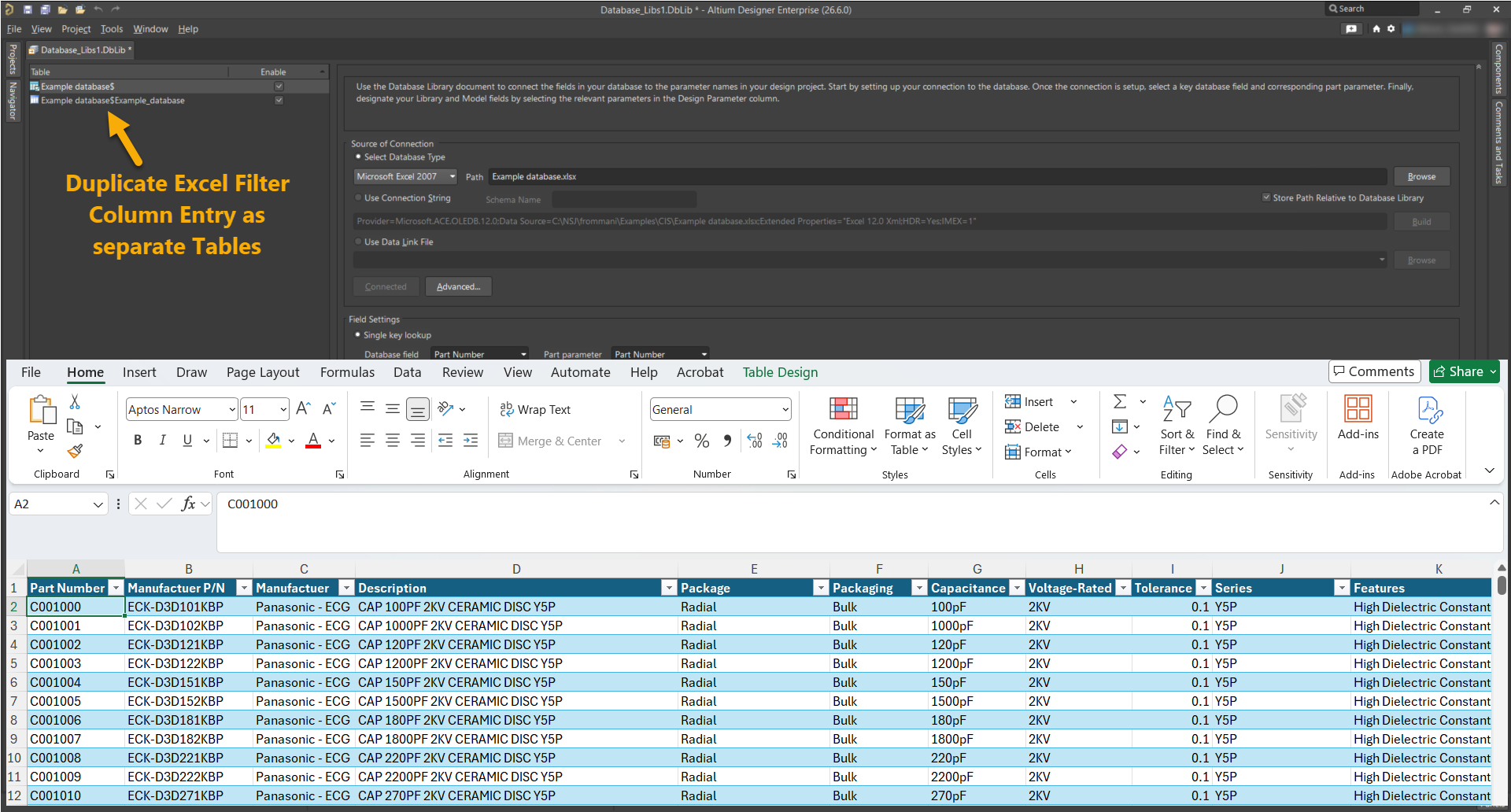
Note: MS Access databases do not exhibit this behavior because applying filters does not create additional tables. Altium 365 Managed Libraries are also unaffected.
Available Methods to Prevent Library Duplication
- Remove column filters from the Excel or CSV source file.
- Disable filtered columns in the Database Library configuration.
- Use an MS Access database as the Database Library source.
- Migrate to an Altium 365 Managed Library.
Advisory: While Excel and CSV files are supported as Database Library sources, they are not recommended for long-term or multi-user library management due to formatting limitations and unintended behaviors such as table duplication.
Steps to Remove Filters and Disable Affected Fields
To remove filters from the Excel source file:
- Open the Excel file used as the Database Library source.
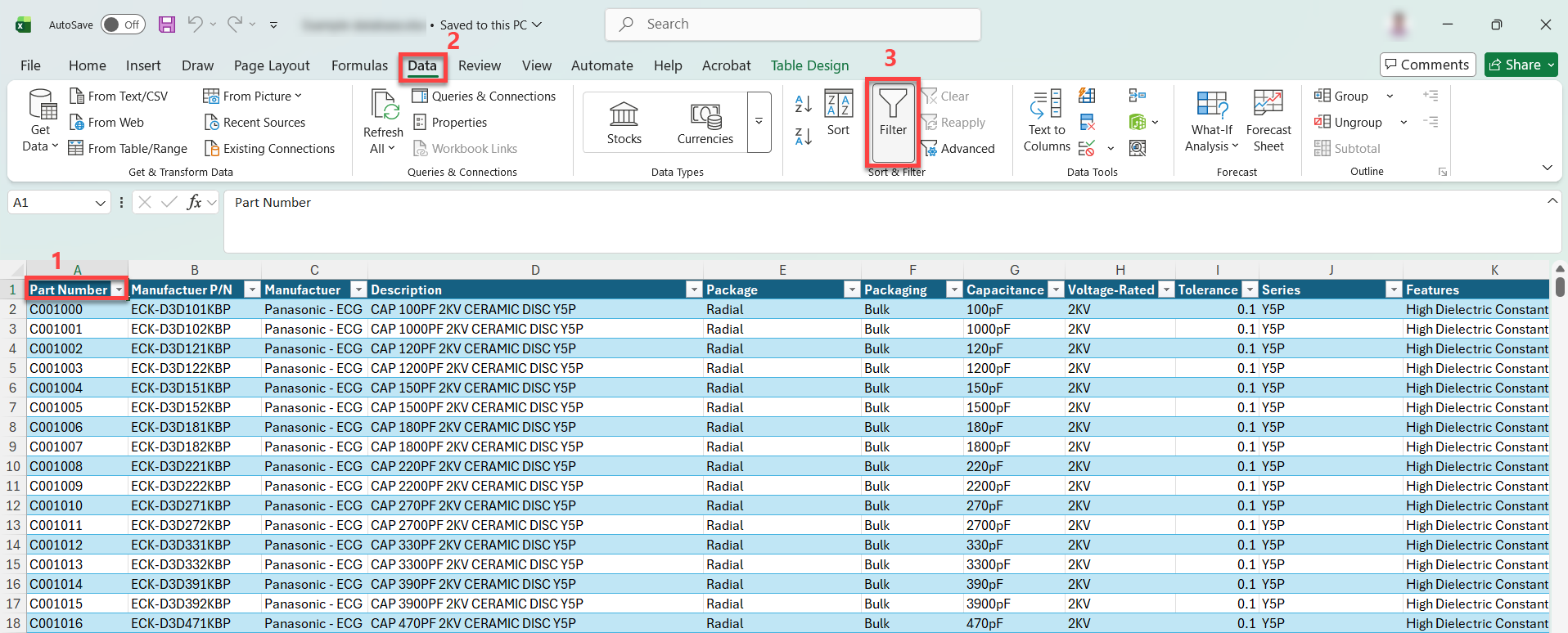
- Select any cell in the header row of the data table.
- Go to Data » Filter in the Excel ribbon.
- Ensure the Filter option is turned off and that no filter drop-down arrows remain on the column headers.
- If filter arrows are present, click each arrow and select Clear Filter.
- Save the Excel file.
To disable affected fields in the Database Library:
- Open the Database Library (
.DbLib) file in Altium Designer. - Navigate to the Field Mappings section.
- Locate the affected field under the Database Field Name column.
- Right-click the required column header.
- Disable or remove the field from the mapping.
- Repeat for any additional fields created due to Excel filtering.
- Save the Database Library.
Additional Notes
This issue has been observed only with Excel and CSV database sources. Column filters in MS Access do not create duplicate libraries. Managed Libraries provide improved scalability, access control, and data consistency.