KB: Error Displayed After ODB++ Export When CAMtastic Auto-Loads Output
 Altium Designer
Solution Details
Error Is Displayed After Export Completes
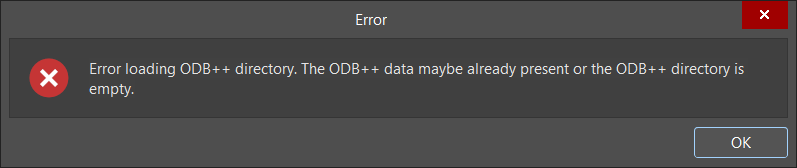
After generating ODB++ data using File » Fabrication Outputs » ODB++ Files or through an Output Job file, an error message may appear when the generation process completes.
The ODB++ export itself is successful and the output data is generated correctly. The error is related only to the automatic loading of the generated data into CAMtastic.
Compressed ODB++ Archive Cannot Be Opened
ODB++ data is typically generated as a compressed .tgz archive, which is a compressed .tar dataset. While CAMtastic supports opening ODB++ datasets, it cannot directly open the compressed archive generated during export.
When ODB++ generation finishes, CAMtastic automatically attempts to load the newly created output. If only the compressed archive exists, CAMtastic cannot read the data and displays an error message.
Available Options To Prevent The Error
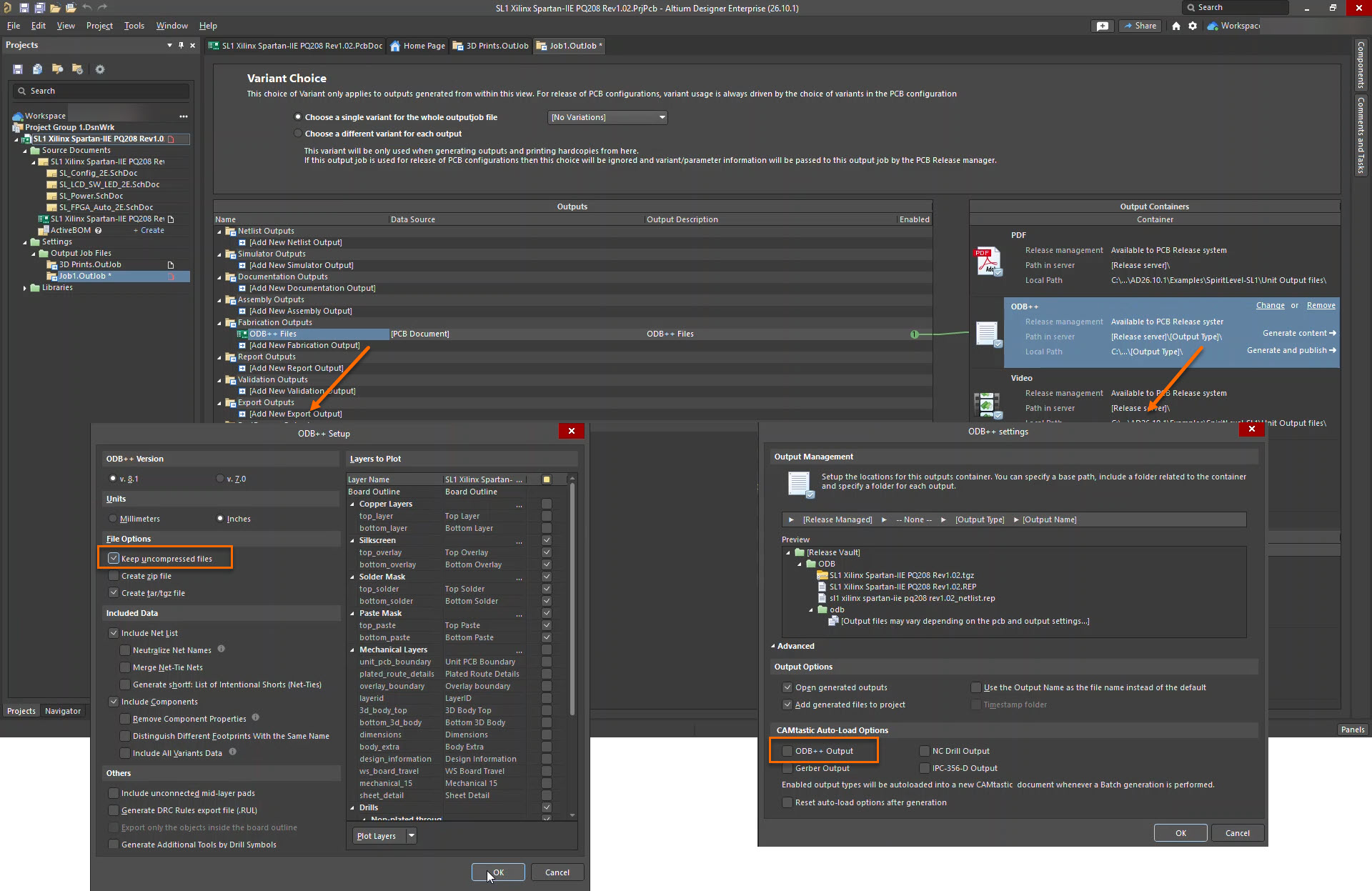
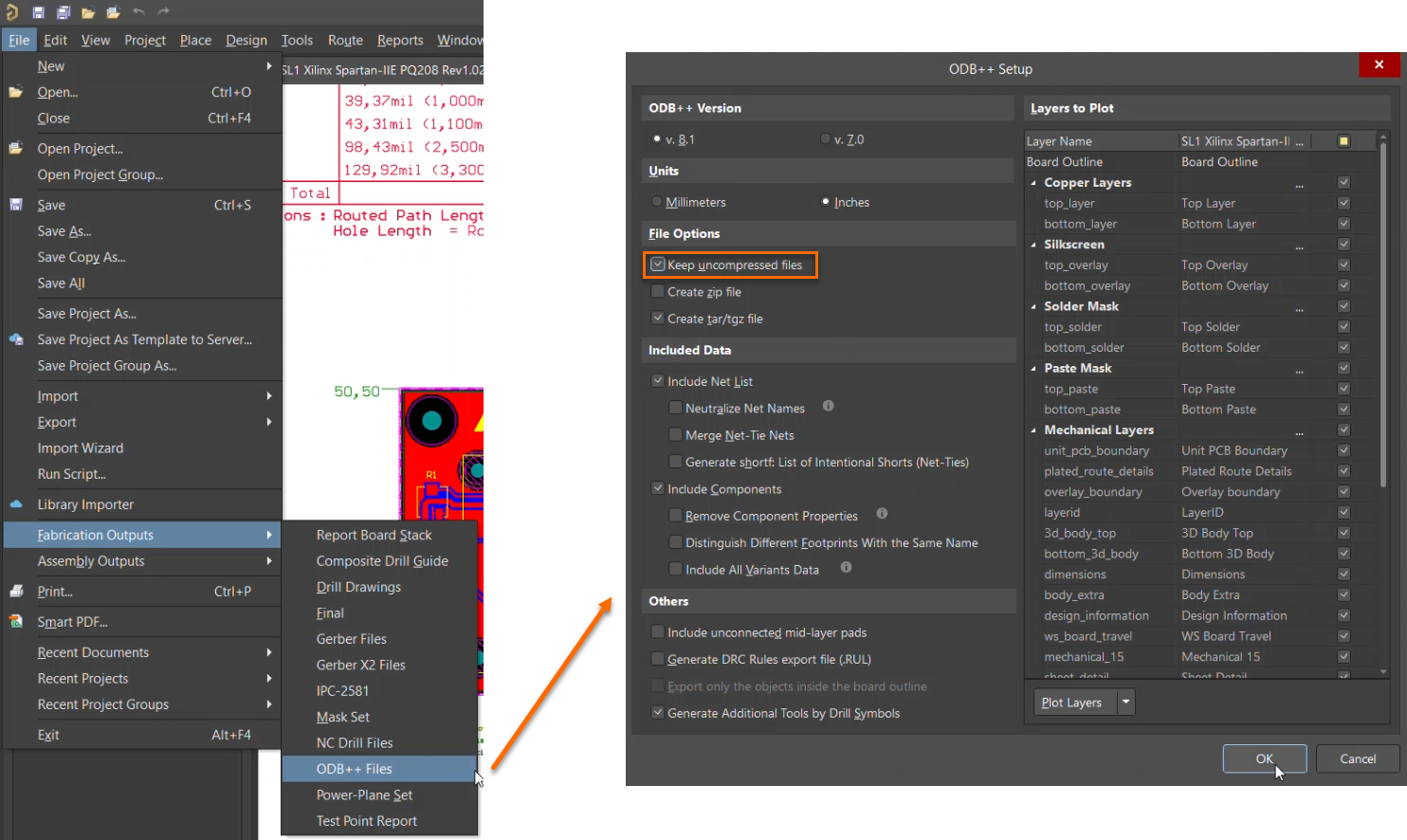
- Enable Keep uncompressed files so CAMtastic can load the uncompressed ODB++ dataset.
- Disable automatic ODB++ loading in CAMtastic.
Configure Export And Auto-Load Settings
- For direct generation using File » Fabrication Outputs » ODB++ Files, open the ODB++ setup options and enable Keep uncompressed files to retain an uncompressed copy of the generated ODB++ dataset.
- If generating ODB++ data through an Output Job file, open the ODB++ Setup dialog and enable Keep uncompressed files. Alternatively, open the ODB++ settings dialog and disable ODB++ Output under the CAMtastic Auto-Load options.