
KB: File Types Permission Error During Managed Preferences Loading
 Altium Designer
Solution Details
Warning Appears During Preference Deployment
Organizations deploying Managed Preferences through Environment Configuration Management may encounter the following warning when users run Altium Designer under standard Windows accounts:
"Altium Designer requires elevated privileges to update the associated file types. The setting was not applied."
While the remainder of the Managed Preferences are typically applied successfully, the System » File Types preference cannot be applied because Windows prevents non-administrative users from modifying system-level file association entries in the Windows Registry.
This behavior is most commonly observed in corporate environments where users are intentionally restricted from obtaining local Administrator privileges.
Note: Environment Configuration Management is available in both Altium 365 Workspaces and Altium On-Prem Enterprise Server Workspaces. This behavior can occur in either deployment model because it is related to Windows permission requirements for modifying file associations, not the Workspace platform itself.
Windows Registry Changes Require Elevation
This behavior is expected and is a result of the Windows security model.
The System » File Types preference controls the registration and association of Altium Designer file extensions. These associations are stored within the Windows Registry and require Administrator privileges to create or modify.
When Managed Preferences are applied, Altium Designer launches ADElevator.exe, which is installed by default at:
C:\Program Files\Altium\AD<version>\System\ADElevator.exe
ADElevator.exe performs operations that require elevated Windows permissions during Managed Preference application.
If the current user:
- Does not have Administrator credentials
- Cancels or dismisses the UAC prompt
- Otherwise denies the elevation request
then ADElevator.exe cannot perform the required registry modifications.
As a result, Altium Designer cannot update the file associations and displays the warning:
"Altium Designer requires elevated privileges to update the associated file types. The setting was not applied."
In most Managed Preference deployments, File Types is the only preference that requires modification of system-level registry entries. Consequently, all other preferences typically continue to apply successfully.
Exclude File Association Settings From Deployment
- For users without local Administrator privileges, configure System » File Types with Apply Mode = Do Not Apply.
- This prevents Altium Designer from attempting to modify Windows file associations.
- This eliminates the need for elevated permissions when Managed Preferences are applied.
- This prevents the warning message from appearing during preference deployment.
Configure Managed Preferences Appropriately
- Open Altium Designer and create or modify the Managed Preferences configuration.
- Save the preference set to the Altium Server by selecting File » Save to Server.
- In the Save Preferences to Server dialog, locate System » File Types.
- Set Apply Mode to Do Not Apply.
- Complete the upload process and save the Managed Preferences configuration to the Altium Server.
- Log in to the Altium Server using an Administrator account and navigate to Admin » Configurations » Preferences.
- Select Add and assign the uploaded Managed Preferences set to the appropriate Environment Configuration.
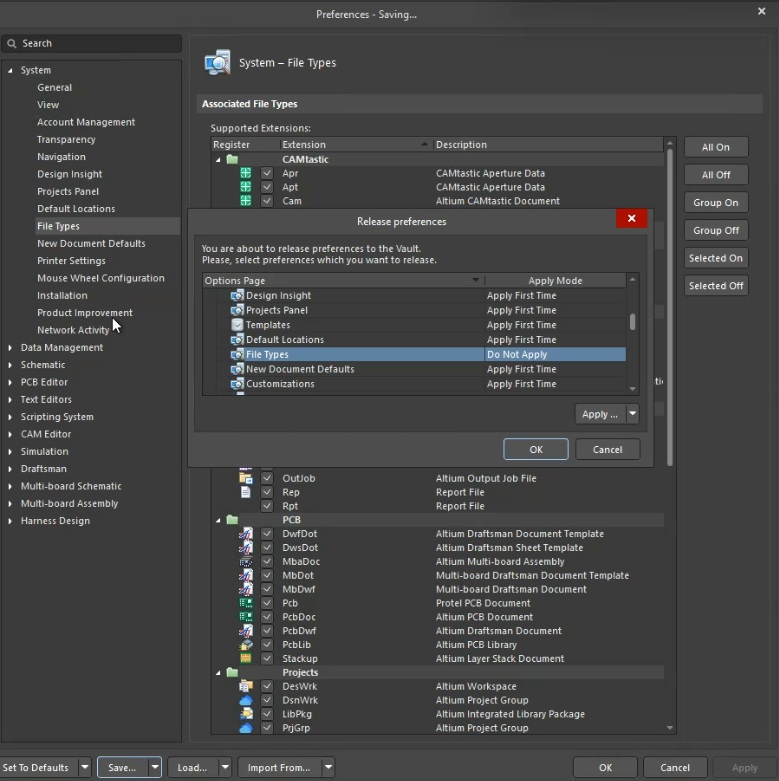
Once Apply Mode = Do Not Apply is configured for System » File Types, this preference is excluded from Managed Preference deployment.
Altium Designer will no longer attempt to modify registry-based file associations, eliminating the need to invoke ADElevator.exe for this operation.
Users running Altium Designer under standard Windows accounts can then load the Managed Preferences successfully without requiring Administrator privileges.
Additional Notes
Expected results after configuring System » File Types with Apply Mode = Do Not Apply:
- Managed Preferences load successfully for standard Windows users.
- No UAC prompt is displayed for updating file associations.
- ADElevator.exe is not required for file association updates.
- The warning message no longer appears.
- All remaining Managed Preferences continue to be applied normally.