
KB: Grid Lines Not Visible in PCB Layout
 Altium Designer
Solution Details
Grid lines are not visible
The PCB editor grid is not visible even though a grid has been configured and the PCB document is open. The expected grid lines or dots may be missing during normal editing operations, during component movement, or in both situations. Objects may still snap to the grid even when the grid itself is not displayed.
Multiple settings control grid display
Grid visibility depends on multiple settings. A grid can be hidden based on its Comp and Non Comp configuration, the global Show Grid option, or its individual display settings. If both Comp and Non Comp are disabled, the grid is not visible but may still be applied according to the current snap behavior settings. A grid will also not be visible if both its Fine and Coarse display options are configured as Do Not Draw. Grid colors with insufficient contrast may make a displayed grid difficult to see.
Verify visibility and display settings
- Ensure Non Comp is enabled for the applicable grid if the grid should be visible during normal editing operations.
- If the grid should be visible during component movement, ensure Comp is enabled for the applicable grid.
- Ensure the global Show Grid option is enabled.
- Configure at least one of the Fine or Coarse display options to use Lines or Dots, and is not configured as Do Not Draw.
- Verify that the configured grid colors are clearly visible against the workspace background.
- If the grid is visible but difficult to distinguish, switch the visible grid style between lines and dots.
Review the grid configuration
- Open the PCB document.
- Clear any existing selections using Shift+C, if required.
- Open the Properties panel.
- Verify that the panel is in Board mode.
- Select the General tab and locate the Grid Manager section.
- Locate the applicable grid. The default grid is named Global Board Snap Grid.
- Verify that Non Comp is enabled if the grid should be visible during normal editing activities.
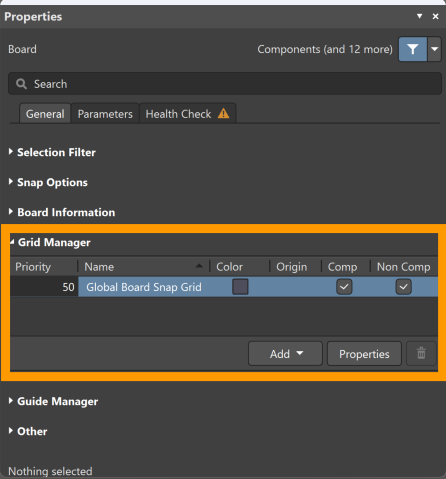
- Open the View Configuration panel. Press Ctrl+D to open the panel with the View Options tab displayed, or press L to open it with the Layers & Colors tab displayed.
- Select the View Options tab.
- In the General Settings section, verify that Show Grid is enabled.
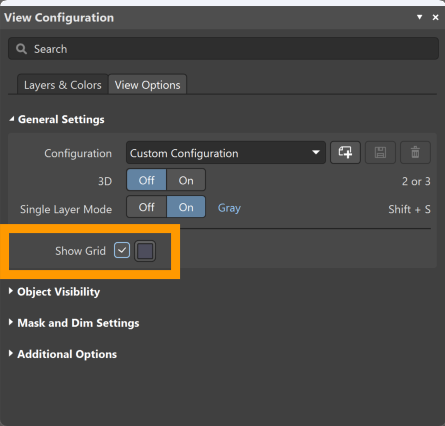
- If the grid is still not visible, return to Properties » Board » General » Grid Manager.
- Double-click the applicable grid, or press Ctrl+G while the cursor is positioned over the grid region in the PCB editor.
- In the grid editor dialog, review the Display settings.
- Verify that the Fine and Coarse display options are not set to Do Not Draw.
- Review the grid color settings if necessary using the available color controls.
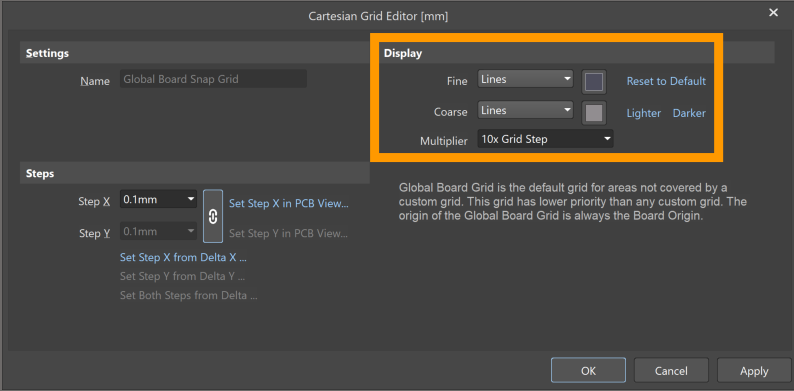
- If the issue occurs only during component movement, verify in Properties » Board » General » Grid Manager that Comp is enabled for the applicable grid..
Additional Notes
The default Global Board Snap Grid always exists and applies to the entire design space, although it is displayed only over the board shape. The grid can be modified, but it cannot be renamed, deleted, or disabled. Its priority is fixed at the lowest level.