
KB: How to Populate Empty Drill Table Columns in Draftsman
 Altium Designer
Solution Details
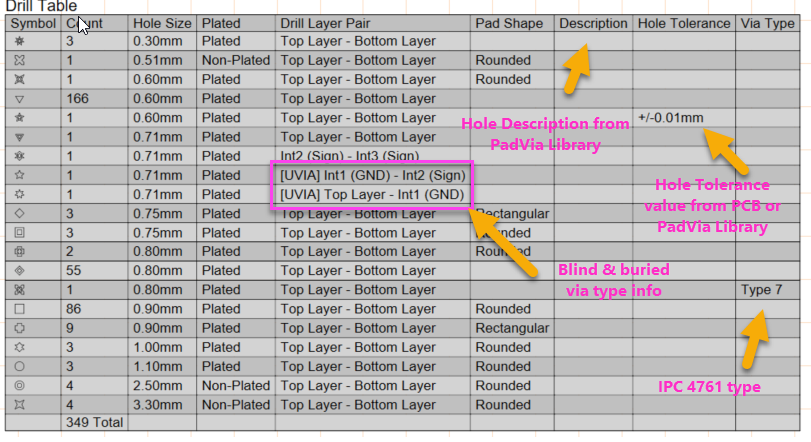
The Drill Table pulls data from the properties of Vias and Pads in the PCB layout. If these properties are not defined, the corresponding columns will remain empty. Additionally:
- Hole Tolerance is sourced from the tolerance settings in Pad or Via properties.
- Hole Description is derived from the description field in the PadViaLibrary template.
- Via Type requires an IPC-4761 classification to be assigned.
Solution Summary:
To populate the empty columns:
- Update tolerance values in Pad or Via properties
- Use bulk editing tools like Pad & Via Templates or Find Similar Objects
- Add custom columns to the Drill Table
- Ensure PadViaLibrary templates include descriptions
- Assign IPC-4761 via types in the Properties Panel
Updating Hole Tolerance Values:
1. Select the Via or Pad in the PCB design
2. Open the Properties panel
3. Enter the required Tolerance values
4. Check updated values
-
- The Drill Table will automatically update to display the tolerances.
- If not, click on Refresh in the Drill Table Properties.
- If the Hole Tolerance column is not displayed in the Drill Table add the column via Edit Columns in the Columns section of the Drill Table properties.
- For Draftsman documents, the changes must be imported to see the updated values
Updating Hole Tolerance Values in Bulk:
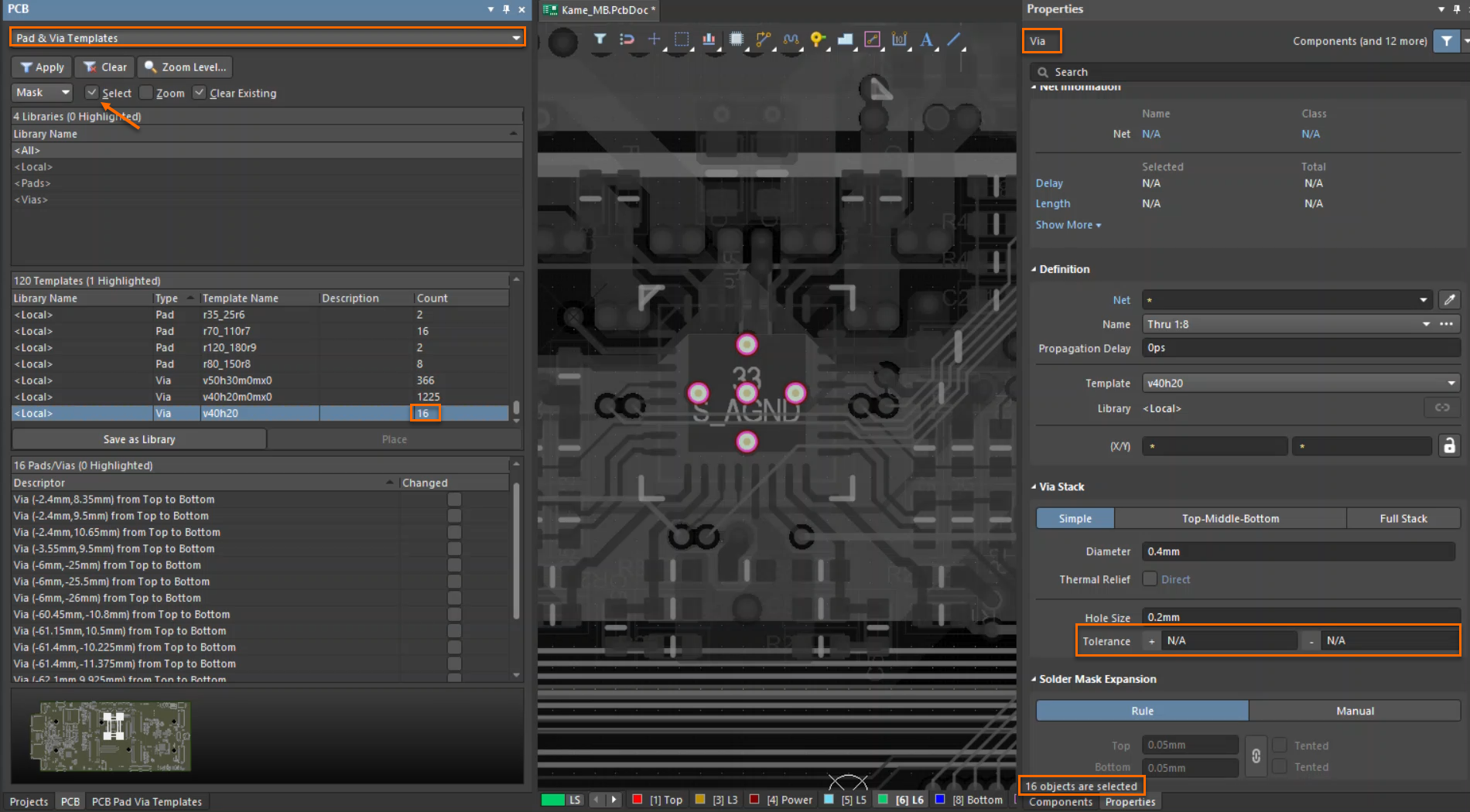
1. PCB panel - Pad & Via Templates
-
- Go to Panels » PCB » Pad & Via Templates
- Enable the Select option
- Click on the Via or Pad you want to modify
- In the Properties panel, update the Tolerance values
- All instances of that Pad or Via Template will be updated
Refer to Locating a Pad or Via in the PCB Design Space for more information.
2. Find Similar Objects
-
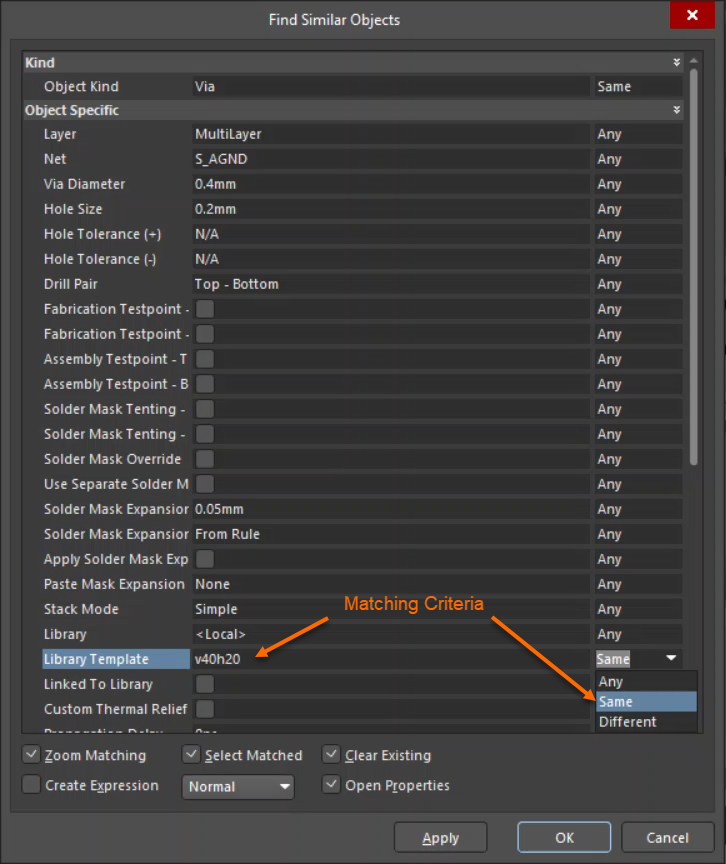
- Right-click on a Pad or Via
- Select Find Similar Objects...
- Enable the Select Matched option and set the matching criteria
- Click OK to find and select all matching objects
- Update the tolerance values in the Properties panel
- All selected objects will be updated simultaneously
Refer to Using Find Similar Objects Tools for more information.
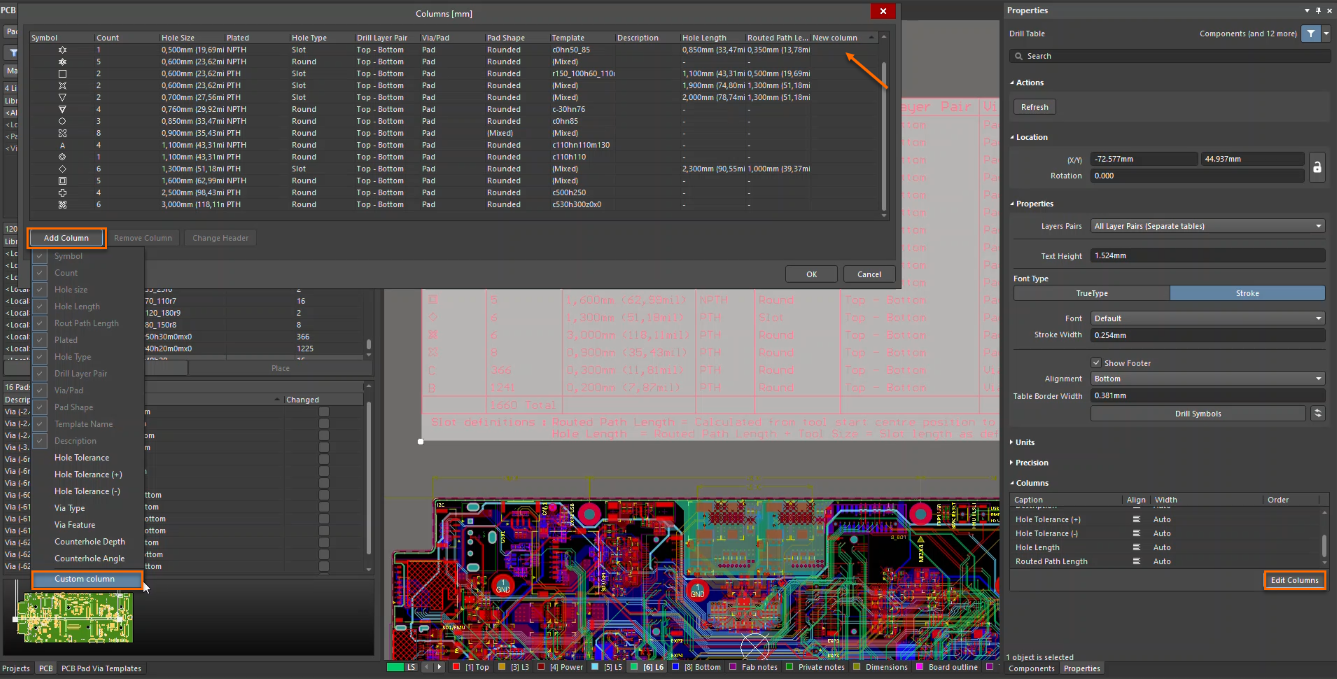
Add Custom Column to Drill Table
Alternatively, you can add a custom column to the Drill Table to include the hole tolerance value
Refer to Drill Table Properties - Columns for more information.
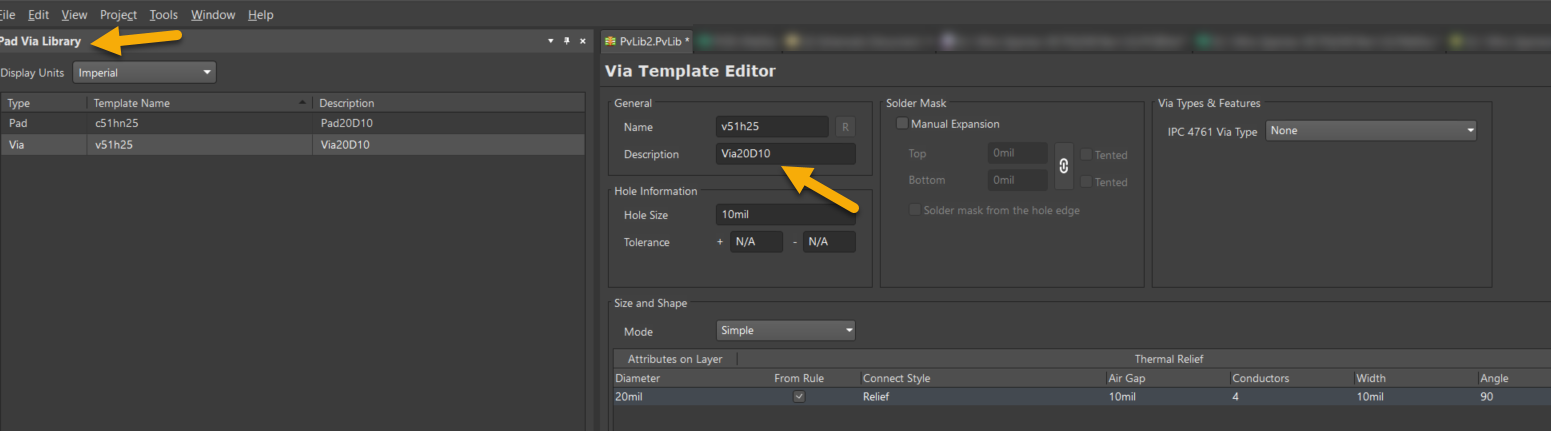
Ensure PadViaLibrary templates include descriptions
1. Ensure the via used is sourced from the PadViaLibrary.
2. Locate the via template in the library.
3. Enter a meaningful description in the Description field.
4. Use this template in your PCB design.
Assign IPC-4761 via types in the Properties Panel
1. Select a via in the PCB layout.
2. Open the Properties Panel.
3. Assign an IPC-4761 via type from the available options.
Note: The Via Type column will remain empty unless an IPC via type is assigned.
Additional Notes
- IPC Via Type is distinct from blind and buried via information.
- The Layer Pairs option in Drill Table Properties displays blind/buried via details separately.
- Changes made in the PCB layout must be imported into Draftsman documents to reflect updated values.