
KB: How to Resolve "Connection Failed" Errors in Database Libraries
 Altium Designer
Solution Details
Recognize Database Library Connection Failures
When attempting to connect a Database Library, the message "Connection failed. Check your connection settings" may appear. When the connection cannot be established, table and mapping information from the external database is not loaded.
Components may also be unavailable from the Components panel even though the Database Library is installed under the file-based library preferences. After a successful connection, enabled database tables are available as separate library entities when the Database Library is browsed through the Components panel.
Understand Common Connection Failure Causes
The connection can fail when the connection string is built incorrectly, the database path is invalid, the required data source is unavailable, or the selected database provider is not configured correctly. Database Libraries use OLE DB connection strings. For databases accessed through ODBC, the Microsoft ODBC provider allows an ActiveX Data Object (ADO) connection to an ODBC data source, with the appropriate OLE DB provider specified as part of the connection string.
If the database connects successfully but components remain unavailable, the required database table may not be enabled or the DBLib or SVNDbLib symbol and footprint locations may not be configured correctly. Missing search paths, missing Library Path or Footprint Path information, or outdated references after moving the Database Library can prevent the associated library files from being found.
For an SVNDbLib, the symbol and model libraries are stored in a Subversion repository. An incorrect or unavailable SVN repository configuration can therefore prevent the required library content from being accessed.
Verify Connections and Library Locations
- Verify the connection string, database path, database provider, and required data source.
- Test the database connection and correct any reported connection problems.
- Confirm that the required database tables are enabled.
- If the database connects but components remain unavailable, verify the symbol and footprint library locations.
- Verify Library Path and Footprint Path information and update references if libraries have been copied or moved.
- For libraries stored on a server, verify that the full paths contain the correct server name or IP address.
- For an SVNDbLib, also verify the Subversion repository connection.
Correct and Test the Library Configuration
-
Incorrect Database Connection Configuration
- Open the DBLib or SVNDbLib file and review the Source of Connection settings.
- Check the Path and Connection String for errors.
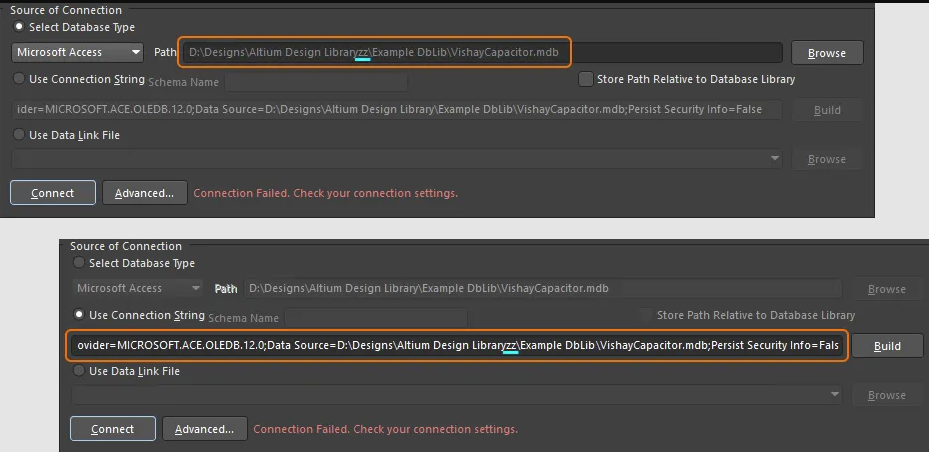
- Select Tools » Database Connection, or select Advanced beside the connection controls, to review additional connection settings.
- If Use Connection String is selected, select Build to open the Data Link Properties dialog. Verify that the appropriate OLE DB provider is selected and that the database name and path are correct. If the database requires authentication or additional connection settings, verify them in the Data Link Properties dialog. Select Test Connection and confirm that the connection test succeeds.
- Return to the Database Library and select Connect. If connection settings were changed while already connected, select Reconnect.
- Confirm that the table and mapping information loads. After a successful connection, the Connect button changes to Connected and becomes unavailable.
- Verify that each required database table has its Enable option selected.
- For data source Data Link File, refer to: Specifying a Data Link file
-
Components Panel Does Not Display Database Components
- If components are still unavailable from the Components panel, verify the symbol and footprint library locations.
- Enable subdirectory searching and add the required folder search path where applicable.
- Add or verify the Library Path and Footprint Path columns in the database.
- If the Database Library or associated library folders were copied or moved, update the Library Path and Footprint Path references.
- For libraries stored on a server, verify that each full path contains the correct server name or IP address.
- For an SVNDbLib, select Tools » Options and verify the repository connection on the SVN Repository tab of the Database Library Options dialog.
- Check the Components panel again and confirm that the required database components are available.
- For additional information, refer to: Specifying Symbol and Model Library Locations
Additional Notes
After a successful initial connection and after saving the DBLib or SVNDbLib file, the database connection is established automatically when the file is opened again, provided that the target database location and filename have not changed.