
KB: Missing Splice Objects Under Wiring Bundle in Harness Layout Diagram
 Altium Designer
Solution Details
Splice Objects Not Appearing in the Harness Bundle
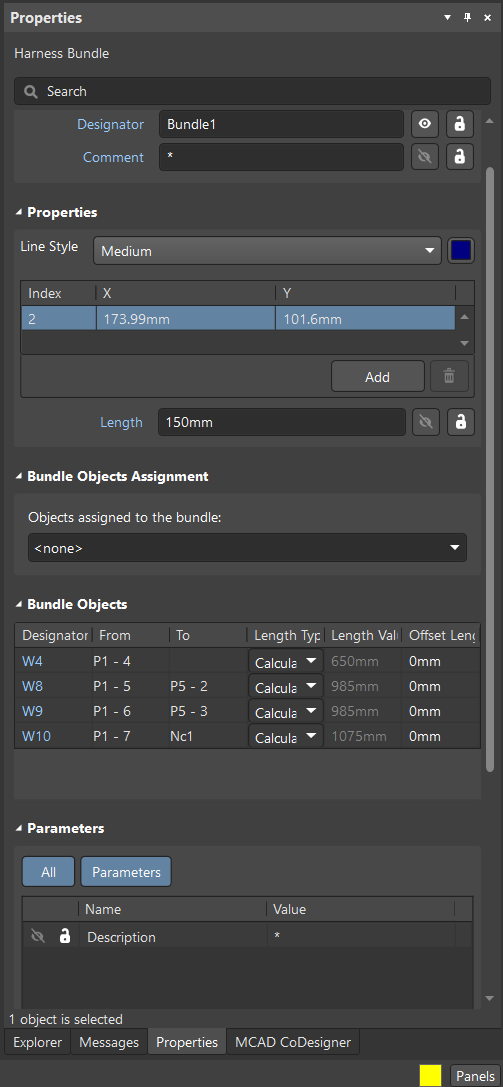
In the harness layout diagram, the wiring bundle appears incomplete because certain splice objects—such as SPL1—are missing from the bundle view, even though they exist in the wiring diagram.
Cause: Unassigned Splice Objects
This behavior occurs when splice objects created in the wiring diagram are not assigned to any connection point in the harness layout. Without this mapping, the bundle cannot recognize or display the splice objects, causing them to appear missing.
How to Restore Missing Splice Objects
Assign the missing splice objects to the correct connection points in the harness layout diagram.
Step-by-Step: Assigning Splices in the Harness Layout
1. Identify the missing splice
(In this example, SPL1 is missing from the wiring bundle.)
2. Assign the splice to a connection point
-
- Open the Harness layout diagram.
- Select the Connection point where the splice should appear.
- Open its Properties Panel.
- Under Assigned objects, click Add.
- Select the required splice (e.g., SPL1).
- Confirm the assignment.

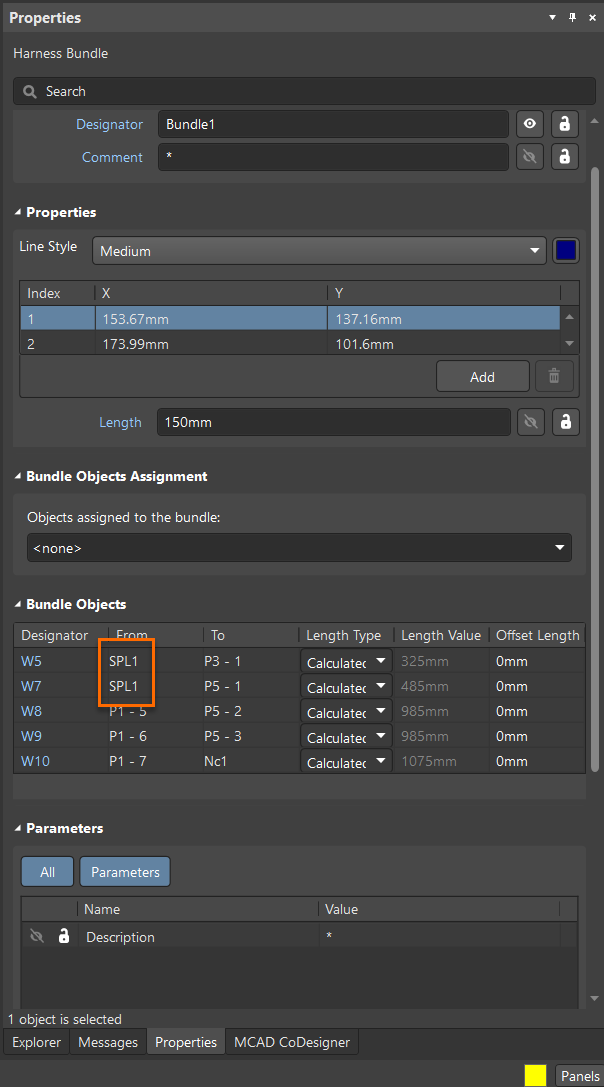
3. Verify that the bundle now shows the splice
Select the wiring bundle again. The previously missing splice (e.g., SPL1) should now appear under the bundle.
Additional Notes
- Ensure that all splices created in the wiring diagram are assigned to layout connection points to maintain synchronization.
- Missing bundle objects almost always indicate incomplete object‑to‑connection assignments.