
KB: PCB Document Cannot Be Saved Because a Command Is Active
Updated: September 29, 2026
 Altium Designer
When saving a PCB document, an active-command message may appear and prevent the save operation. The PCB document may remain stuck in Interactive Routing mode, and the Properties panel continues to display Interactive Routing properties even when other PCB editing functions remain available. This issue can occur when multiple commands are active simultaneously or after an access violation error during interactive routing. The available workarounds include restoring a recent local history revision using the Storage Manager panel or performing a Save As operation with a different PCB filename.
Solution Details
PCB Document Remains in Routing Mode
The PCB document cannot be saved and displays the message indicating that an active command is preventing the save operation. Users may still be able to perform PCB editing tasks, including interactive routing, but the Properties panel remains locked to Interactive Routing mode properties.
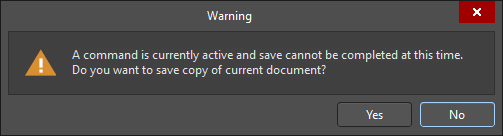
Multiple Active Commands Cause Save Failure
This issue can occur when multiple commands are active at the same time. It can also occur following an access violation error during an interactive routing operation. In some cases, the root cause is not clearly identifiable.
Choose a Document Recovery Method
- Restore the most recent local history revision using the Storage Manager panel.
- Use Save As and save the PCB document with a different filename.
Steps to Restore or Save the PCB Document
- Open the Storage Manager panel using View » Panels » Storage Manager. Alternatively, right-click the PCB document in the Projects panel and select History & Version Control » Storage Manager.
- Review the available Local History revisions.
- Restore or revert to the most recent local history version of the PCB document.
- If restoring Local History is not preferred, use Save As.
- Enter a different filename and save the PCB document.
- Verify whether the active command condition has been cleared and normal save operations are available.