
KB: Resolve Missing Sheet Bookmarks When Creating a PDF from a Schematic
Updated: November 25, 2026
 Altium Designer
If a schematic is exported to PDF and some schematic sheets do not appear in the PDF bookmarks, the issue is commonly caused by incorrect or duplicate sheet or document numbering. Ensuring that all schematic sheets are uniquely and properly numbered using the sheet numbering utility in the schematic editor resolves the missing bookmark entries and allows all sheets to be correctly listed in the exported PDF bookmarks.
Solution Details
Missing Sheets in PDF Bookmark List
When a schematic is printed or exported to PDF, some schematic pages may be missing from the bookmark pane even though the sheets are included in the PDF output.
Duplicate or Incorrect Sheet Number Assignment
This issue can occur when schematic sheets and/or documents are improperly numbered or when multiple sheets/documents share the same number.
Renumber All Schematic Sheets
Renumber the schematic sheets to ensure that each sheet and document has a unique and valid number.
Update Sheet Numbering Configuration
- Open the schematic project.
- Select Tools » Annotation » Number Schematic Sheets.
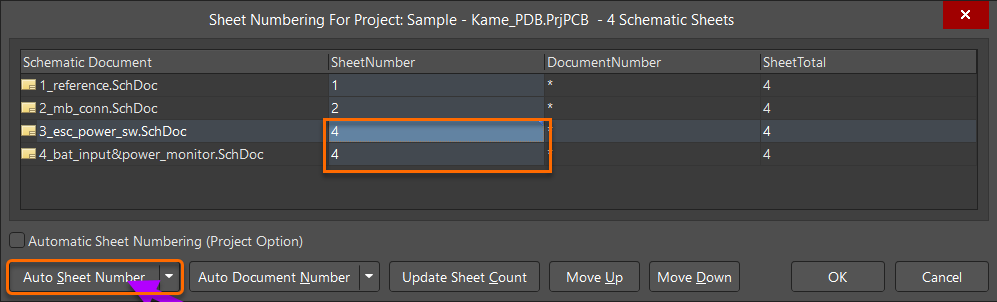
- Renumber the schematic sheets.
- Generate the PDF again and verify that all schematic sheets appear in the bookmark list.