
KB: Resolving "Unrecognized Project File Version" Error When Project Opens Without Files in Altium Designer
Updated: December 09, 2025
 Altium Designer
When opening a project in Altium Designer, the error message "Unrecognized Project File Version" may appear, and the project loads without its associated files. This issue is commonly caused by restricted folder permissions that prevent Altium Designer from reading the full project structure. In some cases, the error may indicate a corrupted project file. Ensuring proper folder permissions and recovering an un-corrupted project version from the Local History folder can restore access to the project. Enabling auto-save and backup options helps prevent future data loss.
Solution Details
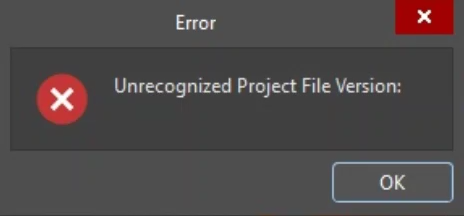
When opening a project in Altium Designer, the error "Unrecognized Project File Version" appears. Although the project opens, it does not display any associated files, making the project incomplete and unusable.
Common Causes of the Issue
This issue usually occurs because:
- The folder containing the project file has restricted access permissions, preventing Altium Designer from reading the project structure.
- The project file is corrupted due to improper shutdowns, sync conflicts, or network issues.
Resolution Options and Recommendations
To resolve the issue:
- Ensure full read/write permissions on the folder containing the project file.
- Recover an uncorrupted version of the project file from the Local History folder.
- Enable auto-save and backup options to prevent future data loss.
Step-by-Step Resolution
Step 1: Check and Update Folder Permissions
- Locate the folder where your project file is stored.
- Right-click the folder and select Properties.
- Navigate to the Security tab.
- Click Edit to change permissions.
- Ensure your user account has Full control enabled.
- Click Apply, then OK to confirm changes.
- Reopen the project in Altium Designer.
Step 2: Recover from Local History
- Navigate to the History folder within your project directory.
- Locate a previous version of the project file.
- Replace the corrupted file with the recovered version.
For detailed instructions, refer to Altium Documentation: Local History.
Step 3: Enable Auto-Save and Backup
- In Altium Designer, go to Preferences » Data Management » Backup.
- Enable Auto-save and configure backup settings.
For detailed instructions, refer to Altium Documentation: Backup
Additional Notes
- If the project is stored on a network drive or cloud-synced folder, ensure the service does not impose additional restrictions.
- Verify that antivirus or endpoint protection software is not blocking access to the folder.
- Consider using version control (SVN/Git) for collaborative projects to avoid corruption.