KB: Rigid region incorrectly flagged as flex when enabling 3D Locked
 Altium Designer
Solution Details
Rigid region cannot be locked in 3D
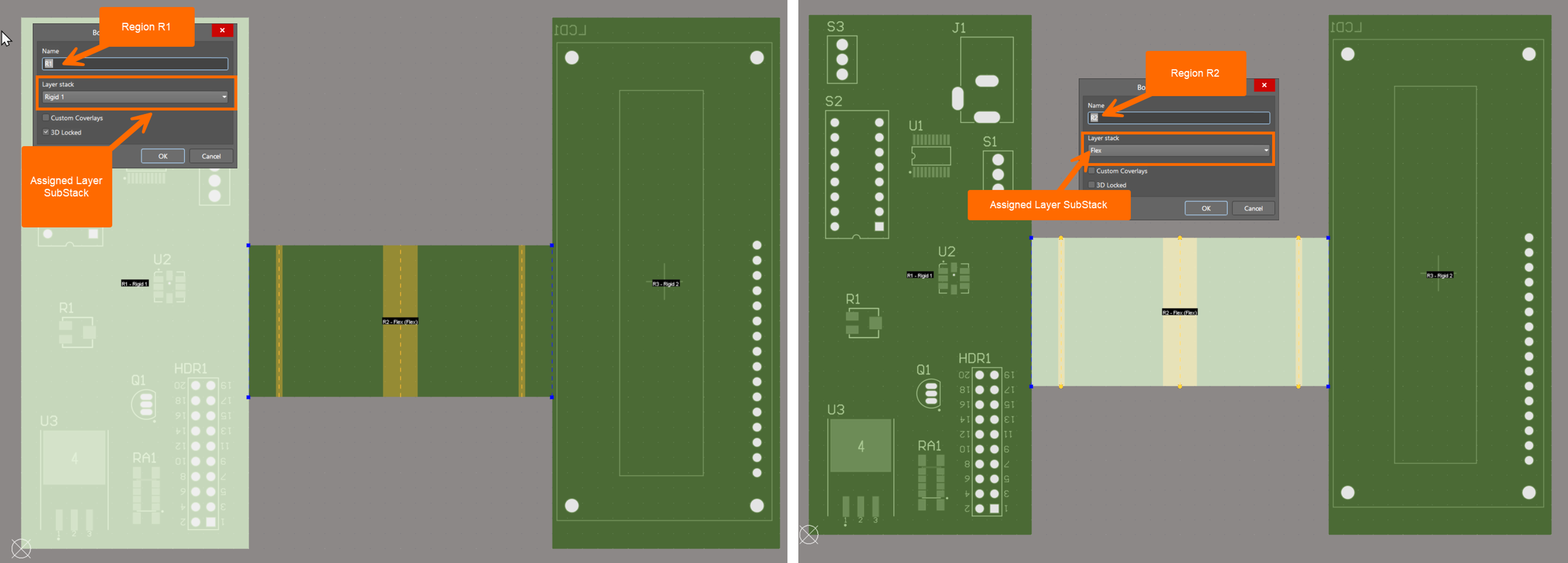
After redefining the board outline, Board Planning Mode appears normal: split lines snap correctly, regions can be named, and layer stacks can be assigned. Flex regions display yellow bending lines as expected. However, when editing a rigid region, the 3D Locked option is unavailable because the region is interpreted as flex.
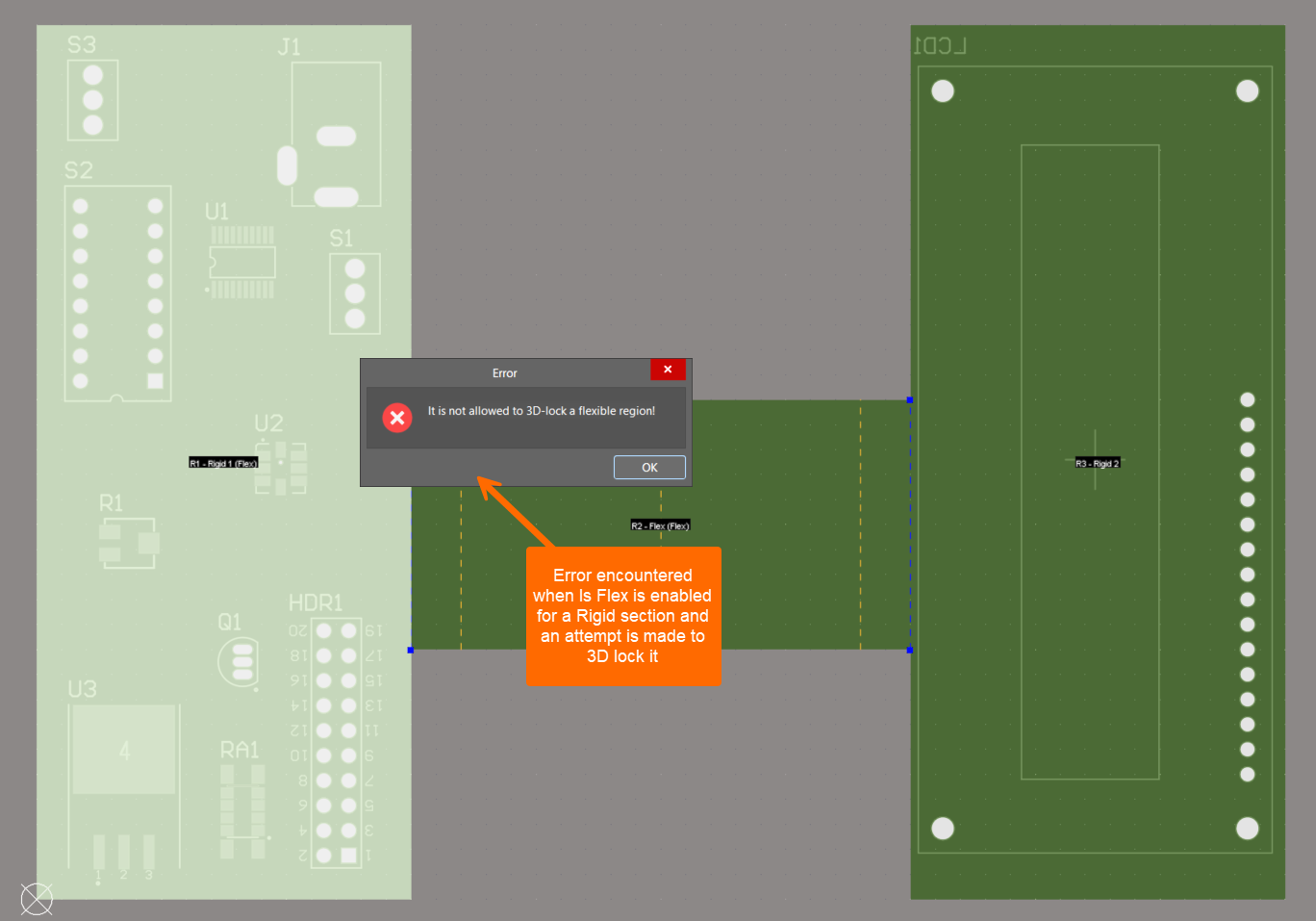
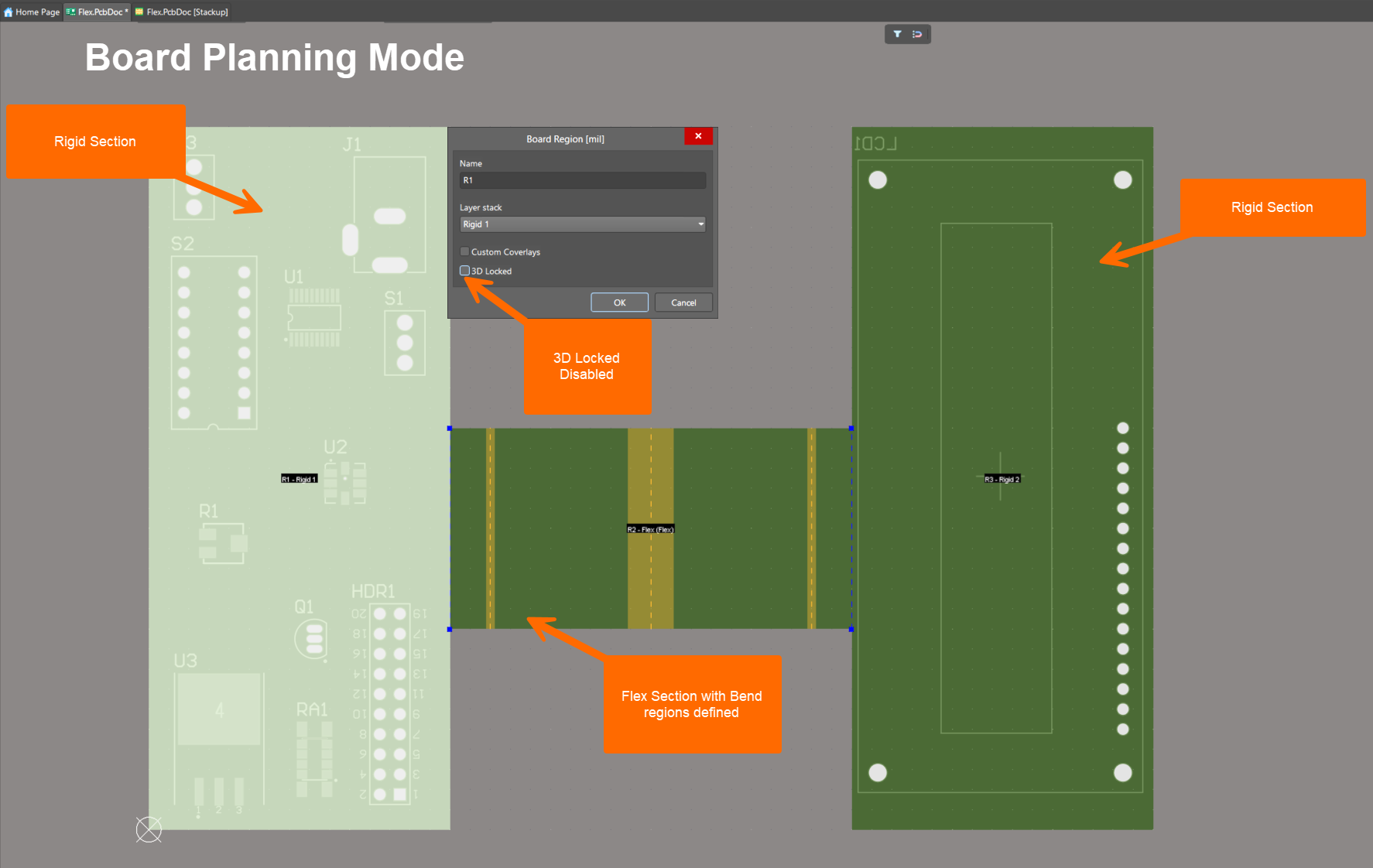
Layer stack defines rigid or flex behavior
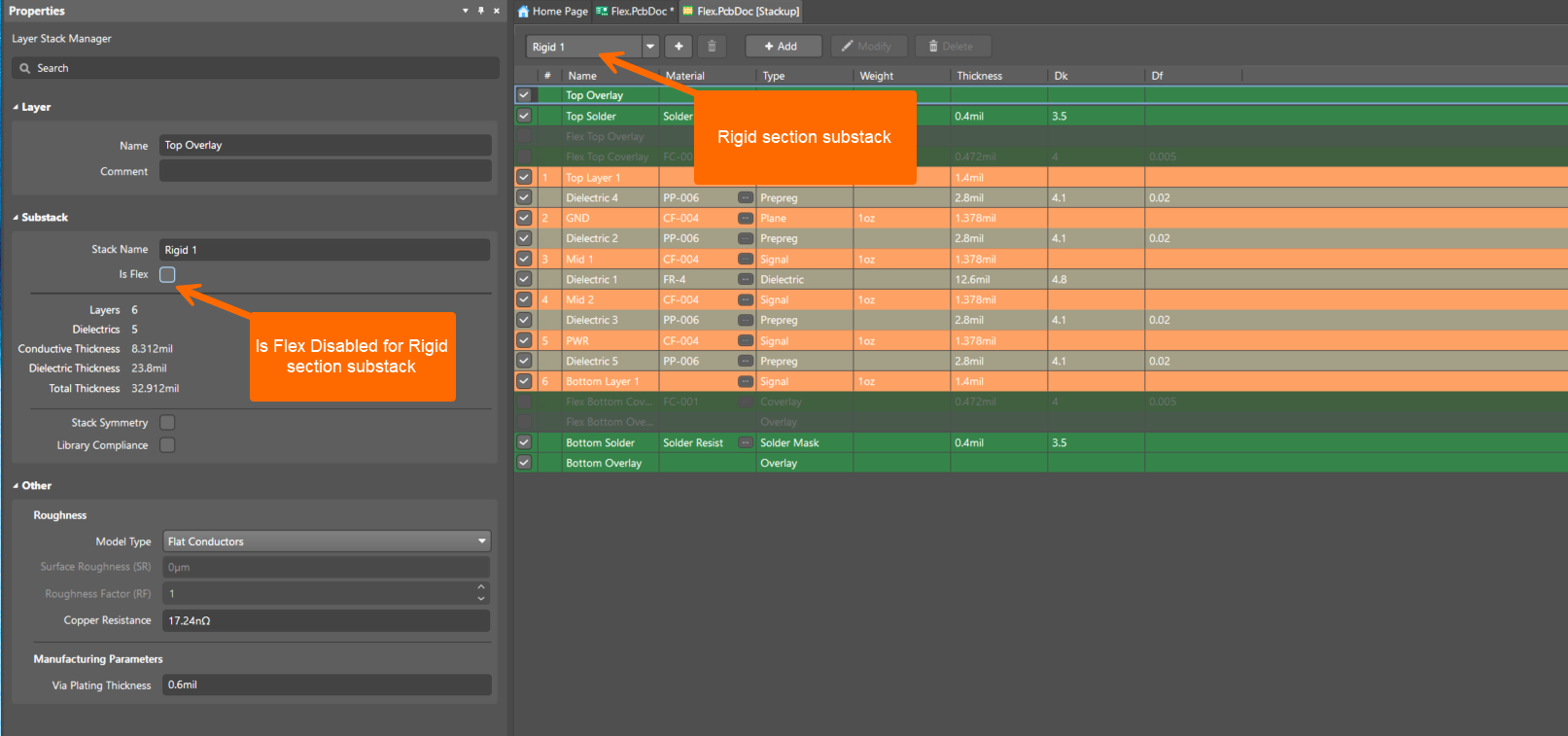
Whether a board region is treated as rigid or flex is determined solely by the assigned layer stack or substack. If the Is Flex option is enabled, the region is always treated as flex. The 3D Locked option is available only for regions assigned to rigid substacks, by design. The selected rigid‑flex design mode (Standard or Advanced), configured in the Layer Stack Manager, can also influence region behavior after board outline changes.
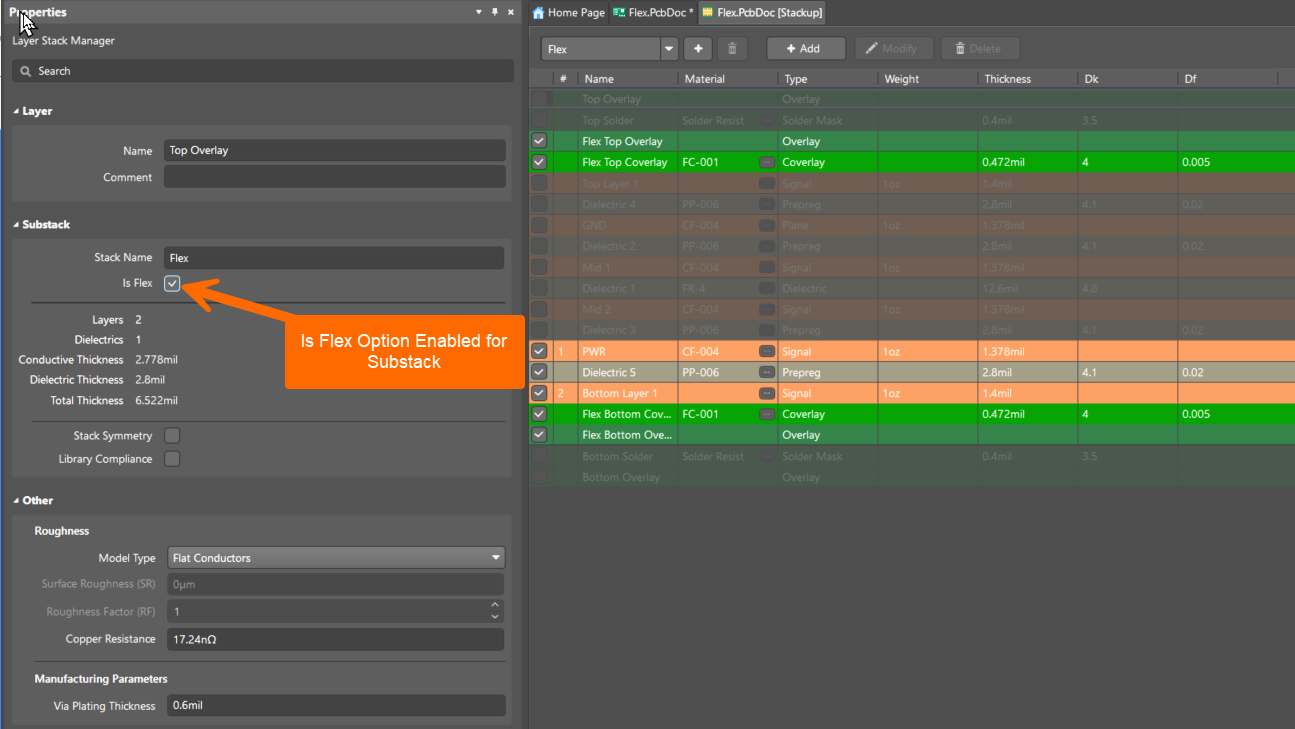
Assign correct rigid and flex substacks
- Assign rigid regions only to substacks with Is Flex disabled.
- Assign flex regions only to substacks with Is Flex enabled.
- Use separate rigid and flex substacks that differ only by the Is Flex setting.
- After redefining the board outline or re‑slicing regions, recheck all substack assignments.
Disable Is Flex for rigid stack
- Open Design » Layer Stack Manager.
- Select the layer stack or substack used by the rigid region.
- In the Properties panel, clear the Is Flex option.
- Verify the correct rigid‑flex design mode is enabled.
- Return to Board Planning Mode.
- Edit the rigid region and enable 3D Locked.