
KB: Setting Independent Component Parameters for Repeated Multi-Channel Designs
 Altium Designer
Solution Details
Need for Unique Component Parameters in Repeated Channels
In some multi-channel designs, each repeated channel must carry unique metadata or configuration values via component parameters. Typical examples include per-channel identifiers, calibration values, gain settings, or other channel-specific configuration data. When these parameters are added directly to components that are part of a repeated channel, they cannot be assigned unique values per channel because the same schematic component definition is reused.
This limitation becomes especially visible in designs where many channels are structurally identical, but must be distinguished through parameter values—for instance, when generating documentation, or BOMs.
Shared Parameters in Repeated Channels
In a multi-channel design that uses the Repeat keyword, component parameters are shared across all repeated channel instances. When a custom parameter is added directly to a component in the repeated sheet, the schematic engine treats that parameter as part of the common component definition. As a result, the same parameter name and value are applied to every instance of that component in all repeated channels.
The system does not automatically differentiate parameter values per channel unless that differentiation is introduced at the sheet symbol or variant level. Without using sheet symbol parameters or variant parameters, all channels will reflect the same parameter values, regardless of how many times the sheet is repeated.
Available Options for Independent Parameter Values
To achieve unique parameter values per repeated channel, use one or both of the following approaches:
- Use sheet symbol copy instead of the
Repeatkeyword- Manually copy sheet symbols instead of using
Repeatfor multi-channel replication. - Drive component parameters from sheet symbol parameters so each sheet instance can have independent values.
- Manually copy sheet symbols instead of using
- Use variant parameters for configuration-level control
- Define the custom parameter in the component library.
- Use Variant Manager to assign different parameter values per variant, which can then be associated with different channels as required.
These approaches allow each channel instance to receive distinct parameter values while still leveraging schematic reuse concepts.
Implementing Sheet Symbol Parameter-Based Control
Use this method when you want each channel to have its own parameter values without relying on variants.
1. Avoid using the Repeat keyword for channel replication
-
- Open the parent schematic that contains the sheet symbol for the channel.
- Instead of configuring the sheet symbol with a
Repeatkeyword, create the first channel as a standard sheet symbol instance. - Copy and paste the sheet symbol to create additional channel instances.
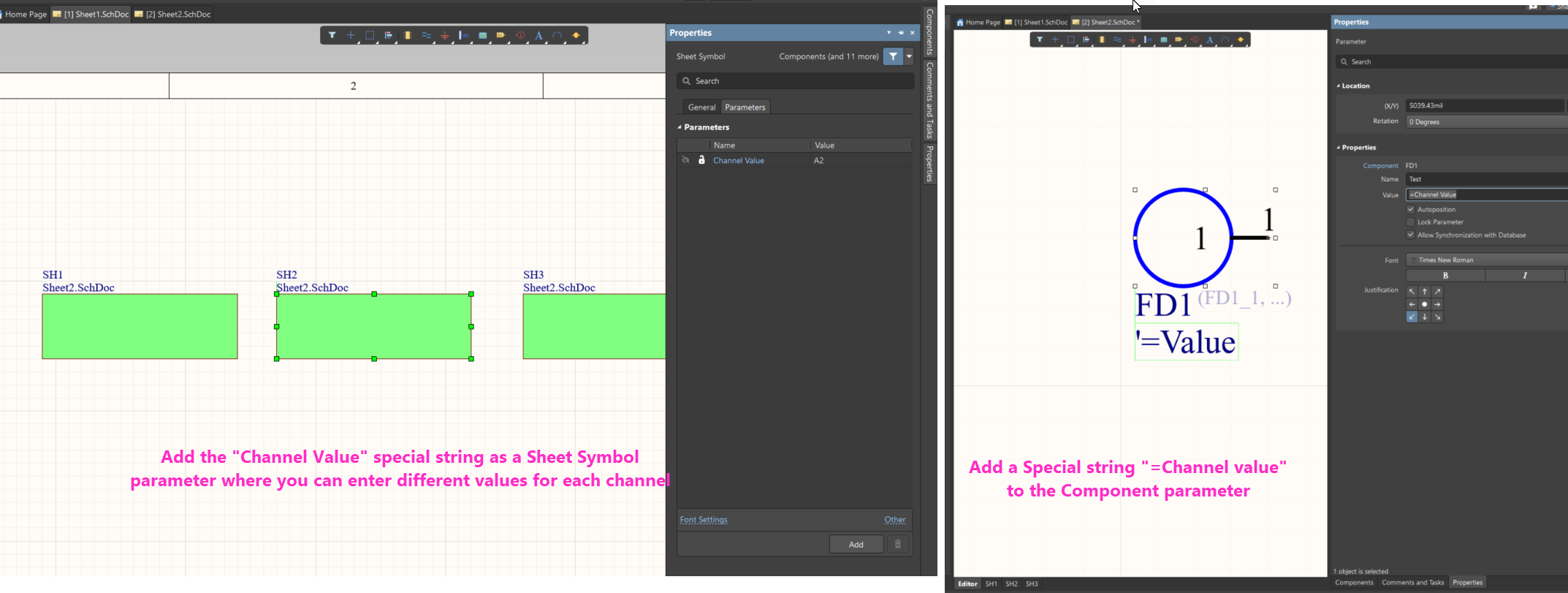
2. Add a Channel Value special string parameter to the component
-
- Open the repeated-channel schematic sheet that contains the component requiring a unique parameter.
- Select the target component.
- Add a new parameter to the component (for example, Channel Value), and set its value as a special string, e.g.
=Channel Value.- This special string will later be mapped from the sheet symbol parameter.
3. Define unique values at the sheet symbol level
-
- Return to the parent schematic that contains all the sheet symbols for each channel.
- For each sheet symbol instance:
- Open its Properties and add a parameter named Channel Value.
- Assign a unique value for each channel, such as
CH1,CH2,CH3, or specific numeric values.
4. Propagate sheet symbol parameters to components
-
- Recompile or update the project so the schematic compiler propagates the sheet symbol parameter values down to the lower-level components.
- Check the component on each channel sheet: the Channel Value parameter should now reflect the unique value defined on the corresponding sheet symbol.
By following these steps, each channel’s instance of the same component can hold a different parameter value, even though the schematic sheet is reused.
Using Variant Parameters to Control Component Parameters
For more advanced configuration management—such as supporting multiple build configurations—you can control component parameter values via design variants.
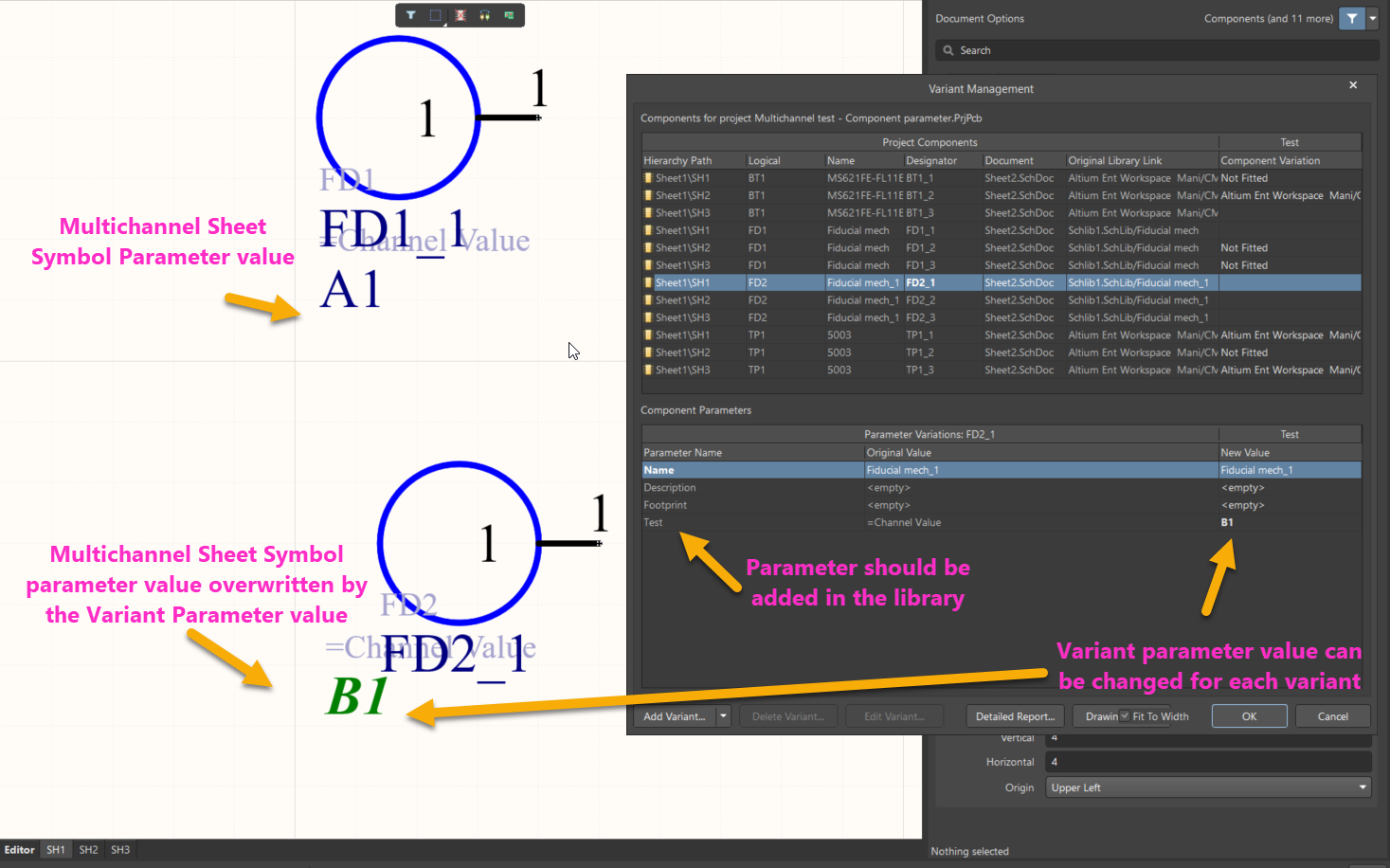
1. Define the custom parameter in the component library
-
- Open the relevant component in the schematic library.
- Add the custom parameter (e.g. Channel Config or Gain Setting) directly to the library component.
- Save and update the component throughout the project so that the parameter exists as a library-level parameter rather than a purely local parameter.
2. Open the Variant Manager and configure parameter values
-
- In the project, open the Variant Manager.
- Select the variant in which you want to override the parameter value.
- Locate the component and assign a different value to the custom parameter for that variant.
- Repeat this for each variant as required.
3. Understand limitations with local parameters
-
- Variant parameters can only override parameters defined in the component library.
- Local parameters (added only on the schematic, not in the library) cannot be changed via variant configurations.
- Ensure that any parameter you plan to manage via variants is defined in the component’s library definition.
By using variant parameters, each variant can represent a different configuration of parameter values, which can then be associated with different channel uses or manufacturing configurations.
Additional Notes
- The
Repeatkeyword remains useful for many scenarios, but when channel-specific parameters are required, manually duplicated sheet symbols with parameter-driven values provide finer control. - Carefully plan which parameters should be controlled at the component level, sheet symbol level, or variant level to keep the design easy to maintain.
- When documenting the design or generating outputs, verify that the expected per-channel parameter values appear correctly in reports, and BOMs.
- Consider adding naming conventions for parameters like Channel Value or Channel ID to keep them consistent across multiple projects.