KB: Unable to connect to my workspace despite being signed in
 Altium Designer
Solution Details
If you're unable to sign in to an Altium 365 workspace from Altium Designer despite being a member of that workspace, your preferences may need to be adjusted.
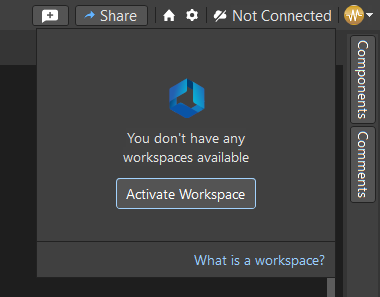
You may only see a Not Connected section with an Activate Workspace option as seen below
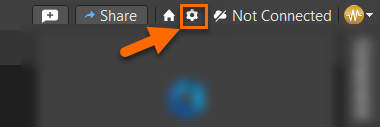
Navigate to your preferences by selecting the gear icon.
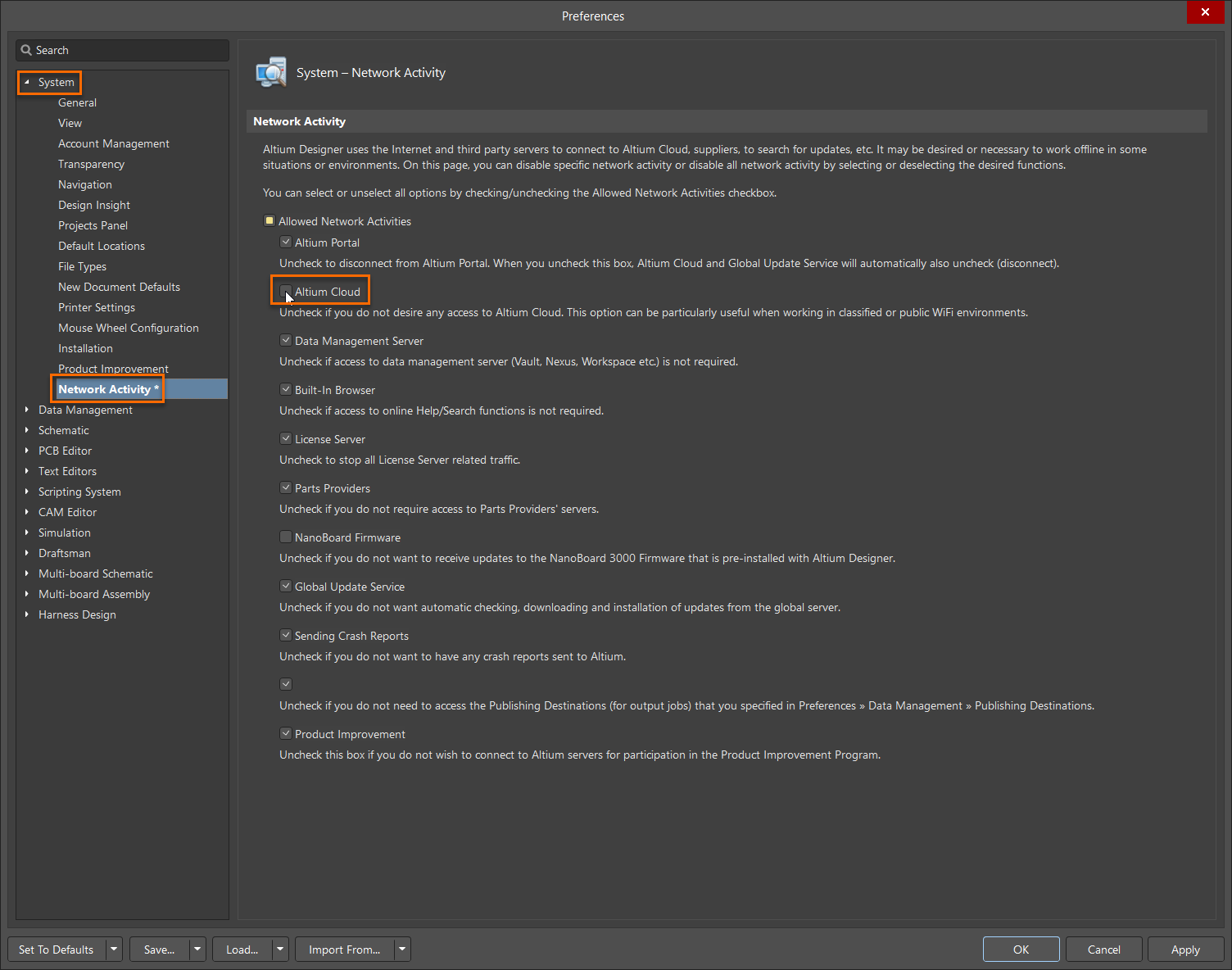
Once the Preferences dialog is open, navigate to System » Network Activity and enable the Altium Cloud checkbox. Verify that all other necessary network activities are allowed. Then click Apply or OK and close the dialog. After a restart of Altium Designer, the workspace(s) available to you should be visible in the top right of Altium Designer.
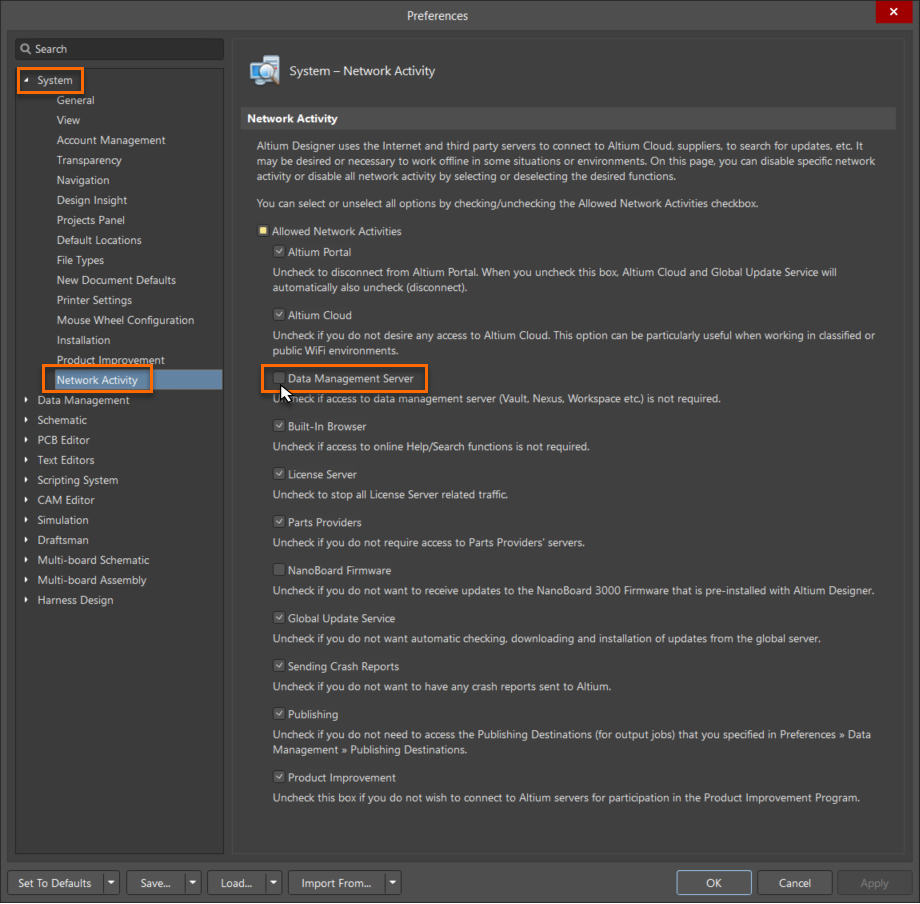
Now, If you can see your workspace but clicking on it produces no response, the Data Management Server option might be disabled.
Once again, in the Preferences dialog, navigate to System » Network Activity and enable the Data Management Server checkbox. Then click Apply or OK and close the dialog. After a restart of Altium Designer, the workspace(s) available to you should be visible in the top right of Altium Designer and accessible once you attempt to connect to it by clicking on it.