
KB: Unable to Place Dimension
Updated: October 29, 2025
 Altium Designer
When placing a dimension, users may encounter a situation where the value displays as zero. This typically occurs due to an unintended double-click at the same location during placement, which finalizes the dimension prematurely. The issue is linked to the double-click speed setting in Windows. Adjusting this setting can resolve the problem and allow dimensions to be placed correctly.
Solution Details
Dimension Placement Shows Zero
Why the Dimension Displays as Zero
The issue arises when a user double-clicks at the same location while placing a dimension. This action prematurely finalizes the placement, resulting in a dimension value of zero.
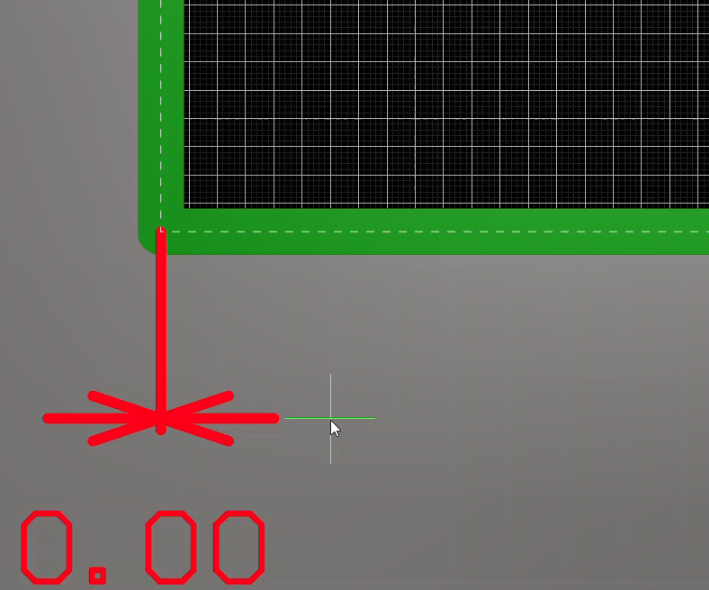
Root Cause: Windows Mouse Double-Click Speed
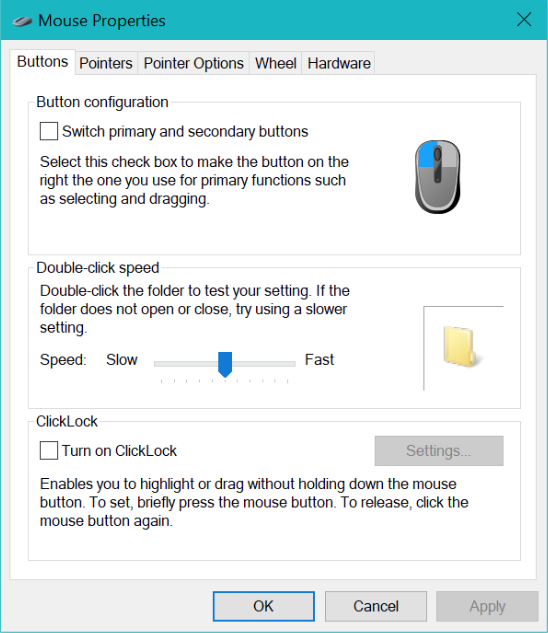
The behavior is influenced by the double-click speed configured in Windows. A high double-click speed setting can cause rapid clicks to be interpreted as a double-click, even when the user intends to place two separate points for the dimension.
Recommended Solution
- Adjust the Windows double-click speed setting to reduce sensitivity.
Steps to Adjust Double-Click Speed in Windows
- Open the Start Menu and search for Mouse Settings.
- Select Additional Mouse Options.
- In the Mouse Properties dialog, go to the Buttons tab.
- Locate the Double-click speed slider.
- Move the slider to the left to lower the double-click speed.
- Click Apply, then OK to save changes.
Additional Notes
- This issue is specific to dimension placement and may not affect other design actions.
- If the problem persists after adjusting the double-click speed, consider testing with a different mouse or checking for driver updates.