
KB: "Unable to Save File .PrjPcb.CstrSchDoc" Error Caused by Invalid Characters in Net Names
 Altium Designer
Solution Details
Error appears when saving schematic constraint data
When users refresh Constraint Manager and attempt to save constraint data from the Schematic document, the following error appears: Unable to save file <ProjectName>.PrjPcb.CstrSchDoc. This prevents changes from being stored in the Constraint Manager document associated with the project.
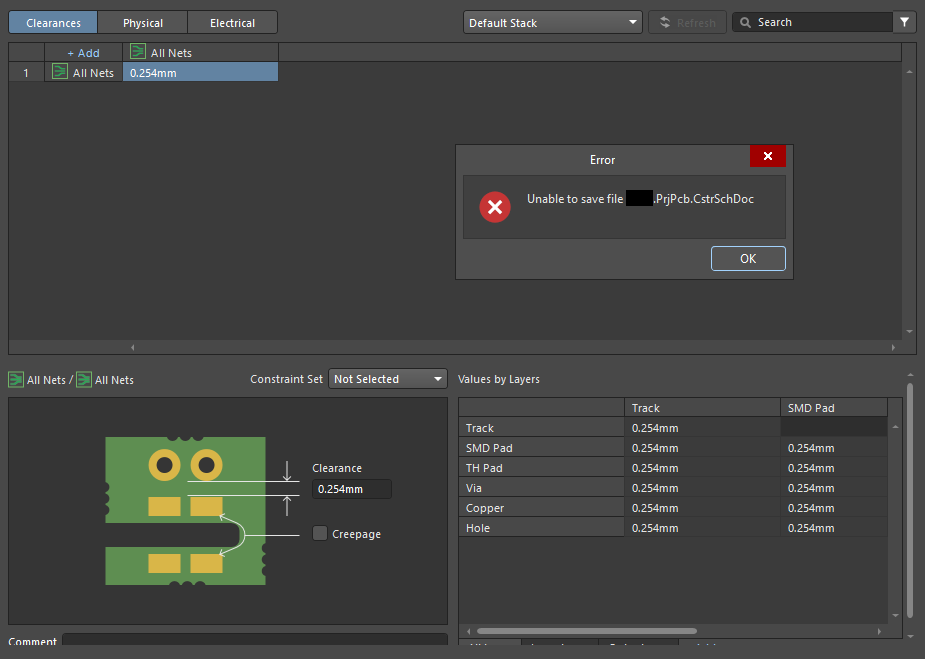
Invalid or hidden characters disrupt data processing
This issue is typically caused by hidden or unsupported characters within schematic text fields, most commonly in the Net Name, but potentially also in designators or other text-based objects. These characters are often introduced when copying or importing text from external sources. Since the Constraint Manager relies on consistent and valid design data originating from the schematic, any malformed or unsupported text can cause parsing or save failures. These characters are not visible within Altium Designer, making them difficult to detect without external tools.
Identify affected text and clean invalid characters
- Use an ASCII-to-hex conversion tool to detect hidden or unsupported characters.
- Review and correct affected net names and other schematic text fields.
- Manually retype text in Altium Designer to ensure valid character encoding.
- Avoid copying net names or identifiers directly from external tools without verification.
Steps to detect and fix invalid net names
- In Altium Designer, go to Panels » SCH List.
- Filter for the Net Label.
- Copy the Net Name text.
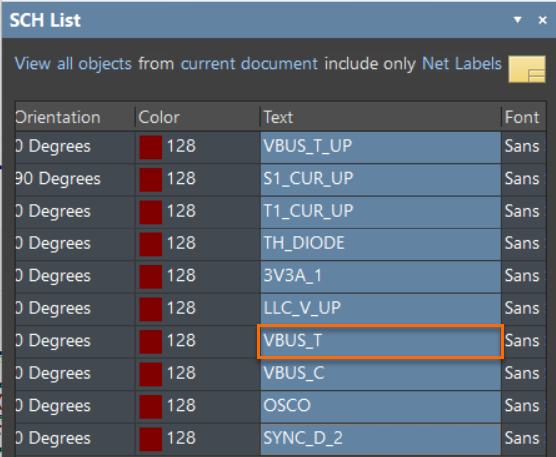
- Paste the copied text into an ASCII-to-hex conversion tool, such as ASCII to Hex Converter.
- Review the output to identify any hidden or special characters.
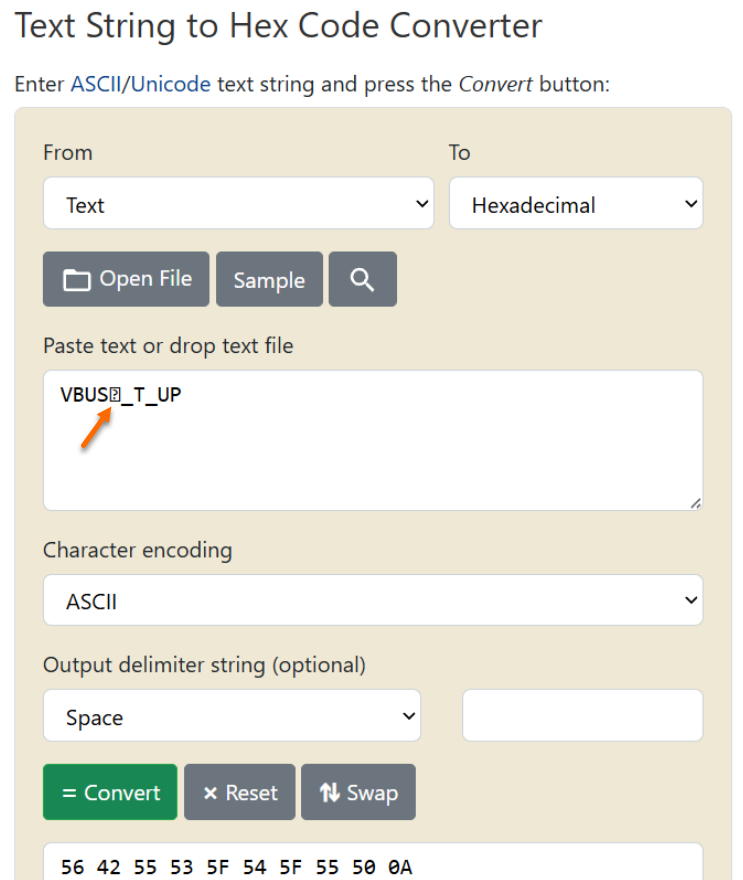
- Return to Altium Designer, delete the Net Name, and manually retype it to remove unwanted characters.
- Repeat this process for any other suspect text fields if the issue persists.