
KB: Using ActiveBOM Alternates to Avoid Variant-Based Sourcing Revisions
 Altium Designer
Solution Details
Managing Sourcing Alternates
A BOM may include custom fields such as Manufacturer1 and Manufacturer Part Number1 for supplier sourcing. When the preferred component becomes unavailable, adding an alternate component to a design variant is not always appropriate if the substitution is for sourcing purposes only.
Variants are intended to represent different assembly configurations of a design. If the design itself remains unchanged and procurement simply needs another approved sourcing option, use an ActiveBOM alternate instead.
Note: An alternate should only be used when the replacement is technically compatible with the original component. Changes that affect the electrical design, PCB layout, or intended assembly configuration should follow the appropriate engineering and revision process.
Add an Alternate in ActiveBOM
-
Open ActiveBOM
- Open the existing .BomDoc file in the project.
- If one does not exist, create an ActiveBOM document using: File » New » ActiveBOM
-
Select the Primary Component
- Locate the component for which an alternate sourcing option is required and review its parameters and supplier information.
-
Add the Alternate Component
The method depends on how the component is managed.Workspace-Managed Components
- Right-click the component entry.
- Select Add Alternate Item.
- Select a compatible component from the managed library.
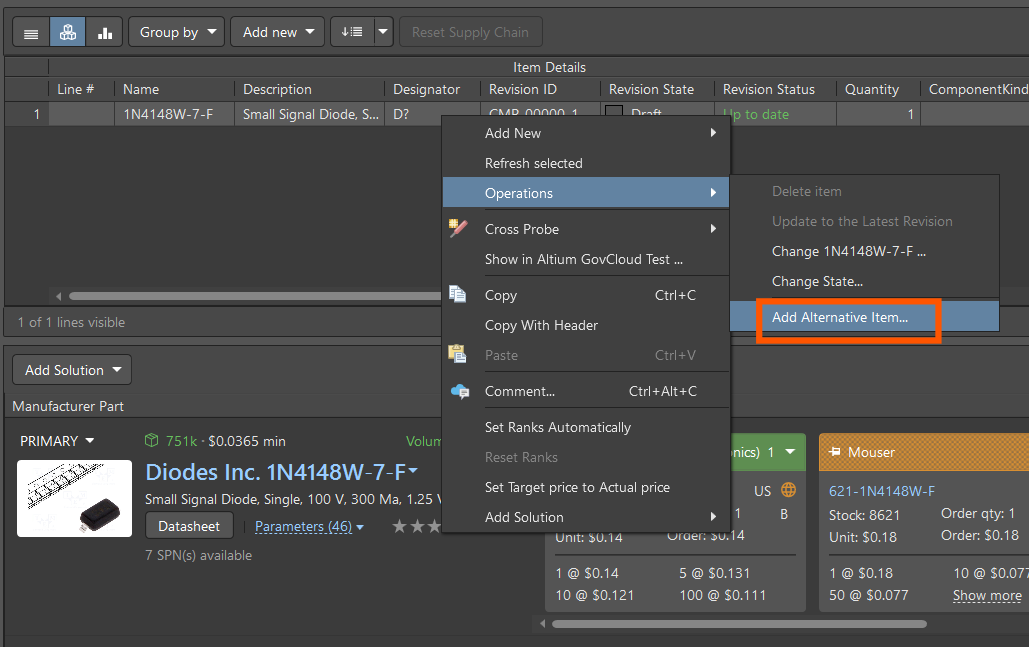
For example, an approved Vishay component could be added as an alternate for an existing Yageo component.Unmanaged or Manual Components
- Select the component in ActiveBOM.
- In the Solutions pane, select Add New Solution.
- Enter the alternate manufacturer, manufacturer part number, and other required sourcing information.
Validate the Alternate
Before approving an alternate for procurement, verify that it meets the design requirements, including:
- Footprint and pin compatibility
- Voltage and current ratings
- Tolerance
- Temperature rating
- ESR or other relevant electrical characteristics
- Environmental and compliance requirements
Note: Adding an alternate in ActiveBOM does not verify that the components are electrically or mechanically interchangeable. Compatibility must be validated according to your organization's engineering requirements.
Add Supplier Information
If required, use ActiveBOM sourcing features to associate supplier information with the primary and alternate components.
Supplier information can include:
- Pricing
- Stock availability
- Lifecycle information
- Supplier part numbers
This gives procurement visibility into available sourcing options while maintaining the approved component choices in the BOM.
Save and Generate the BOM
Save the .BomDoc after adding and validating the sourcing alternatives.
Because the sourcing alternate does not replace the component in the schematic or PCB, the design itself remains unchanged.
Note: Whether a BOM change requires a new formal revision depends on your organization's release and revision-management process.
Generate or publish the BOM using the appropriate workflow:
- ActiveBOM Export for direct BOM export
- Output Job → BOM for generated manufacturing output
- Project Releaser for formal release packages
- Altium 365 BOM Portal for browser-based BOM collaboration
The resulting BOM can then be shared with procurement or manufacturing with the approved primary and alternate sourcing options.
Add an Alternate in Altium 365 BOM Portal
Alternates can also be added through Altium 365 BOM Portal:
- Open the Altium 365 Workspace.
- Open the uploaded BOM in BOM Portal.
- Right-click the required component.
- Select Add Alternate.
- Add or select the required alternate component.
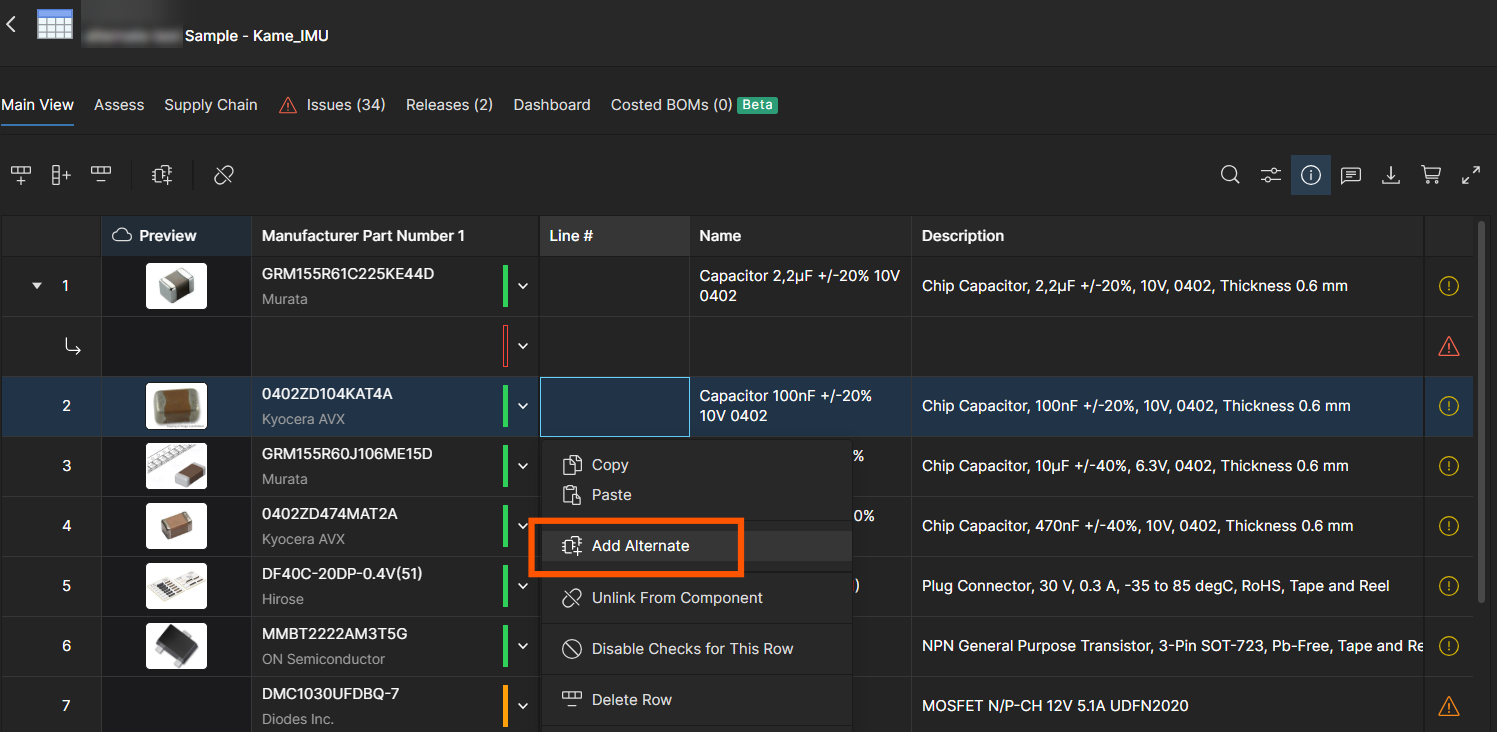
This provides a browser-based workflow for managing sourcing alternatives and collaborating with procurement.
Additional Considerations
- Use variants when different assembly configurations of the product are required.
- Use ActiveBOM alternates when the design remains unchanged but procurement needs approved sourcing alternatives.
- Workspace-managed components can improve component traceability and consistency across projects.
- Define internal rules for approving alternates to ensure electrical, mechanical, and regulatory compatibility.
- Altium 365 BOM Portal can provide supply-chain information such as availability and pricing to support procurement decisions.