
KB: Validate Auto Save Backup Recovery File Creation
 Altium Designer
Solution Details
Missing or Outdated Recovery Files
If you cannot find Auto Save Backup recovery files, or if recovery files are not being updated as expected, this procedure can help verify that Auto Save Backup is working correctly. Use it when recovery files do not appear after making changes to a design document or when backup behavior appears inconsistent.
Understand when Recovery Files are Created
Auto Save Backup creates recovery copies only for documents that contain unsaved modifications. Simply opening a project or document does not generate recovery files. A recovery file is created only after a document enters a modified state and the configured Auto Save interval has elapsed.
Validate Auto Save Backup Operation
Before escalating the issue, perform a controlled validation using a known example project.
- Configure Auto Save Backup using a dedicated local recovery folder.
- Use the SpiritLevel-SL1 example project included with Altium Designer as a known baseline test case.
- Verify that recovery files are not created before document modification.
- Modify the PCB document and confirm that recovery files are generated.
- Verify that additional recovery versions are created after subsequent modifications.
Before You Begin
- Ensure the recovery folder exists and is accessible.
- Ensure you have permission to write files to the selected folder.
- Use a local folder for testing where possible.
- Close any unnecessary Altium Designer sessions.
The SpiritLevel-SL1 example project is recommended because it is included with Altium Designer and provides a known baseline for testing Auto Save Backup functionality.
Perform the Recovery File Validation Test
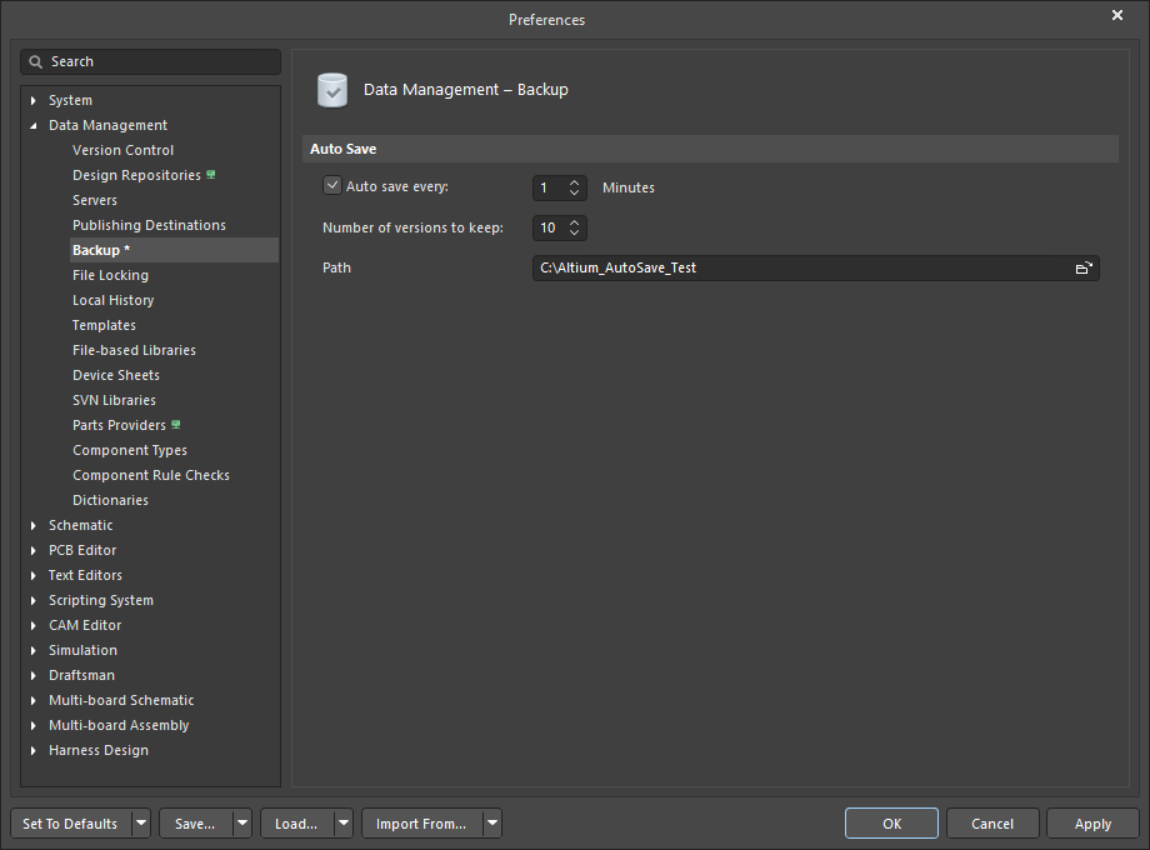
Configure Auto Save Backup
- Create a new empty folder for recovery files. Example:
C:\Altium_AutoSave_Test. - In Altium Designer, open Preferences » Data Management » Backup.
- Configure the following settings:
- Auto Save Every: 1 Minute
- Number of Versions to Keep: 10
- Path:
C:\Altium_AutoSave_Test
- Click Apply, then OK.
- Close and restart Altium Designer.
Open a Known Test Project
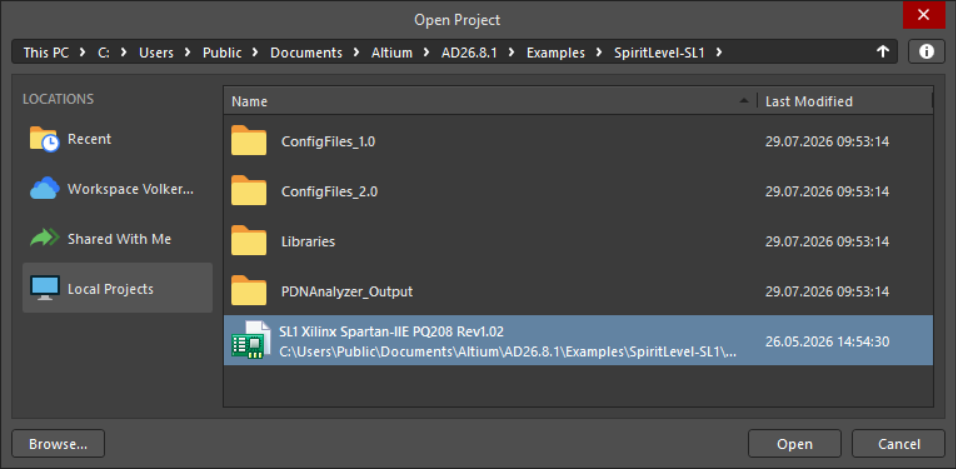
- Select File » Open Project.
- Open the included example project:
Local Projects » SpiritLevel-SL1. - Open the PCB document:
SL1 Xilinx Spartan-IIE PQ208 Rev1.02.PcbDoc.
Verify No Backups are Created before Modification
- Do not make any modifications.
- Confirm the recovery folder remains empty.
The following actions should not create recovery files:
- Opening a project
- Opening a PCB document
- Viewing a document without making changes
Create the First Backup
- Select a large PCB area containing components, routing, polygons, and other design objects.
- Copy the selected content.
- Paste the copied content into unused PCB space.
- Confirm the document shows unsaved modifications.
- Do not manually save the document.
- Wait for the configured Auto Save interval to elapse.
Recovery files are not created immediately after a modification. A recovery file should appear only after the configured Auto Save interval has passed.
Expected Result:
- A recovery backup file is created in the configured recovery folder.
- The backup filename contains a version identifier.
Example: Document.~(1).PcbDoc
Create Additional Backups
- Make another unsaved change to the PCB document.
- Wait for the next Auto Save interval to elapse.
- Repeat several times.
Expected Result:
- A new recovery file is generated after each document modification and Auto Save interval.
- If no further modifications are made, no additional recovery files are generated.
- The most recent recovery file is stored as
~(1).PcbDoc. When a new recovery file is created, the previous recovery versions are renumbered accordingly.
Examples:
Document.~(1).PcbDoc(most recent recovery version)Document.~(2).PcbDocDocument.~(3).PcbDoc
Note: A new recovery file is created only when the document has been modified since the previous Auto Save operation. If no additional changes are made, the existing recovery files remain unchanged.
Record Information if the Test Fails
If the test does not produce the expected results, collect the following information before opening a support case:
- Altium Designer version and build.
- Auto Save Backup settings.
- Recovery folder location.
- Screenshots of the recovery folder.
- Backup filenames.
- Whether a single or multiple Altium Designer instances were open.
- Whether the behavior occurred after an application error, exception, or crash.
Additional Notes
- Auto Save Backup creates recovery copies intended for crash recovery.
- For this validation procedure, the Auto Save interval is set to 1 minute to simplify testing. In normal use, very short Auto Save intervals are not recommended because each Auto Save operation briefly interrupts editing while the recovery file is written. If a document continues to be modified, a new recovery version is created each time the configured interval elapses.
- Recovery backup naming conventions and retention behavior may vary slightly between Altium Designer versions. The primary validation criteria are that new recovery versions are generated after document modifications and at the configured interval.
- Local History stores previously saved document revisions and is managed separately from Auto Save Backup. If Add autosaved documents to history is enabled under Preferences » Data Management » Local History, Auto Save recovery files are also added to the Local History repository and retained according to the configured Local History retention settings. For additional information, refer to: Data Management Preferences - Local History.