
KB: Resolve License Renewal Failed and License Usage Issues in Altium Designer
Updated: May 08, 2026
 Altium Designer
This article explains how to resolve “License Renewal Failed,” “License has expired,” and related license usage issues in Altium Designer, such as licenses not releasing, appearing in use, or the Use button being grayed out. These license problems are typically caused by corrupted local license cache data, stale user sessions, Automatic Leasing conflicts in the Altium Dashboard, blocked network communication, or antivirus interference. The resolution includes refreshing the user session, clearing cached license data in the *_Security folders, correcting license allocation settings, and ensuring that antivirus or network security controls are not blocking required files or services. Following these steps restores proper license renewal, allocation, and usage behavior.
Solution Details
Common symptoms of renewal and license usage failures
Users may encounter one or more of the following issues in Altium Designer:
- Warning: “License Renewal Failed. The License Manager was not able to renew your license.”
- Warning: “License has expired. Please contact your Administrator for license renewal.”
- License cannot be released or still appears in use after release
- Use button is grayed out
Root causes affecting licensing, allocation, and caching
These issues are typically caused by one or more of the following conditions:
- Corrupted or outdated local license cache stored in
C:\ProgramData\Altium\*_Security - Stale authentication or user session data
- Automatic Leasing enabled on expired or unused licenses, leading to allocation conflicts
- Firewall, VPN, or restricted network settings blocking access to licensing services
- Antivirus or endpoint protection software blocking or quarantining required Altium files
Recommended actions to restore license operation
- Refresh the user session by signing out and signing back in
- Clear the local license cache by deleting
*_Securityfolders - Disable Automatic Leasing on expired or unused licenses (Administrator action)
- Check antivirus software for blocked or quarantined files and restore access
- Verify that network, VPN, or firewall settings allow required connections
Step-by-step procedure to resolve license issues
If Altium Designer displays a warning indicating license renewal failure.
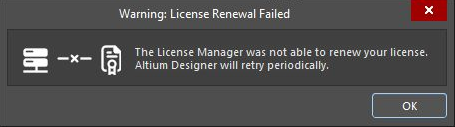
Try these steps:
- In Altium Designer, click your profile icon and select Sign Out.
- Sign back in using your Altium account credentials.
- If the issue persists, release any active licenses.
- Close Altium Designer completely.
- Navigate to
C:\ProgramData\Altium\(enable hidden files if needed).
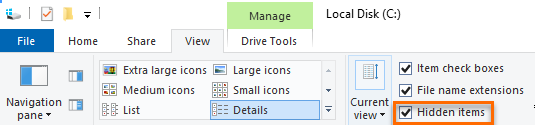
- Delete all folders matching
*_Security(one may exist per installed version).
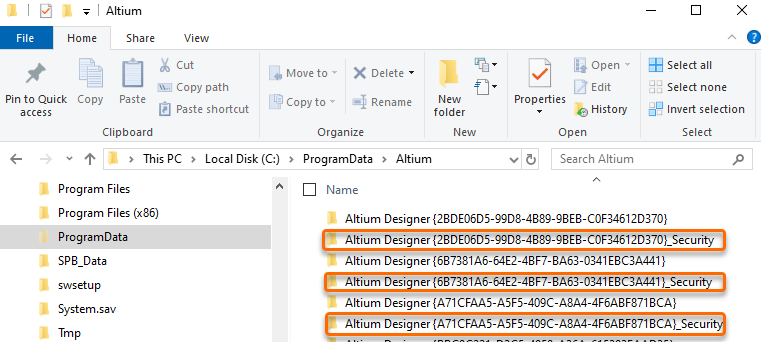
- Restart Altium Designer and sign in again.
Notes:
- The
*_Securityfolder contains cached license and session data and is automatically re-created when Altium Designer starts. - Multiple installed versions of Altium Designer will each create their own security folder.
- This solution may also resolve the following issues:
- License cannot be released or continues to appear In Use by the same user after release
- Use option is grayed out
If the warning indicates that the license has expired.
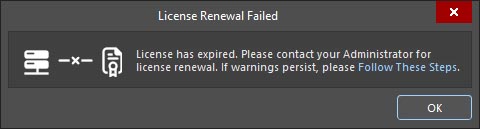
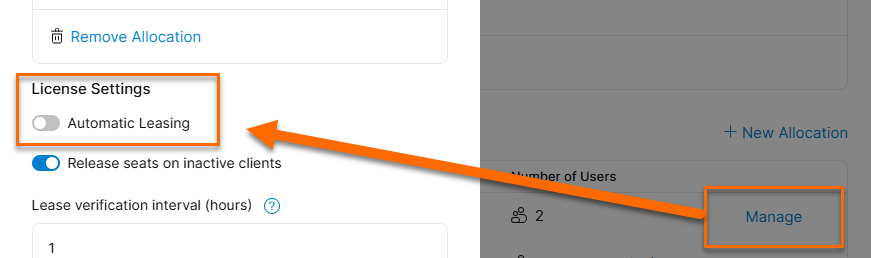
Automatic Leasing needs to be disabled on all old and unused licenses on the dashboard by following these steps:
- As group administrator for your organization go to Company Dashboard » Licenses.
- Select an expired or unused license.
- Scroll to the License Allocation section and click Manage.
- Disable Automatic Leasing.
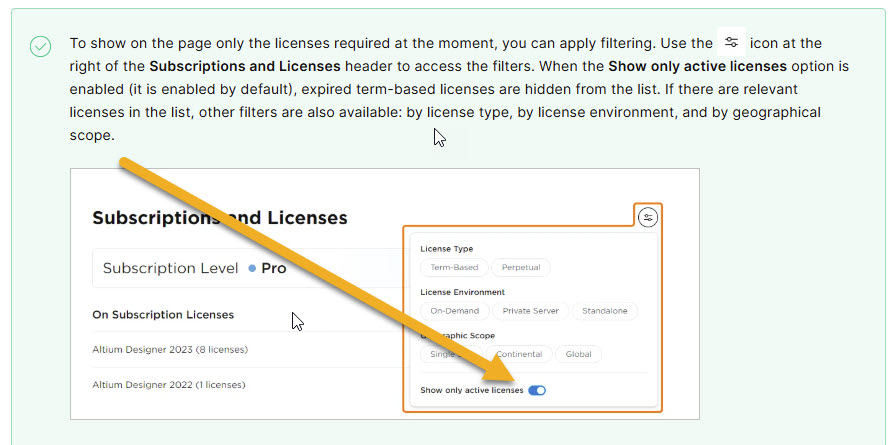
- If needed, disable Show only active licenses to view expired licenses.
Notes:
- Automatic Leasing is disabled by default for new licenses but may remain enabled on older configurations.
- This documentation provides additional information on working with license allocations: Allocating Licenses
If the warning indicates an invalid client version.
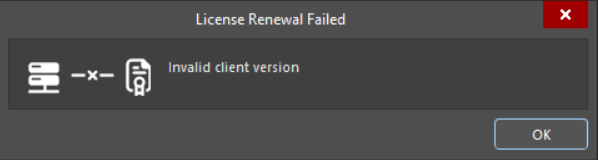
The issue may be caused by security software blocking required files or restricted network access.
Check for antivirus or security software interference:
- Check whether any Altium
.dllfiles have been quarantined and restore them. - Add exclusions for Altium installation and data directories.
Check for network or connectivity restrictions:
- Verify that required ports and endpoints for Altium services are accessible.
- Temporarily disconnect VPN to determine if it is causing the issue.
References
- License Management in Altium Designer – Provides an overview of licensing models, usage, and behavior.
- KB: Cannot use an on-demand license renewed but showing outdated subscription date – Explains the role of
*_Securityfolders and why clearing cache resolves licensing inconsistencies. - KB: Allocate/assign license seats to users – Details how license allocation works and how administrators manage access.
- KB: Prevent multiple license seats being used on one installation instance – Describes how Automatic Leasing and allocations can cause licenses to appear in use.
- KB: Cannot install or use Altium possibly due to url and ports being blocked – Covers firewall, VPN, and network restrictions affecting licensing services.