
KB: Email Notification Links Use Incorrect Protocol or Port
 Altium On-Prem Enterprise Server
Solution Details
Email Links Use an Incorrect Address
Users receive task notification emails containing links to the Altium web interface. When a user selects a link, the browser attempts to connect using an unexpected protocol or port.
For example, an environment configured for HTTPS may generate:
http://<server-name>:9780/...
Instead of:
https://<server-name>:9785/...
As a result, the link may fail to open the expected Altium web interface or display a connection error.
Configuration Values Determine Notification URLs
Email notification links are generated using values configured in the LocalVault.ini file. If the following parameters do not match the protocol and port used to access the Altium On-Prem Enterprise Server, generated email links may reference an incorrect URL:
WebsiteDomain=PreferredProtocol=
The LocalVault.ini file is typically located at:
C:\Program Files (x86)\Altium\Altium365\LocalVault.ini
The default server configurations are:
| Protocol | Port | PreferredProtocol |
| HTTP | 9780 | HTTP |
| HTTPS | 9785 | HTTPS |
Match the Server Access Configuration
- For an HTTPS environment, configure
WebsiteDomainwith port 9785 and setPreferredProtocolto HTTPS. - For an HTTP environment, configure
WebsiteDomainwith port 9780 and setPreferredProtocolto HTTP.
After making changes, restart IIS so that the updated configuration is applied.
Update LocalVault.ini and Restart IIS
- On the Altium On-Prem Enterprise Server machine, open the following file in a text editor with administrative privileges:
C:\Program Files (x86)\Altium\Altium365\LocalVault.ini - Locate the following parameters:
WebsiteDomain=PreferredProtocol= - Verify that the values match the protocol and port users normally use to access the server.
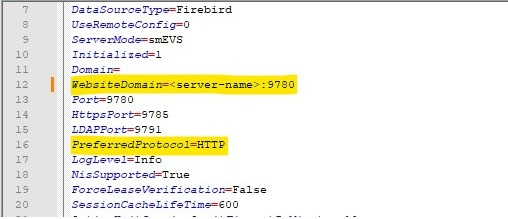
- For an HTTPS environment, configure:
WebsiteDomain=<server-name>:9785PreferredProtocol=HTTPS - For an HTTP environment, configure:
WebsiteDomain=<server-name>:9780PreferredProtocol=HTTP - Save the file, open Command Prompt as Administrator, and run:
iisreset - Generate a new task notification email and verify that its URL uses the expected protocol and port:
https://<server-name>:9785/...or:
http://<server-name>:9780/... - Select the link and confirm that it opens the expected Altium web interface.
Additional Notes
If the issue persists after updating WebsiteDomain and PreferredProtocol, review the following related knowledge base articles for additional guidance:
- KB: Trouble Accessing Web Viewer or On-Prem Server After a Server Name Change provides guidance on validating IIS bindings, hostname configuration, and
LocalVault.inisettings. - KB: Secured Port Number Usage for the Server Email Notifications provides guidance on configuring HTTPS ports and ensuring that email notifications generate secure URLs.
These articles cover additional server configuration scenarios that may affect URL generation and access to the Altium On-Prem Enterprise Server web interface.