
KB: IIS URL Rewrite Rule to Force HTTP to HTTPS for Altium Server Connection
 Altium On-Prem Enterprise Server
Solution Details
Issue: HTTP Connections Are Not Automatically Redirected
Clients accessing the Altium Server via http://<FullServerComputerName>:9780 are not automatically redirected to HTTPS https://<FullServerComputerName>:9785, requiring manual intervention and exposing potential security risks. The goal is to enforce secure communication without disrupting Altium’s internal ports (9780 for HTTP and 9785 for HTTPS).
Root Case: No Built-In Redirect in Altium Server
Altium Server manages its own ports but does not provide an automatic HTTP-to-HTTPS redirect for external connections. Without a redirect, users may connect insecurely or encounter login issues.
Recommended Actions
To enforce secure communication:
- Configure IIS to redirect all HTTP traffic to HTTPS on port 9785.
- Update Altium configuration to prefer HTTPS.
- Block external HTTP access on port 9780 using Windows Firewall.
Step-by-Step Implementation
Objective: When a client enters http://<FullServerComputerName> it should automatically redirect to https://<FullServerComputerName:9785 without interfering with the Altium Server.
1. Create an IIS Redirect Site
- Open IIS Manager on the Altium Server.
- Right-click Sites » Add Website....
- Configure
- Site name:
RedirectToHTTPS - Physical path:
C:\RedirectToHTTPS(create this folder manually) - The web.config will be created automatically
- Site name:
- Set Binding
- Type: HTTP
- IP address: All Unassigned
- Port: 80
- Host name:
FullServerComputerName
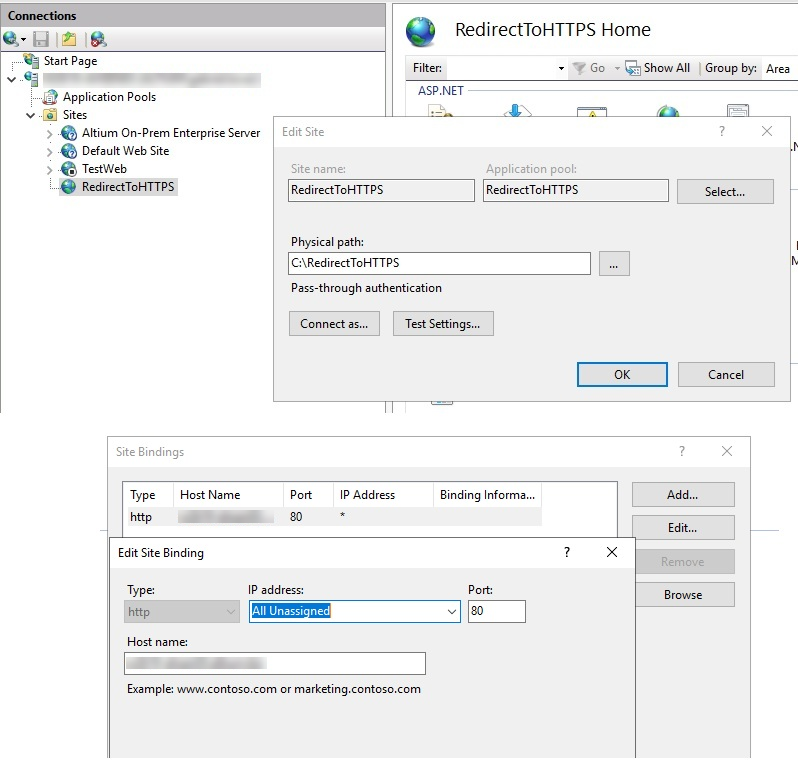
Note: This site will only use port (HTTP). The Altium Server will continue to handle ports 9870 (internal HTTP) and 9785 (HTTPS) without any conflict.
2. Install URL Rewrite Module
- Download from https://www.iis.net/downloads/microsoft/url-rewrite.
- Restart IIS after installation.
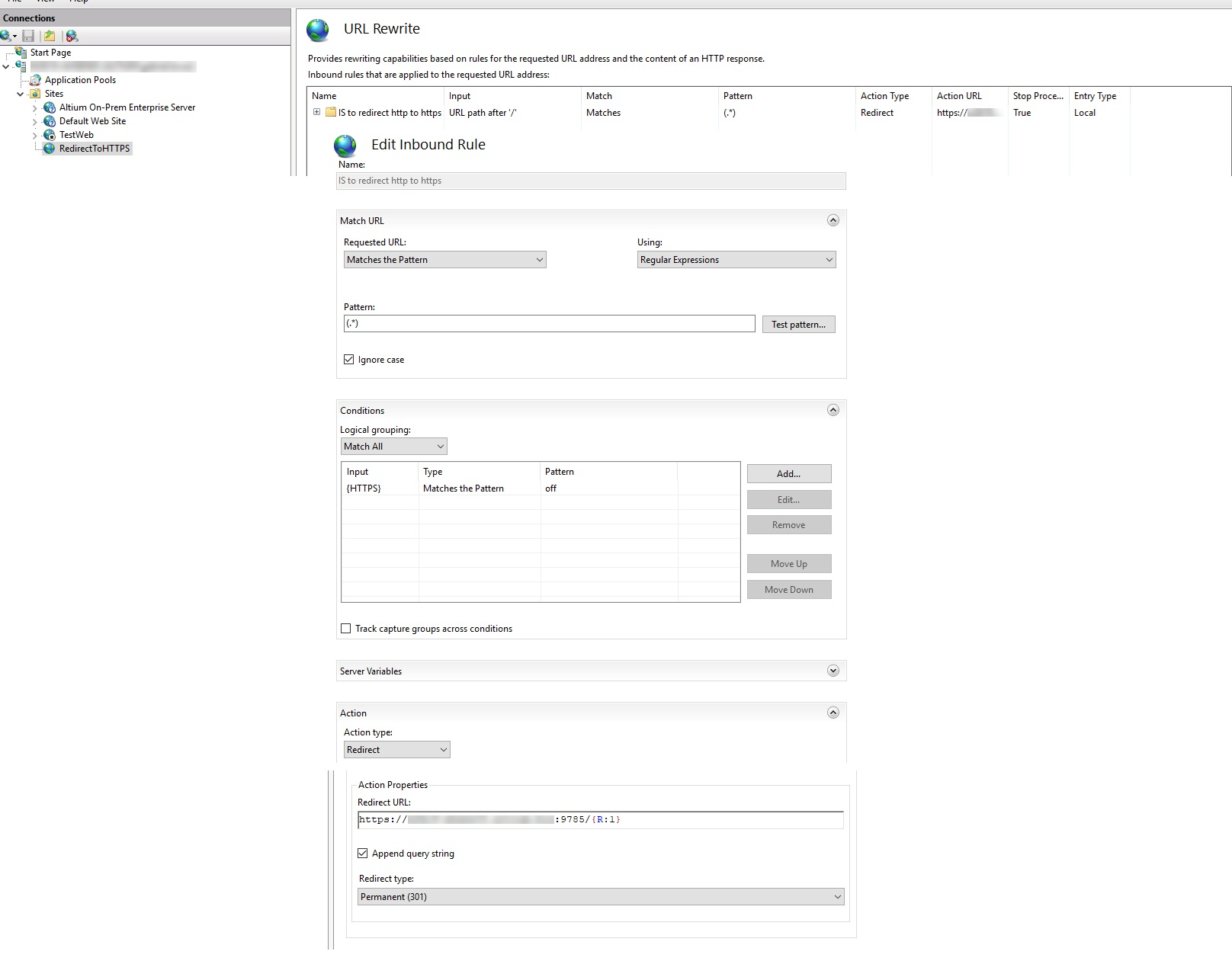
3. Create Redirect Rule
- Select RedirectToHTTPS » open URL Rewrite.
- Click Add Rules... » Inbound Rules » Blank Rule » OK.
- Configure
- Match URL
- Requested URL: Matches the Pattern
- Using: Regular Expressions
- Pattern: (.*)
- Conditions
- Condition input: {HTTPS}
- Check if input string: Matches the Pattern
- Pattern: off
- Action
- Action type: Redirect
- Redirect URL:
https://<FullServerComputerName:9785/{R:1} - Redirect type: Permanent (301)
- Match URL
- Save and apply changes.
4. Update Altium Server Configuration
Edit LocalVault.ini (default C:\Program Files (x86)\Altium\Altium365)
WebsiteDomain=FullServerComputerName:9785
Port=9780
HttpsPort=9785
PreferredProtocol=HTTPS
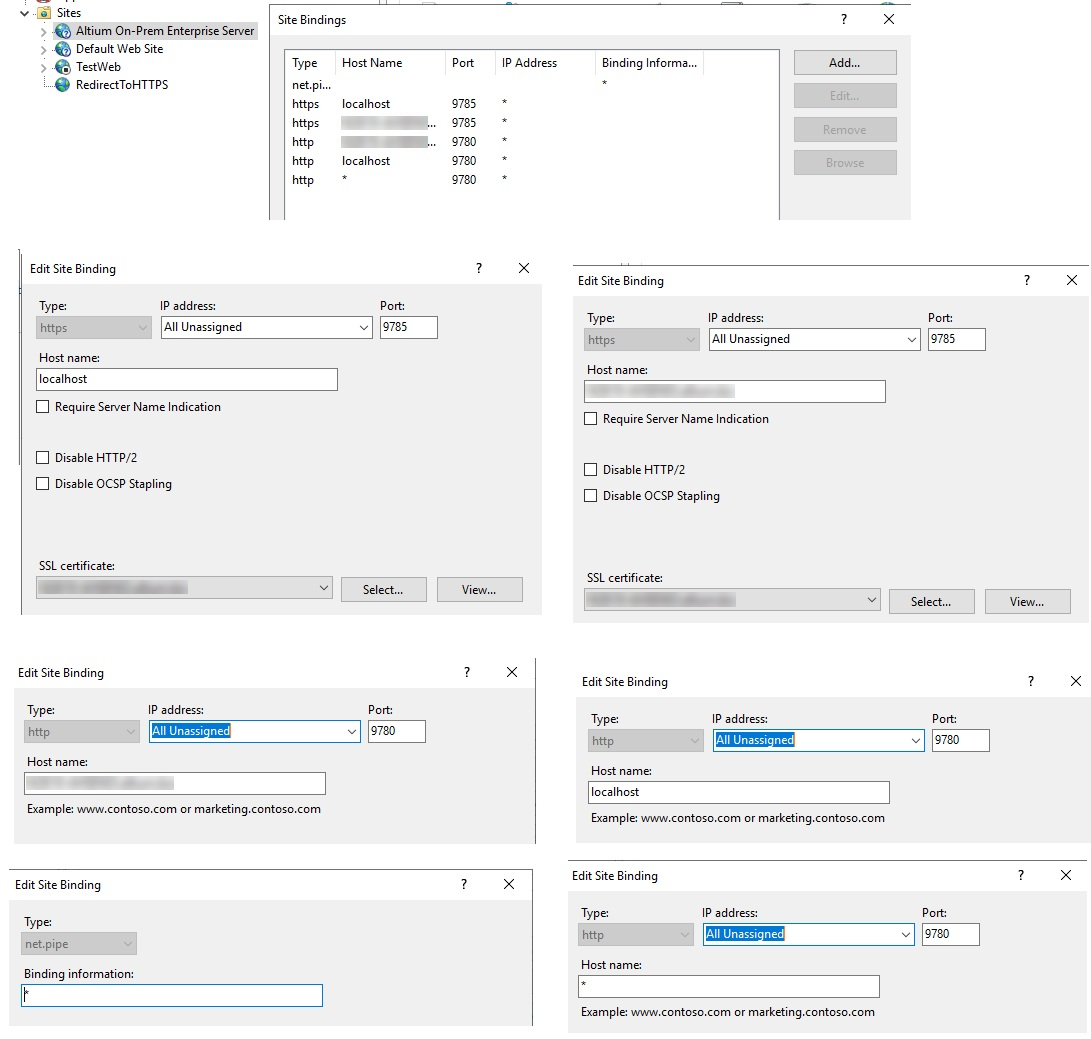
5. Verify HTTPS Binding
- Open the Altium Server site in IIS.
- Ensure HTTPS bindings have a valid certificate.
6. Restart all Altium Services
- Reset IIS: Open CMD as administrator and run
iisreset. - Restart Altium DXP App Server Pinger service in Windows Services.
7. Enforcing Secure Communication Through Firewall Configuration
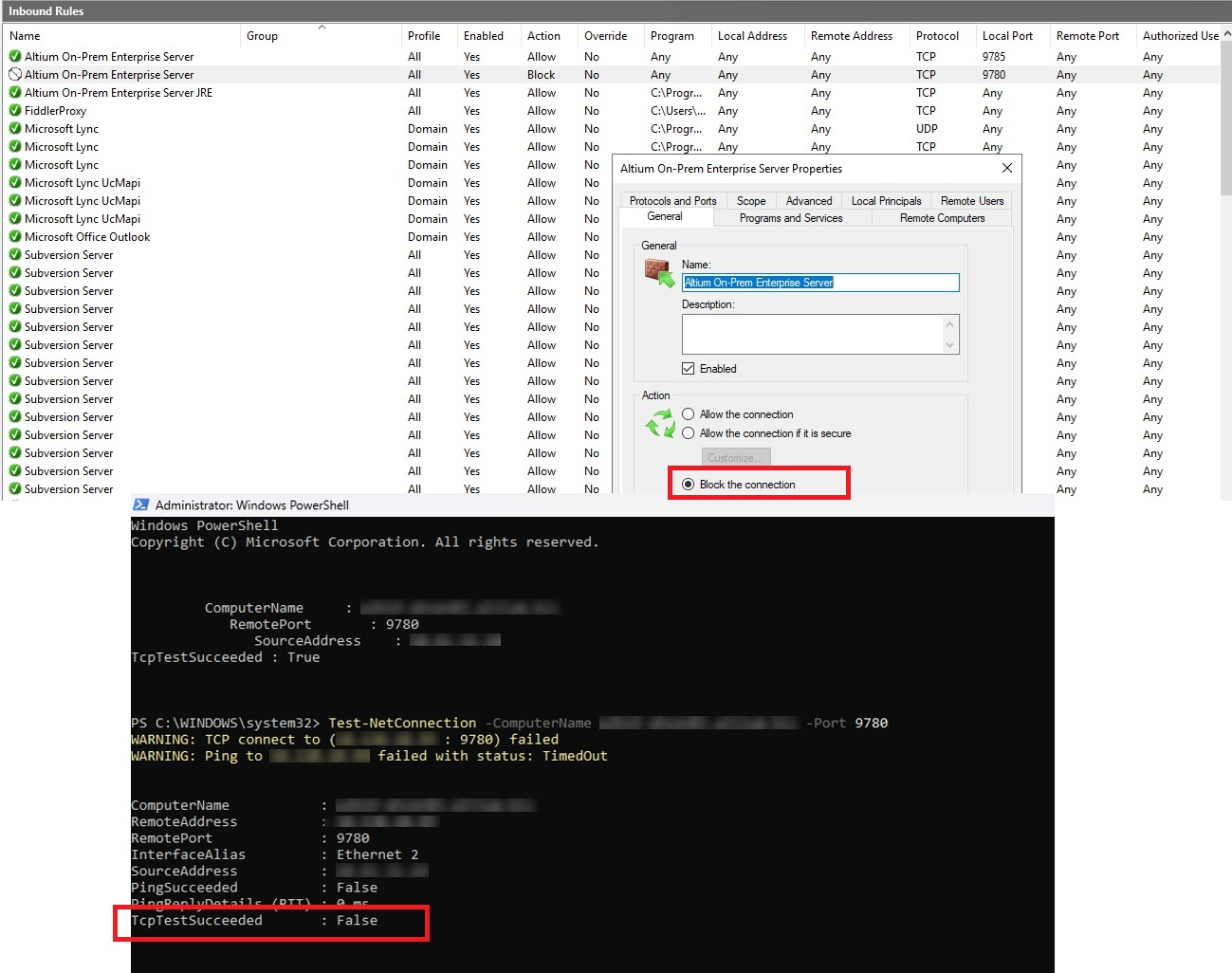
To ensure secure communication and guarantee that all traffic is transmitted over HTTPS, a firewall should be configured on the machine where the Altium Server is hosted. This configuration must block inbound connections from client machines attempting to access the server via http://<FullServerComputerName:9780>.
By preventing unsecured HTTP access, all clients are forced to establish connections exclusively over HTTPS, thereby maintaining a secure and compliant communication channel.
- On the Altium Server machine, open Windows Defender Firewall and ensure that the firewall service is active.
- Navigate to Inbound Rules and locate the rule titled Altium On-Prem Enterprise Server (Local Port 9780), which is automatically created during Altium Server installation.
- Open the rule and configure it to block connections, thereby preventing any external clients from using this port.
- From a client machine, open PowerShell and execute the following command to verify that port 9780 is no longer accessible:
Test-NetConnection -ComputerName FullServerComputerName -Port 9780
Expected Results:
- On a client machine, enter
http://<FullServerComputerName>. - The URL should automatically redirect to
http://<FullServerComputerName:9785. - All external attempts to connect to
http://<FullServerComputerName:9780are effectively blocked. - All external HTTP traffic is routed through IIS and automatically redirected to HTTPS (port 9785).