
KB: Resolve Enterprise Server Search Index Incomplete Error Caused by Low Disk Space
 Altium On-Prem Enterprise Server
Solution Details
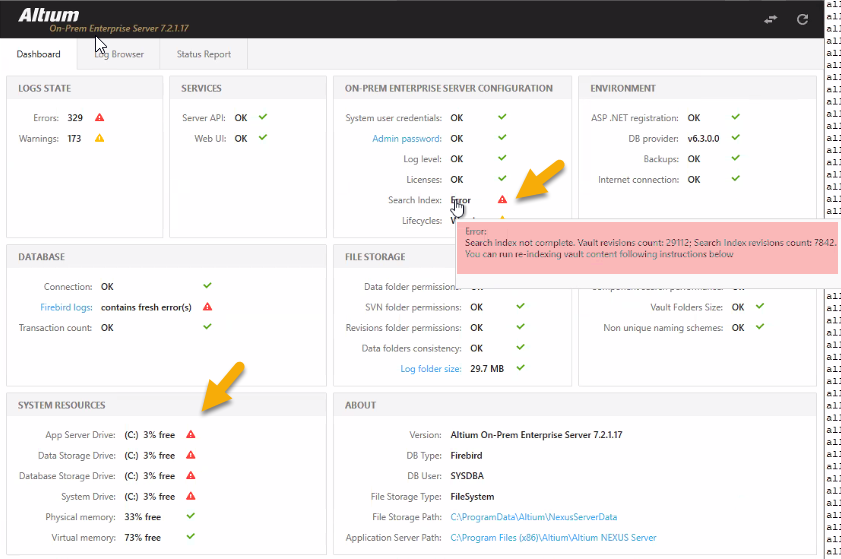
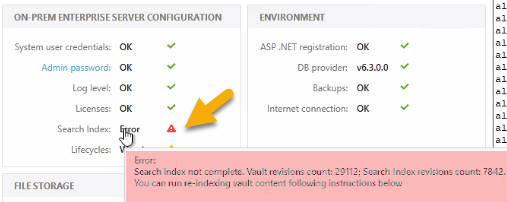
Customer observed missing components in Altium Designer. Checking the Enterprise Server revealed a search index error in the Health Monitor. Attempts to reindex did not resolve the issue; the search index revision count remained lower than the vault revision count (e.g., Vault revisions: 29,112; Search index revisions: 7,842).
Root Cause
Insufficient disk space caused Elasticsearch to exceed its high watermark threshold (~95%), forcing it into read-only mode and blocking indexing operations. This is indicated by the error:
cluster_block_exception reason: blocked by :[FORBIDDEN/12/Index read-only / allow delete].
Solution Steps
To resolve the issue:
- Check disk space on the server installation drive (usually C:).
- Free up space by deleting temporary files and moving old logs to another drive.
- Increase disk capacity if needed using Windows Disk Management with IT assistance.
- Perform a full reindex of the server content.
- Verify Health Monitor to ensure search index revision count matches vault revision count.
Detailed Resolution Procedure
Verify Disk Space
- Open File Explorer » Right-click the system drive (usually C:) » Select Properties.
- Ensure at least 10–15 GB free space for indexing operations.
Check Enterprise Server Health Monitor
- Navigate to Server Health Monitor in the Enterprise Server interface.
- Confirm the error message: Search index incomplete and compare revision counts.
Review Elasticsearch Logs
- Locate the search service logs in the Enterprise Server installation folder.
- Look for cluster_block_exception or Index read-only / allow delete warnings.

Free Up Disk Space
- Delete unnecessary temporary files and old backups.
- Move archived log files from the installation folder to another drive.
- Use Disk Cleanup tool in Windows for additional cleanup.
Increase Disk Space (If Needed)
- Contact your IT team to extend disk capacity using Disk Management:
- Open Run » type
diskmgmt.msc» Select the system volume » Extend Volume.
Perform Full Reindex
To re-index server content (for example, after data migration):
- Stop IIS application pools associated with the On-Prem server.
- Stop the AltiumElasticSearch service.
- Delete the contents of the SearchData folder:
For Concord Pro:C:\ProgramData\Altium\ConcordProData\SearchData
For legacy Vault:C:\ProgramData\Altium\VaultServerData\SearchData - Restart the AltiumElasticSearch service.
- Restart IIS application pools.
The server will automatically rebuild the search index when it detects an empty SearchData folder.
(Rebuild time depends on database size and may affect search functionality during the process.)
For detailed instructions, refer to: KB: Resolve Issues After On-Premise Server Update and Data Migration
Validate Index Status
- After reindexing, check Health Monitor again.
- Ensure search index revision count matches vault revision count. You should see the Green ticket near "Search Index:"
Preventive Tips
- Monitor disk space regularly and set alerts.
- Configure Elasticsearch disk watermark thresholds.
- Archive old logs and unused data periodically.
- Plan disk capacity based on vault growth.
- Automate cleanup of temporary files and backups.
- Regularly check Enterprise Server Health Monitor for resource warnings.
- Maintain a documented SOP for reindexing and disk space management.
Maintenance Schedule Recommended - Example
To prevent future issues, follow a maintenance schedule. Here is an example.
- Weekly: Check disk space on the server installation drive. Review Health Monitor for warnings.
- Monthly: Archive old logs and backups to secondary storage. Run Disk Cleanup to remove temporary files.
- Quarterly: Validate Elasticsearch watermark settings. Review vault growth and adjust disk capacity if needed.
- Annually: Perform a full system health audit, including disk space, indexing performance, and backup integrity.
Additional Notes
⚠️ Warnings & Best Practices:
- Perform during low usage hours: Reindexing can take time and may impact search functionality.
- Backup before starting: Always create a full backup of the server before deleting any files.
- Do not interrupt the process: Once reindexing starts, allow it to complete to avoid data inconsistencies.
- Monitor disk space regularly: Prevent Elasticsearch from entering read-only mode by maintaining adequate free space.