
KB: Resolving "Too many request sent" Error in Web Viewer
 Altium On-Prem Enterprise Server
Solution Details
Web Viewer Fails for All Projects
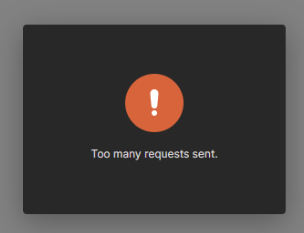
When opening projects in the Altium On-Prem Enterprise Server Web Viewer, the message "Too many requests sent." may be displayed. If the same error occurs for all projects, this indicates that the issue is likely server-side rather than specific to a project.
Check the recent server logs for the Web UI service. The logs may contain the message "Failed to load ASP.NET Core runtime."
ASP.Net Core Runtime Version Mismatch
This error is typically caused by an issue with the ASP.NET Core runtime installation or configuration. The installed runtime version may not match the version required by the installed Altium On-Prem Enterprise Server (AES) version.
The required Microsoft .NET version depends on the Altium On-Prem Enterprise Server version. For example, AES 6.0 requires Microsoft .NET 6.0. The required version can be found in the System Requirements documentation under Additional Software Installed or Configured.
Match the Runtime to AES
Verify the installed AES version and determine its required Microsoft .NET version. If the installed ASP.NET Core runtime does not meet the requirements for that AES version, install the required Microsoft .NET version. After installation, restart the AES services and clear the browser cache and cookies before testing the Web Viewer again.
Verify and Install Required Runtime
To resolve the error we need to make sure that the installed runtime version is compatible with the version AES is built for.
- Verify your AES version
Check your current AES version. - Ensure compatible .NET version is installed
The required .NET version is dependent on the AES version. You can find the compatible .NET version for your AES version in the System Requirements documentation.- Go to the System Requirements documentation for AES: System Requirements
- Select your AES version from the dropdown at the top of the page.
- Refer to the "Additional Software Installed or Configured" section at the end of the page, which specifies the required .NET version.
- Install the correct .NET version
If your ASP.NET Core version doesn't match the requirements, download and install the correct version from the Microsoft website: https://dotnet.microsoft.com/ - Restart services
After installing the correct .NET version, restart the AES services. - Clear browser cache
Clear your browser cache and cookies before attempting to access the Web Viewer again.
Still Having Issues?
If the error persists after installing the correct Microsoft .NET version, please contact our support team.
Additional Resources
If you encounter any other installation issues, please refer to our Possible Installation Issues guide.