
KB: SAML SSO Login Fails with "Invalid UserName Password Combination"
 Altium On-Prem Enterprise Server
Solution Details
Connection Test Succeeds but Login Fails
The SAML configuration may appear to be functioning correctly because the SAML Connection Test completes successfully and displays a message similar to:
Connection Test SuccessfulYou would have been signed in as username@domain.com
However, when the user attempts to sign in through SSO:
- Authentication at the Identity Provider succeeds.
- The user is redirected back to Enterprise Server.
- Enterprise Server displays the following error:
"Our system hit a snag, please try again in a moment.Invalid UserName/Password combination"
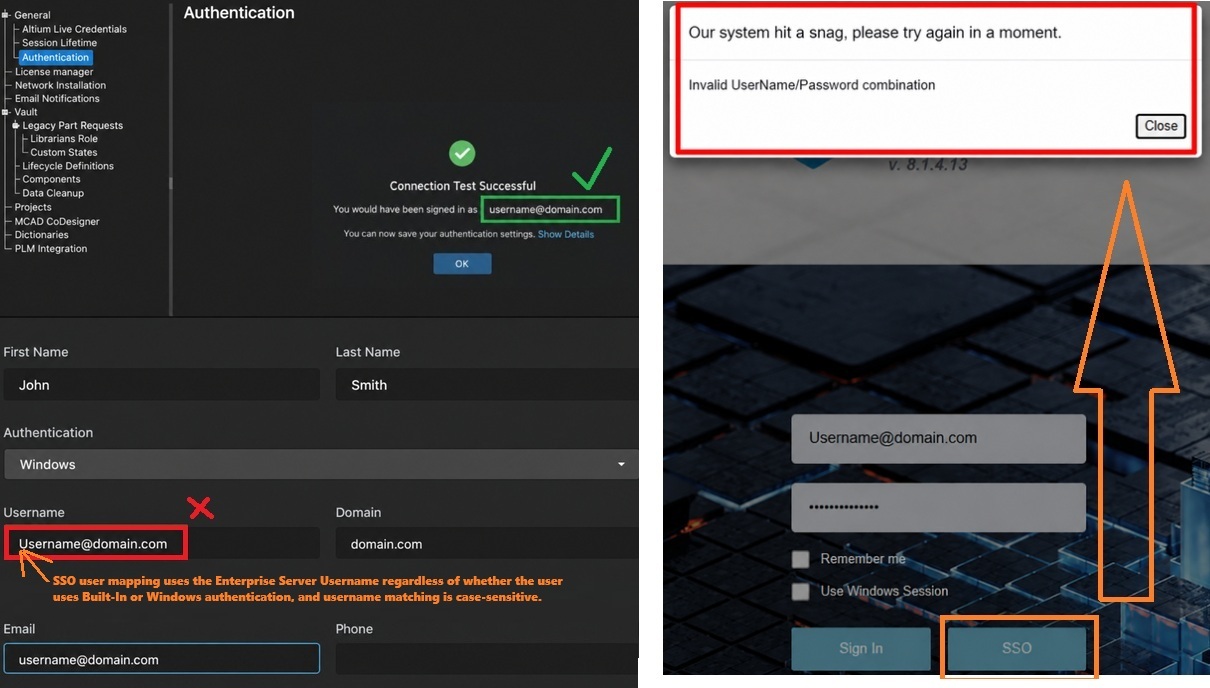
Exact Username Matching Is Required
Enterprise Server uses the username provided by the Identity Provider to locate and map the user to an existing Enterprise Server account.
The username returned by the IdP must exactly match the value configured in the user's Username field within Enterprise Server.
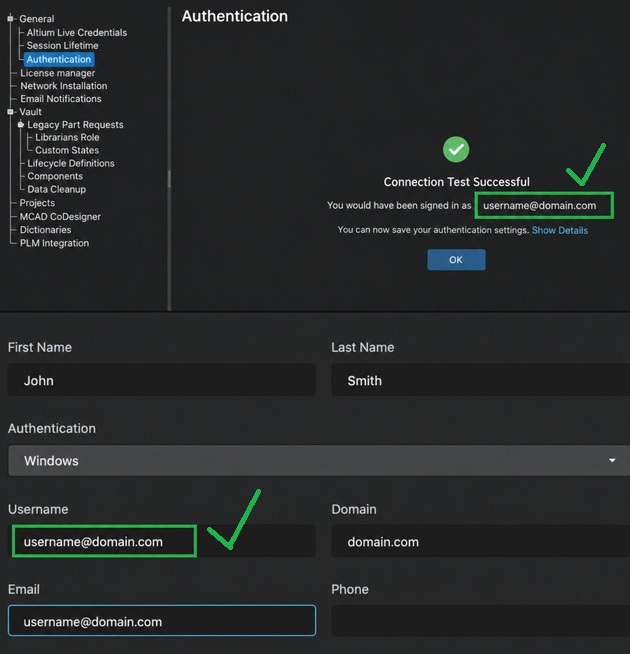
For example, if the SAML Connection Test reports:
username@domain.com
but the Enterprise Server account is configured as:
username
or:
Username@domain.com
the SSO login can fail because the values do not match exactly.
Important: Username comparison is case-sensitive. The following values are considered different:
username@domain.comUsername@domain.com
This username mapping behavior is independent of the user's authentication type and applies to both:
- Built-In Authentication
- Windows Authentication
Confirm Username Returned by Identity Provider
- Run the SAML Connection Test to determine the username returned by the Identity Provider.
- Compare the returned username with the user's Username field in Enterprise Server.
- Verify that spelling, email format, and capitalization are identical.
- Update the Enterprise Server username if required.
- If the issue persists after confirming an exact match, review the UnifiedLogin logs for additional details. These logs are located in the following path:
C:\ProgramData\Altium\Altium365Data\logs\UnifiedLogin
Validate and Correct the Username Mapping
- Open the Enterprise Server web interface.
- Navigate to Admin » Settings » Authentication.
- Open the configured SAML authentication provider.
- Run the Connection Test.
- Complete authentication with the Identity Provider.
- Record the username reported by the test.
- Navigate to Admin » Users.
- Open the corresponding user account.
- Verify that the Username field exactly matches the value returned by the SAML Connection Test, including capitalization.
- Save any required changes.
- Attempt the SSO login again.
Additional Notes
- SSO user mapping is performed using the Enterprise Server Username field.
- This behavior applies regardless of whether the account uses Built-In or Windows authentication.
- Username matching is case-sensitive.
- If additional troubleshooting is required, review the UnifiedLogin logs located at:
C:\ProgramData\Altium\Altium365Data\logs\UnifiedLogin - The UnifiedLogin logs can provide details about identity information received from the IdP, user mapping, and authentication processing errors.
- Expected result: after the Enterprise Server username exactly matches the username provided by the Identity Provider, the user is successfully mapped to the existing account, SSO authentication completes successfully, and the error no longer occurs.