
Ingeniería de requisitos basada en agentes
Los agentes de IA ofrecen ventajas sustanciales para tareas de ingeniería como la captura de requisitos, ya que mejoran significativamente la eficiencia y automatizan flujos de trabajo complejos y repetitivos. El Engineering Assistant de Requirements Portal aprovecha las tecnologías de IA para ofrecerle una herramienta de revisión rápida y automatizada de sus requisitos, que le permite formular preguntas sobre los requisitos de su proyecto actual en lenguaje natural y de forma libre, y obtener respuestas rápidas sin tener que filtrar ni buscar manualmente entre los requisitos. Por ejemplo:
-
How many requirements are not verified?
-
Are there any engineering gaps in these requirements?
-
Show me all requirements about the power supply.
-
Which requirements need to be taken into account for PCB design?
-
Do any requirements conflict with each other?
-
Give me an overview of all battery-related requirements.
El Asistente de ingeniería también puede modificar, crear o eliminar requisitos. Cuando envía una solicitud para crear un requisito nuevo o modificar o eliminar uno existente, el Asistente de ingeniería le proporciona un resumen de los cambios que se aplicarán, para que pueda revisarlos y después aplicarlos o descartarlos. Algunos ejemplos de estas solicitudes:
-
Generate requirements for a lightweight drone power supply that takes a 6S LiPo input, provides regulated 5 V / 5 A and 12 V / 3 A outputs, and weighs under 150 g. It should handle vibration and -10°C to +50°C operation, with protection for short circuit, reverse polarity, overtemperature, and low battery.
-
Change the required maximum operating temperature for all parts to 60°C.
-
Can you identify all requirements that affect the sizing of the power system and ensure they are verifiable?
-
In the new design, I've replaced the camera with an IR sensor. Remove all requirements that were related to the camera.
 de la parte superior derecha, seleccionando Settings en el menú que aparece y, a continuación, seleccionando General en el grupo AI Settings de la lista del panel izquierdo) –
 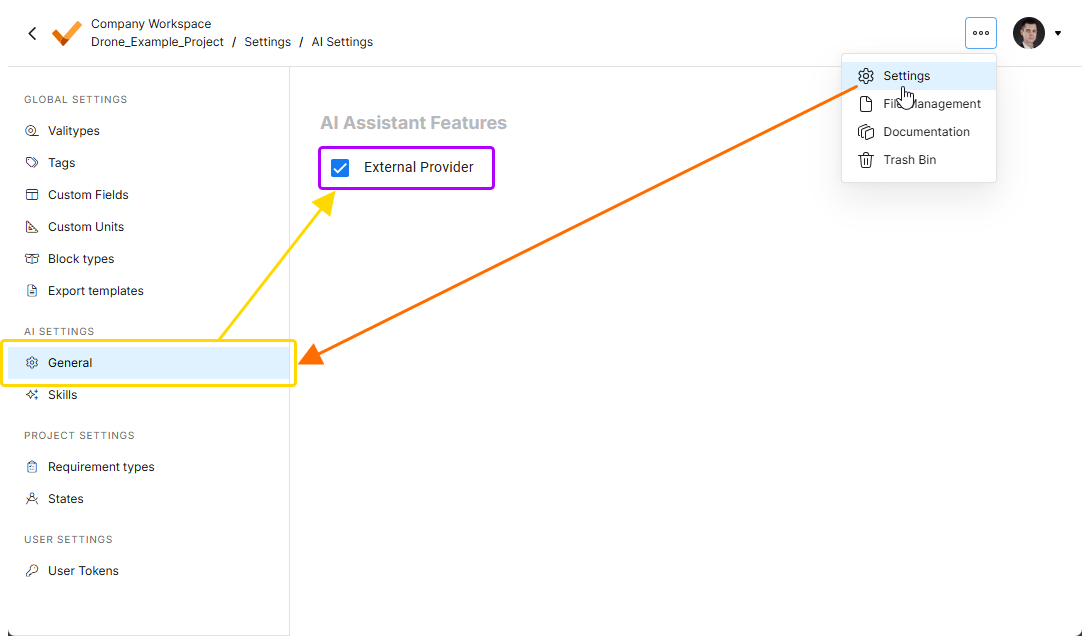 .
.
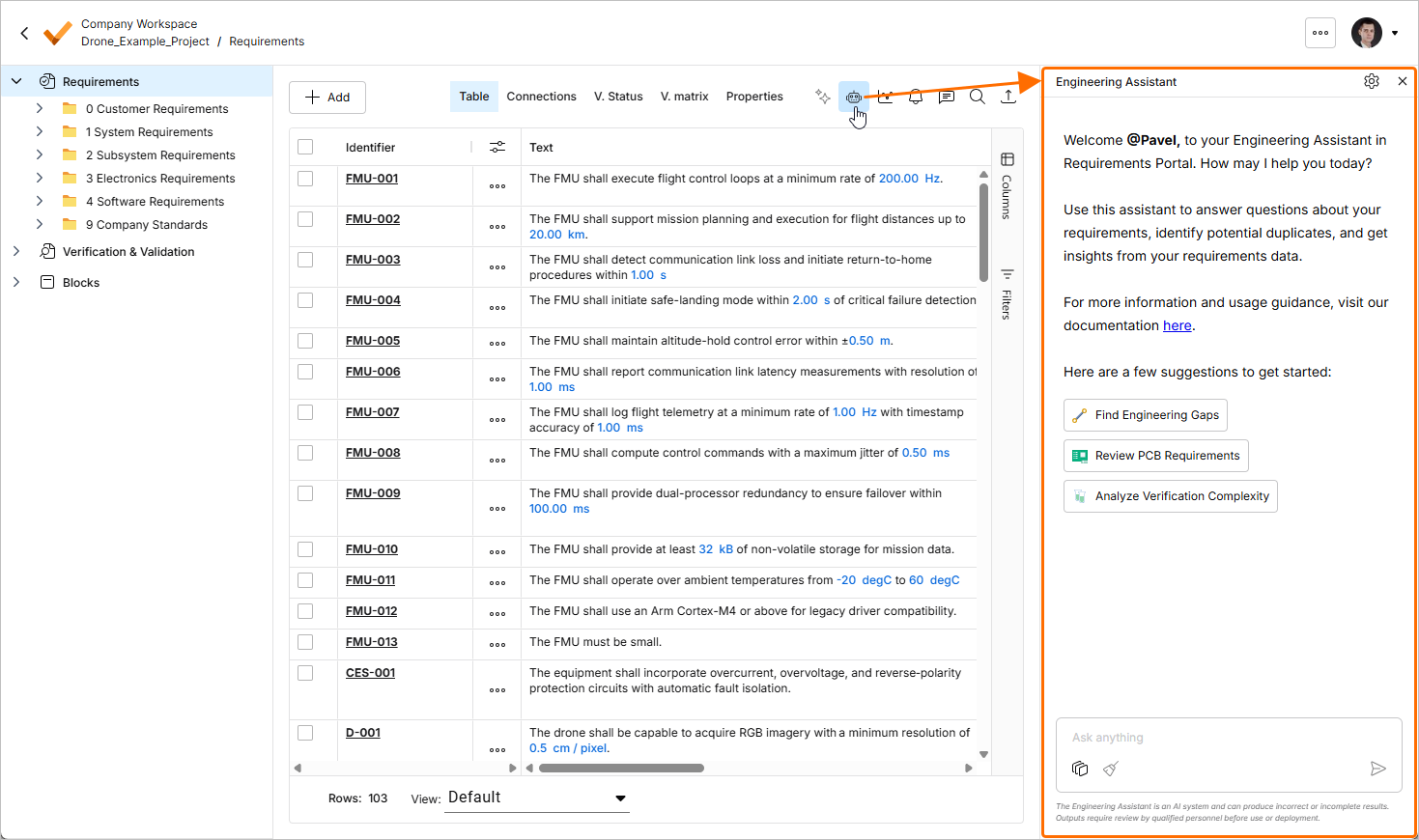
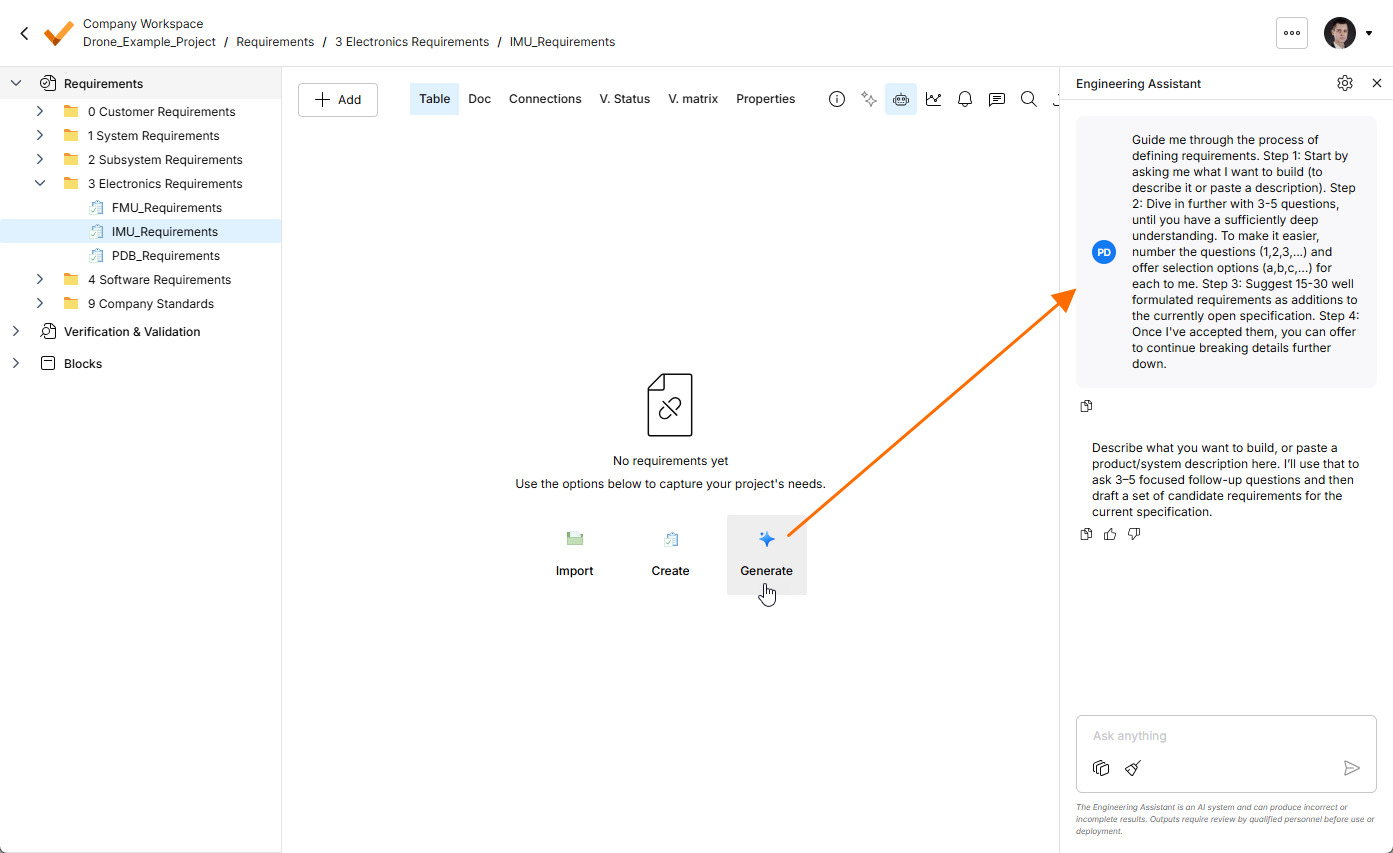
Se accede al Asistente de ingeniería a través del panel Engineering Assistant, disponible en el módulo de requisitos al hacer clic en el icono  de la parte superior derecha.
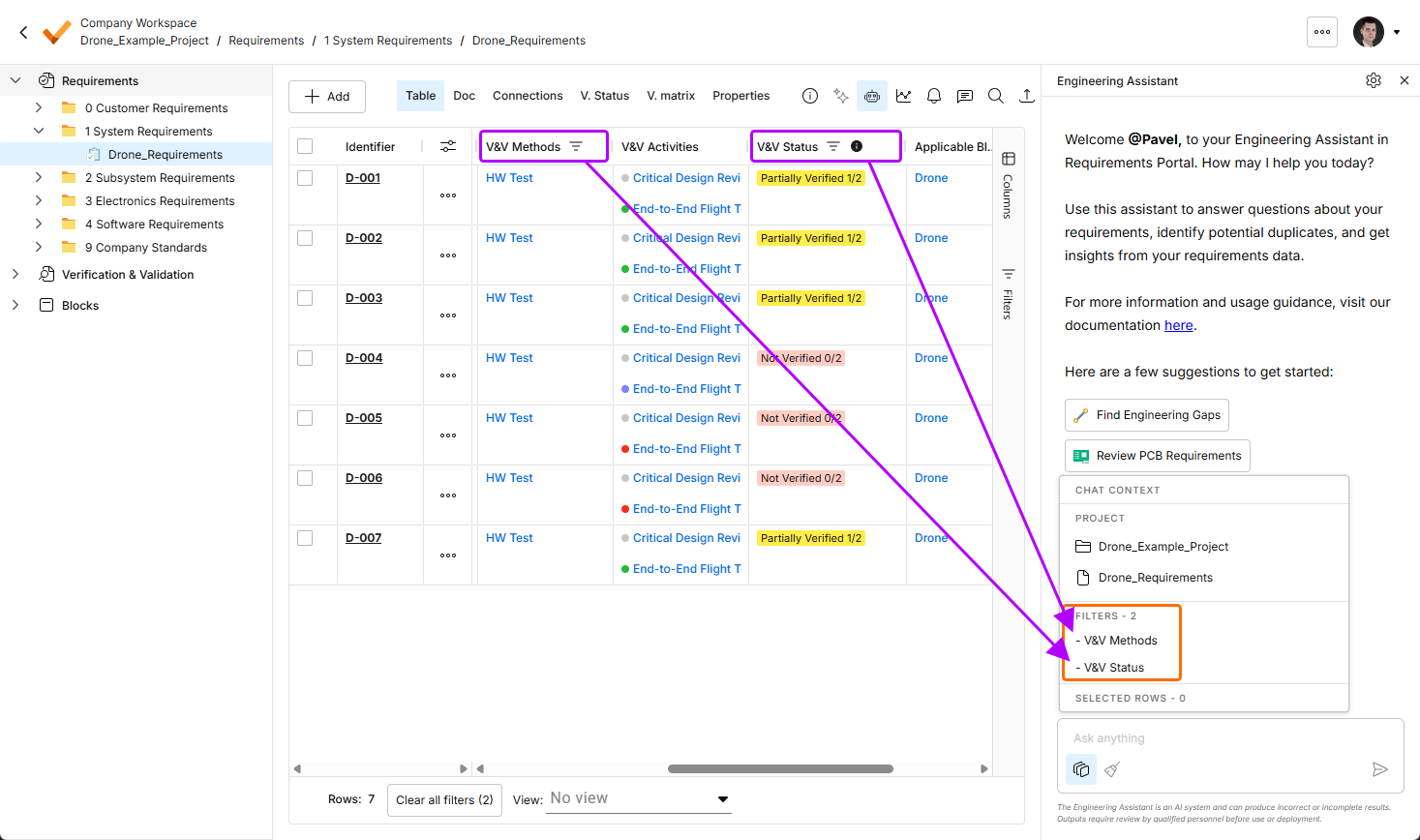
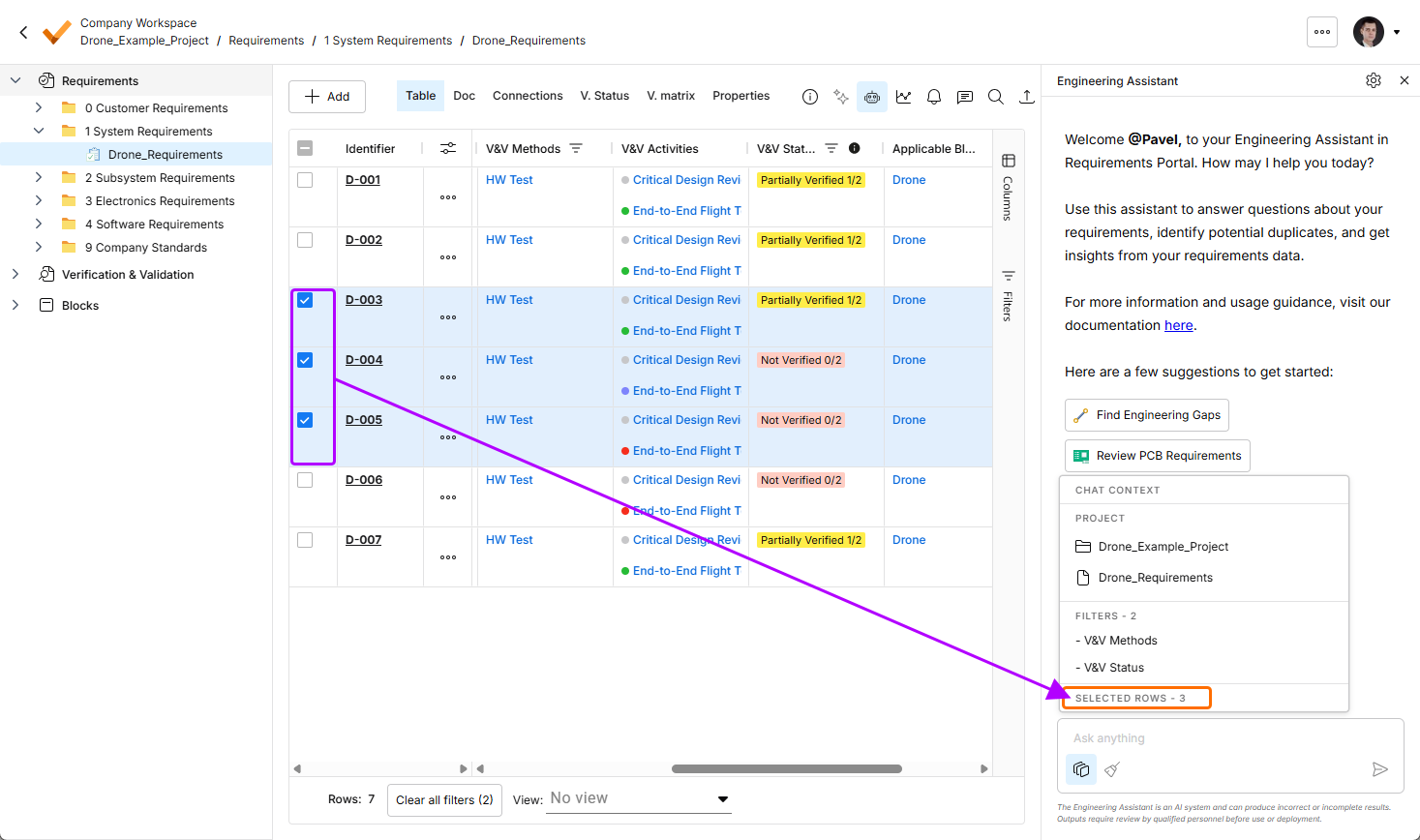
Puede ver el contexto actual del chat haciendo clic en el botón  de la parte inferior del panel Engineering Assistant. Se abrirá la ventana emergente Chat Context con la siguiente información:
-
Project – muestra el nombre del proyecto actual y el nombre de la carpeta, especificación o sección seleccionada actualmente.
-
Filters – muestra el número de filtros aplicados actualmente a la tabla y la lista de columnas a las que se aplican.
-
Rows selected – muestra el número de filas de requisitos seleccionadas actualmente.
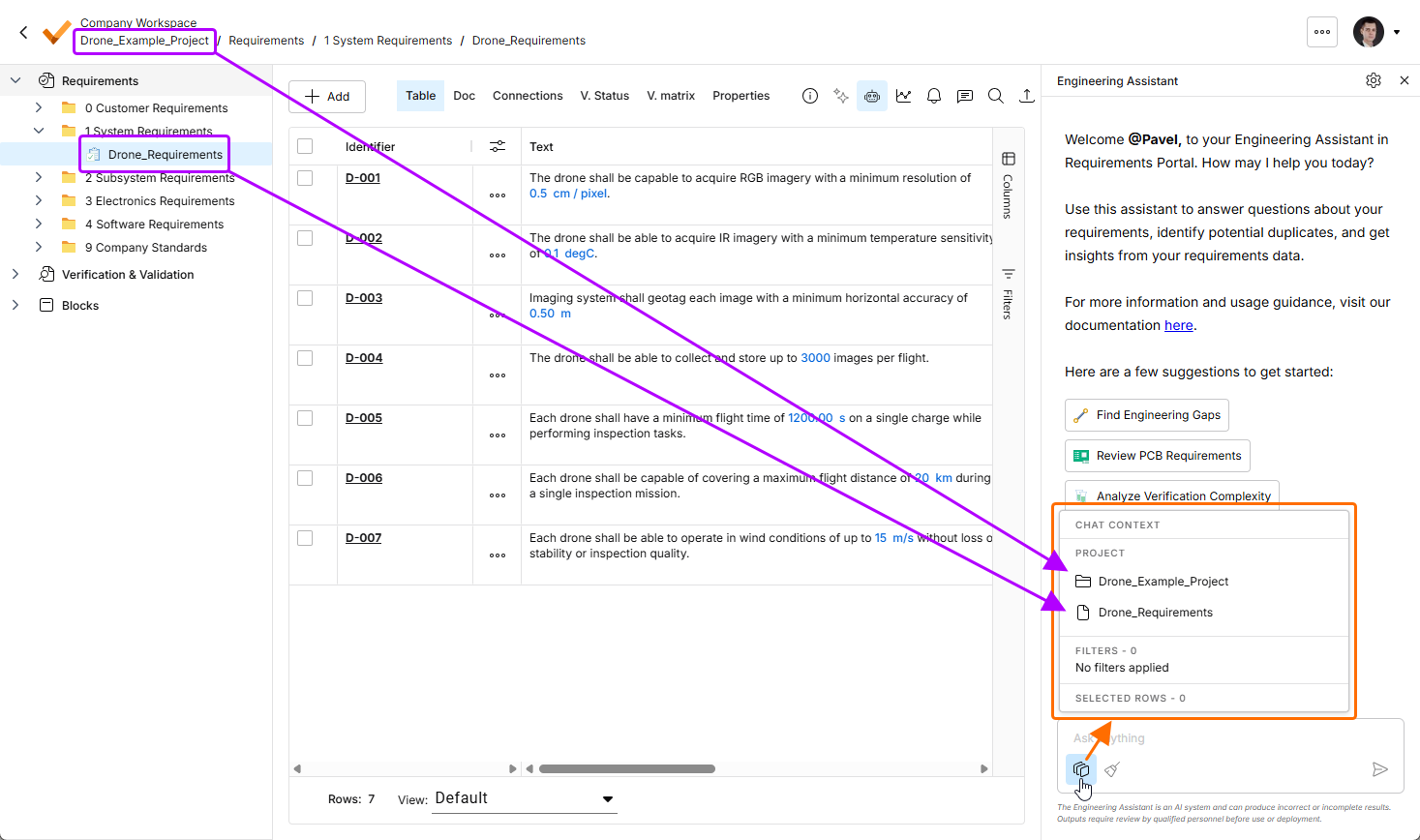
Haga clic en el botón para abrir la ventana emergente Chat Context. En este ejemplo, la región Project muestra el nombre del proyecto actual (Drone_Example_Project) y el nombre de la especificación seleccionada actualmente (Drone_Requirements).
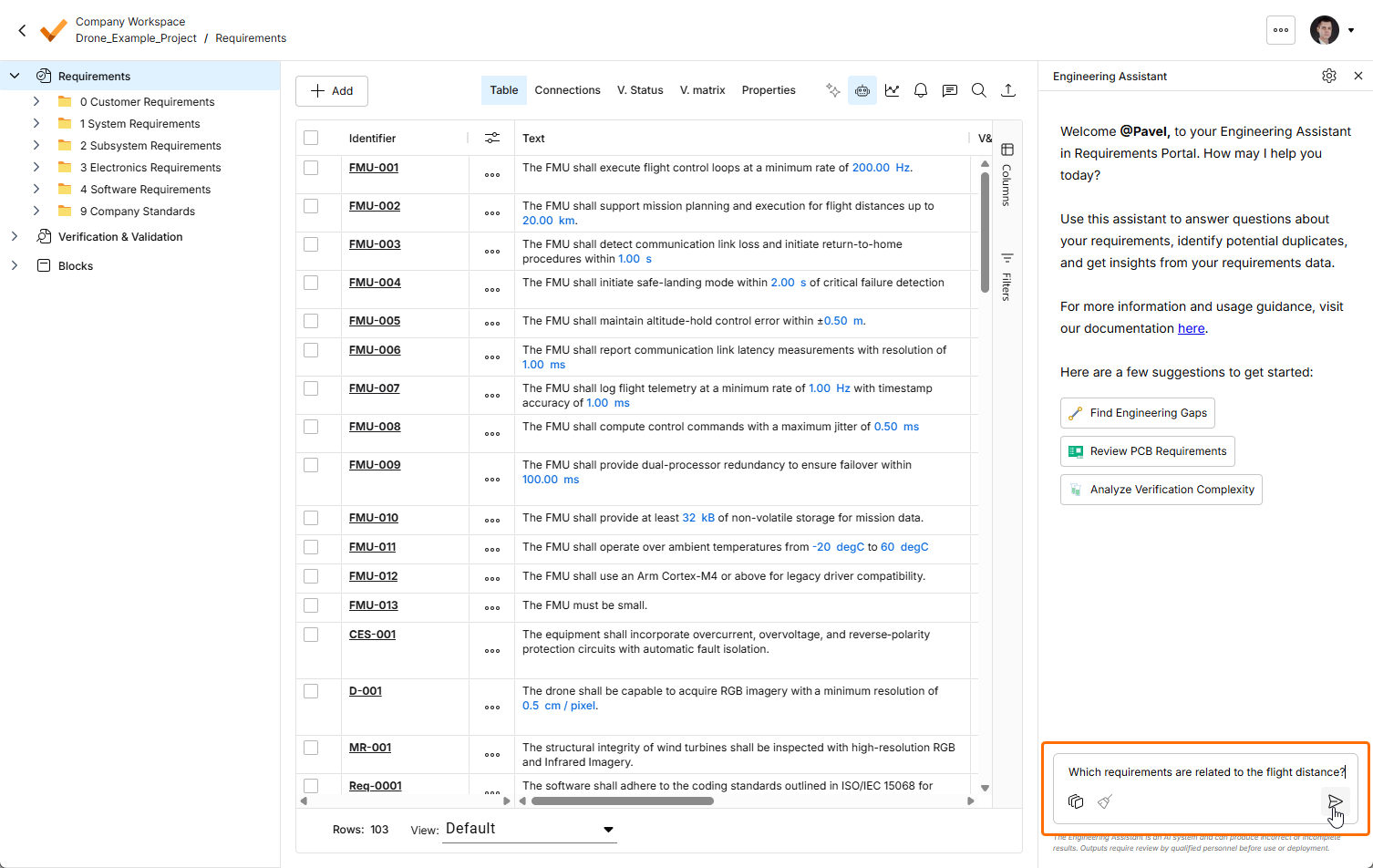
Para utilizar el Asistente de ingeniería, escriba su consulta en el campo Ask anything de la parte inferior del panel Engineering Assistant y haga clic en el icono  o pulse
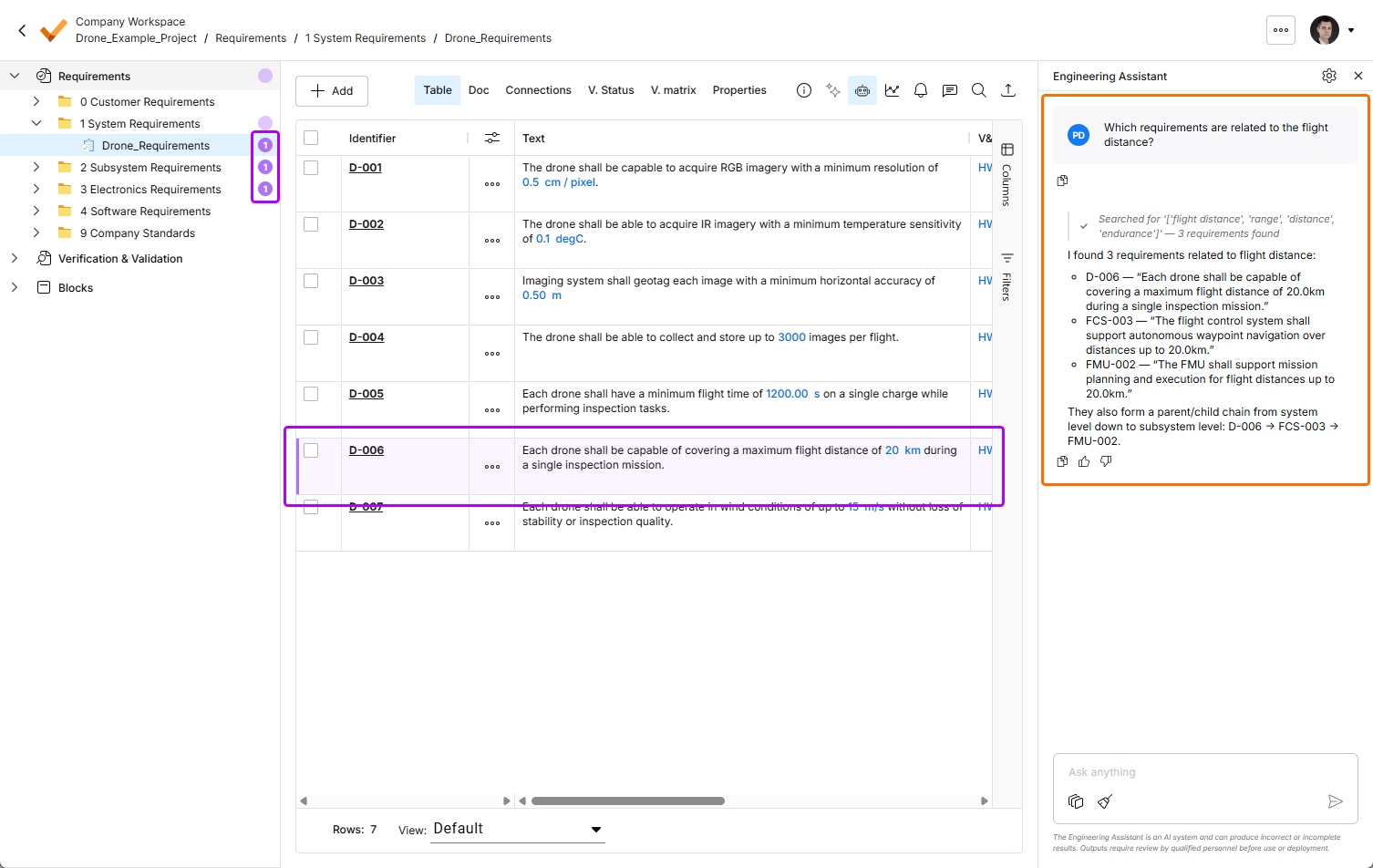
 Enter. El Asistente de ingeniería analizará los requisitos y mostrará una respuesta pertinente en el panel. En función de la consulta, devolverá una respuesta numérica, una lista de identificadores de requisitos o un breve resumen. Los requisitos relacionados con la consulta se resaltarán en la tabla de requisitos, y el número de requisitos relacionados se mostrará en el árbol del proyecto junto a las especificaciones, secciones y carpetas correspondientes.
 situado debajo de una solicitud o respuesta para copiar su contenido en el portapapeles.
 y
y  situados debajo de una respuesta en el panel Engineering Assistant para valorarla positiva o negativamente.
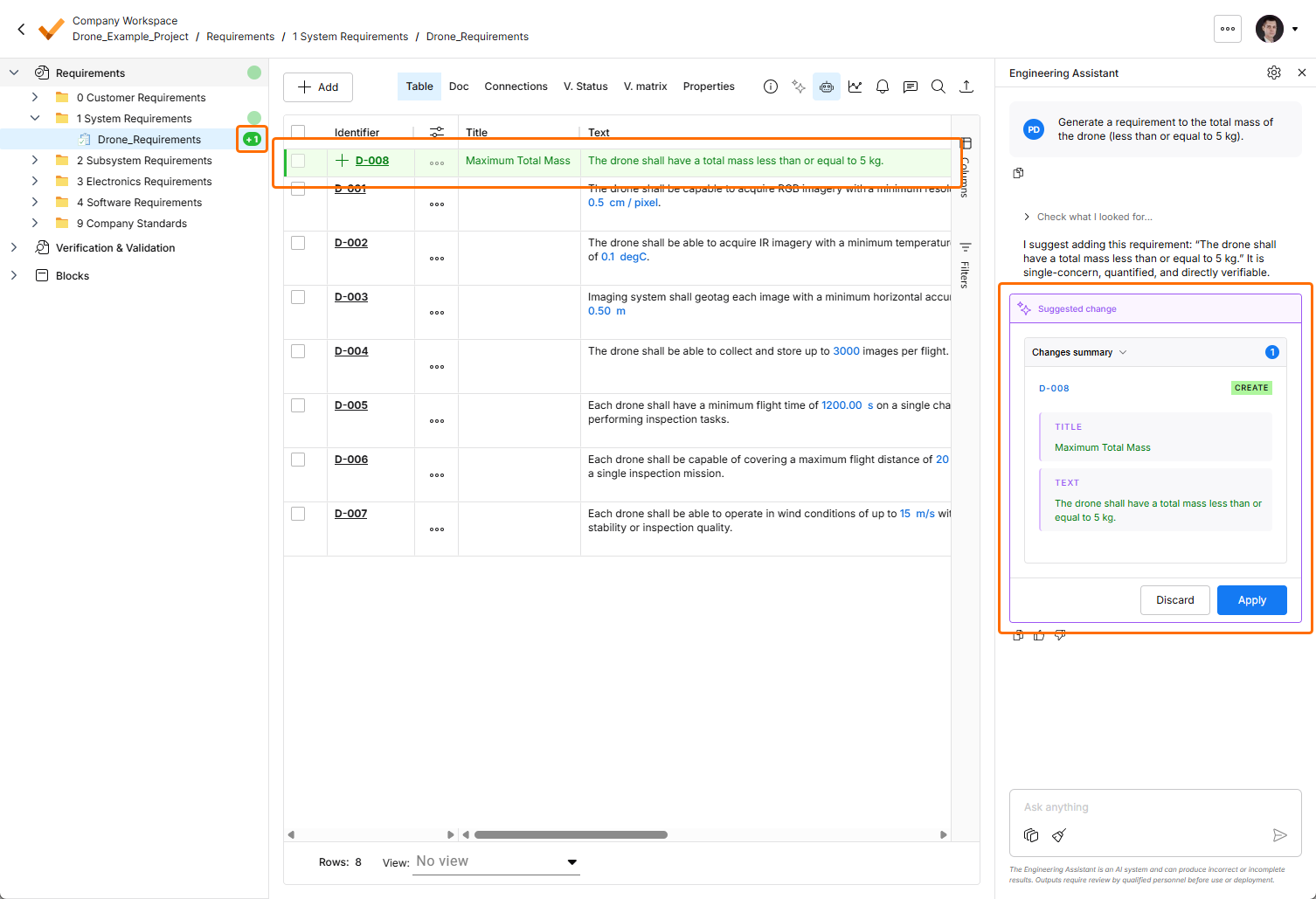
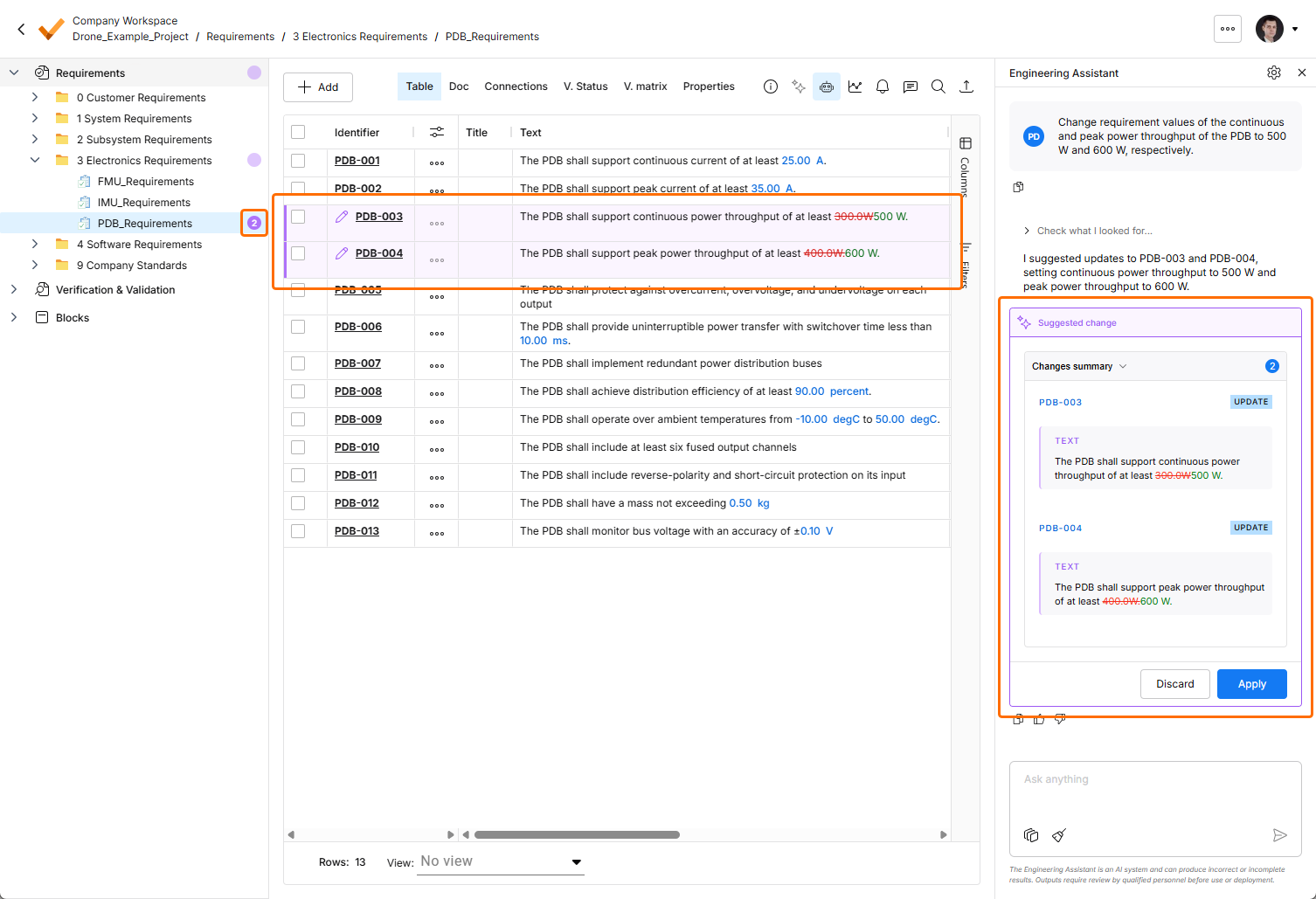
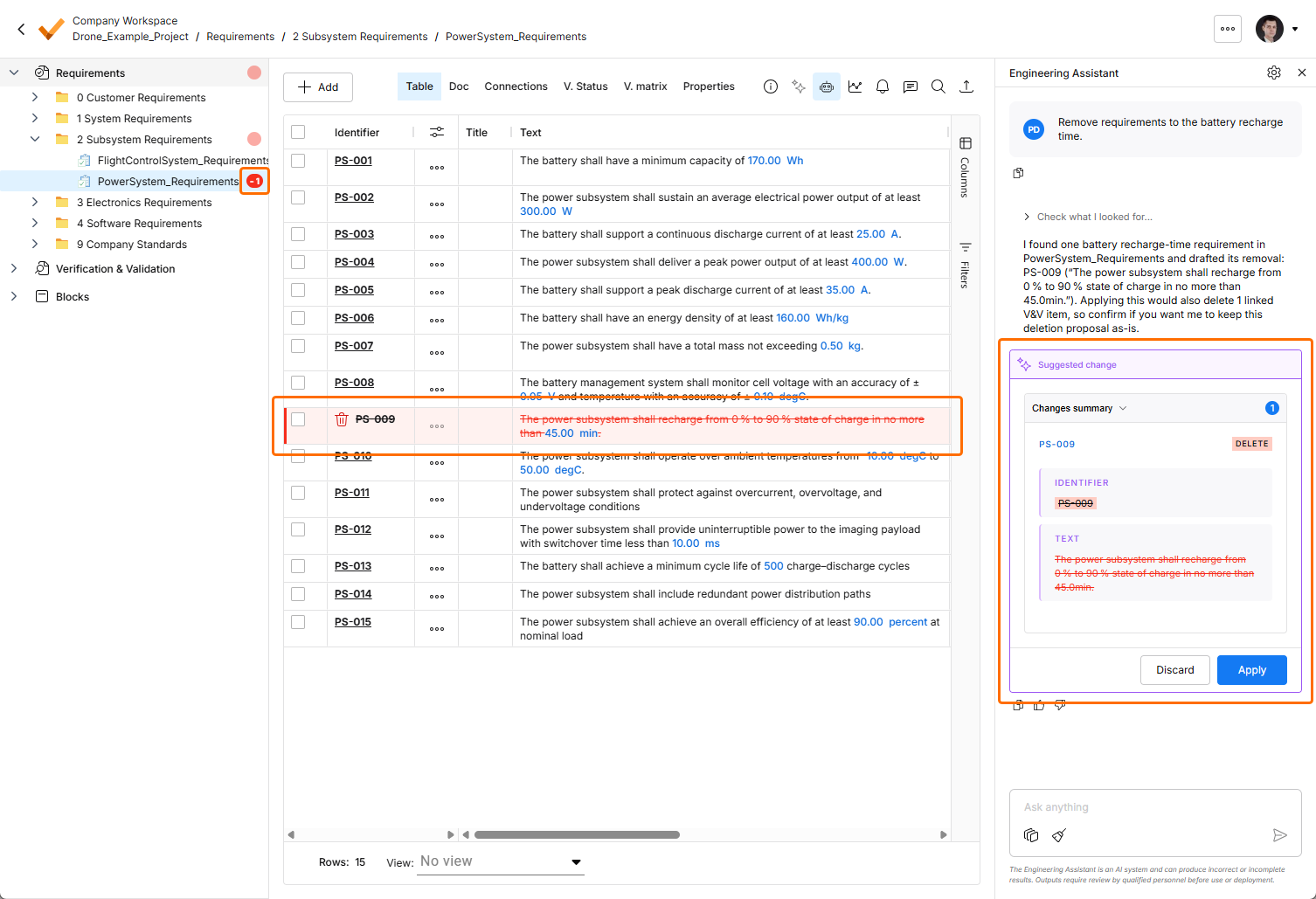
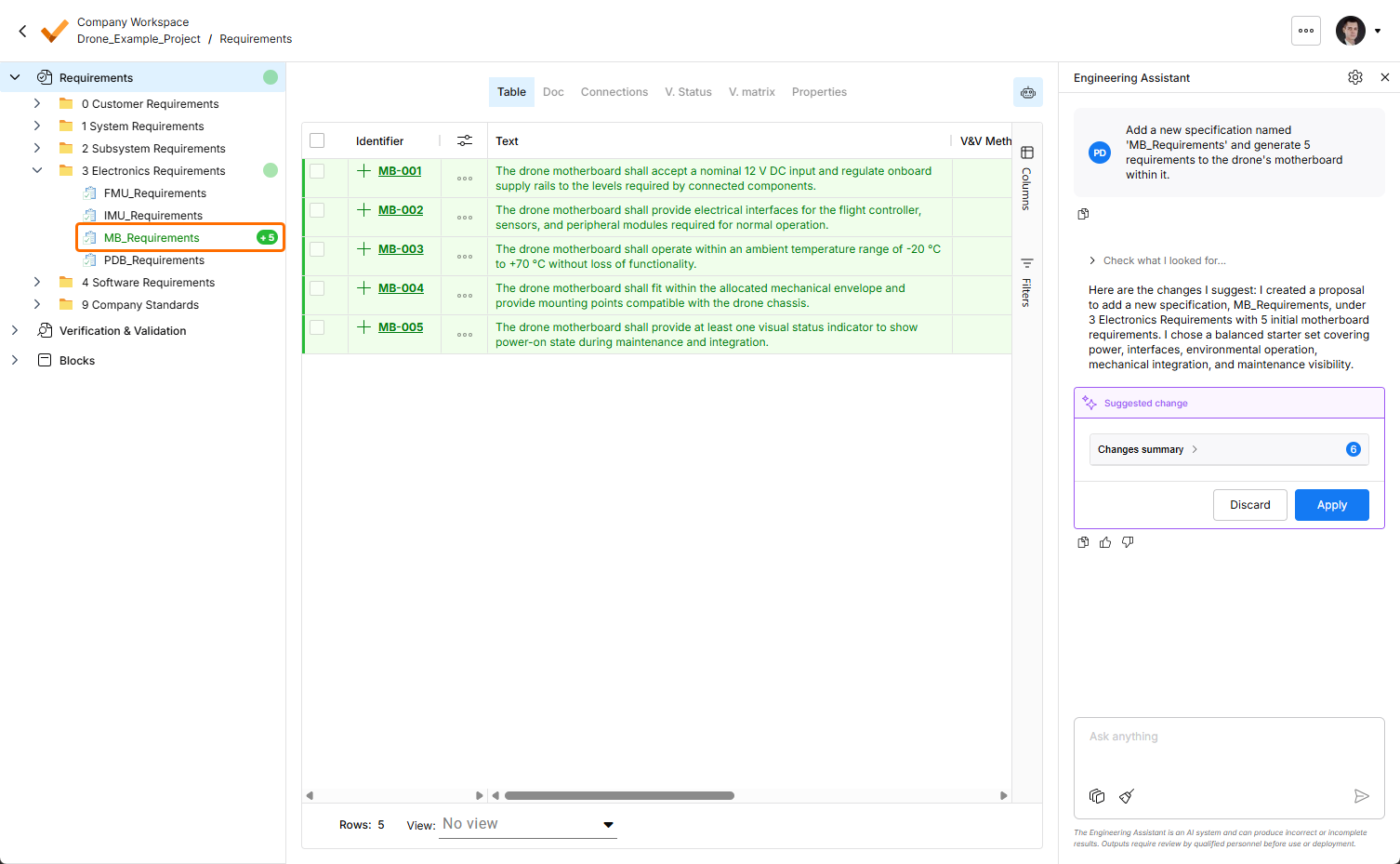
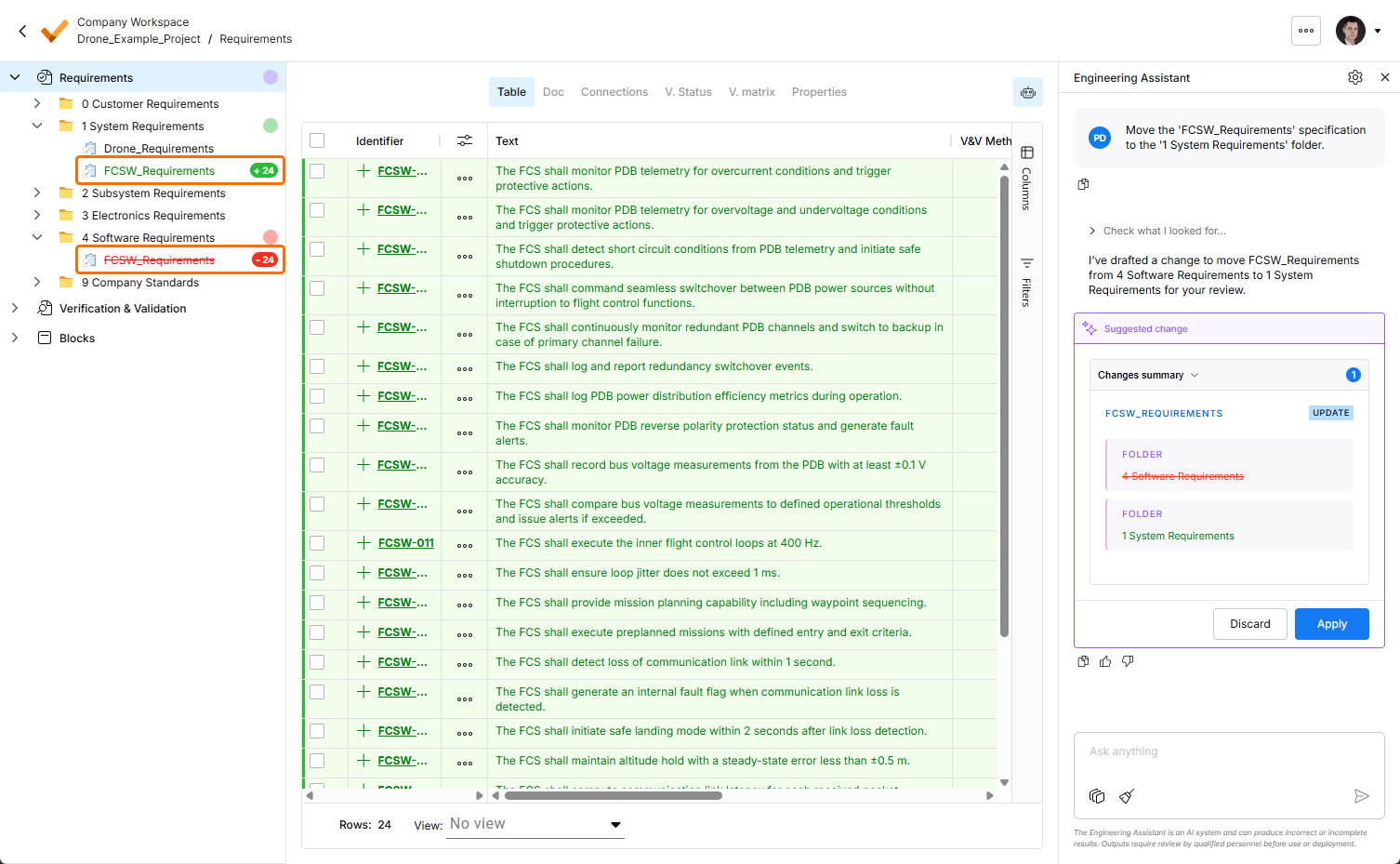
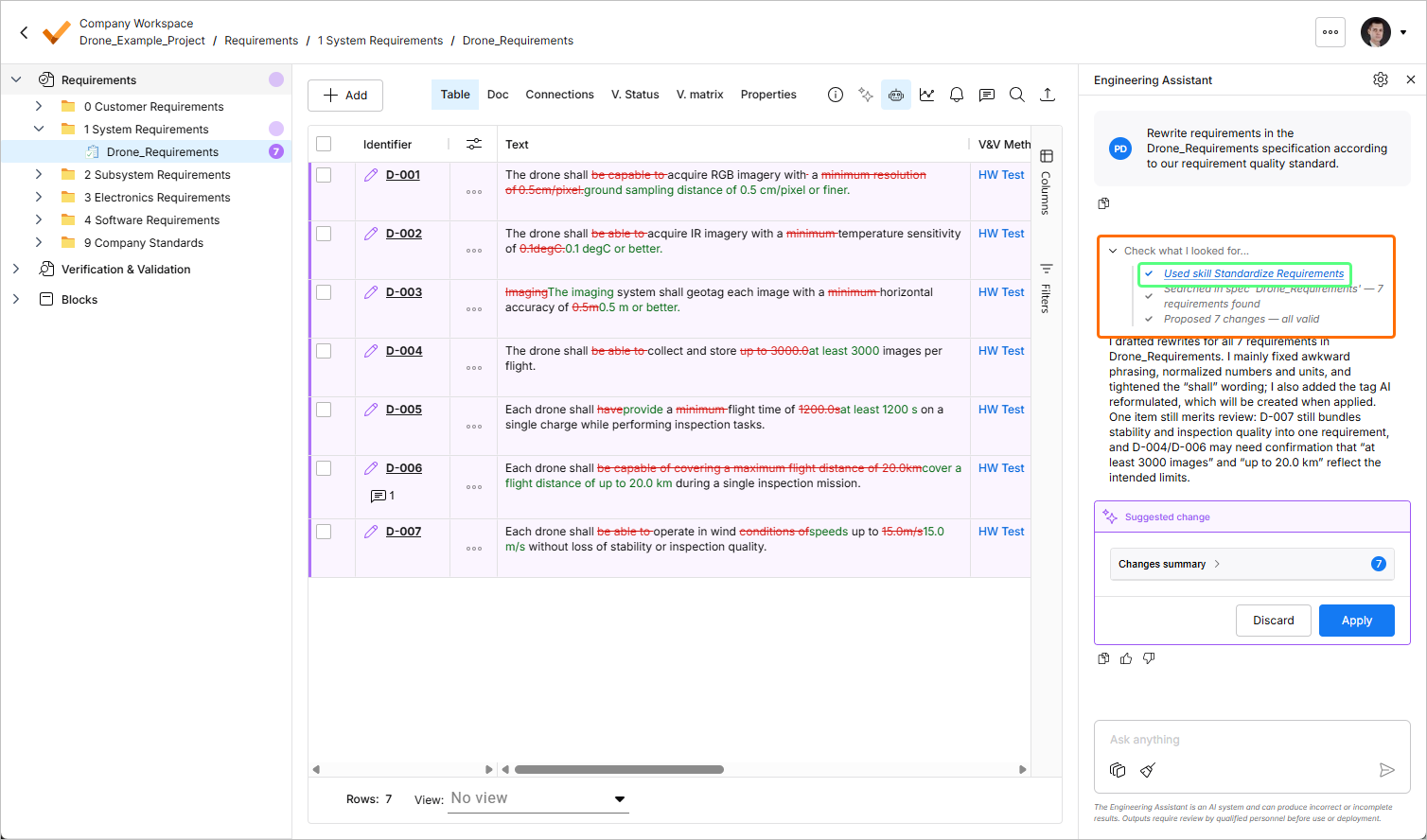
Cuando envía una solicitud al Asistente de ingeniería para crear un requisito nuevo o modificar o eliminar uno existente, los cambios sugeridos se muestran en una tarjeta específica dentro del panel Engineering Assistant , donde puede revisarlos (expandiendo la sección contraíble Changes summary) y, a continuación, aplicarlos o descartarlos. Además, los cambios sugeridos se muestran en la tabla de requisitos de la siguiente manera:
-
Los requisitos nuevos se resaltan en verde, con el icono
 en la columna Identifier. También se muestra un indicador verde junto a la entrada correspondiente en el árbol del proyecto de la izquierda.
-
Los requisitos modificados se resaltan en morado, con el icono
 en la columna Identifier. Los cambios concretos se resaltan en la tabla. También se muestra un indicador morado junto a la entrada correspondiente en el árbol del proyecto de la izquierda.
-
Los requisitos cuya eliminación se sugiere se resaltan en rojo, con el icono
 en la columna Identifier. También se muestra un indicador rojo junto a la entrada correspondiente en el árbol del proyecto de la izquierda.
 ,
, 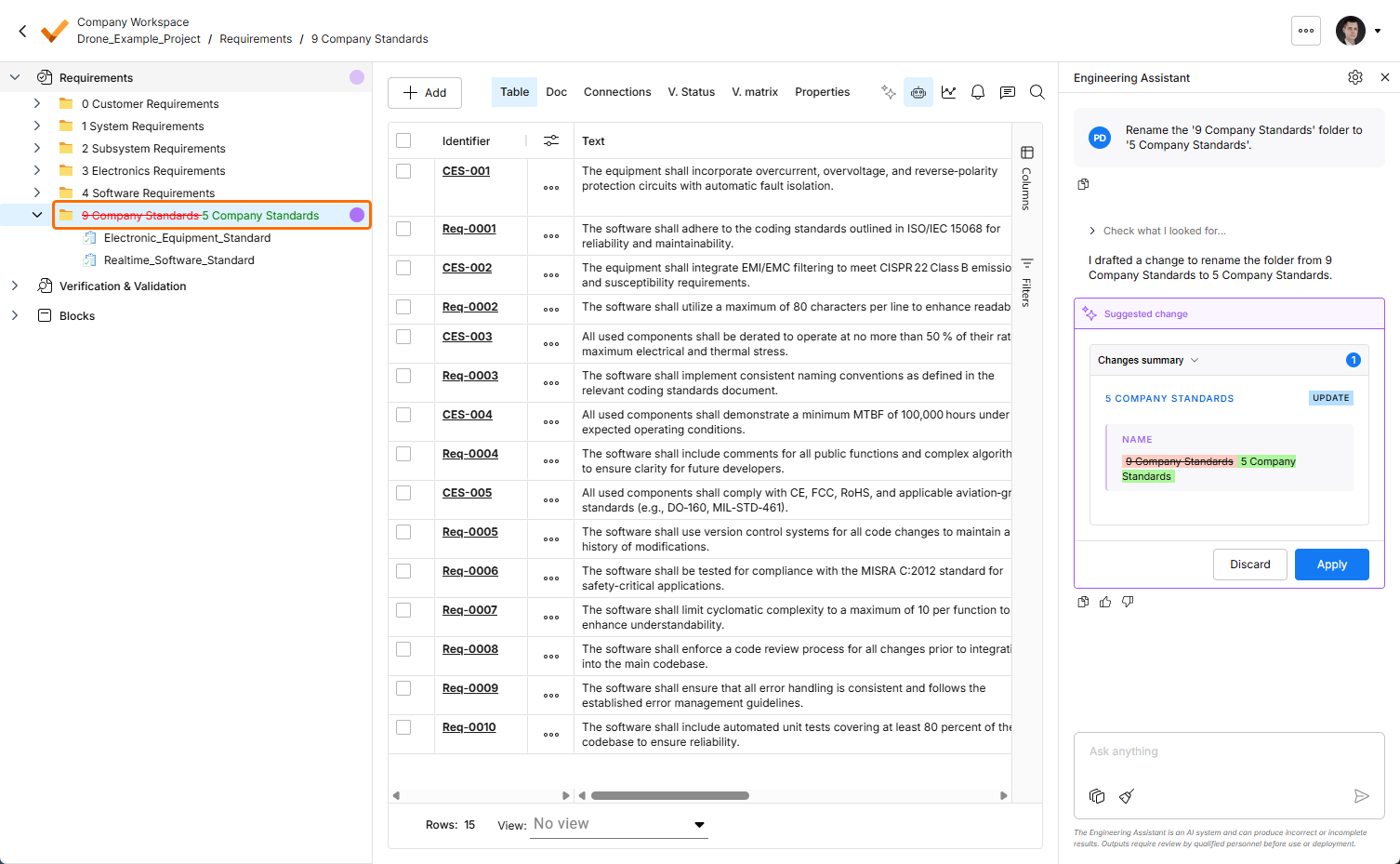 ).
).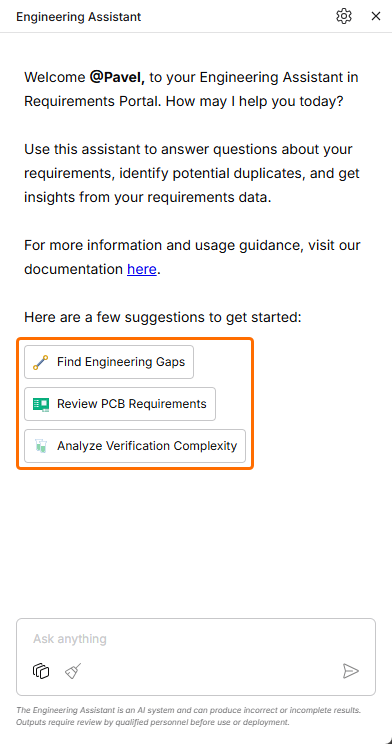 ).
).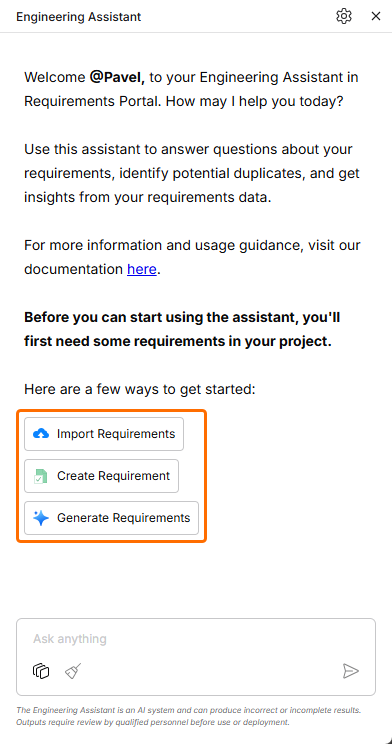 ).
). )
)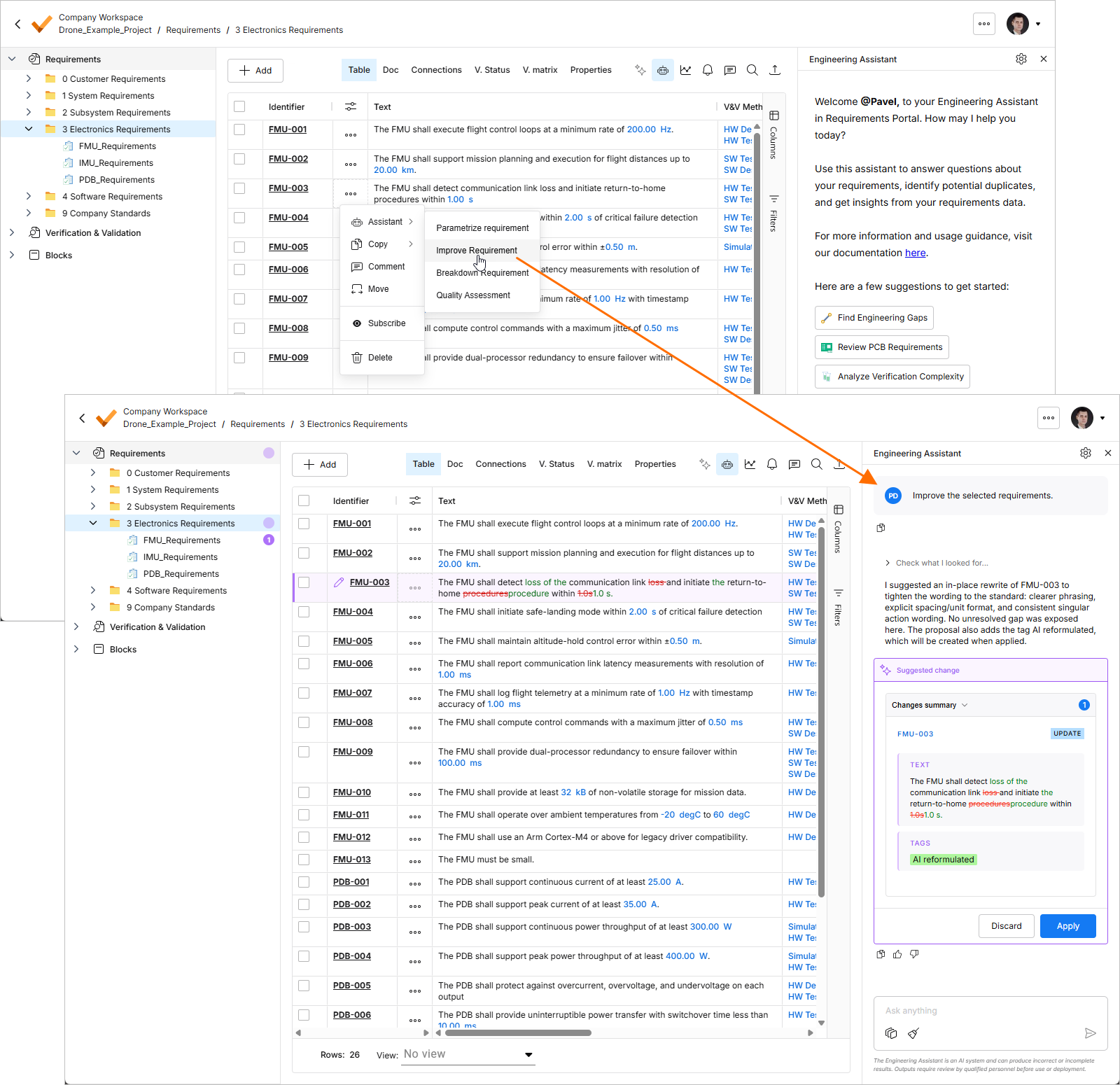 ).
). ).
). en la parte inferior del panel Engineering Assistant. Tenga en cuenta que solo puede haber una conversación a la vez (es decir, no hay un historial de conversaciones).
Uso y gestión de habilidades de IA
Una habilidad es un conjunto de instrucciones reutilizables que el Asistente de ingeniería puede ejecutar para realizar una tarea específica de forma más consistente. Una habilidad reúne las indicaciones sobre cómo debe realizarse una tarea de ingeniería específica —el objetivo, los límites, las entradas necesarias y los pasos que se deben seguir— para que se produzca el mismo resultado de forma consistente, independientemente de quién la ejecute o cuándo, y sin que cada usuario tenga que explicar las mismas instrucciones cada vez.
Una habilidad puede considerarse:
-
Un flujo de trabajo de ingeniería repetible
-
Un estándar de la organización convertido en un procedimiento ejecutable
-
Una forma de reunir conocimientos especializados y hacerlos reutilizables
La IA invoca las habilidades automáticamente, seleccionándolas y aplicándolas según su intención. No es necesario memorizar comandos ni seleccionar habilidades manualmente. Cuando envía un mensaje, el Asistente de ingeniería:
-
Analiza su intención y el contexto actual.
-
Revisa las habilidades disponibles en el espacio de trabajo.
-
Compara su solicitud con Short Description de cada habilidad para determinar cuáles son relevantes.
-
Selecciona la habilidad que mejor se ajuste.
-
Sigue Instructions de la habilidad para realizar la tarea.
-
Devuelve el resultado para que lo revise.
Por ejemplo, cuando envía Rewrite these requirements using our company writing standard, el Asistente de ingeniería detecta la intención (estandarización de requisitos), identifica la habilidad cuya descripción breve se ajusta mejor a esa solicitud, ejecuta las instrucciones definidas en esa habilidad y devuelve los requisitos mejorados.
Ejemplos de uso de habilidades
-
Break Down Complex Requirements – analizar los requisitos seleccionados y dividirlos en requisitos más pequeños que puedan verificarse de forma independiente, conservando la intención original.
Ejemplo de instrucción:
Break down these requirements. -
Apply Requirement Writing Standards – revisar los requisitos y reescribirlos de acuerdo con las directrices de redacción de requisitos de su organización. Las comprobaciones habituales incluyen ambigüedades, lenguaje no verificable, ausencia de actores y criterios de aceptación poco claros.
Ejemplo de instrucción:
Rewrite these requirements according to our requirement quality standard. -
Translate Requirements – traducir requisitos de un idioma a otro conservando el significado técnico, la terminología, los identificadores y las referencias de trazabilidad.
Ejemplo de instrucción:
Translate these requirements to German. -
Classify Requirements – aplicar a los requisitos un esquema de clasificación de la organización, como Electrónica, Mecánica, Software, Seguridad funcional, Ciberseguridad u otras taxonomías específicas de la empresa.
Ejemplo de instrucción:
Classify these requirements according to our applicability model. -
Generate Verification Criteria – analizar los requisitos y proponer métodos de verificación, criterios de aceptación o condiciones de prueba que puedan utilizarse para demostrar el cumplimiento siempre de la misma manera.
Ejemplo de instrucción:
Generate verification criteria for these requirements. -
Summarize a Specification/Section/Group of Requirements – generar un resumen conciso y estructurado de una especificación, una sección de requisitos o un conjunto de requisitos.
Ejemplo de instrucción:
Summarize the selected requirements.
El conjunto de habilidades disponibles se gestiona mediante la ventana AI Skills, a la que se accede haciendo clic en el botón  situado en la parte superior derecha del panel Engineering Assistant. Desde esta ventana, puede añadir nuevas habilidades y modificar o eliminar las existentes.

-
Las habilidades existentes se enumeran en la sección Workspace Skills, en el lado izquierdo de la ventana. Haga clic en una entrada para mostrar los detalles de la habilidad seleccionada.
-
Para añadir una nueva habilidad, haga clic en el botón
 situado en la parte inferior izquierda de la ventana. Aparecerá una entrada para la nueva habilidad en la lista. Defina Name, Short Description y Instructions para la nueva habilidad y, a continuación, haga clic en el botón
  situado en la parte inferior derecha.
Consulte la sección desplegable Prácticas recomendadas para formular una habilidad que aparece a continuación para obtener más información sobre cada campo.
-
Para editar una habilidad existente, selecciónela en la lista, modifique sus campos según sea necesario y, a continuación, haga clic en el botón
 situado en la parte inferior derecha.
-
Para eliminar una habilidad existente, selecciónela en la lista, haga clic en el botón
 situado en la parte inferior derecha y, a continuación, confirme la eliminación.
Prácticas recomendadas para formular una habilidad
Una buena habilidad ayuda a la IA a comprender dos cosas:
-
Cuándo debe utilizarse la habilidad
-
Qué debe hacer la IA cuando se ejecuta la habilidad
Al definir una habilidad,
Esto se expresa mediante tres campos, cada uno con un propósito diferente:
-
Name – le ayuda a reconocer la habilidad.
-
Short Description – ayuda a la IA a decidir cuándo es relevante la habilidad.
-
Instructions – define el comportamiento que debe seguir la IA una vez seleccionada la habilidad.
Consulte las secciones siguientes para obtener más información sobre cada campo.
Nombre
El Name debe ser breve, claro y orientado a la acción. Debe ayudarle a comprender rápidamente qué se pretende hacer con la habilidad. Un buen nombre suele describir la acción y el tipo de datos de ingeniería con los que trabaja la habilidad.
Un buen nombre de habilidad debe ser:
-
Lo suficientemente específico como para distinguir la habilidad de las demás
-
Lo suficientemente breve como para identificarlo fácilmente en la lista de habilidades
-
Centrado en la tarea principal que realiza la habilidad
-
Redactado en un lenguaje que los usuarios comprendan de forma natural
Evite nombres demasiado amplios o genéricos. Si el nombre puede aplicarse a muchas tareas diferentes, probablemente no sea lo bastante específico.
Descripción breve
La Short Description ayuda a la IA a comprender en qué consiste la habilidad y cuándo debe activarse. Este campo es importante porque no es necesario seleccionar una habilidad manualmente. El asistente analiza su solicitud, la compara con las habilidades disponibles y decide si alguna es pertinente.
Una buena descripción breve debe explicar:
-
Qué tarea realiza la habilidad
-
A qué tipo de datos de ingeniería se aplica
-
Cuándo debe utilizarse la habilidad
-
Qué resultado se espera que produzca la habilidad
La descripción breve debe ser concisa, pero no vaga. Debe incluir suficiente contexto para que la IA pueda distinguir esta habilidad de otras similares.
Una descripción breve deficiente solo indica a qué ámbito pertenece la habilidad. Una descripción breve sólida explica la tarea específica, el contexto previsto y la situación que debe activarla. Por ejemplo, en lugar de describir una habilidad como algo que «ayuda con los requisitos», la descripción debe explicar si la habilidad revisa la calidad de los requisitos, desglosa requisitos complejos, traduce el texto de los requisitos, detecta conflictos, genera criterios de verificación o realiza otra acción específica.
Cuanto mejor explique la descripción breve el propósito de la habilidad y su contexto de uso, más fiable será la decisión del asistente sobre cuándo aplicarla.
Instrucciones
Las Instructions definen lo que debe hacer la IA una vez seleccionada la habilidad. Este es el campo más importante para controlar el comportamiento de la habilidad. Mientras que la descripción breve ayuda a la IA a decidir cuándo utilizar la habilidad, las instrucciones definen cómo debe ejecutarse.
Las buenas instrucciones deben redactarse como indicaciones claras y paso a paso. No solo deben describir el resultado final, sino también el razonamiento y las restricciones que la IA debe seguir al producirlo.
Las instrucciones deben explicar:
-
What the AI should analyze first – por lo general, el asistente debe comprender la intención de ingeniería, el contexto, la estructura o las relaciones antes de modificar o generar cualquier contenido.
-
What steps the AI should perform – el comportamiento debe dividirse en pasos explícitos para que el resultado sea reproducible y predecible.
-
What the AI should preserve – esto puede incluir la intención original, los identificadores de los requisitos, los términos técnicos, las unidades, los valores, las restricciones, las referencias, la aplicabilidad, la jerarquía o el contexto de trazabilidad.
-
What the AI must not do – las buenas habilidades impiden explícitamente que la IA invente detalles de ingeniería que faltan, cambie la intención, introduzca nuevas suposiciones o aplique cambios sin la revisión del usuario.
-
How the AI should handle uncertainty – si falta información, es ambigua o resulta insuficiente, la habilidad debe indicar a la IA que señale el problema con claridad en lugar de hacer conjeturas.
-
What output format is expected – la habilidad debe definir si el resultado debe ser una tabla, una lista con viñetas, un texto reformulado, un resumen, una lista de comprobación o un informe estructurado.
Las buenas instrucciones son especialmente importantes en el trabajo de ingeniería porque el asistente puede estar trabajando con datos que afectan a especificaciones, validaciones, decisiones de diseño o implementaciones posteriores. Por lo tanto, la habilidad debe orientar a la IA para que resulte útil sin mostrar un exceso de confianza.
Otras notas
-
El objetivo no es redactar una solicitud extensa. El objetivo es definir un procedimiento operativo claro para la IA.
-
Keep Skills Focused
Una habilidad debe realizar bien una única tarea reproducible.
Si una habilidad intenta hacer demasiadas cosas, al asistente le resulta más difícil saber cuándo utilizarla y a los usuarios les cuesta más confiar en el resultado. Por ejemplo, una habilidad no debe combinar el desglose de requisitos, la traducción, la revisión de calidad, el análisis de trazabilidad y la generación de verificaciones, salvo que esas acciones formen parte intencionadamente de un único flujo de trabajo definido con precisión.
Si el propósito de la habilidad requiere varias acciones no relacionadas entre sí, divídala en habilidades independientes.
-
Define Boundaries Clearly
Las buenas habilidades definen sus límites de forma explícita.
Esto es especialmente importante cuando se trabaja con requisitos, especificaciones y datos de ingeniería. El asistente debe saber qué puede cambiar, qué solo debe sugerir y qué no debe dar nunca por supuesto.
Algunos límites útiles son:
-
No cambiar la intención de ingeniería original
-
No inventar valores, restricciones ni decisiones de diseño
-
No eliminar identificadores ni referencias
-
No dar por supuestos los métodos de verificación que falten
-
No aplicar cambios automáticamente sin la revisión del usuario
-
No tratar la información poco clara como un hecho
Los límites claros reducen el riesgo de generar resultados de ingeniería plausibles pero incorrectos.
-
-
Define the Output Format
Una habilidad debe indicar a la IA cómo presentar el resultado.
Un formato de salida coherente facilita la revisión, la comparación y la reutilización de la habilidad.
Según la habilidad, el resultado puede ser:
-
Una tabla
-
Una lista con viñetas
-
Un requisito reformulado
-
Un informe estructurado
-
Una lista de comprobación
-
Un resumen
-
Una lista de cambios propuestos
-
Un conjunto de preguntas o cuestiones pendientes
El formato de salida debe ajustarse al propósito de la habilidad. Por ejemplo, las habilidades orientadas a la revisión suelen funcionar bien con tablas que incluyen columnas para el problema, la explicación y la recomendación. Las habilidades orientadas a la reformulación suelen funcionar bien cuando muestran el texto original, el resultado propuesto y la justificación.
-
 Localizado por IA