
Creazione dei requisiti
Esistono tre modi per creare requisiti in Requirements & Systems Portal:
-
Creazione manuale
-
Usa l'AI per generare requisiti in base a un prompt
In questa sezione ci concentreremo su come creare requisiti aggiungendo manualmente le informazioni necessarie. Per maggiori dettagli sulle altre due opzioni, utilizza i link per accedere alla documentazione corrispondente.
Per aggiungere manualmente un nuovo requisito a una specifica, fai clic sul pulsante  in alto a sinistra e seleziona Create Requirement dal menu che appare. Si aprirà una finestra in cui potrai specificare la Specification e il Section a cui apparterrà il requisito, nonché un Identifier univoco e il Requirement Text. Inoltre, prima di creare il requisito, puoi verificare eventuali Values + Units (Valis) che possono essere trasformati in parametri (abilitando l'opzione Check for possible Valis ).
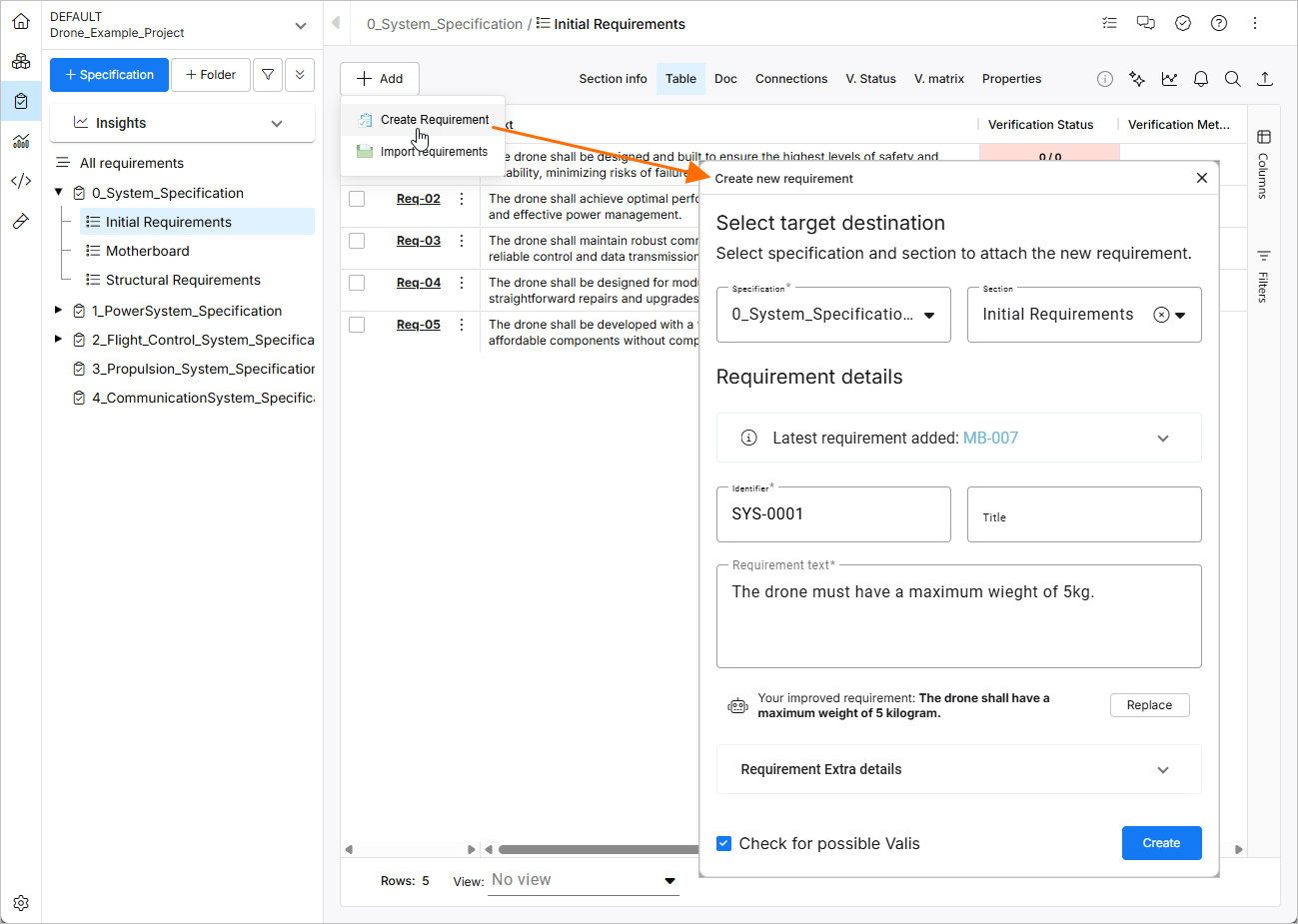
Aggiungi requisito - Come creare manualmente un requisito in Requirements & Systems Portal.
Valis nei requisiti
I Valis possono essere visualizzati nel testo di un requisito per specificare valori numerici con la relativa unità. Questi Valis vengono aggiornati automaticamente nel testo quando il valore cambia. Per aggiungere manualmente un Vali al testo dei requisiti, digita il simbolo del dollaro $ per aprire un menu a discesa da cui selezionare un Vali preesistente. Dopo aver selezionato un Vali, questo verrà visualizzato nel testo del requisito come Bold Blue Text. Passando il cursore sopra di esso, una finestra popup mostrerà ulteriori informazioni su quel parametro.
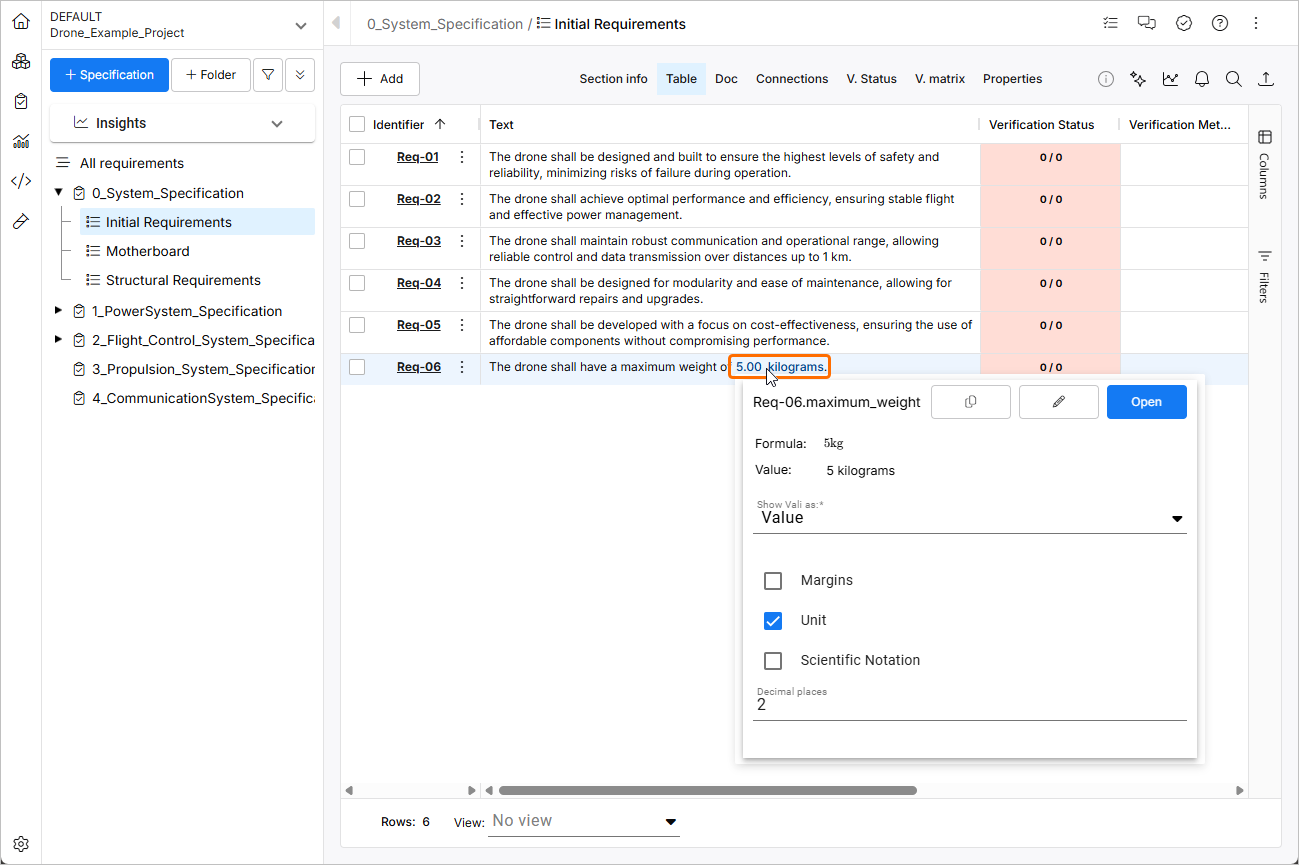
Vali nel requisito - Dopo aver selezionato un Vali preesistente dal menu a discesa (dopo aver digitato il simbolo del dollaro $), puoi visualizzare maggiori informazioni su quel parametro passandoci sopra con il cursore.
È anche possibile aggiungere un nuovo Vali che appartiene a un requisito digitando il simbolo del dollaro $ e selezionando "+" nell'angolo in alto a destra del popup. Successivamente, puoi definire il nome, la formula e l'unità del nuovo Vali in modo simile alla procedura di creazione di un Vali. Questi Valis nel requisito ti aiutano a eseguire automaticamente il confronto con i Valis del progetto di sistema quando vengono utilizzati nel metodo di verifica “Rules” (spiegato in Verifica nella sezione Requisito).
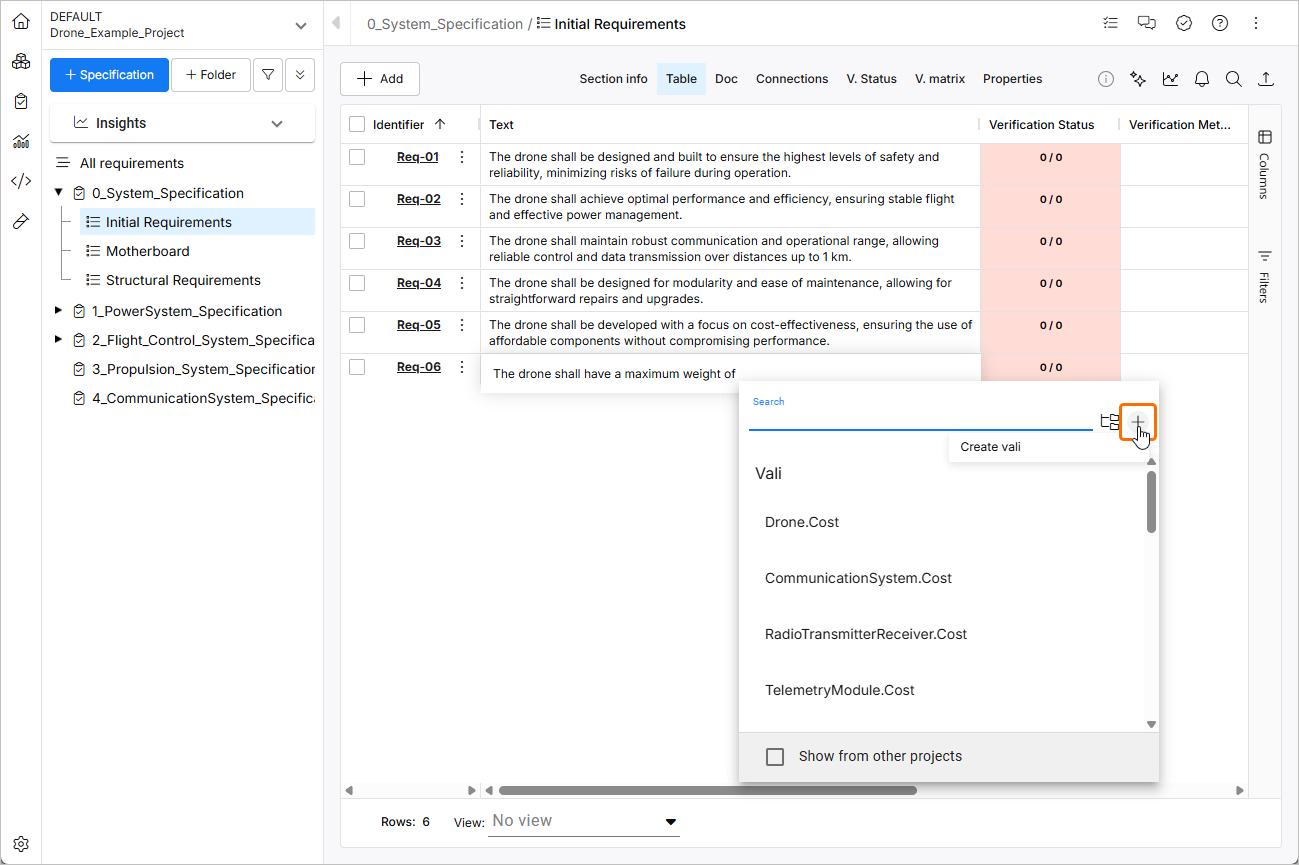
Creazione di un Vali - Creare un Vali nel testo del requisito è molto semplice: basta digitare il simbolo del dollaro $ e selezionare l'icona +.
 Localizzato tramite A