
KB: "Apply to Children" Does Not Propagate Folder Permissions
 A365
A365
Solution Details
Parent Permissions Not Propagating Through Hierarchy
When managing folder permissions from the Explorer panel in Altium Designer, users may attempt to propagate permissions from a parent folder by enabling Apply to Children. However, permissions configured on the parent folder may not be applied to child folders and managed items as expected. This occurs because the Apply to Children option in Altium Designer is obsolete and does not perform the required permission propagation.
Additionally, after using Enforce inheritance for all child items in the Altium 365 Web Interface, child folders may continue to display users, groups, or permissions that are not configured directly on the parent folder. This is expected because inherited permissions are added to existing child permissions rather than replacing them.
Additive Inheritance Does Not Synchronize Permissions
Altium 365 permission inheritance does not replace the complete permission set of a child folder or item with the permission set of its parent.
Instead, permission inheritance is additive:
Effective Child Permissions = Inherited Parent Permissions + Existing Additional Child PermissionsExample:
Parent Folder
- Mechanical Engineers – Can Edit
- Reviewers – Can Edit
Child Folder Before Inheritance
- Engineers – Can View
After inheritance is enabled, the effective permissions of the child folder can include:
- Mechanical Engineers – inherited from the parent
- Reviewers – inherited from the parent
- Engineers – existing additional permission retained on the child
The existing Engineers permission is preserved rather than removed.
The parent permission set is passed down to descendants rather than replacing their existing permission sets. Any existing extended permissions on a subfolder or managed item remain.
Therefore: Permission inheritance should not be interpreted as permission synchronization.
A child folder or item can have more permissions than its parent.
The official Altium documentation also describes that additional permissions introduced at a lower level of the hierarchy continue to be inherited further down without affecting existing permissions. See: Inheritance-controlled Sharing Restrictions
Use Supported Inheritance Enforcement Features
- Do not use Apply to Children in the Altium Designer Explorer panel as the primary method for propagating permissions.
- Use Enforce inheritance for all child items from the Altium 365 Web Interface.
- Understand that permission inheritance is additive and does not necessarily result in identical parent and child permission sets.
- If identical parent and child permission configurations are required, use the alternative procedure described later in this article.
The supported functionality can be accessed from:
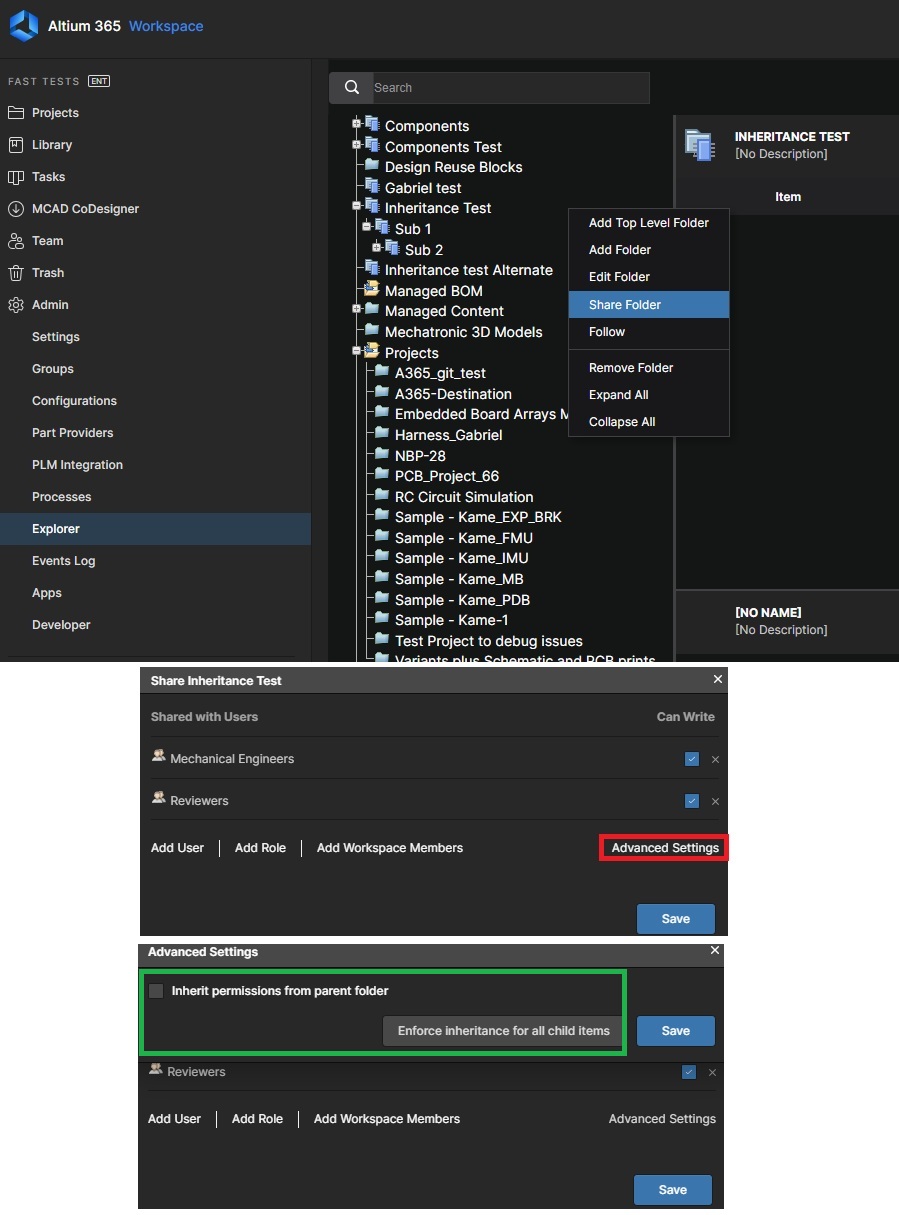
- Folder » Share Folder » Advanced Settings
- Admin » Explorer » Folder Sharing » Advanced Settings
The command is available to Workspace Administrators and operates on folders.
It enables Inherit parent folder permissions for all descendants of the selected folder, including children, grandchildren, great-grandchildren, and subsequent levels of the hierarchy.
How “Enforce Inheritance for All Child Items” Works
The Enforce inheritance for all child items command does not copy a parent folder's permission list and overwrite the permission lists of every descendant.
Instead, the command enables:
Inherit parent folder permissions
for folders and items throughout the descendant hierarchy.
The normal permission inheritance mechanism then causes each child object to inherit permissions from its parent. The feature does not invoke a permission replacement process.
Example:
Parent Folder
- Mechanical Engineers
- Reviewers
Child Folder Before Inheritance
- Engineers
After Enforce inheritance for all child items is executed:
Child Folder
- Mechanical Engineers – inherited
- Reviewers – inherited
- Engineers – existing permission retained
Therefore:
Parent:
Mechanical Engineers + Reviewers
Child Before Inheritance:
Engineers
Child After Inheritance:
Mechanical Engineers + Reviewers + Engineers
This is the expected result.
The presence of Engineers on the child folder does not mean that permission inheritance has failed.
Steps to Restore and Manage Permission Inheritance
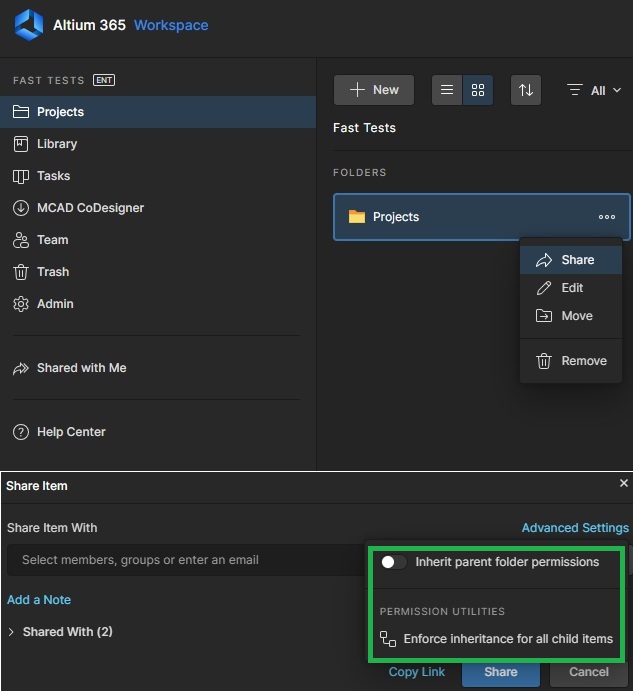
Method 1 – From Projects
- Sign in to the Altium 365 Workspace Web Interface.
- Open Projects.
- Select the required parent folder.
- Click Share.
- Open Advanced Settings.
- Select Enforce inheritance for all child items.
- Confirm the operation.
The command enables permission inheritance throughout the descendants of the selected folder.
Method 2 – From Admin » Explorer
- Sign in to the Altium 365 Workspace Web Interface.
- Navigate to Admin » Explorer.
- Select the required parent folder.
- Open the folder's sharing settings.
- Select Advanced Settings.
- Click Enforce inheritance for all child items.
- Confirm the operation.
Expected Results
- Inherit parent folder permissions is enabled throughout the affected descendant hierarchy.
- Parent permissions are inherited by descendant folders and managed items.
- Permission inheritance operates recursively through children, grandchildren, great-grandchildren, and subsequent hierarchy levels.
- Existing additional permissions assigned to child folders or items are retained.
- Child permission sets do not necessarily become identical to the parent folder permission set.
- Descendant folders inherit at least their parent's permissions while retaining any additional permissions already assigned to them.
- Users who have access through the parent folder permission structure receive the corresponding inherited access to descendant content.
The feature is intended to restore or enforce inheritance, not to synchronize or replace the complete permission configuration of every descendant object.
Alternative Method to Apply the Exact Parent Folder Permissions to Child Folders
If the requirement is for child folders to have exactly the same permissions as the parent folder, rather than retaining permissions previously assigned directly to the child folders, the standard permission inheritance mechanism does not provide this behavior by itself.
The Enforce inheritance for all child items command enables permission inheritance throughout the hierarchy, but inheritance is additive.
Therefore, permissions already assigned to a child folder that are not present on the parent folder are preserved.
Example:
Parent Folder Permissions
- Mechanical Engineers
- Reviewers
Child Folder Existing Permissions
- Engineers
After using Enforce inheritance for all child items, the child folder can contain:
- Mechanical Engineers
- Reviewers
- Engineers
If the required result is:
Parent Folder
- Mechanical Engineers
- Reviewers
Child Folder
- Mechanical Engineers
- Reviewers
with the previously assigned Engineers permission no longer present, the following alternative method can be used.
Steps
- Ensure that, for each affected child folder, the Advanced setting Inherit permissions from parent folder is enabled.
- Create an Alternate Parent Folder with the same permissions currently assigned to the affected child folders.
- Move the affected child folders under the newly created Alternate Parent Folder.
- Verify that the child folders are correctly inheriting permissions from the Alternate Parent Folder.
- Modify the permissions of the Alternate Parent Folder so that they exactly match the desired permissions of the original parent folder.
- Verify that the affected child folders now have the required permission configuration and that the intended permissions are propagated through the affected hierarchy.
- Move the affected child folders back under the original parent folder while ensuring that Inherit permissions from parent folder remains enabled.
Additional Notes
- Apply to Children in Altium Designer remains obsolete and currently does not perform the intended permission propagation.
- The alternative procedure does not repair or restore the Apply to Children functionality.
- The alternative procedure provides a method for achieving the permission configuration users may previously have expected from Apply to Children when exact parent-child permission matching is required.
- Recommended current method: Altium 365 Web Interface → Enforce inheritance for all child items.