KB: Project Modified Date Does Not Update After CoDesigner Push
 A365
Solution Details
Project Modified Date Does Not Change
After pushing ECAD or MCAD changes through MCAD CoDesigner, users may notice that the Project Modified Date displayed in the web viewer remains unchanged. This can create the impression that the synchronization did not occur, even though the push operation completed successfully.
CoDesigner Pushes Differ From Project Commits
A project commit performed from Altium Designer updates project content and therefore updates the Project Modified Date. Altium MCAD CoDesigner uses a different workflow. The ECAD and MCAD applications pass design changes through an Altium Workspace, which acts as a bridge between the two design domains. ECAD and MCAD engineers exchange those changes using CoDesigner Push and Pull operations. These synchronization activities are distinct from project commits and are recorded as project history events, so a CoDesigner Push does not update the Project Modified Date shown in the web viewer.
Use Project History to Validate Synchronization
- Use the Project Modified Date to determine when a project was committed from Altium Designer.
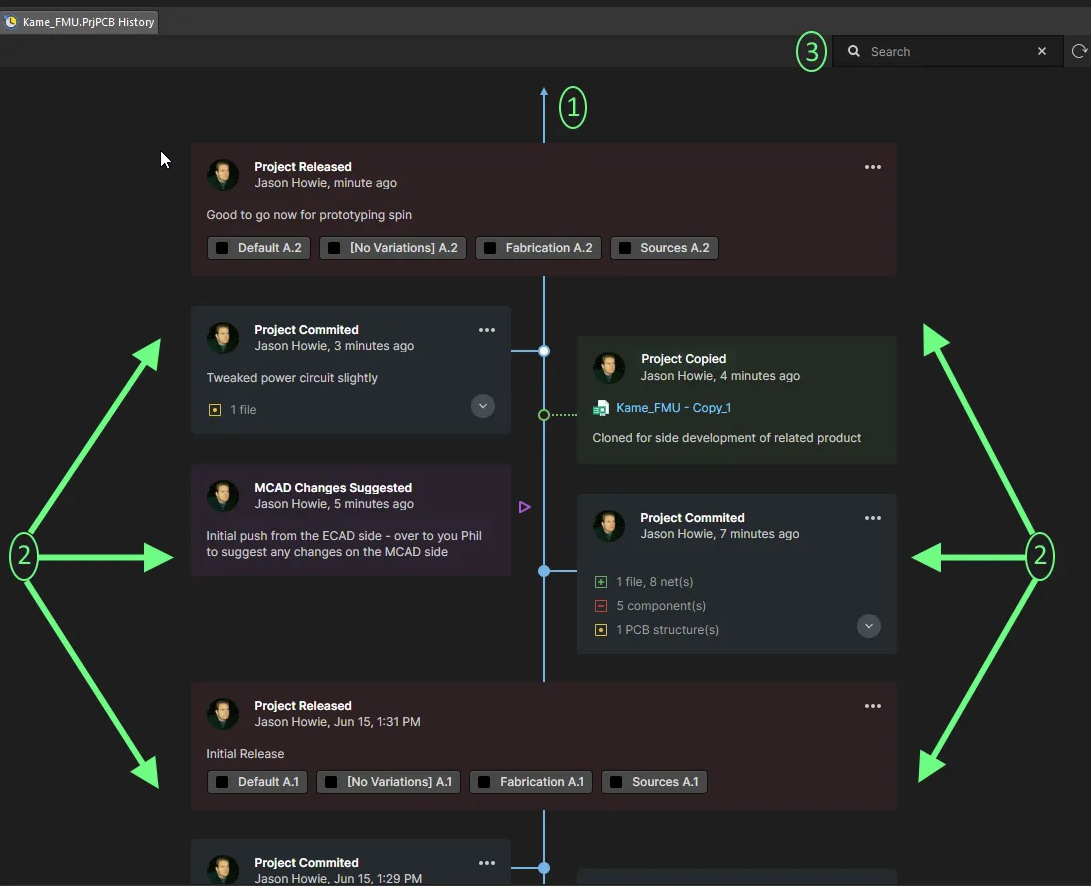
- Use the Project History timeline to verify ECAD-to-MCAD and MCAD-to-ECAD synchronization activities performed through CoDesigner.
- Review the timestamp associated with the relevant Project History entry to confirm when a synchronization activity occurred.
Review CoDesigner Activity in Project History
- Open the project in the web viewer.
- Select Project History.
- Review the timeline entries for ECAD and MCAD synchronization activities.
- Locate the relevant CoDesigner event in the timeline.
- Review the displayed date and time information for the synchronization event.