
KB: Requirements Panel Missing in Altium Designer
 A365
A365
Solution Details
Requirements panel missing in interface
The Requirements panel may not appear under the Panels menu in Altium Designer. This behavior can persist even after restarting the application or attempting to access requirements-related functionality, which can make it unclear whether the feature is available or correctly configured.
System or workspace prerequisites not enabled
The Requirements panel depends on two primary prerequisites:
- The EDMS.Requirements option must be enabled in Advanced Settings.
- The Altium 365 Requirements Portal must be activated and accessible in the workspace.
If either prerequisite is missing, the panel is hidden. Linking an Altium project to a requirements project and placing requirements are secondary steps required only to populate the panel with data.
Enable requirements features at all levels
- Enable the EDMS.Requirements advanced setting in Altium Designer.
- Verify that the Altium 365 Requirements Portal is activated and accessible in the workspace.
Steps to enable and verify panel visibility
- In Altium Designer, open Tools » Preferences » System » General » Advanced Settings.
- Search for Requirements and enable EDMS.Requirements.
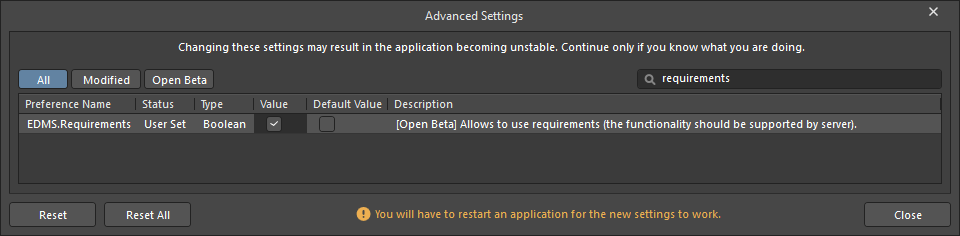
- Close the Advanced Settings and Preferences dialog, and restart Altium Designer.
- In the Altium 365 web interface, verify that the Requirements Portal is activated and accessible.
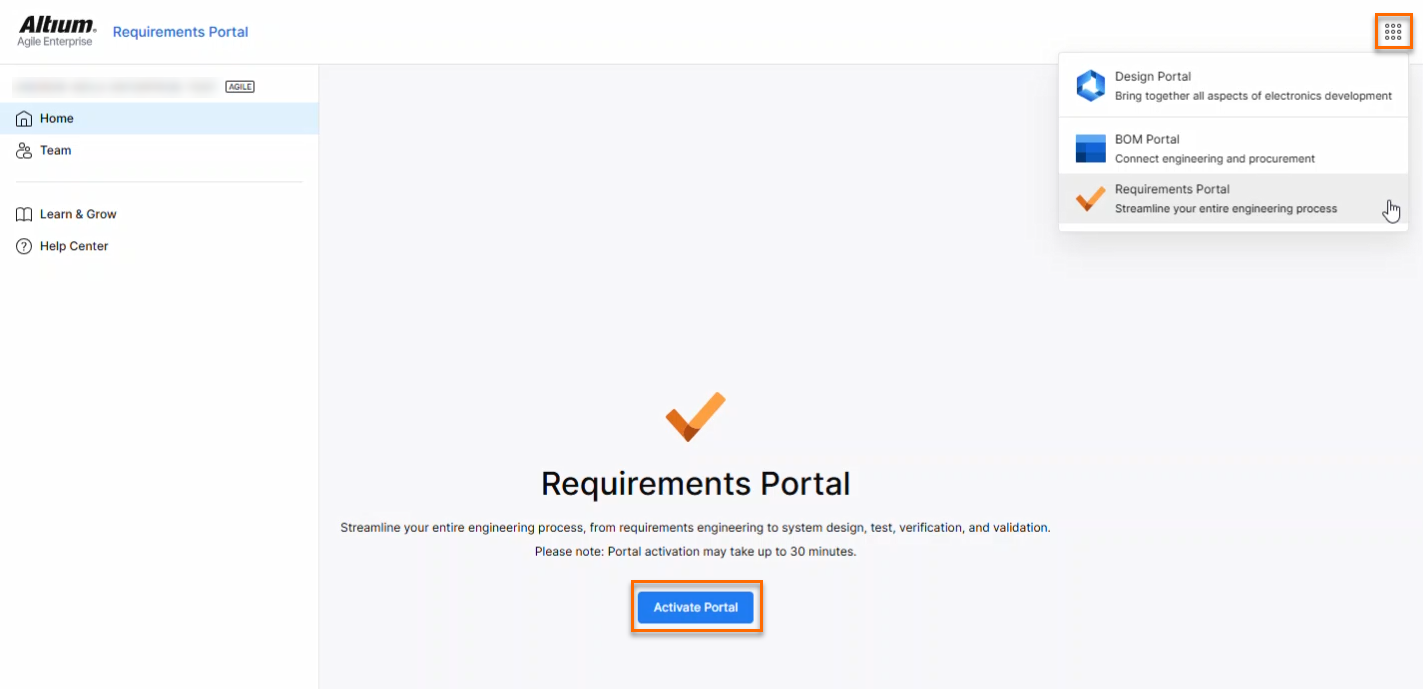
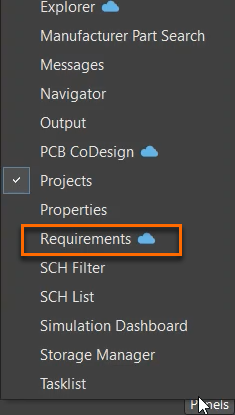
- Return to Altium Designer and open Panels » Requirements.
Additional Notes
Version information:
- The EDMS.Requirements advanced setting is available starting from Altium Designer 24.10 as an Open Beta feature.
- It is recommended to use the latest available version for full functionality and best stability.
Expected behavior:
- The Requirements panel should be visible even if the project is not linked.
- In this case, the panel displays the message: “The Project does not support requirements.”
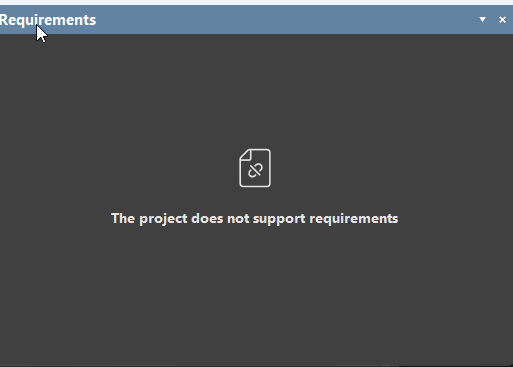
Linking an Altium project to a Requirements Portal project is not required to display the panel; it is required only to populate it.
Additional checkpoints for full functionality include:
- Linking the Altium project to a requirements project
- Placing requirements in schematic documents
- Refreshing the project after changes.