
KB: Altium 365 Proでプロジェクトを管理するためにフォルダーを使用する
 A365
A365
ソリューションの詳細
以前のバージョンの Altium Designer では、Explorer パネルを使用して、プロジェクトを特定のフォルダーにグループ化して整理することができます。グループ化は特定の種類に限定されず、ユーザーが意図したとおり柔軟に利用でき、たとえば複数のプロジェクトが 1 つの大規模プロジェクトの一部であることを認識しやすくなります。現在は Altium 365 で、ユーザーはまず特定のフォルダーをたどってからプロジェクトにアクセスし、プロジェクトを表示できるようになっています。
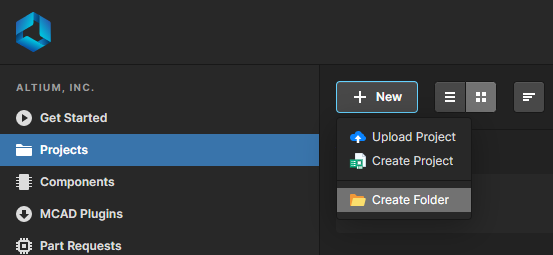
1 A365 の Web ブラウザーで、Projects タブに移動します。
3 クリックします 
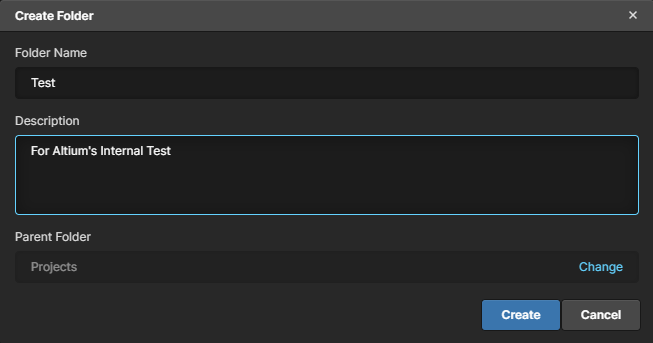
ポップアップ ウィンドウが表示されるので、必須の Folder Name と任意の Description を入力し、その後  をクリックして完了します。
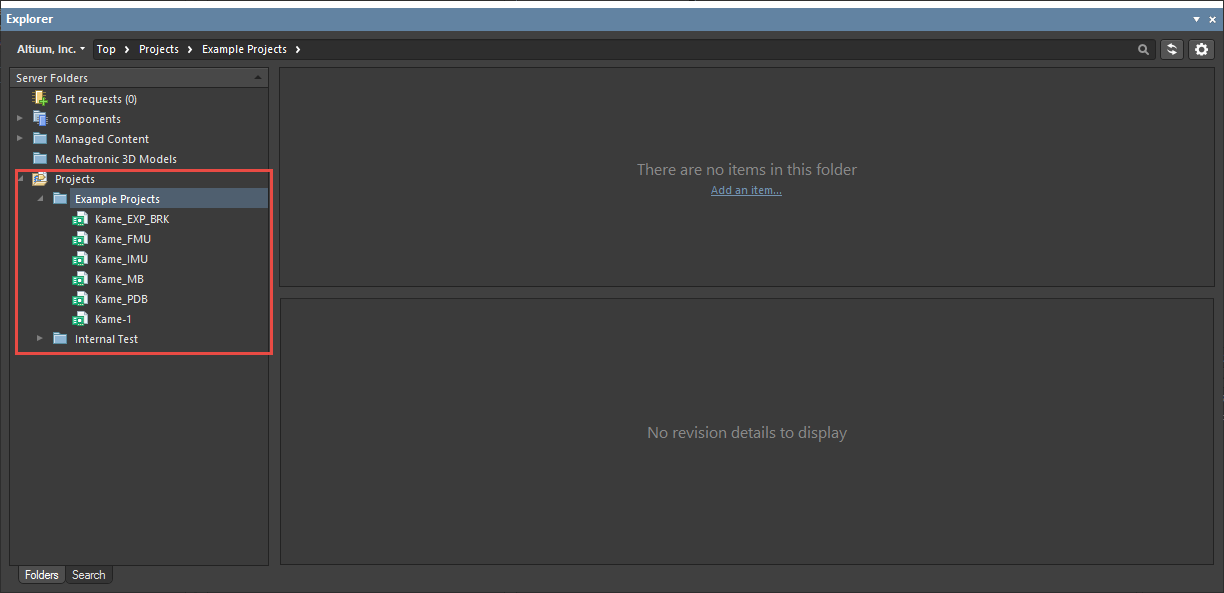
1 Altium Designer で、Explorer パネルを開きます。
3 「Add Sub Folder » Other Folder Type」を選択します。
4 Folder Type を Generic Folder に設定します。
5 Folder Name を任意のカスタム名に変更します。
6 「Add」をクリックします。
7 既存の managed project については、プロジェクトを新しく作成したフォルダーにドラッグ アンド ドロップします。
8 新しい managed project を作成する場合は、フォルダーのパスを新しく作成した Project サブフォルダーに一致するよう設定します。
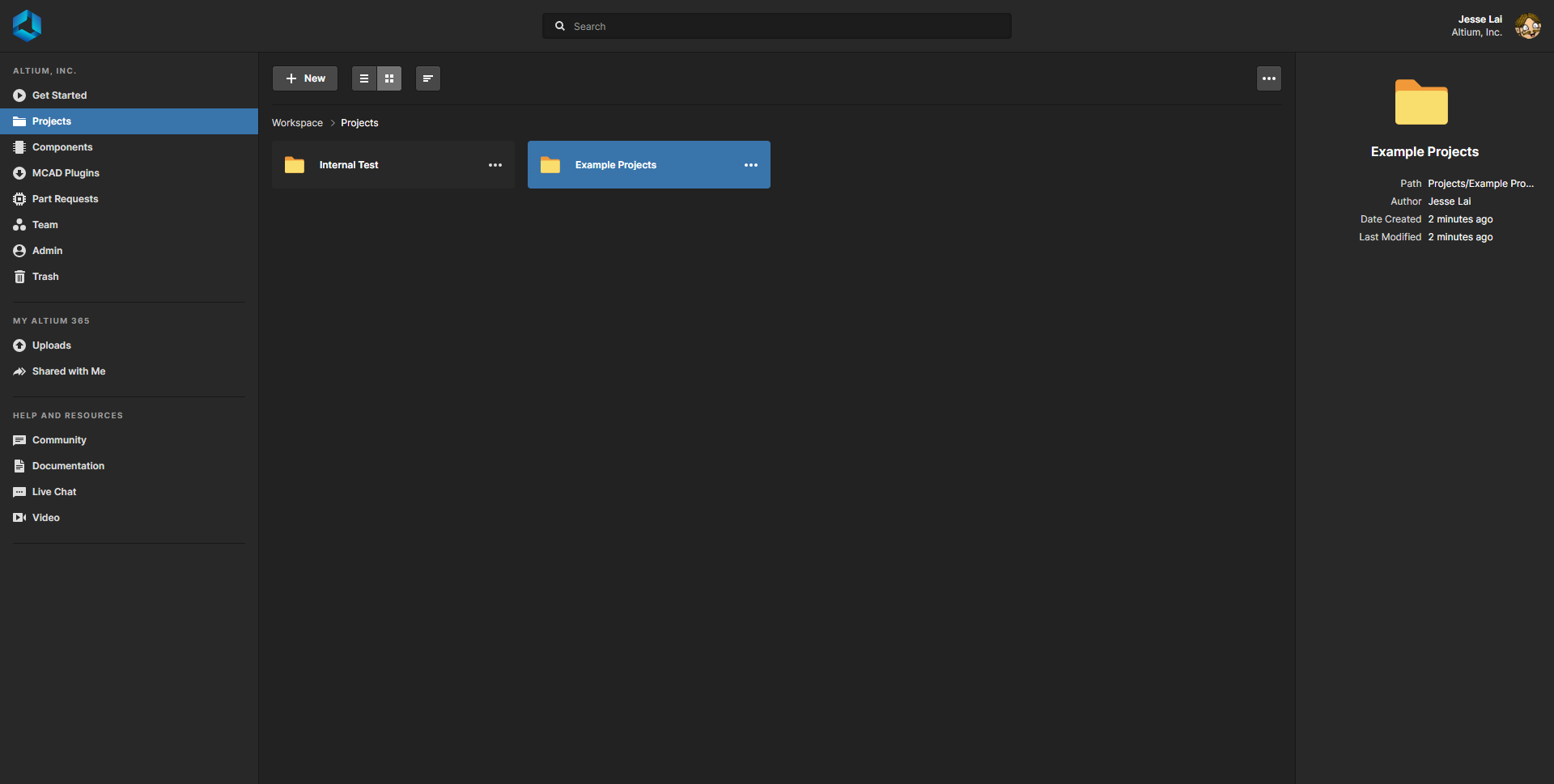
これが、Altium 365 の Projects セクションで表示したときの最終的な見え方です。
 AI で翻訳